

Tasks Logs
Learn how to track background tasks in the CommPeak Dialer and re-download your exported reports from the Tasks Logs page.
Some actions, such as exporting a large report or updating many leads at once, take time to complete. Instead of making you wait in the browser, the CommPeak Dialer runs them in the background as a task. The Tasks Logs page shows all these tasks, their progress, and the download links for your exported files.
Opening the Tasks Logs page
Go to Reports > Global Logs and switch to the Tasks Logs tab.
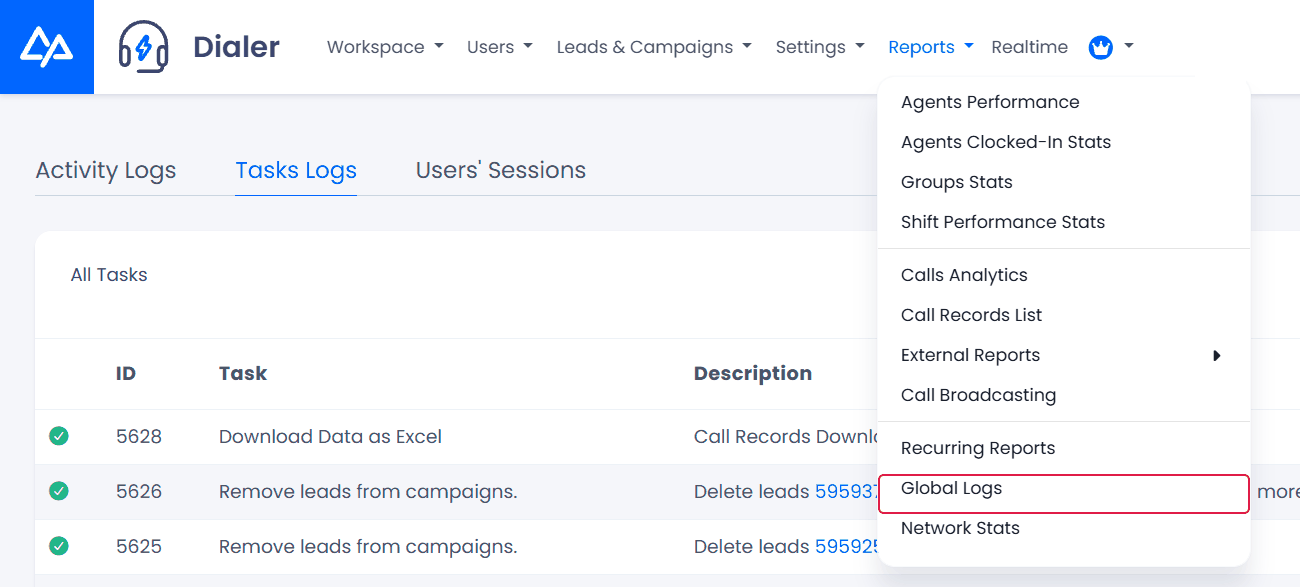
Global Logs in the Reports menu
NOTETo view this page, your user role needs the Tasks permission. Viewing the page and downloading files are separate permissions, so a user may be able to see the task list but not download files.
What you can find here
Tasks are created when you:
- Export reports to CSV or Excel, for example Call Records List, Call Analytics, Agents Performance, lead search results, or DNC lists
- Run bulk actions on leads, such as moving leads between campaigns, changing lead status, removing duplicates, and more
- Import lead files or upload DNC and blacklist files
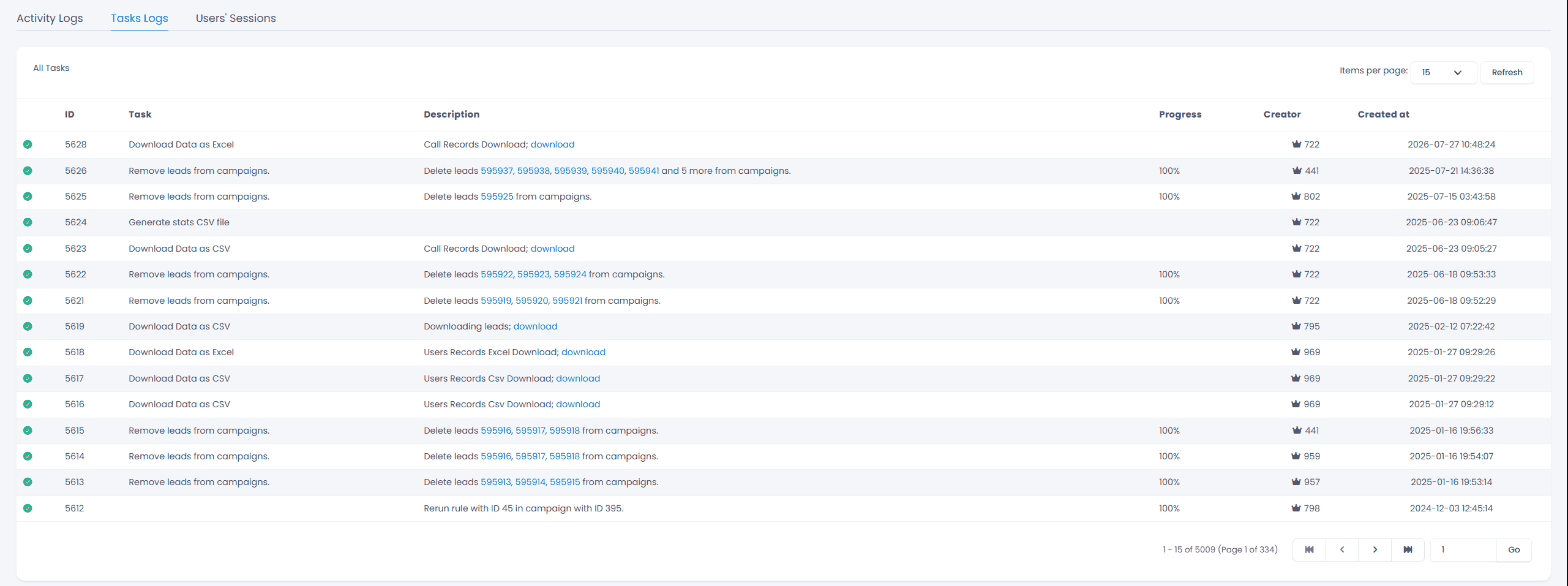
Tasks Logs page
The list shows all completed tasks, plus any unfinished tasks created in the last 2 days. The newest and still-running tasks appear at the top.
Tasks Logs columns explained
The Tasks Logs table includes the following columns.
| Column | Description |
|---|---|
| Status icon | A green check means the task is completed. A red X means the task is still running or didn't finish. |
| ID | The task number. It matches the number in the "Task #… was created" message you see after starting an export. |
| Task | What the task does, with links to the related campaign, lead file, or user |
| Description | The task result or details. For exports, the download link appears here once the file is ready. For long descriptions, click Show all results to see the full text. |
| Progress | The completion percentage, for tasks that report progress |
| Creator | The user who started the task. A crown icon means a CommPeak support team member started it on your behalf. |
| Created at | The date and time when the task was created |
Use Items per page to choose how many tasks to show on each page, and the arrows at the bottom to move between pages. Click Refresh to update the list.
Re-downloading an exported file
If you exported a report and need the file again, you don't have to export it again. Follow these steps:
- Go to Reports > Global Logs > Tasks Logs.
- Find your export by its ID, creator, or creation time.
- Make sure the task shows a green check, then click download in the Description column.

Download links in the Description column
The file is downloaded in the format you selected when exporting: CSV or Excel.
WARNINGExported files are stored for about 7 days. After that, the download link shows File not found, and you need to export the report again.
Troubleshooting
The task shows a red X. The file isn't ready yet. You won't receive a notification when it's done, so click Refresh after a few minutes.
I can't find an export that the support team ran for me. Exports created by the CommPeak support team may not appear in your list. Contact the support team and ask them to send you the file or run the export again.
Phone numbers in the description are hidden. Phone numbers are masked according to your phone masking settings.
Updated about 1 hour ago