

Blocked Destinations
Create a list of blocked numbers to prevent these numbers from receiving messages from TextPeak.
Log in to TextPeak in your browser and open Settings > Blocked Destinations, where you can add numbers to a blacklist: these numbers will not receive messages from TextPeak.
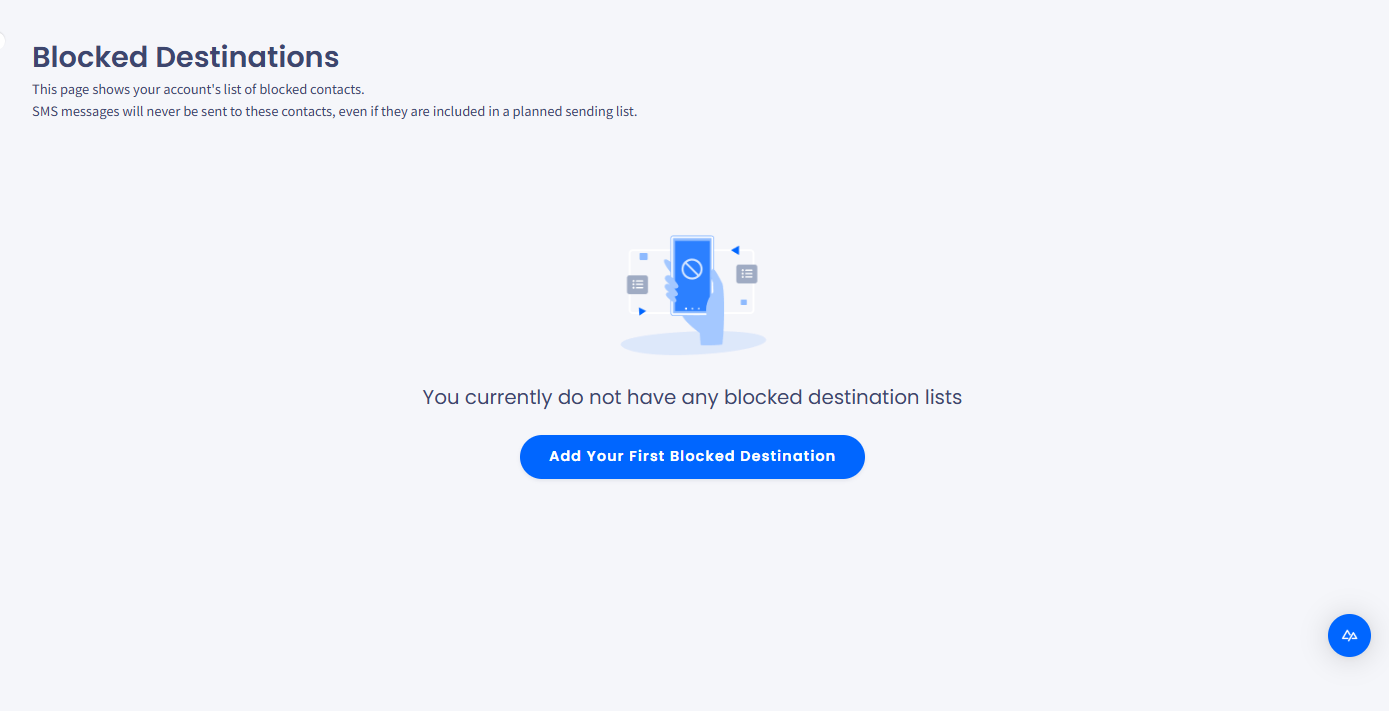
Blocked Destinations menu tab

Blocked Destinations tab
To add phone numbers to a list of blocked destinations:
Prepare the file
Prepare a .csv file with numbers to block.
Open Blocked Destinations
Log in to TextPeak in your browser and open Settings.
Add blocked destinations
On the Blocked Destinations tab, click the Add Blocked Destinations button.
Upload the file
On the page that opens, upload the .csv file you have prepared and click Next.

Add blocked destinations section: file upload
Select the number column
Select the file column that contains phone numbers.
Select the checkbox under the table if the first line of your file contains column titles and you want the program to ignore it.
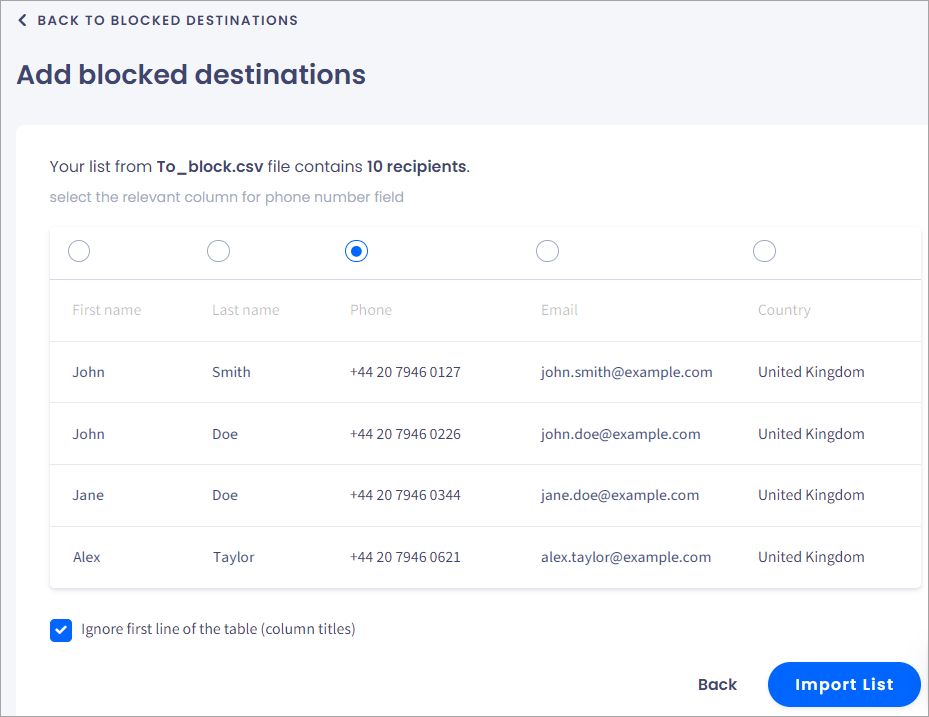
Add blocked destinations section: destinations list
Import the list
Click Import List.
Review the summary
You will see the summary of your file in a pop-up window. Review it and click Confirm.

Your imported list summary confirmation screen
The list will be added to the table. By hovering over the progress bar, you can see how many contacts have been parsed successfully.

Viewing contacts' parsing progress
If you want to view the blocked numbers, switch to the Phone numbers tab above the table.
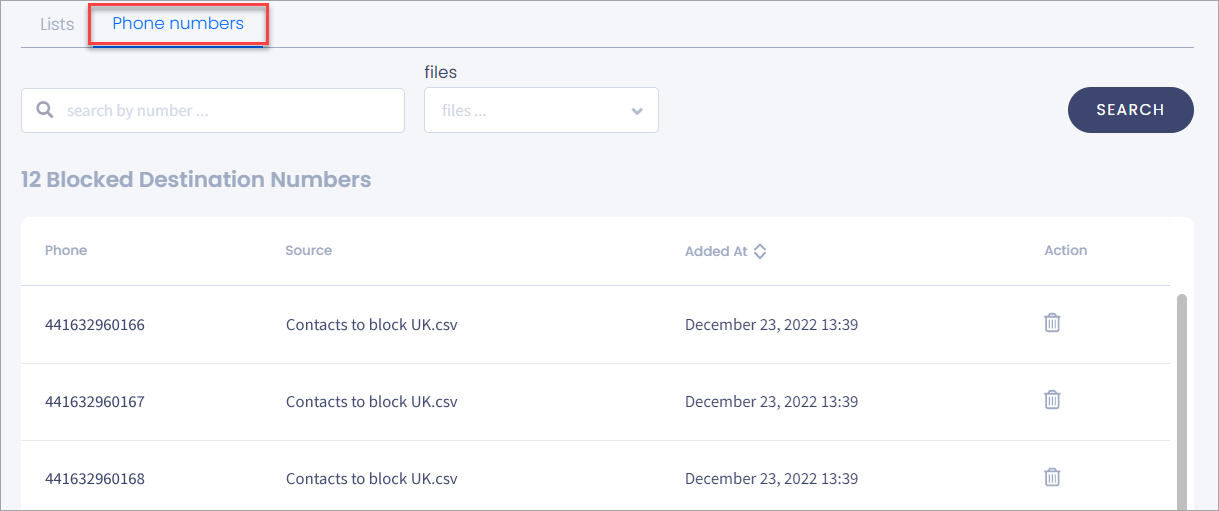
Phone numbers tab
Updated 4 days ago