

Groups Management
The Dialer Groups Management functionality helps to direct campaign leads to suitable agent desks by setting logical rules and filters.
The user groups functionality is one of the intelligence instruments in the CommPeak Dialer that contain logical rules and filters. Here, you can manage the call-assigning routine and direct specific groups of leads to suitable agent desks based on priority, language, expertise, shift, and other criteria.
Groups Management connects leads with agents. On the one hand, they contain logical rules that set lead filtering. On the other hand, priority groups define which agents with relevant skills will call the leads.
You can manage groups on the Groups Management page.
To access it, log in to your Dialer account, click Users in the top menu, then select Groups Management.
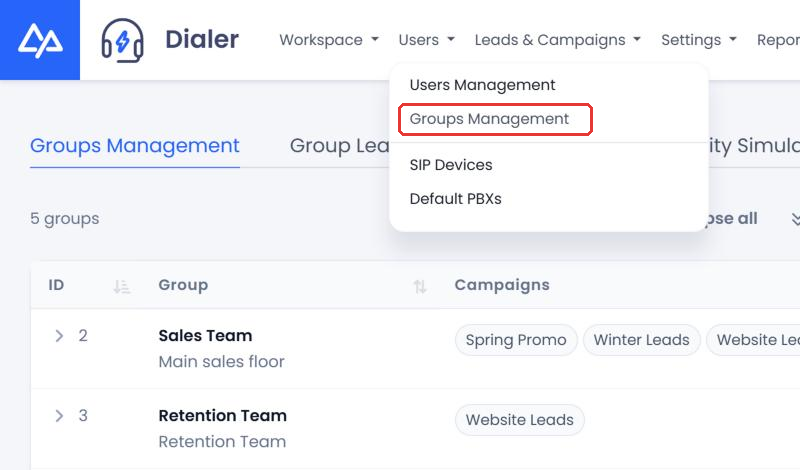
Groups Management tab
TIPSee some tips for managing user groups in the Dialer in our article.
CommPeak support team can help you configure groups according to your preferences.
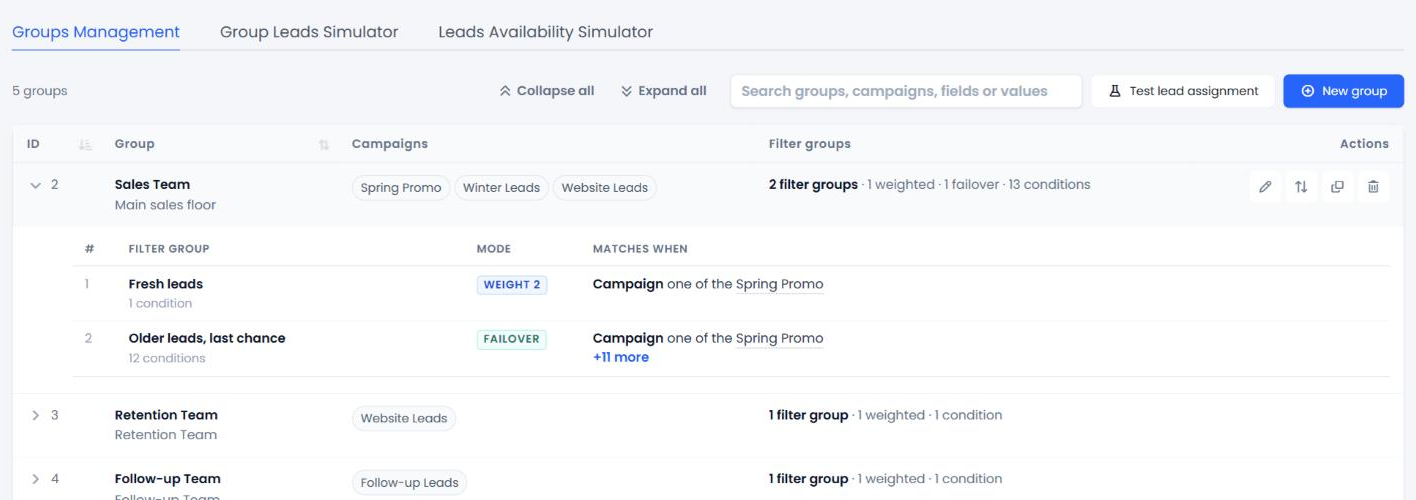
Groups Management tab
Three tabs at the top of the page switch between Groups Management, Group Leads Simulator and Leads Availability Simulator.
You can use the quick search option to find groups by keyword(s) in the group name, description, campaign, or inside the group's filter groups (filter group names, fields and values). The groups that don't have the keyword(s) will be removed from the view. Matches are highlighted in yellow. If the match is inside a filter group, the group opens and shows that filter group.
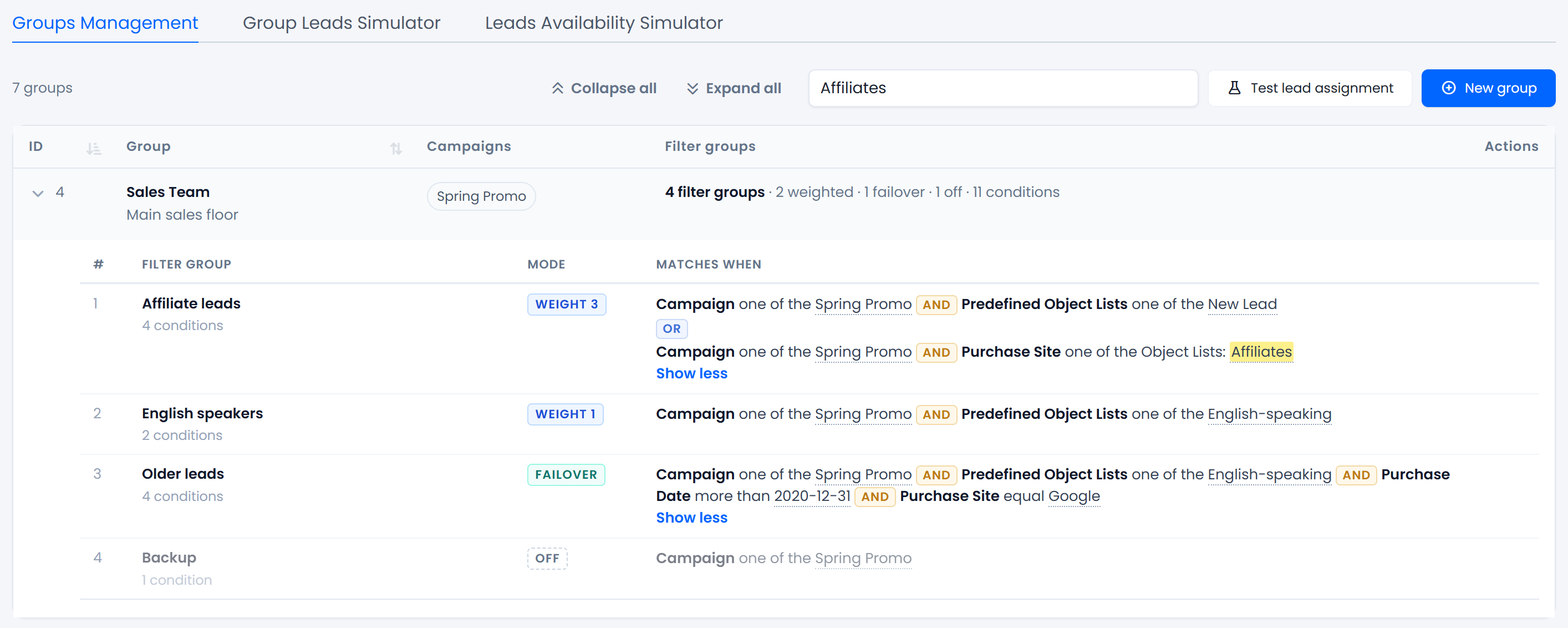
Using the quick search
You can see the following columns on the Groups Management page:
- ID
- Group - group name with its description under it
- Campaigns - campaigns assigned to the group
- Filter groups - the number of filter groups, how they work (weighted, failover or off) and the total number of conditions
- Actions - icons for Edit, Priority groups, Clone and Delete. They appear when you hover over the row
Click a group's row to see its filter groups: the order, the name, the mode (Weight, Failover or Off) and, under Matches when, the conditions in plain words. Use Expand all / Collapse all to open or close every group.
Click Edit (pencil icon) in the Actions column to edit a user group. On the page that opens, you can modify parameters and filter groups. When you're done, click Save at the bottom of the page.
Click Test lead assignment in the upper-right corner of the Groups Management page to check which Groups Management can call a campaign lead. Refer to this article for more explanations.
The pages below will provide you with information on how to make the most of the Groups Management functionality:
Edit Groups Management by adjusting basic parameters, filter groups, and predictive settings to tailor how leads are managed and dialed.
Learn how to filter groups within Groups Management work and how to configure them.
Apply these tips to effectively manage Groups Management and get the most out of your Dialer.
Use the Test lead assignment feature to verify that your lead belongs to only one user group and see which group it is.
Test group filters and see how many available leads the group can call.
Understand the concept of priority groups and how they are connected to skill groups and Groups Management.
Updated 10 days ago