

Snoozed Conversations
Learn how to snooze a TextPeak conversation to take it out of your view, how a snoozed conversation wakes up, and how snoozing affects the conversations you are assigned next.
Snoozing takes a conversation out of your view for a set period without closing it. Use it for a conversation you cannot finish yet: one waiting on a reply, on a colleague, or on something happening tomorrow.
A snoozed conversation retains its assignment and its history. It comes back on its own, either when the period ends or the moment anything happens on it.
Snoozing a conversation
- Open the conversation.
- Click Snooze on the conversation toolbar.
- Select how long to snooze it for.
The conversation takes the Snoozed status and leaves your default view.
The periods available are 1 hour, 3 hours, Tomorrow morning, 1 day, 3 days, 1 week, 2 weeks, and 1 month. To set your own, select Custom and choose a date and time.
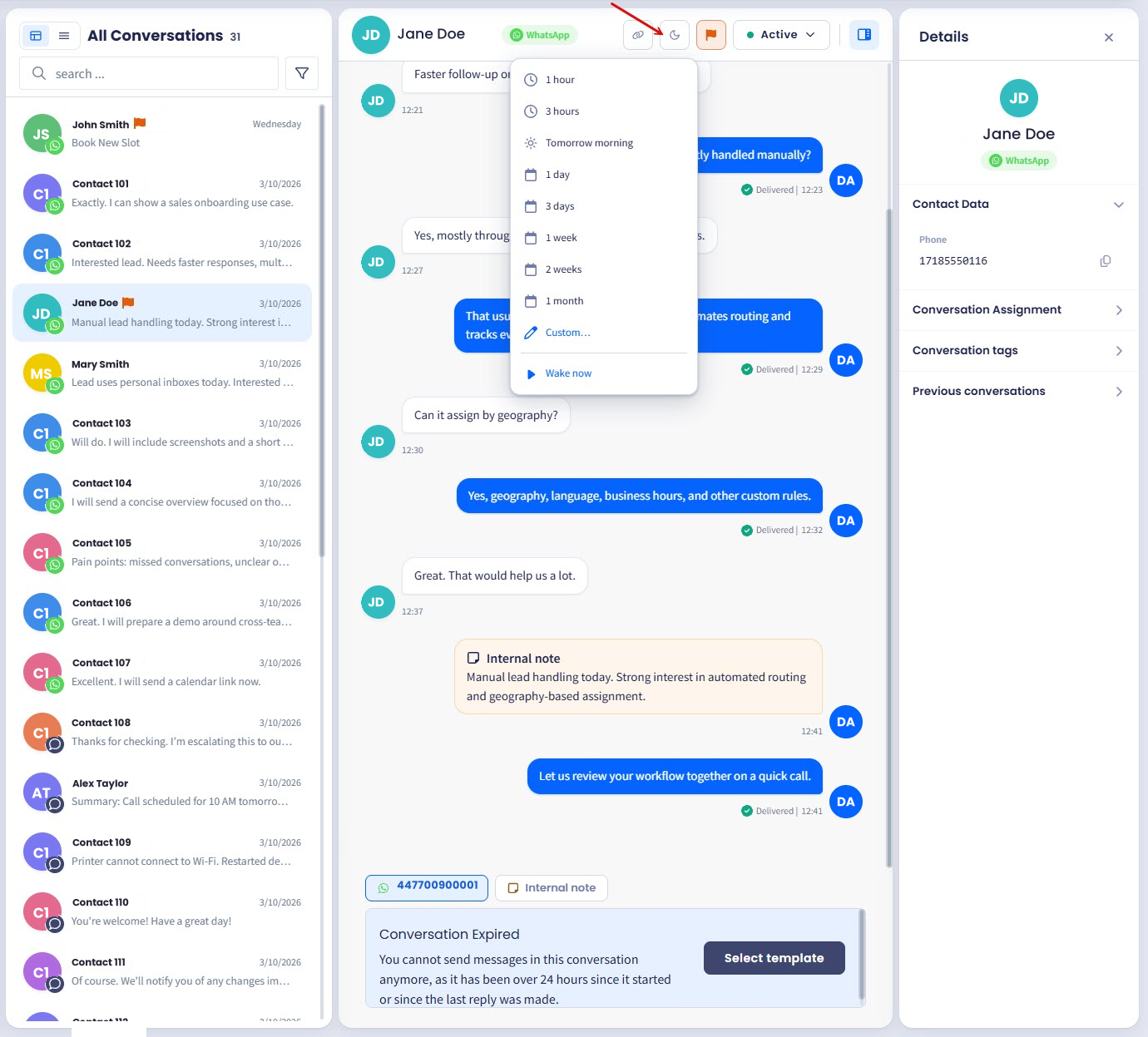
Snooze status picker
NOTEMaximum snooze length caps how far ahead you can snooze. Your manager sets it for each team, so if the period you want is missing, that cap is why. See the Assignment page.
Finding your snoozed conversations
Snoozed conversations leave your default view but stay in the Inbox.
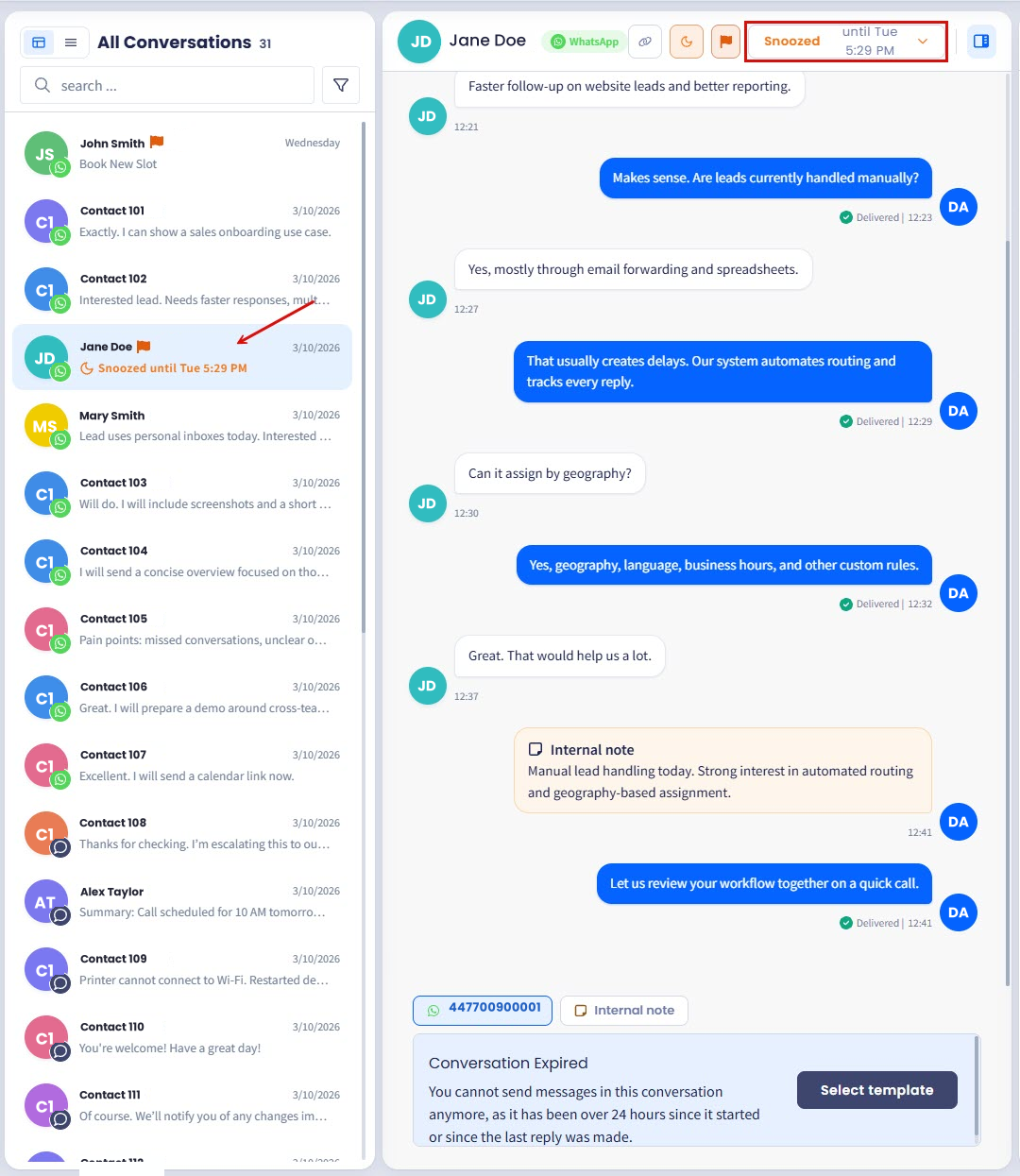
Snoozed conversation view
To see them, select Snoozed in the sidebar, under All conversations, Assigned to me, and Closed.
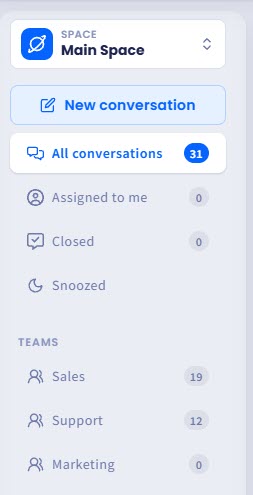
Conversation statuses
The list shows the snoozed conversations you are allowed to see. What that covers depends on your role: agents see their own, and managers see their teams.
For the full breakdown, see the Inbox Role Permissions page.
Waking a conversation early
A snoozed conversation wakes on its own when the period ends. Two things bring it back sooner.
Any activity cancels the snooze: a reply from the contact, a note from a colleague, or a status change. This is what snooze is for: park a conversation after you answer it, and it returns the moment the contact writes back.
You can also wake it yourself. Open the snoozed conversation, click Snooze, and select Wake now at the foot of the list of periods.
How snoozing affects what you are assigned
Snoozed conversations do not count toward your capacity: the limit on how many open conversations you can hold at once.
If you have a capacity of four and snooze one conversation, you count as holding three and can take another. That is the point of the setting: it lets you park a conversation you are blocked on without blocking your own queue.
When a snoozed conversation wakes, you can end up briefly above capacity. TextPeak does not take anything away from you, and no new conversation arrives until you are back under the limit.
Where the conversation goes when it wakes depends on your team's settings. If your team is set to Same agent, it waits for you. If it is set to Allow reassign, it can go to whoever is available.
It's your manager who sets this - see the Assignment page for details.
Updated 19 days ago