For AI agents: visit https://docs.commpeak.com/llms.txt for an index of all pages formatted in Markdown and endpoints in OpenAPI. Append .md to any documentation page URL to get its markdown version.
In your CommPeak account, click on the + Add Credit button at the top right of any page, next to your balance figure.
CommPeak Portal dashboard with the + (Add credit) button
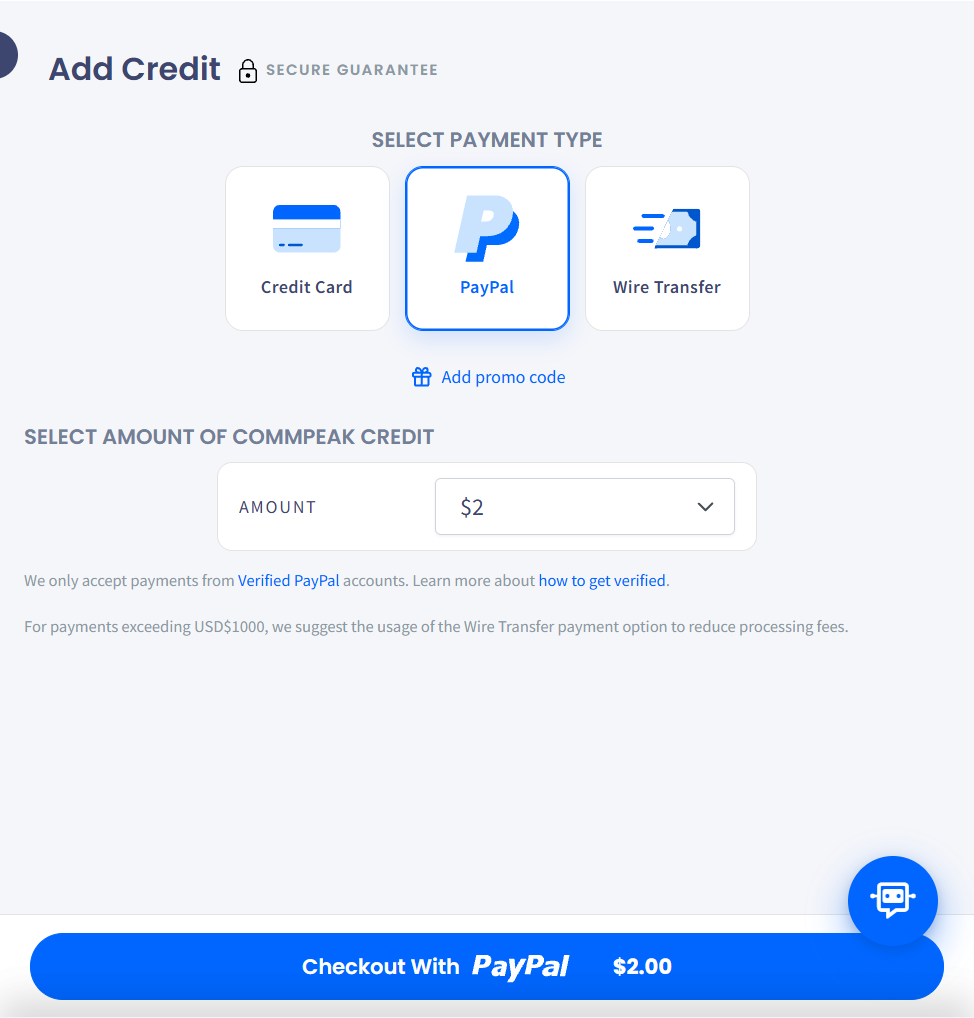
In the Add Credit window that appears, choose PayPal among payment types.
Selecting PayPal payment type
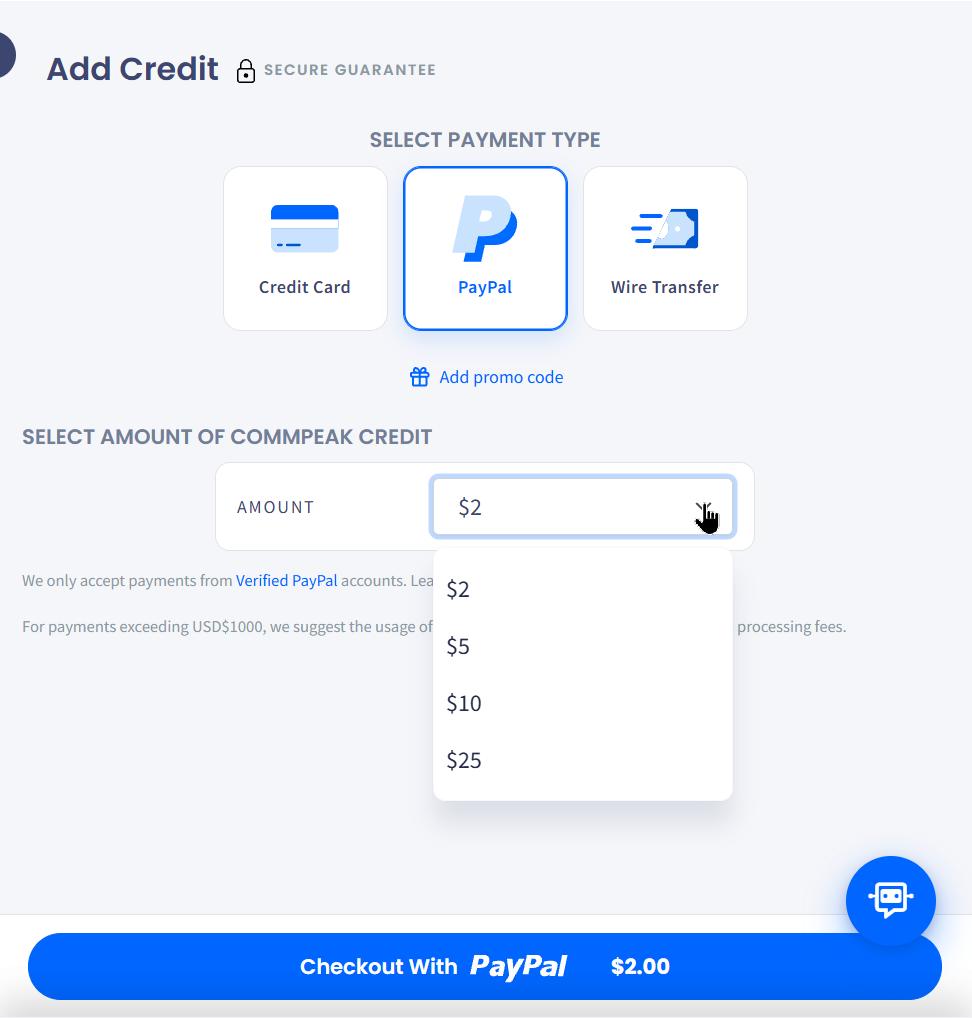
From the drop-down list, select the amount to credit.
Selecting credit amount
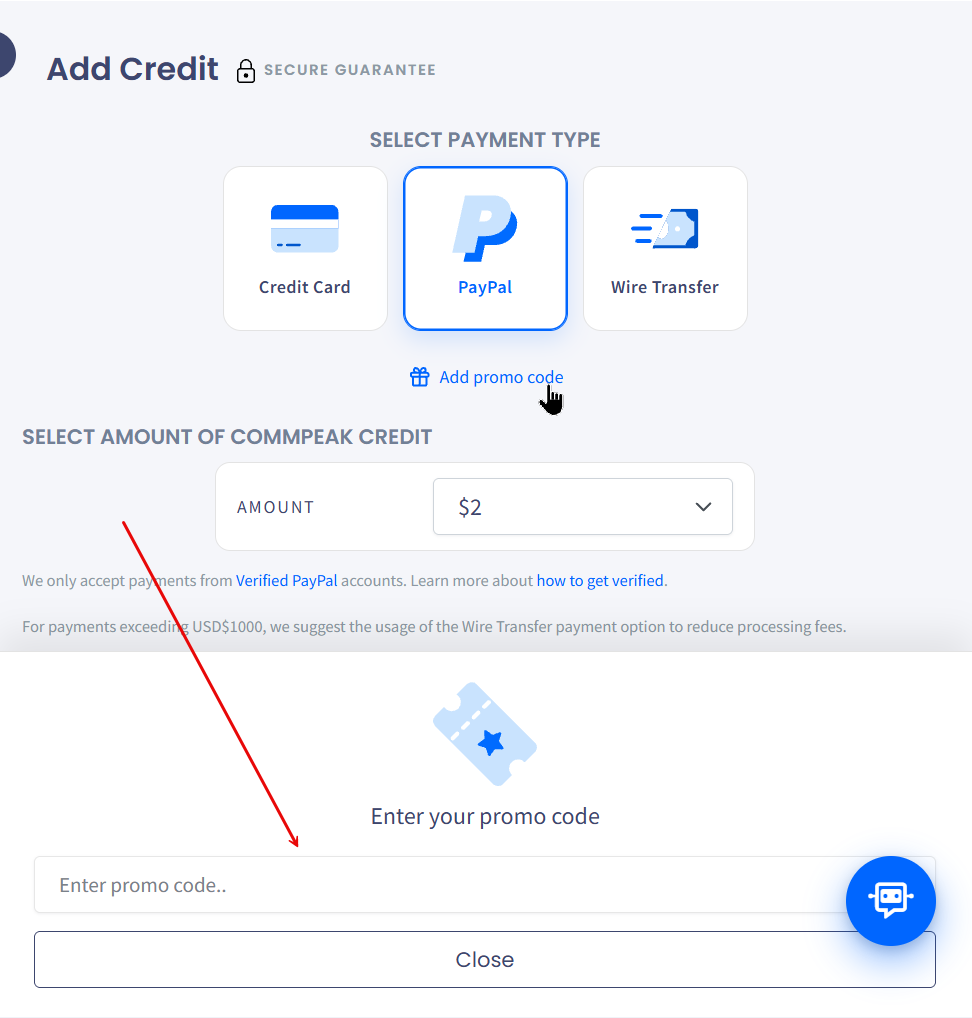
If you have a promo code, click Add promo code and enter it.
Adding a promo code
Click Checkout with PayPal.
Review the total and agree to proceed.
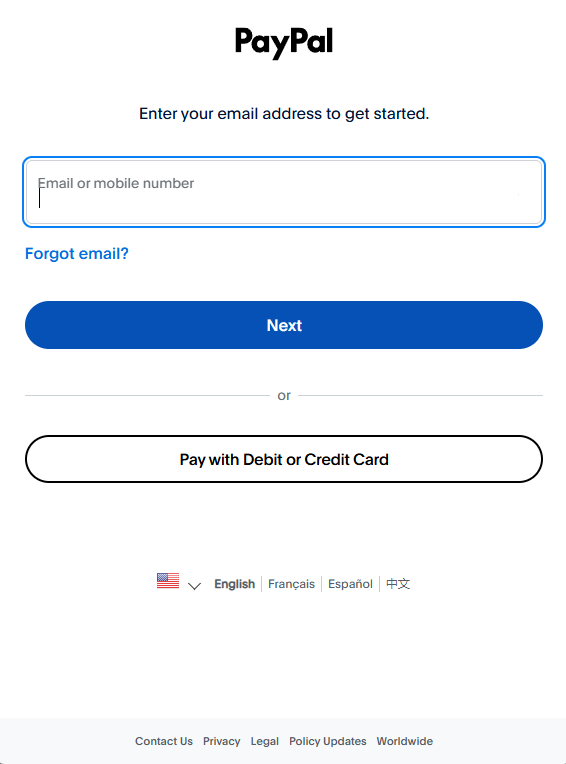
The system will redirect you to the PayPal login page.
PayPal login page
Enter the credentials of your PayPal account and click Next.
Follow the on-screen instructions to complete your payment.
🚧
NOTE
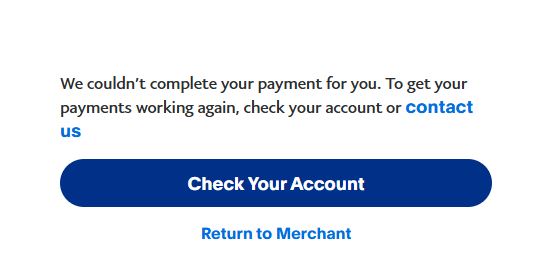
In case of any issues with this payment type, check your PayPal account or return to the payment page and select the Pay with the Debit or Credit Card option.
PayPal payment issue notification
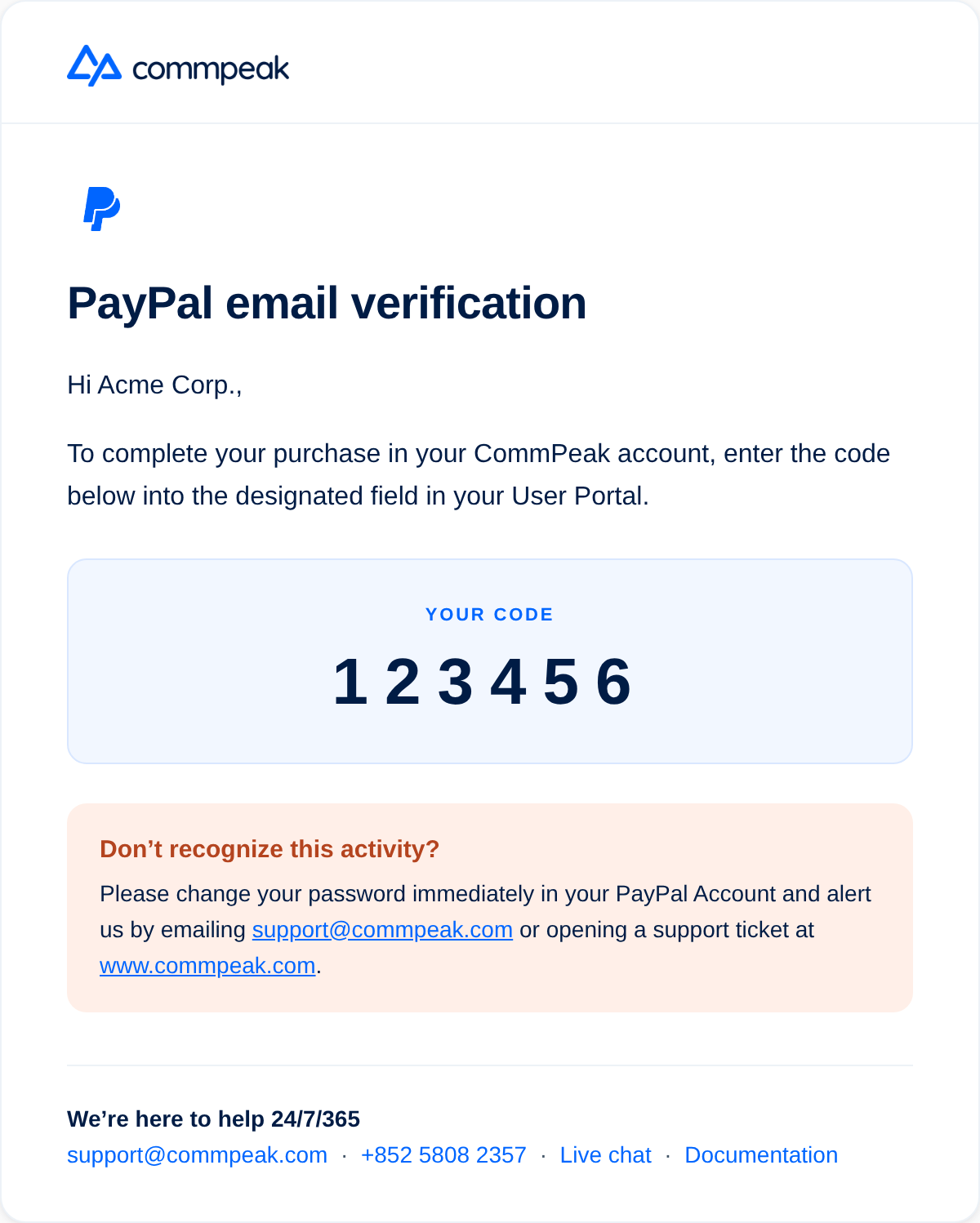
If your PayPal account email differs from your CommPeak Portal registration email, you must verify it. You will receive a message with a verification code to your email.
PayPal payment email alert
To continue the verification, perform the following steps:
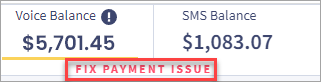
Return to your CommPeak Account and click FIX PAYMENT ISSUE below the account balance.
Fixing payment issues
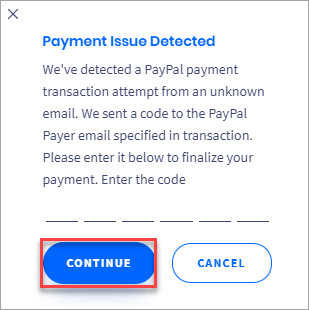
Enter a 6-digit code from the PayPal email verification message and click CONTINUE.
Entering verification code
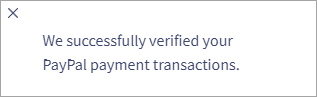
The following message will appear if the verification is successful.
PayPal payment verification success
Follow the on-screen instructions to complete your payment.