

Lead Indicators
Create multicolored lead indicators to mark specific lead attributes to be used as tags for agents during calls.
You can create lead indicators that will be applied to leads when specific conditions are met. The indicators will serve as tags on lead cards visible to agents during the call.
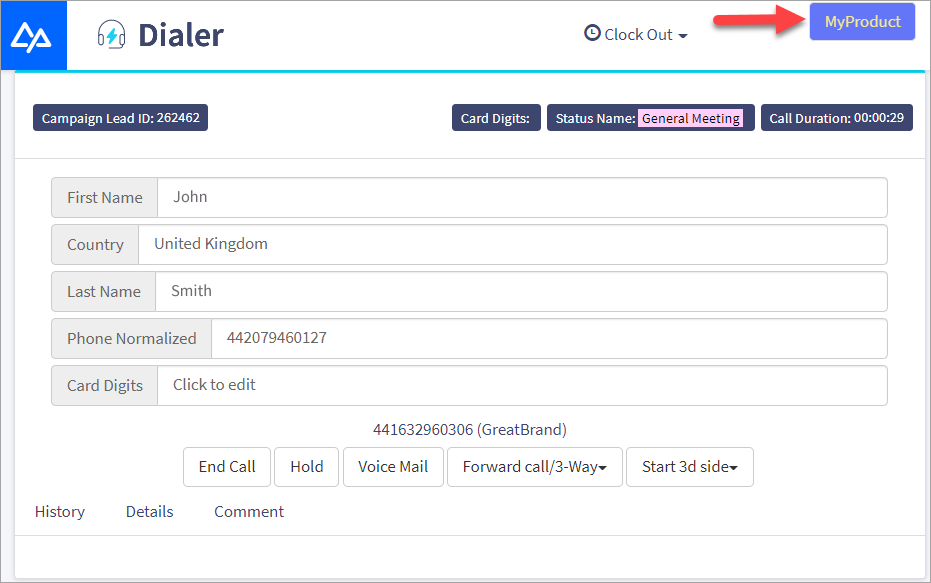
Lead indicator in the call window
To create a lead indicator:
Open Lead Indicators
Go to Settings > Advanced Lead Settings and switch to the Lead Indicators tab.
Add an indicator
Click Create New Lead Indicator.
Creating a lead indicator
Set the name and colors
Enter a Name (for you) and the Badge text (what agents see). Then select the Badge color. The Preview on the right shows how the badge looks on a lead.
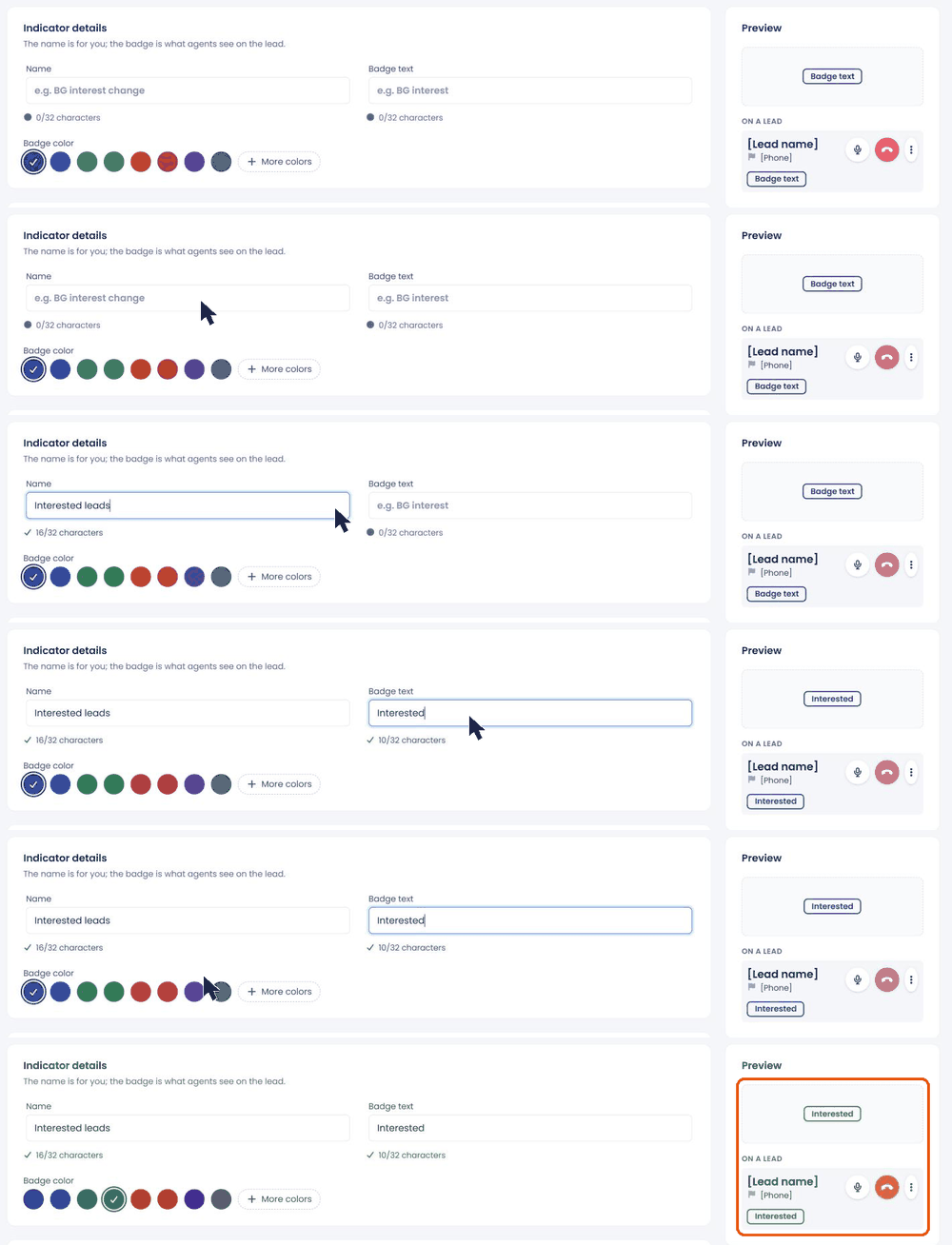
Setting the name, badge text and color
Set the filter conditions
In Filter Settings, create logical conditions that will trigger the indicator. It uses the same condition builder as filter groups. See How to read and build filter conditions.
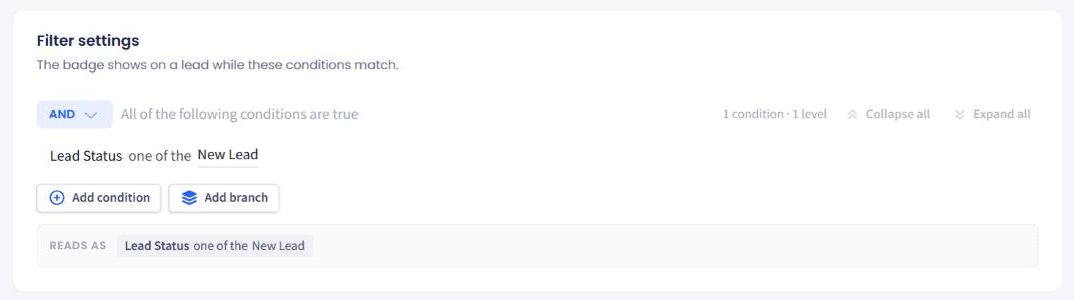
Filter settings
Create the indicator
Click Save indicator. A new indicator will appear in the list.
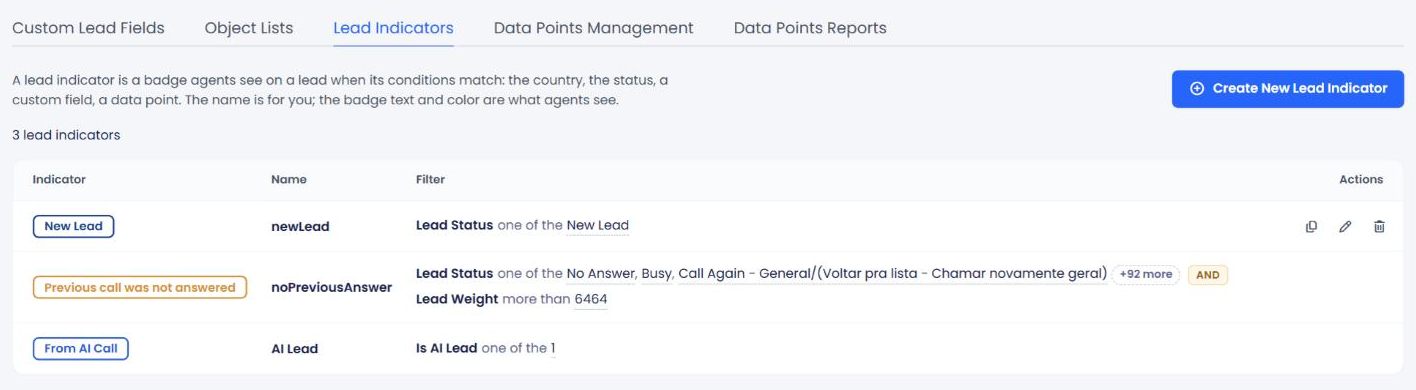
Lead indicator table
Updated 2 days ago