

Call History
Find out how to view, filter, and manage recent call history in the standalone CommPeak Softphone, including call details and re-dial options, in both full and mini modes.
Full mode
To view the list of your recent calls (call history), click History at the bottom of the screen.
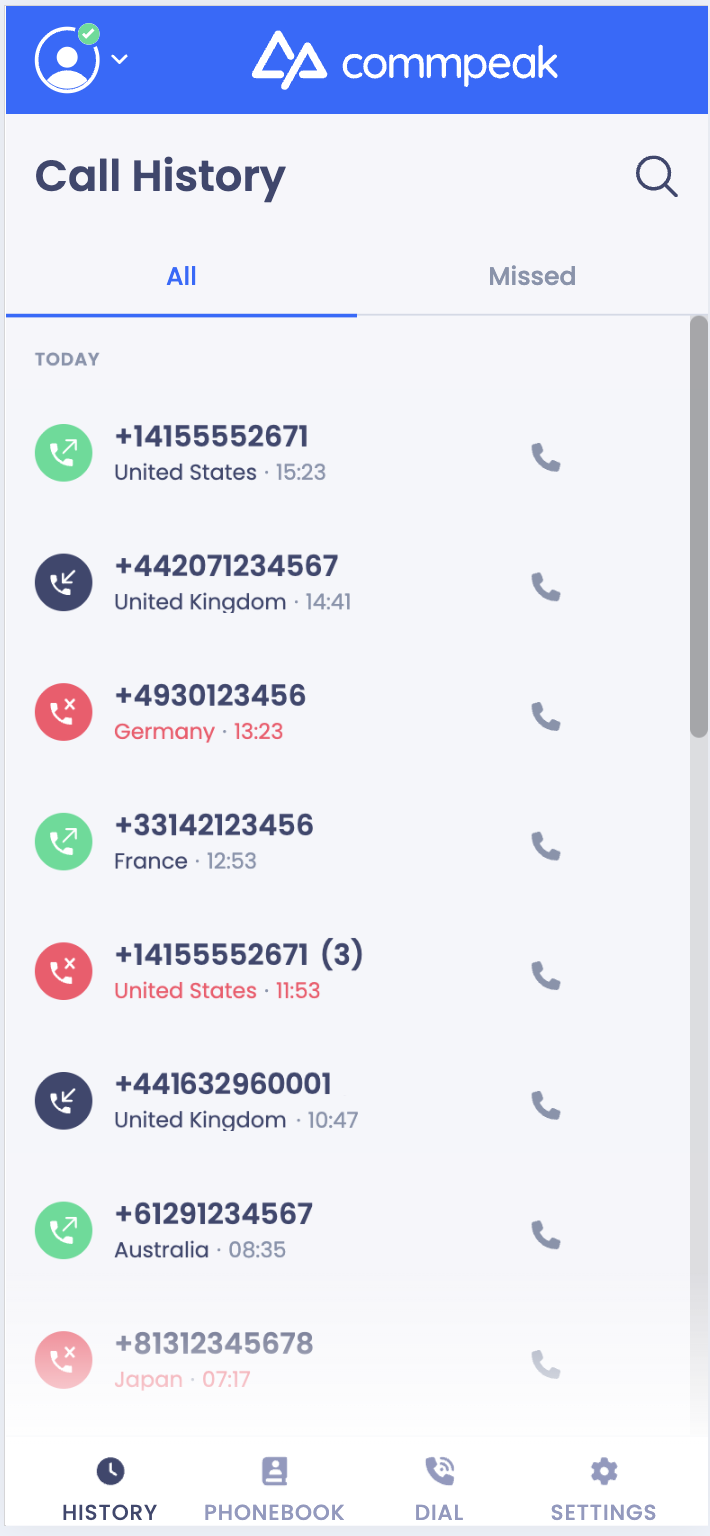
Call History screen: All tab
NOTEFor non-dialer accounts, you can set how long these records are stored. See the Call History section in General Settings to choose a retention period.
The call history is divided between two tabs, All and Missed, to help you manage your leads and follow-ups more efficiently. The All tab displays all the calls made (incoming, outgoing, and missed). The Missed tab displays missed calls only.
All tab
A focused view designed for high-priority follow-ups and where you can check the complete log of every call activity with the following status indicators:
- Inbound Success: Indicated by a green icon (incoming arrow).
- Outbound Success: Indicated by a dark blue icon (outgoing arrow).
- Missed/Failed: Indicated by a red icon (missed/declined arrow).
Missed tab
This tab only displays unsuccessful call attempts (red icons).
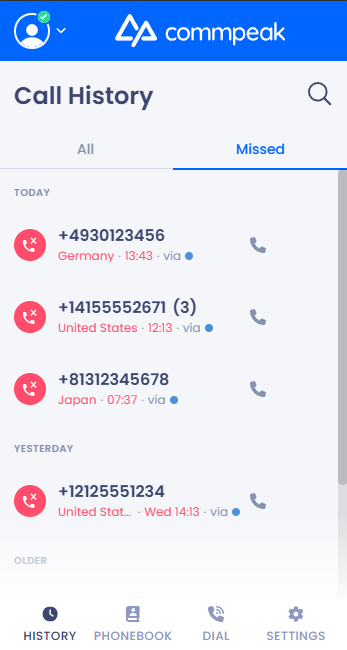
Call History screen: Missed tab
Intelligent call logs
Both tabs use the call cards arranged in the chronological order defined in the table below.
| Section | Logic | Timestamp Format |
|---|---|---|
| TODAY | Calls made/received between 00:00 and 23:59 of the current date. | HH:mm (e.g., 01:48) |
| YESTERDAY | Calls made/received during the previous 24-hour calendar day. | Day HH:mm (e.g., Tue 15:21) |
| OLDER | Any calls made prior to YESTERDAY. | Month DD, HH:mm (e.g., Mar 29, 16:32) |
Each call entry displays:
- Status Icon: Visual indicator of the call type.
- Phone Number/Name: Primary bold text.
- Attempt Counter: If the call count is >1, (n) is shown next to the number.
- Location/Label: Geographic origin (e.g., United Kingdom) or line type (e.g., Mobile).
- Timestamp: The time or date of the most recent attempt.
- Quick Action (Call): A phone handset icon on the right for immediate redial.
Advanced call grouping & info
To keep your history clean, the Softphone automatically merges sequential missed calls from/to the same number. Instead of seeing the same number five times, you will see a single entry with a counter in parentheses - for example, 0307957112377 (5).
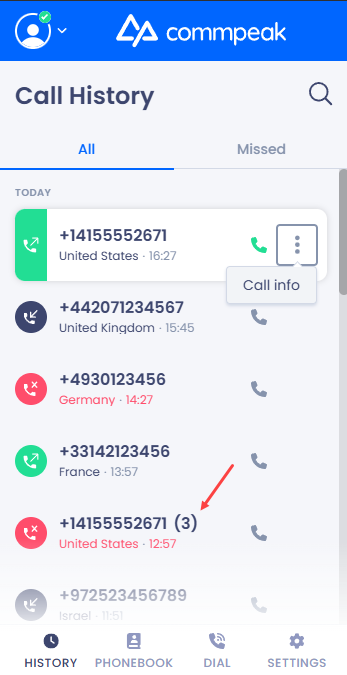
Grouped missed calls
NOTEEven if a number was eventually reached, any previously missed attempts will still be grouped and displayed here for your records.
Call info
To access the call info, hover over the needed call record and click the three dots.
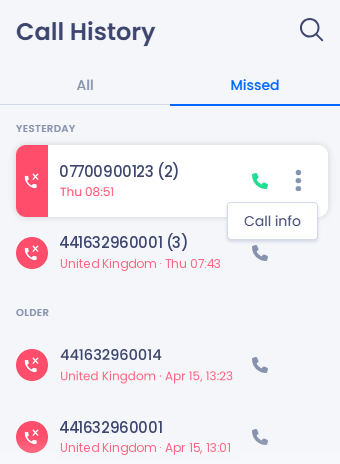
Call info button
In the Call Info panel that opens, you can see the type of the call, its day, time, duration, and status.
Optionally, click the green phone handset Call button for immediate redial.
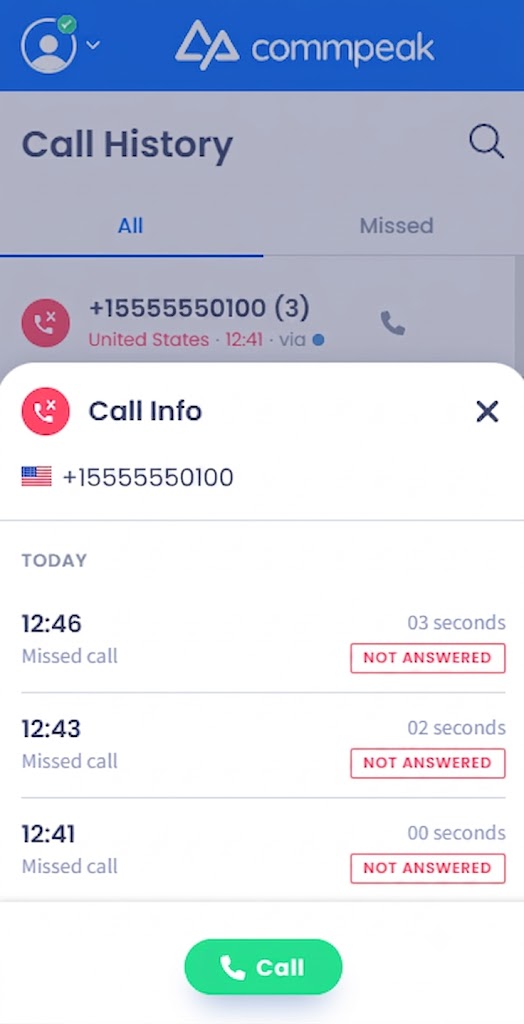
Call info screen
NOTEIf a number was missed multiple times but eventually answered, only the missed attempts appear here (grouped).
Phone calls have color tags that correspond to the SIP account you used when making the call. Hover over the tag to see the SIP account name.
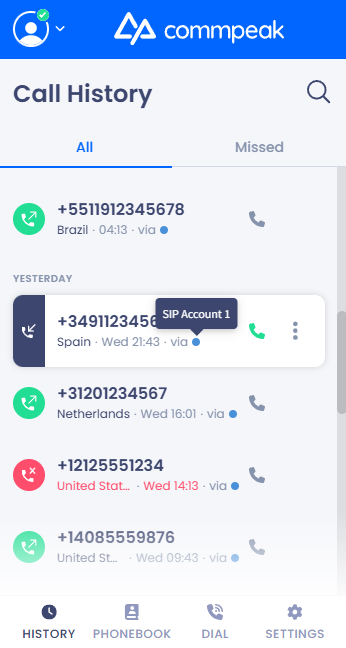
Viewing number's call history details
If a SIP account through which you had made a call was then deleted, a color tag will be absent. To call the number from the call history again, click the dial button and select an available SIP account.
NOTEFor non-dialer accounts, you can set how long these records are stored. See the Call History section in General Settings to choose a retention period.
Call Info panel is available in the full mode only.
Mini mode
To view the call history:
- Click the ellipsis button.
- In the drop-down menu that opens, click Call History.
When you click the expand icon, you will be redirected to the History tab in the full mode.
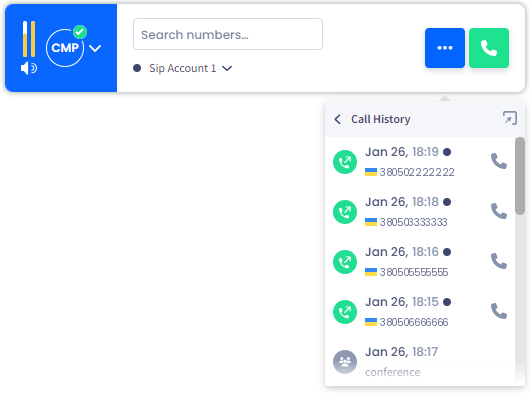
Call History screen: mini mode
Updated 5 days ago