This guide explains how to manage post-call actions in the predictive mode, including submitting feedback, scheduling callbacks, redialing leads, and reviewing or editing lead details and interaction history within the agent workspace.
🚧
If you're using the legacy Dialer Agent Interface, refer to the legacy Predictive Dialing article.
After you end the call, the Feedback page opens automatically.
The time available for submitting feedback is limited and depends on your custom settings. The countdown timer in the header indicates how much time remains before the feedback session expires.
The countdown feedback timer
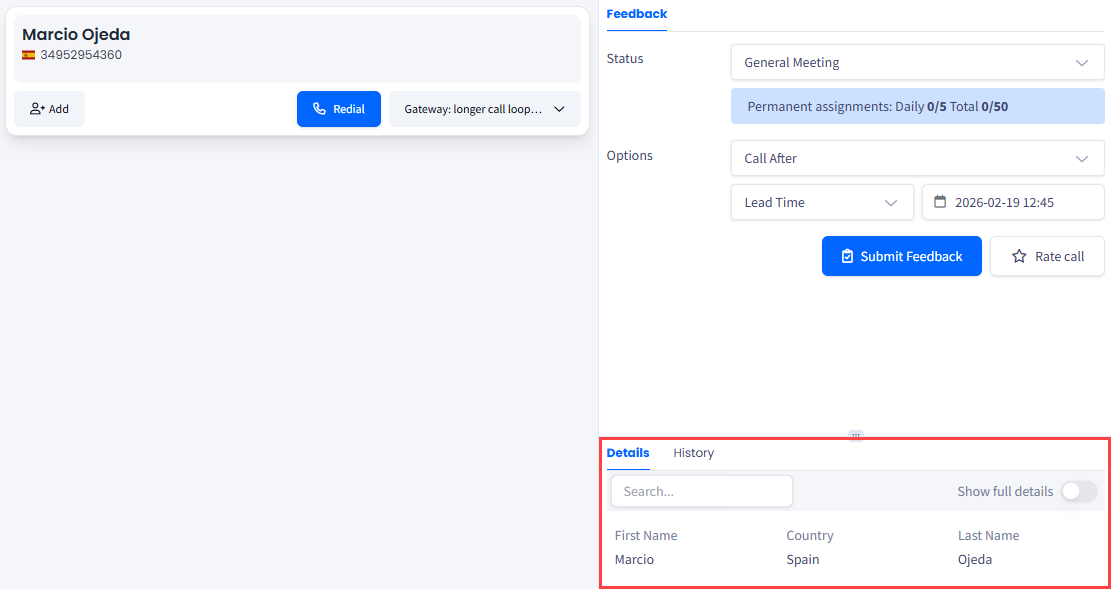
After interacting with the lead, you can submit feedback in the middle section of the Agent Workspace.
Available controls during feedback submission
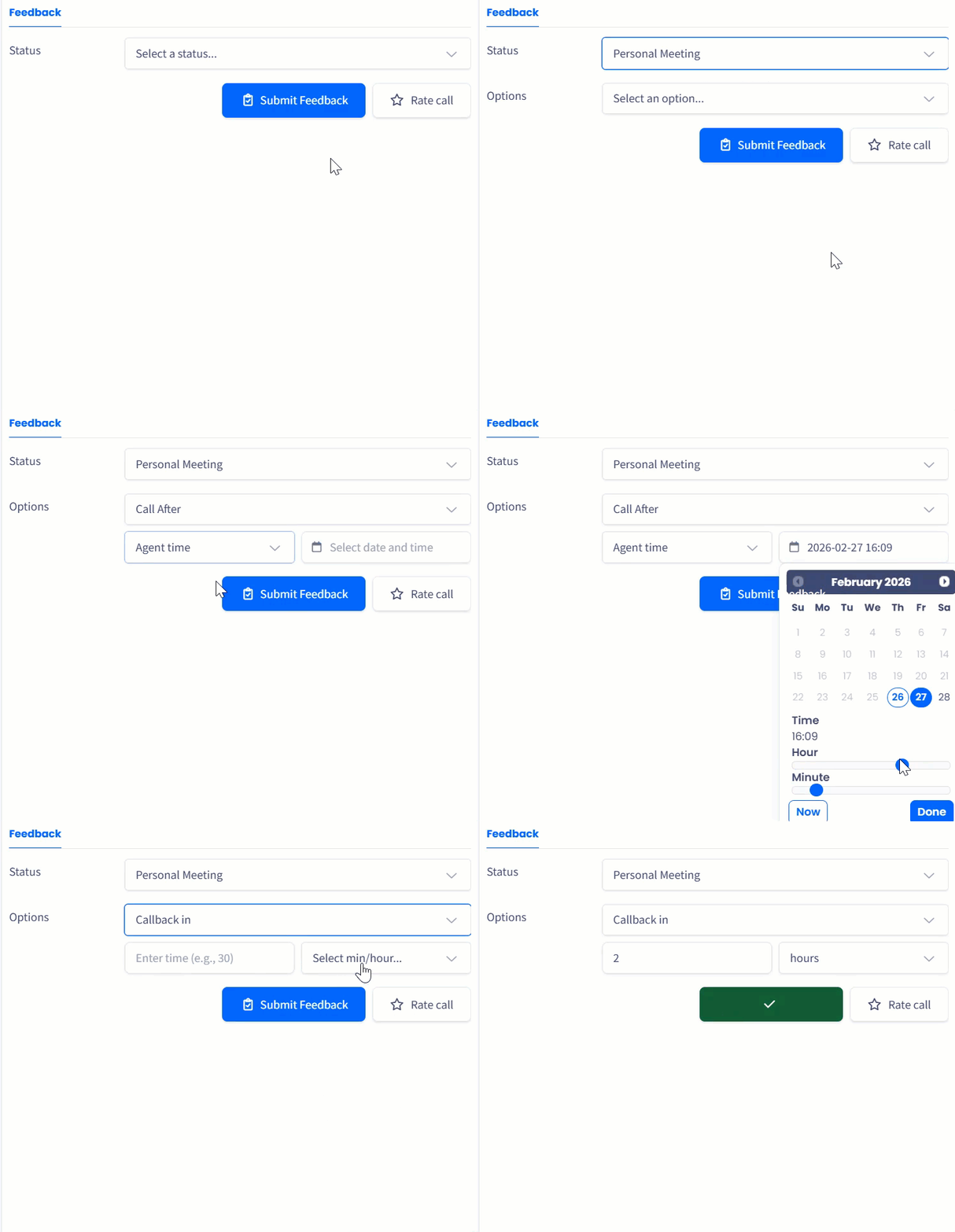
To submit feedback on a phone call with the lead:
Select a status from the drop-down list.
If the selected status requires another call (for example, General Meeting, Personal Meeting, or Callback), schedule the next call:
Call After:
Choose whether to set the time in the lead’s time zone or the agent’s time zone.
Select a date and time using the interactive calendar, or click Now to reconnect immediately.
Callback in:
Select whether to define the interval in min or hr.
Enter the desired time interval.
The system automatically redials at the specified time.
Click Submit Feedback.
The feedback button will turn green, indicating that your action has been successfully completed.
After submitting your feedback, the system will attempt to connect you to the next answered call or disconnect you if you clocked out.
❗️
IMPORTANT
If you click Clock Out while you are in a call or providing feedback, you will be clocked out no sooner than you end the call and submit the feedback.
It is not recommended to clock out when waiting for a new call, as you can accidentally drop a call that has just started.
Redialing
If the connection is lost unexpectedly, you can redial the lead.
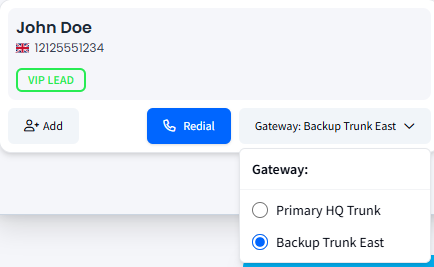
In the call panel located in the top-left corner of the agent workspace, select a gateway from the drop-down list next to the Redial button.
Selecting a gateway
Click Redial.
The system will reconnect you with the previously dialed lead.
📘
NOTE
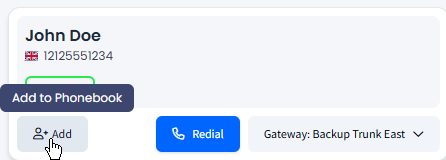
To add the contact to the phonebook, click the + Add button: