

Audit Log
Monitor the critical actions of every user under your CommPeak account in the Audit Log: who did what, when, and from where.
The Audit Log shows the CommPeak account owners and admins what every user under their account does in the Portal. It records each critical action: who performed it, when, from which device and IP address, and whether it succeeded. Use it to make sure that only the right people work under your account and to find out who made a specific change.
NOTEOnly the main user (the account owner) and users with the Admin user role can open the Audit Log. To check or change a user's roles, see Users.
Actions the Audit Log records
The Audit Log records three types of actions:
- Changes: A user created, updated, or deleted a service or a setting, for example, SIP account created, Caller ID added, Email address changed, or Monitoring rule created.
- Sign-in & security: A user signed in, or another security event took place, for example, Signed in or Social login disconnected.
- Exports & downloads: A user took data out of the Portal, for example, Invoice downloaded or Proforma invoice exported.
Opening a page or running a report isn't recorded.
Opening the Audit Log
To open the Audit Log:
Expand Settings
Expand Settings in the main menu and click Audit Log.
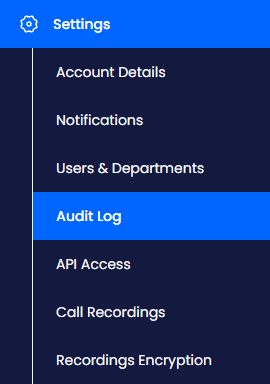
Audit Log tab in the Settings menu
Review the actions
The Audit Log page lists the actions of all users for the last 30 days, with the most recent first.
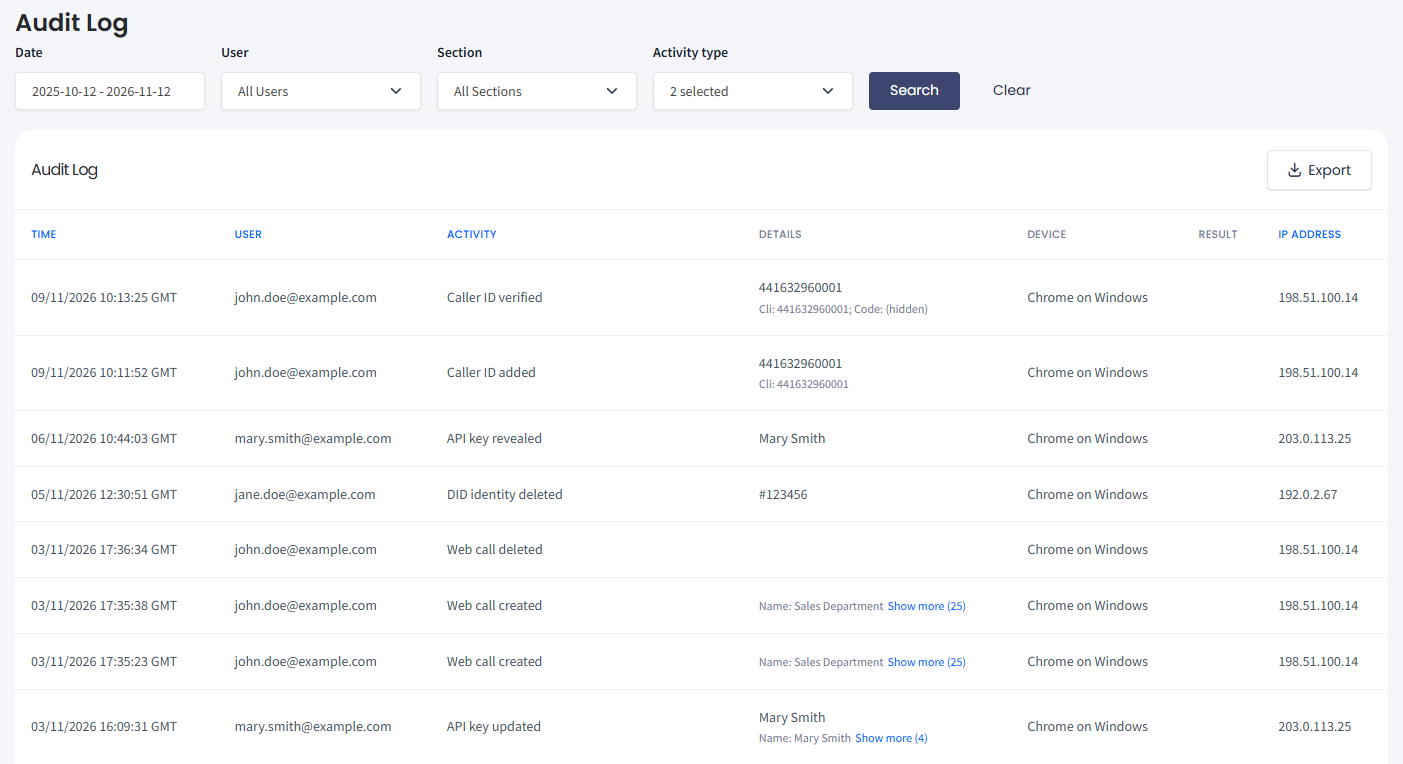
Audit Log page
Finding specific actions
Use the filters above the table to narrow the list down, for example, to one user or to changes only.
To filter the Audit Log:
Set the filters
Set one or more filters:
- Date: the period you want to check.
- User: one or more users of your account.
- Section: the part of the Portal where the action took place, for example, Billing or Security.
- Activity type: Changes, Sign-in & security, Exports & downloads, or any combination.
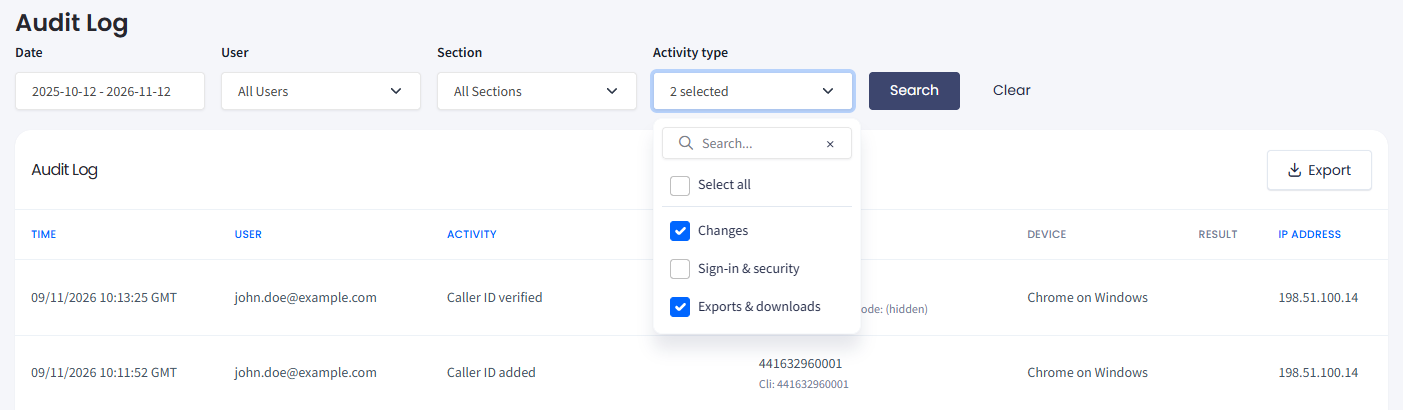
Activity type drop-down
Run the search
Click Search. To return to the default view, click Clear.
Reading the entries
Each row in the table is one action. The table includes the columns described below.
| Column | Description |
|---|---|
| Time | Date and time of the action, in the time zone from your profile settings. |
| User | Email address of the user who performed the action. |
| Activity | The action, for example, Signed in or Caller ID added. |
| Details | What exactly changed, the sign-in method, or the error message of a failed action. If an entry has more values, click Show more. |
| Device | Browser and operating system the user worked from, for example, Chrome on Windows. Empty for sign-ins. |
| Result | Success or Failed. Empty when the result was not recorded. |
| IP Address | IP address the action came from. |
Exporting the Audit Log
To download the entries shown in the table as a .csv file, click Export at the top right of the table. The file uses the same filters and sort order as the table and includes up to 10,000 entries. Each export is recorded in the Audit Log as well.
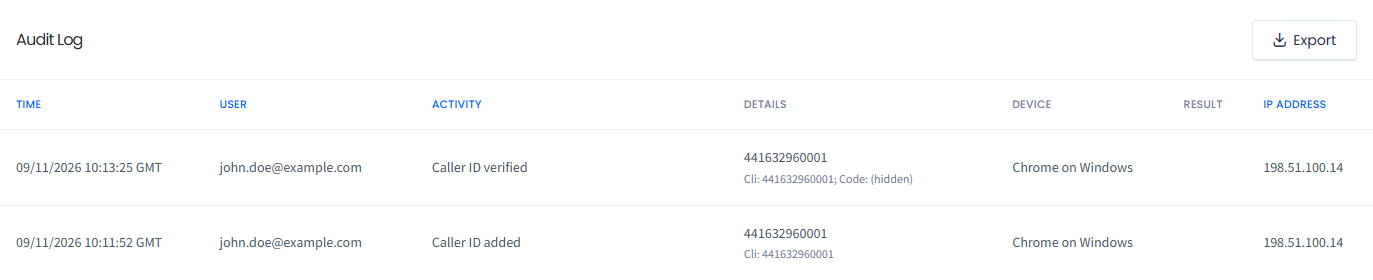
Export button
Updated about 14 hours ago