

Assignment
Learn how to choose an assignment method for each TextPeak team: manual, round robin, or balanced — and how to set agent capacity, reassignment rules, and the order unassigned conversations are picked up in.
Assignment rules decide which agent handles an incoming conversation. You can continue to assign conversations by hand, or let TextPeak share them out for you using one of two automatic methods.
This article walks you through choosing a method and setting the options that go with it.
NOTEYou configure assignment for each team separately. A support team running Round robin and a sales team running Manual assignment can sit in the same space. TextPeak has no space-wide setting; to apply the same rules everywhere, set them on each team.
To access the Assignment tab options:
- In your browser, log in to TextPeak with manager access privileges.
- In the main TextPeak menu, select the Inbox tab.
- Click Settings at the bottom of the Inbox sidebar.
- In the Routing group, click Assignment.
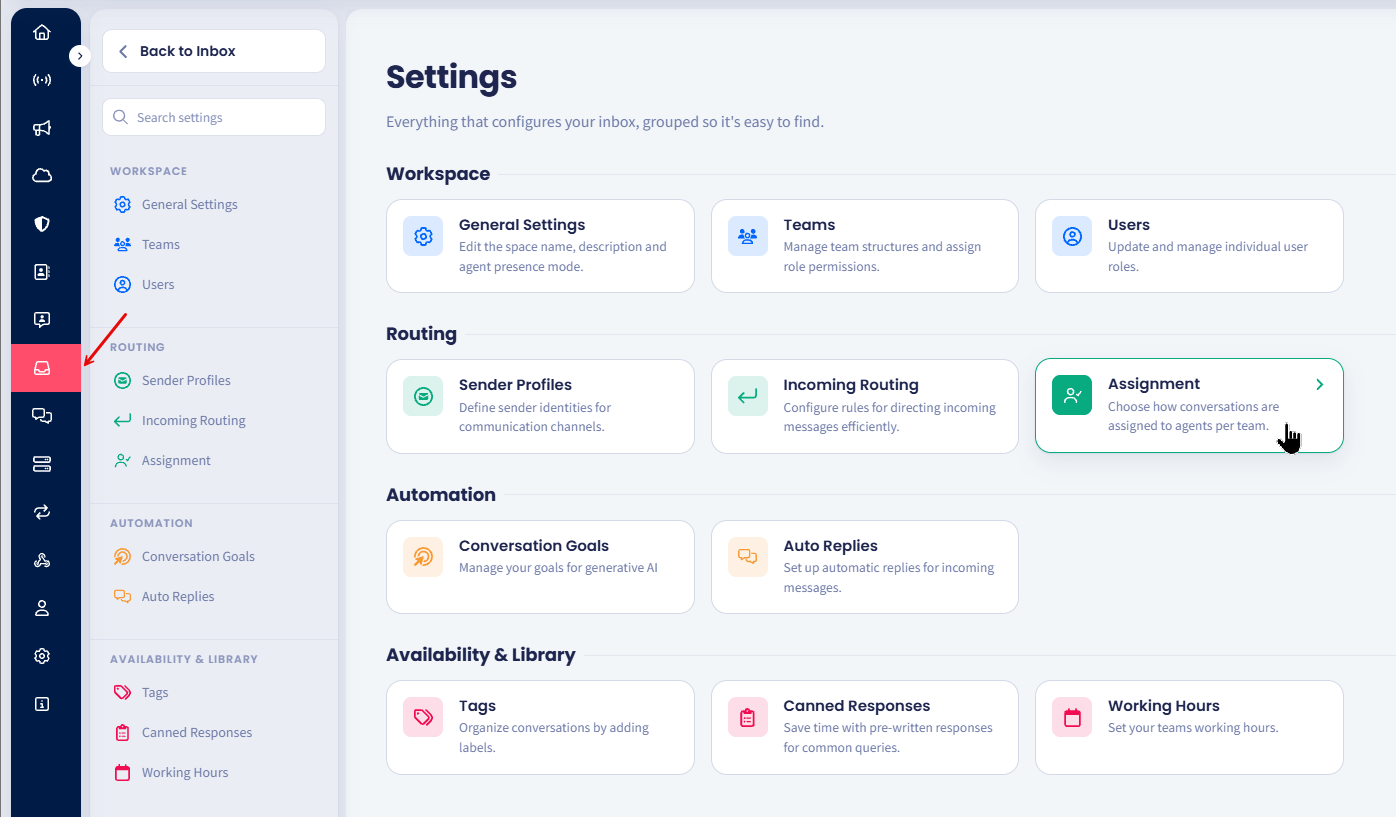
Inbox Assignment tab
-
Open Teams and select a team from the list on the left.
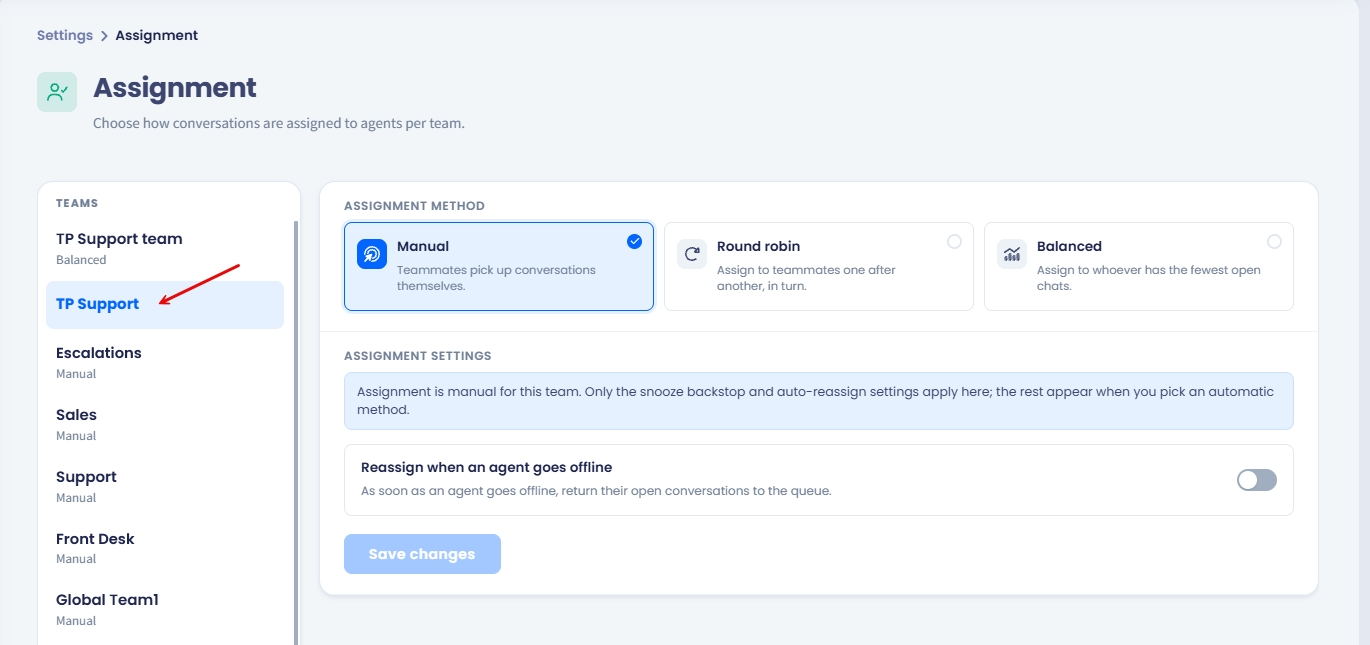
Assignment page
The team list shows each team's current method, so you can see at a glance which teams assign automatically and which do not. The settings on the right always belong to the team you selected.
Choosing an assignment method
Three methods are available. The table below compares them.
| Method | How the agent is chosen | Suits |
|---|---|---|
| Manual | Teammates pick up conversations themselves. | Small teams, or teams where the right owner is obvious. |
| Round robin | Each new conversation goes to the next teammate in turn. | Teams where the work is evenly sized. |
| Balanced | Each new conversation goes to whoever has the fewest open chats. | Teams where conversations vary in length. |
Round robin ignores how quickly agents work. It deals conversations out one each, in turn, and starts again at the top of the list.
Balanced looks at the current load instead and gives the next conversation to whoever is carrying the least.
NOTEManual assignment never goes away. Even with Round robin or Balanced turned on, anyone holding the assignment permission can still move a conversation to a specific agent.

Assignment method selection
Assigning a conversation by hand
- Open the conversation.
- In the Details sidebar, expand Conversation Assignment and click Edit.
- Select a team from the drop-down, then select an agent.
- Click Save changes.
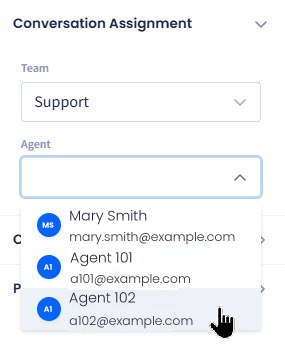
Conversation assignment agent picker
Assignment settings
The Assignment settings section fully applies when a team uses Round robin or Balanced. It controls capacity, reassignment, and how snoozed work returns.
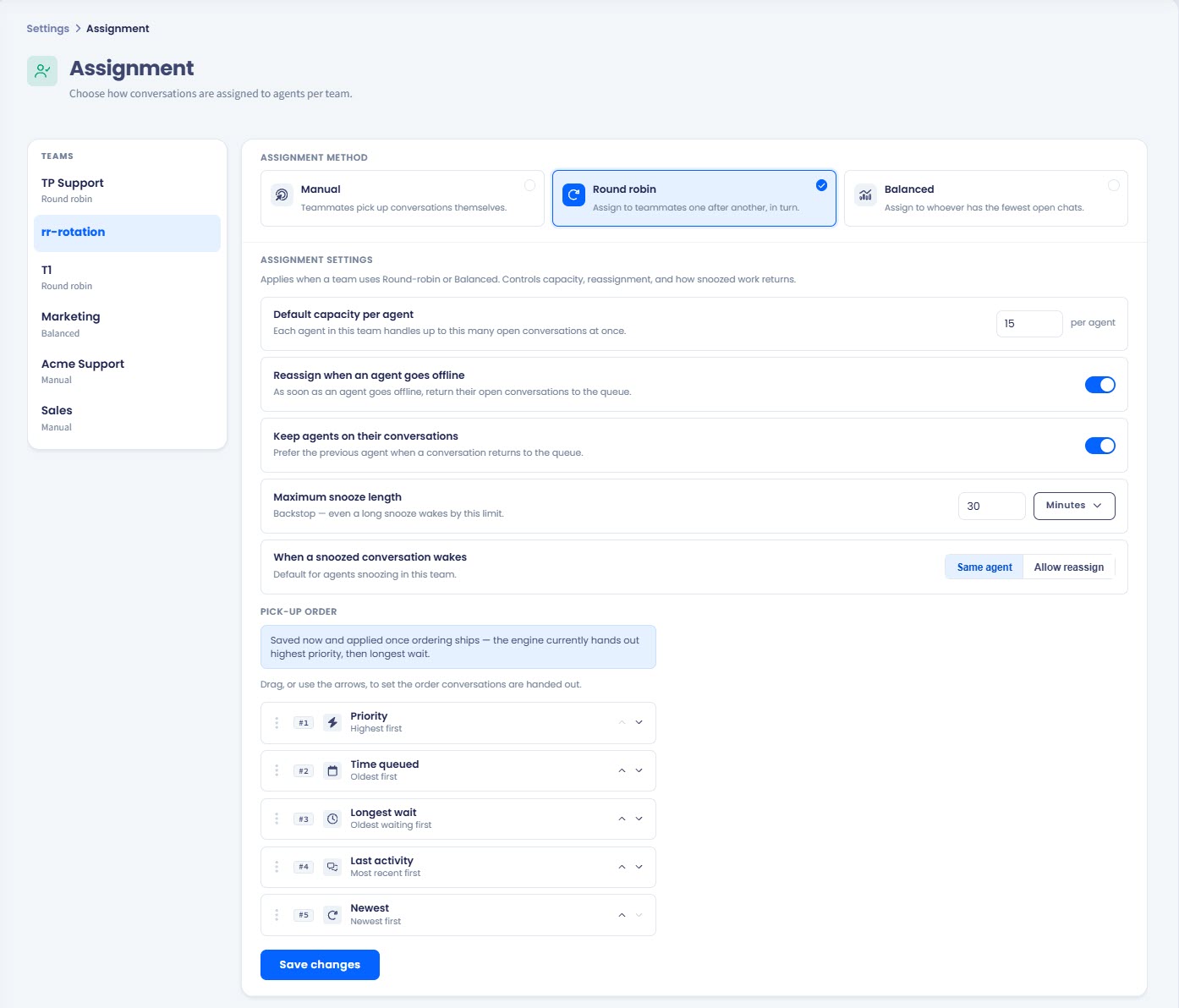
Assignment settings options: Round robin
Default capacity per agent
Each agent in the team handles up to this many open conversations at once. Once an agent reaches the limit, they receive nothing new until one of their conversations closes.
Snoozed conversations do not count toward capacity. An agent at a capacity of four who snoozes one conversation counts as holding three and can take another.
NOTEA snoozed conversation that wakes can push an agent above their capacity - five open conversations against a capacity of four, for example. That is expected. TextPeak stops assigning new work, but it does not take the woken conversation away.
Reassign when an agent goes offline
Turn this on to return an agent's open conversations to the queue as soon as they go Offline, so nothing sits with somebody who has logged out. The conversations go to another agent who is online.
If nobody in the team is online, they wait in the queue until somebody comes back.
Automatic away mode can trigger this on its own: it sets an agent to Offline after a period of inactivity and reassigns their conversations at the same time. For the timers behind that, see the Agent Presence page.
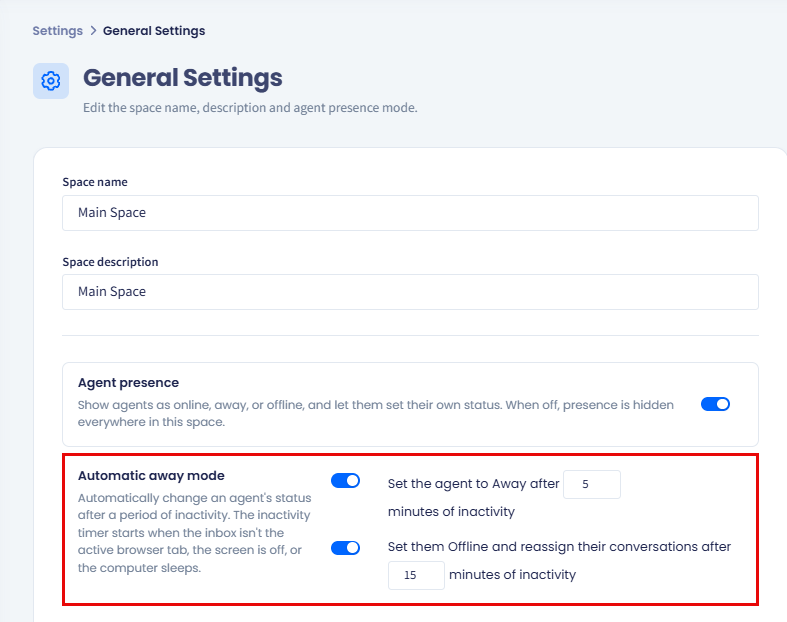
Automatic away mode settings
Keep agents on their conversations
Turn this on to prefer the previous agent when a conversation returns to the queue.
It matters most for work that runs longer than a shift. A conversation that takes three days to resolve goes back to the agent who has the context, rather than starting again with somebody new. It is also the setting to use for a contact center working set hours: when everyone goes offline at 6 p.m. and the conversation is still open at 9 a.m., it returns to the same agent.
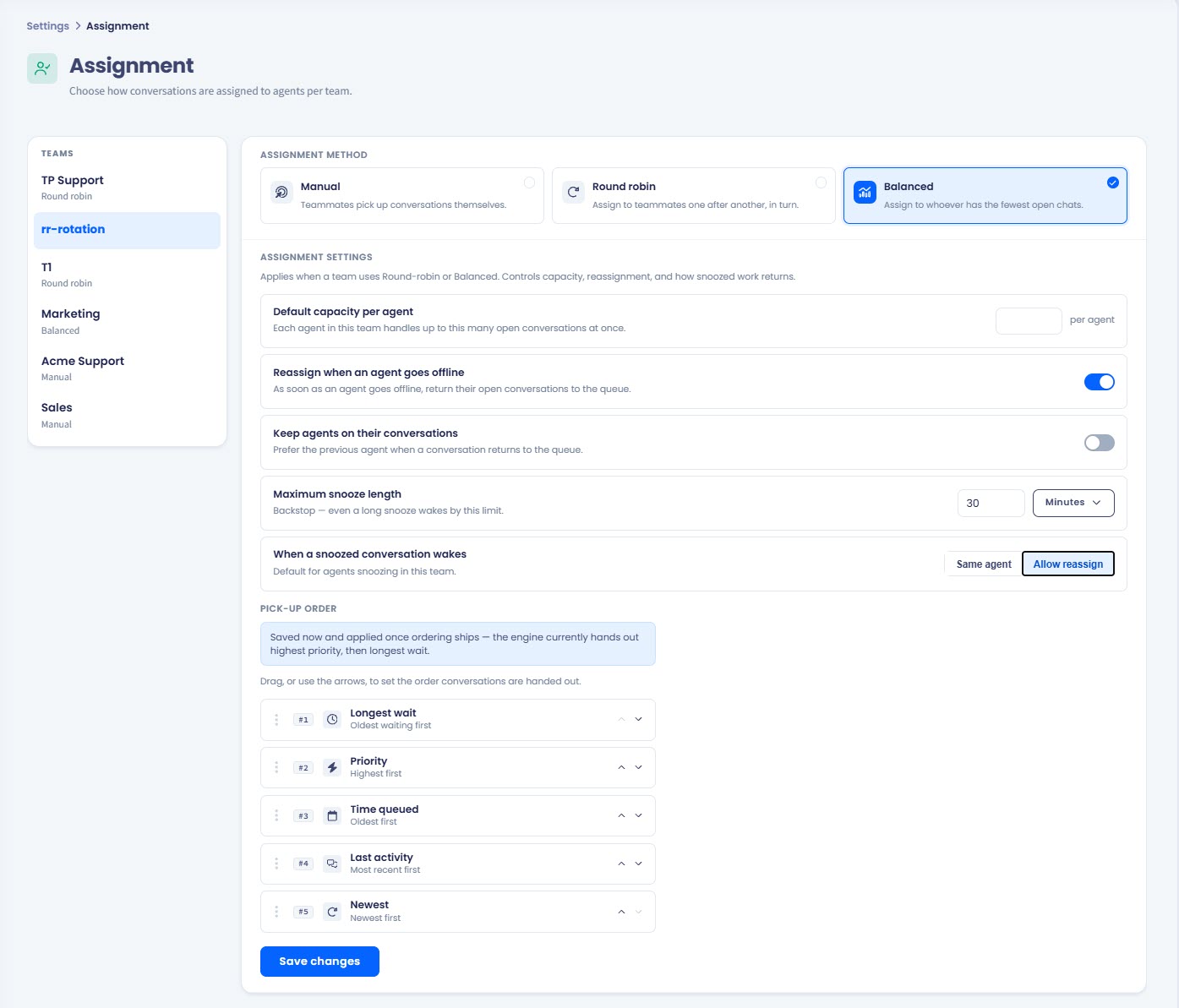
Assignment settings options: Balanced
Maximum snooze length
Maximum snooze length is a backstop. Even a long snooze wakes by this limit. Set a number and a unit.
Without a cap, a conversation snoozed for a month sits assigned to somebody, invisible, with nobody aware it is waiting. The cap is what stops that.
For the agent side of snoozing, see the Snoozed Conversations page.
When a snoozed conversation wakes
This sets the default for agents snoozing in this team. Choose what happens to a woken conversation:
- Same agent: the conversation waits for the agent who snoozed it.
- Allow reassign: the conversation returns to the queue and goes to whoever is available.
Use Same agent where continuity matters more than speed, and Allow reassign where the reply should not wait.
How conversations are picked up
When several conversations are waiting and none of them is assigned, TextPeak hands out the highest-priority conversation first, then the one that has waited longest for an answer.
The Pick-up order list below the assignment settings lets you drag those criteria into a different order, or move them with the arrows. TextPeak saves the order you set and applies it once ordering ships in a future release. Until then, every team uses priority first, then longest wait.
The entries are as follows:
| Entry | Sorts by |
|---|---|
| Priority | Highest first |
| Time queued | Oldest first |
| Longest wait | Oldest waiting first |
| Last activity | Most recent first |
| Newest | Newest first |
For how a conversation becomes a priority, see Agent's Guide: Managing Conversations.
Checking it works
- Set the method and save.
- Send a test message to the team's sender profile from an unrelated number.
- Open the conversation and check the Conversation Assignment section in the Details sidebar. It should already name an agent.
If the conversation stays unassigned, check that at least one agent in the team is Online and that none of them is at capacity.
Updated 12 days ago