

Fixing Identity Document Issues
Find out what each document check result means when you create a business or personal identity, and how to fix a flagged file.
When you create a Business Identity or a Personal Identity, CommPeak checks every document as soon as you upload it. A green check mark on the file means the document passed. If the file shows a warning instead, find it below and follow the steps to fix it.
You can continue to the next step while a check runs, and you can still submit an identity with a flagged document. CommPeak then checks that document during review.
Details don't match
The file is marked Details don't match, and a warning below it lists each detail that differs from what you entered, for example the name or the address. The same warning appears when a file is not the document the field asks for. In that case, its first line reads, for example, This does not look like a utility bill.
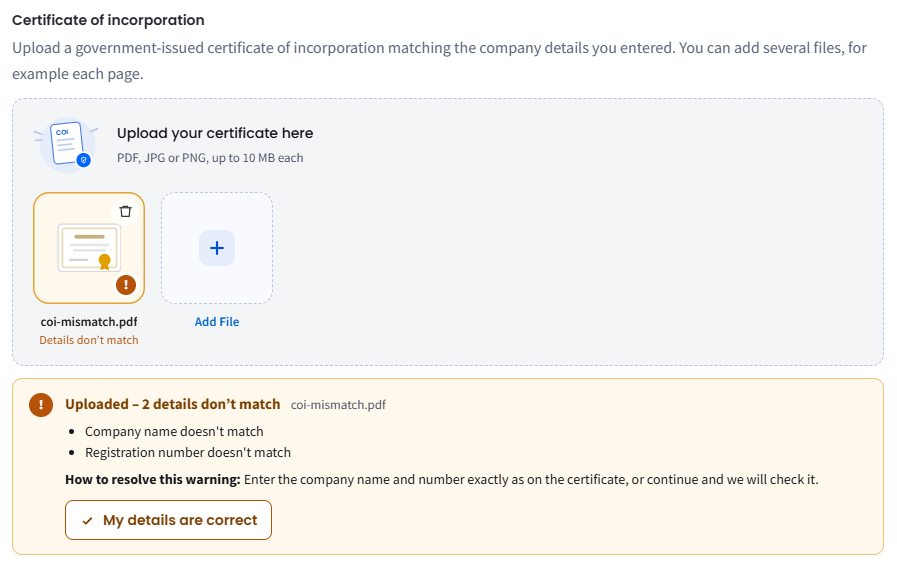
Document with details that don't match
To fix it, do one of the following:
- Correct the details you entered so they match the document exactly.
- Click the delete icon on the file and upload the right document.
- If your details are correct, click My details are correct.
When you confirm your details, the warning changes to Thanks – you confirmed your details are correct, and the file is marked Confirmed by you.
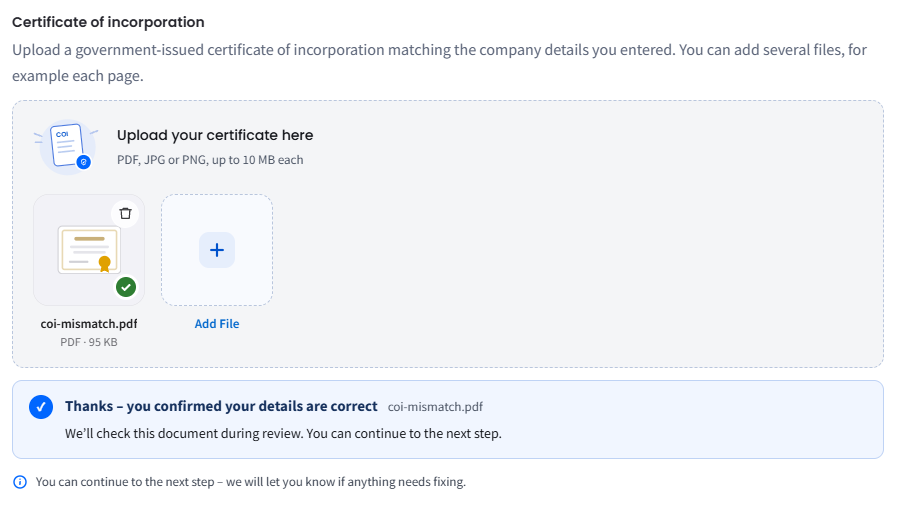
Details confirmed by you
Company details on the certificate differ
If the company name or registration number on your certificate of incorporation differs from what you entered, the Verify Your Company Information pop-up window opens and shows both versions.
To choose which details to keep:
- For each detail, select Entered by you or On your certificate.
- Click Use document details to update your details to match the certificate, or Keep what I entered to keep your own.
To upload a different certificate instead, click Add another file.
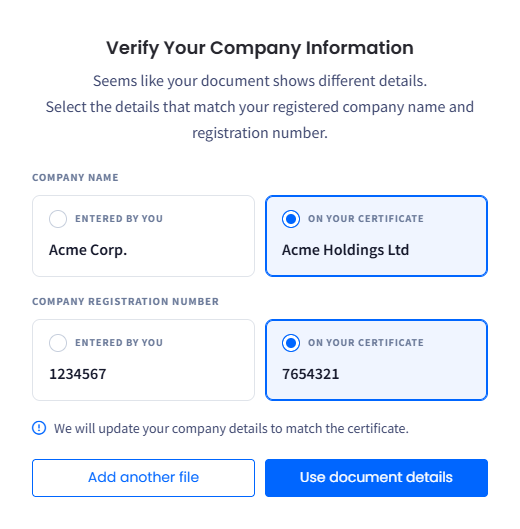
Verify Your Company Information pop-up window
Document rejected
The file is marked Document rejected when CommPeak cannot recognize it at all, for example a blank, cropped, or blurry scan.
To fix it:
- Click the remove icon on the file.
- Upload a clear, complete copy of the document.
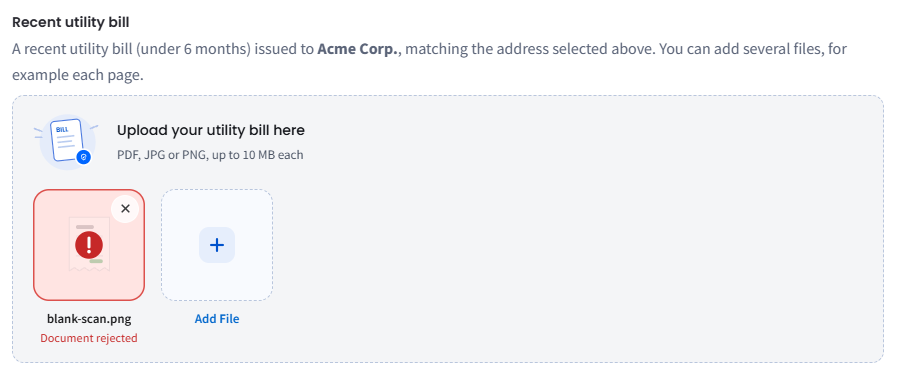
Rejected document
Unsupported file type
The file is marked Unsupported type · use JPG, PNG, PDF when it is in another format, for example .docx. Files larger than 10 MB are not accepted either.
To fix it:
- Click the remove icon on the file.
- Save the document as a .pdf, .jpg, or .png file of up to 10 MB and upload it again.
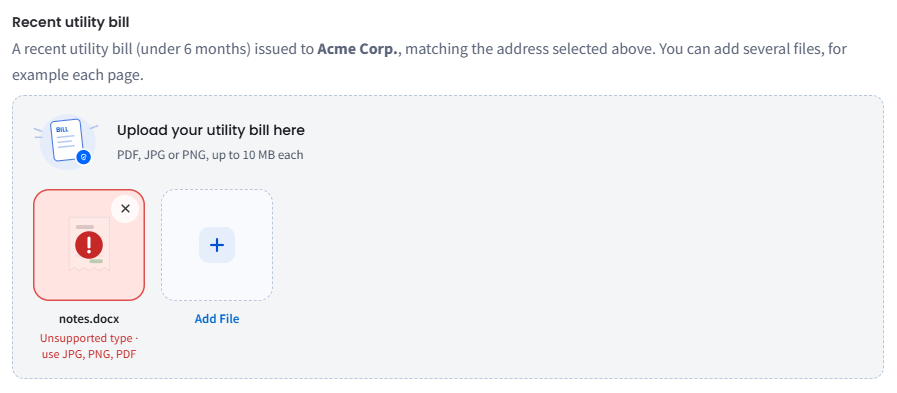
Unsupported file type
Files that need attention
If you continue while a document still has a warning, a banner at the top of the wizard names each file that needs attention. On the Review & submit step, these files are marked Flagged for review.
To fix a flagged file:
- In the banner, click Fix it next to the file.
- Fix the issue as described in the sections above.
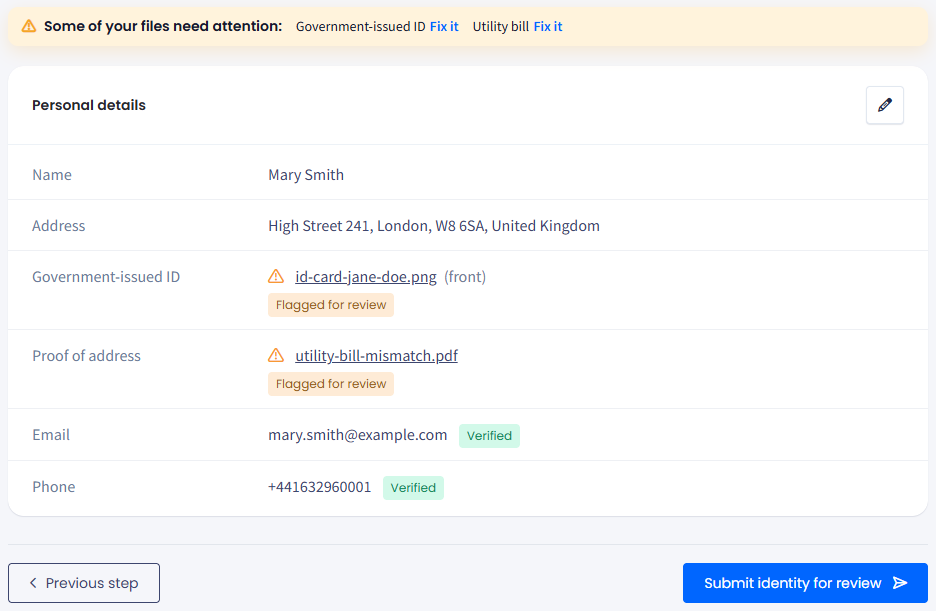
Flagged files on the Review & submit step
If you need help, contact the CommPeak support team.
Updated about 1 hour ago