

Companies
Learn how companies group your contacts in the Inbox, how a contact gets a company, and how to see a company's contacts and conversations.
A company groups the contacts who belong to the same business, so you can see everyone you talk to from one customer and every conversation you have had with them. Companies suit support cases and tickets, where several people from one business write to you about the same account.
A company belongs to the contact, the same way their name or email does. It is not linked to your agents or teams.
Turning on companies
Companies appear in the TextPeak Inbox when Companies is turned on in the space's General Settings.
Open General Settings
In the Inbox, click Settings at the bottom of the Inbox sidebar. In the Workspace group, click General Settings.
Turn on Companies
Turn on Companies.

Companies toggle
Save the changes
Click Save changes.
When Companies is off, the All companies filter, the company in the Details panel, and the company panel are hidden.
For the other options on this page, see the General Settings page.
How a contact gets a company
A contact gets a company in one of two ways:
- From WebChat: If your website signs visitors in, it can pass the visitor's company to the WebChat widget in
company_idand, optionally,company_name, along with the visitor's other details. TextPeak then shows that company on the contact. To set it up, see Identifying signed-in visitors. - From an agent: When a contact has no company, click Add company under the contact's name in the conversation's Details panel, and select a company from the list or create a new one.
Group chats do not show a company.
Viewing a company
The company panel shows everyone from the company and the conversations you had with them.
Open a conversation
Open a conversation with a contact who belongs to a company.
Open the company
In the Details panel, click the company name under the contact's name.
Review the company
The company panel has three sections:
- Details: the company's Name and Company ID.
- Contacts: every contact who belongs to the company.
- Conversations: the conversations with those contacts.
To go back to the contact's details, click the back arrow next to the company name.
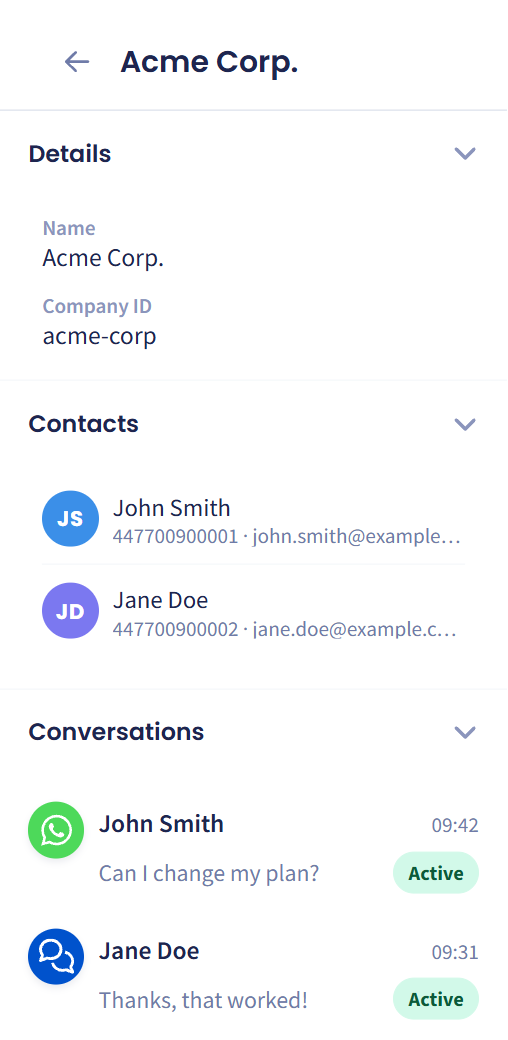
Company panel
To take a company off a contact, click × next to the company name in the Details panel.
Finding conversations by company
In the table layout, the Company column shows each contact's company. To show only one company's conversations, click All companies above the table and select the company. To find a company in a long list, enter part of its name in Search companies.
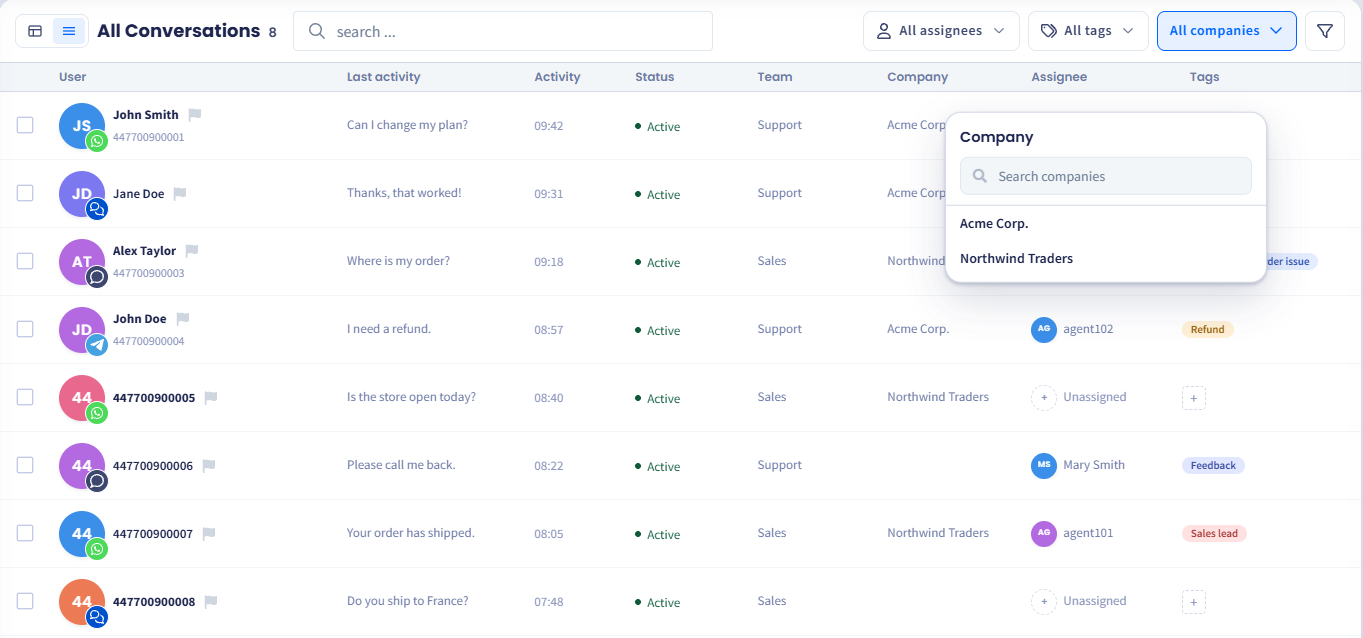
Company column and All companies filter
Updated about 6 hours ago