

API Management
This article outlines how to manage API users, access documentation, monitor API logs, and map lead statuses between a CRM and CommPeak Dialer.
In Settings > API Management, you can:
- create API users for Dispatch Automation and for integrations that call your CommPeak Dialer directly
- view the API documentation
- monitor API logs
- map lead statuses between your CRM and the Dialer.
API users
NOTETo call the Dialer API through
https://api.commpeak.com, use a Portal API key instead of an API user. See Authentication and API Keys. API users are needed for Dispatch Automation, for integrations that must not see full phone numbers (Mask Phone Number applies only to API users), and for integrations that still call your subdomain directly athttps://{subdomain}.td.commpeak.com/api. That address will be deprecated.A Portal API key marked as read-only in the CommPeak Portal has the same restrictions as a Read Only API user.
Follow these steps to create an API user.
Open API Management
Navigate to API Management in Settings.

API Management in the Settings menu
Create an API user
Click Create New API User.

Creating an API user
Enter the user details
Enter data for the new user and configure settings as needed:
-
Username: Authorized individuals will use this username to authenticate and access the Dialer API. You will be able to generate a password in the next step.
-
Realm: This option is pre-set and should remain as API.
-
API User IP ACL:
IMPORTANTYou must enter one or more IP addresses from which the user will make API calls. Use the provided example for IP formats.
-
Mask Phone Number: Select the checkbox to apply Phone Number Masking for the user to limit their access to phone number data according to the main settings.
-
Read Only: Select the checkbox to allow the user to call only endpoints that fetch data. Requests to create, update, or delete data return a
403error with the messageReadonly permission not allowed here. Each endpoint in the Dialer API Reference shows whether it is read-only or write. -
HLRLookUp: Choose this option to enable the HLR LookUp when the user runs POST requests to add leads to the Dialer.
-
Activate the user by selecting the Active? option.
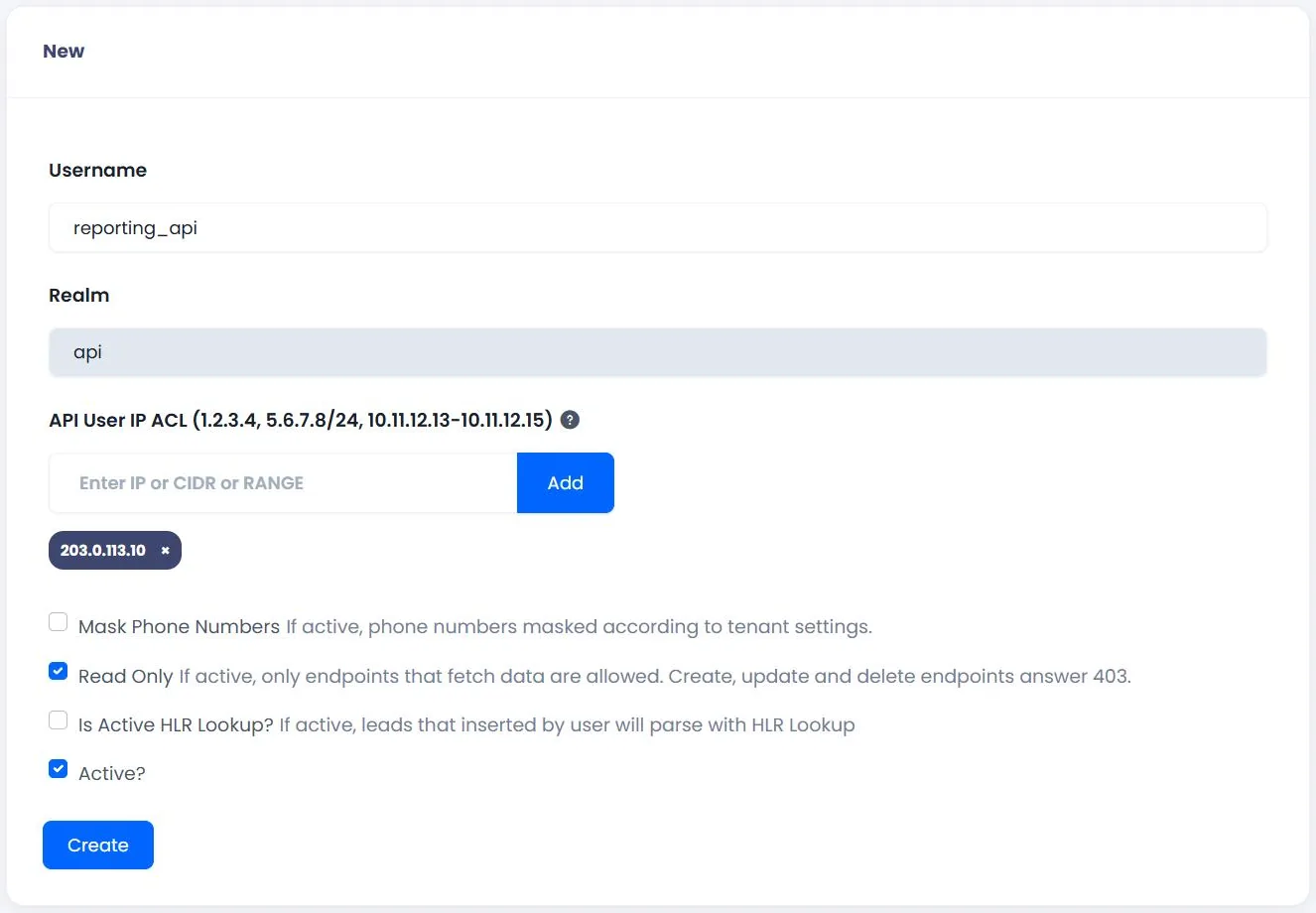
API user settings
Create the user
Click Create.
Copy the password
Reset the user's password. Then, copy the new password that will appear at the top of the page for a few seconds.
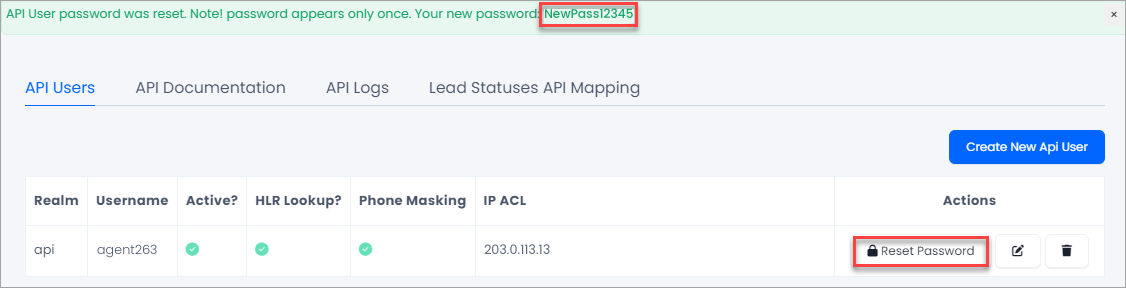
Resetting the password for the API user
To modify settings for existing users, click the Edit button in Actions for the user you wish to change. To remove a user, click Delete.
API documentation
When you navigate to Settings > API Management > API Documentation, the system redirects you to the CommPeak Dialer API Reference.
API logs
You can monitor API usage and performance in the API Logs tab in Settings > API Management. Run the search filters at the top of the table to find the needed records using the date, username, and other filter parameters. Then, you can view the records on the screen or export them as a file.
Requests sent through api.commpeak.com with a Portal API key also appear in the log, with system in the username column. Requests sent by an API user show that user's username.
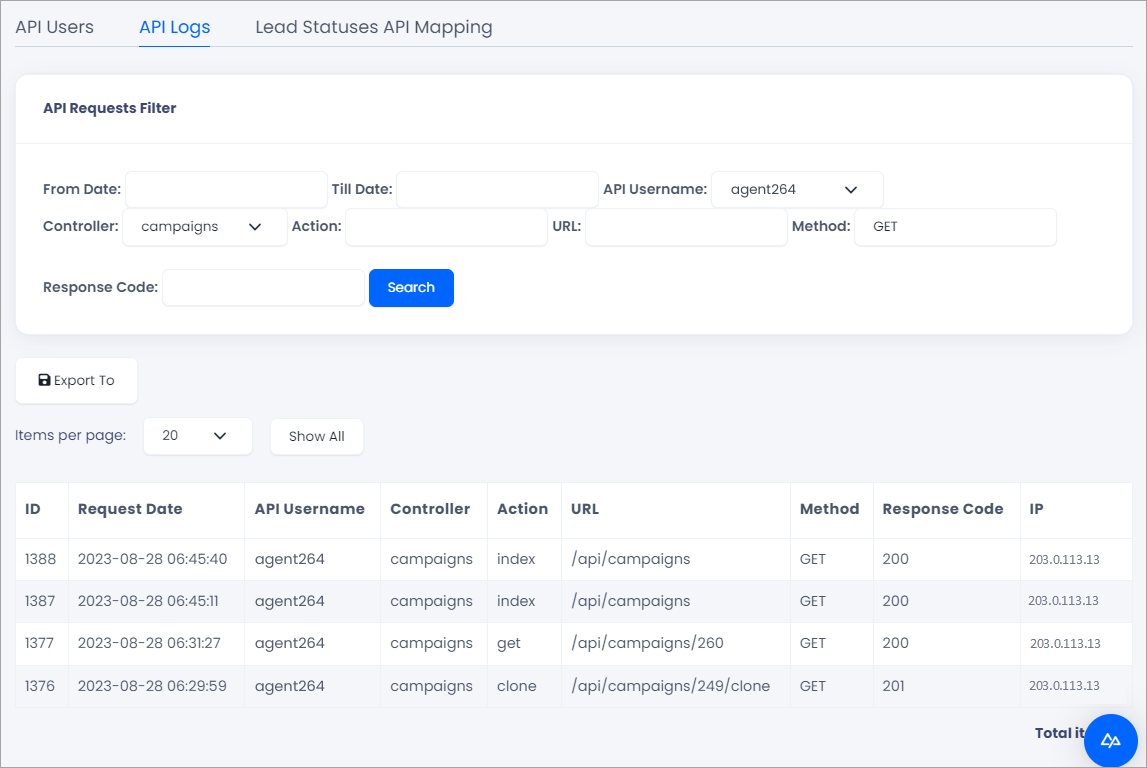
API Logs tab
Lead statuses API mapping
In the Lead Statuses API Mapping tab under API Management, you can connect the statuses of your CRM with those you have created in the Dialer. This way, you can make a pipeline connecting the Dialer and the CRM. Then, the statuses become available for mapping in the remote adapter.

Lead Statuses API Mapping tab
To add a status mapping:
Add a status
Click New at the top-right corner.
Enter the code and description
Enter the status code and description. It is best to name it after the status to which it will be mapped.

Creating status mapping
Create the status
Click Create.
To modify or remove a mapping, navigate to it and use the controls in the Actions column.
Updated 13 days ago