

Teams
Learn how to manage Inbox teams: create a team, assign and remove agents, review a team's sender profiles and incoming routing, and limit which WhatsApp templates the team can use.
Teams decide who sees which conversations in the Inbox, which senders they can write from, and which WhatsApp templates they can use. This article walks you through the Teams page, where you create teams and manage everything attached to them.
NOTEInbox admins can manage every team in the space. Inbox managers can manage only the teams assigned to them. For the full breakdown, see the Inbox Role Permissions page.
To access the Teams tab options:
- In your browser, log in to TextPeak with manager access privileges.
- In the main TextPeak menu, select the Inbox tab.
- Click Settings at the bottom of the Inbox sidebar.
- In the Workspace group, click Teams.
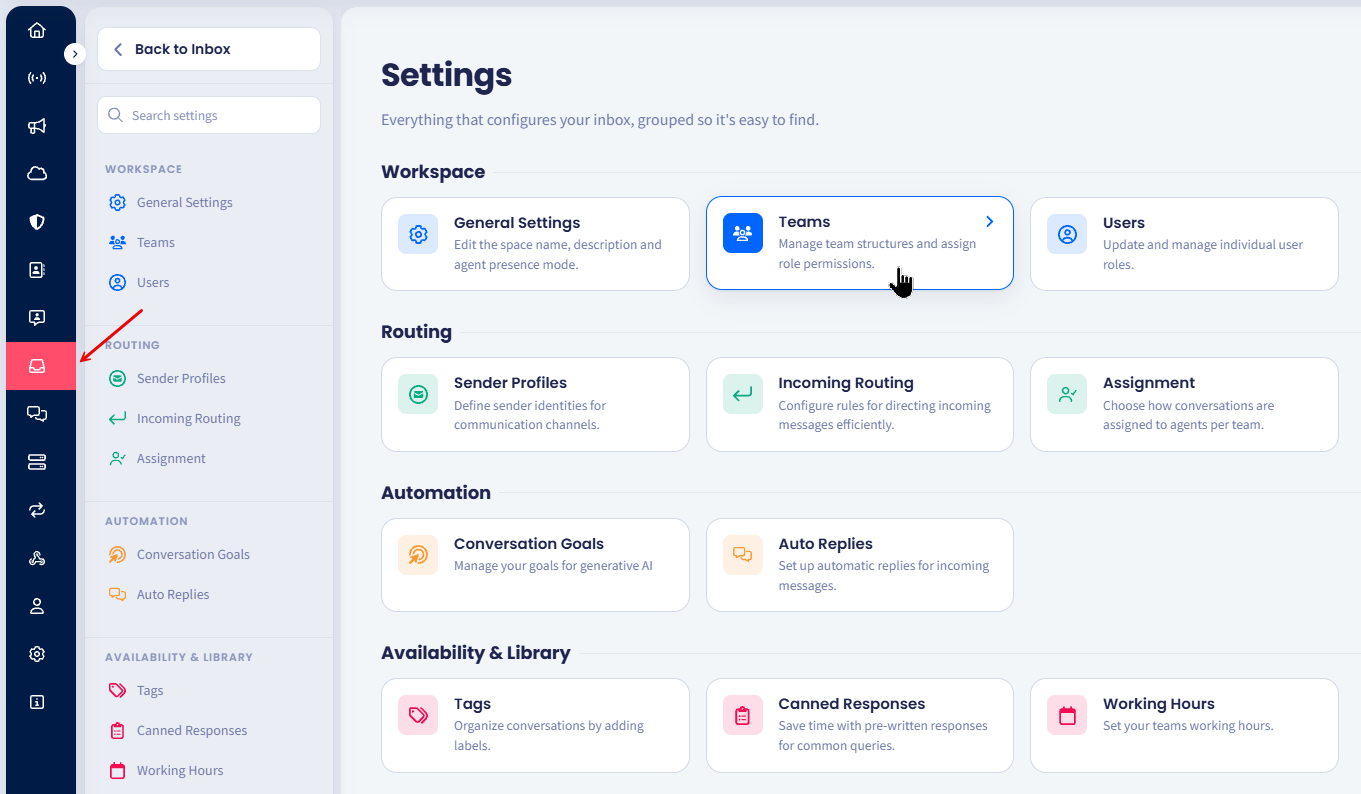
Teams page
The Teams panel on the left lists every team you can manage, with the number of agents in each. Select a team to load its details in the tabs on the right. If you have no teams yet, the page shows No team selected. Create a team to get started.
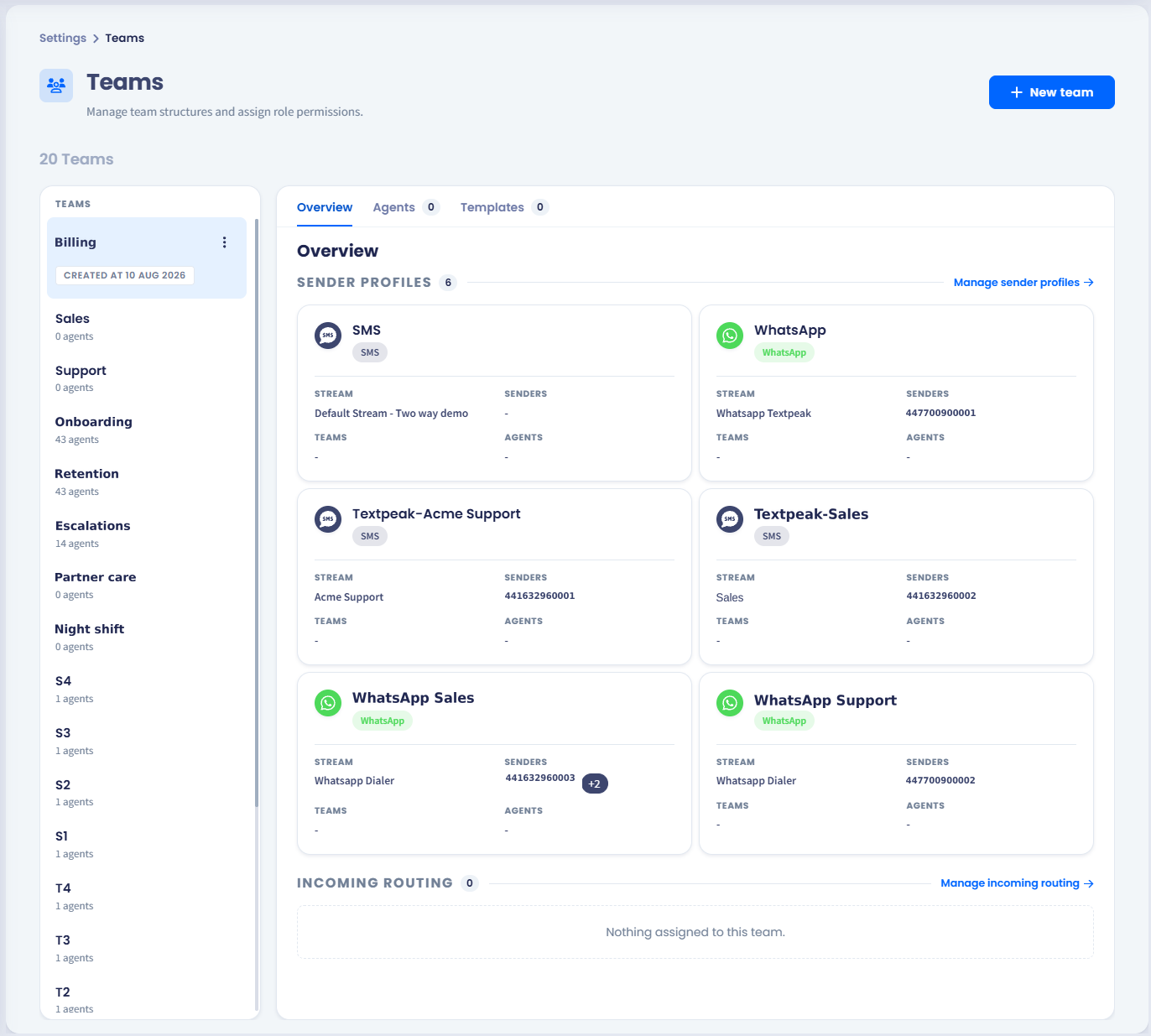
The Teams page with a team selected and the Agents tab open.
Creating a team
-
Click +New team in the top right.
-
Enter a name for the team.
-
Save the team. It appears in the TEAMS panel with no agents assigned.
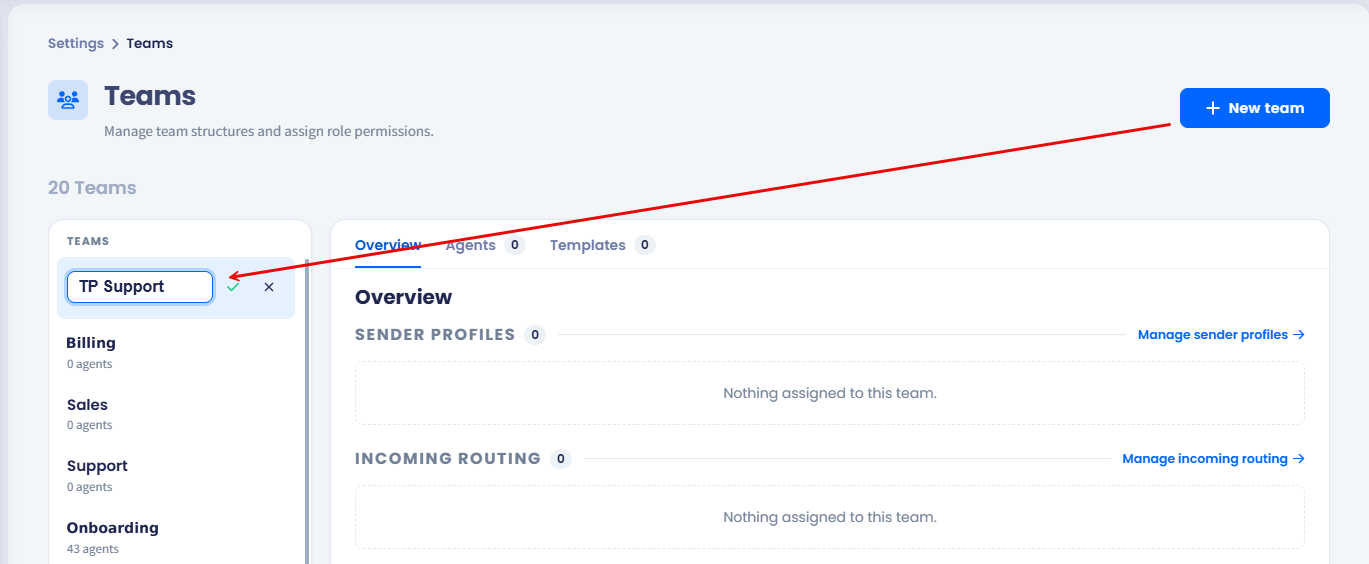
Creating new team
A new team receives no conversations until you give it at least one agent and route messages to it. To send incoming messages its way, see the Incoming Routing page.
Editing or deleting a team
-
In the TEAMS panel, select the team.
-
Click the three-dot menu on the team.
-
Select the option you need, change the details, and save.
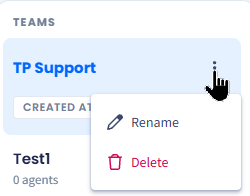
Managing team
WARNINGDeleting a team removes the routing and template rules attached to it. Move its agents and reassign its incoming routing rules first, or conversations meant for that team will arrive unassigned.
Deleting a team also removes its assignment settings. A conversation routed to a deleted team is not assigned automatically to anyone.
Assigning agents to a team
The Agents tab lists everyone in the team with their status and email address. The count beside the tab name tells you how many agents the team has.
Status shows whether an agent is Online, Away, or Offline, and you can change it from their row. It appears when agent presence is turned on for your space: see the Agent Presence page.
- Select the team in the TEAMS panel, then open the Agents tab.
- Click Add teammate.
- Select the agents you want to add, then confirm.
To find someone in a long list, enter their name in the Search agents field.
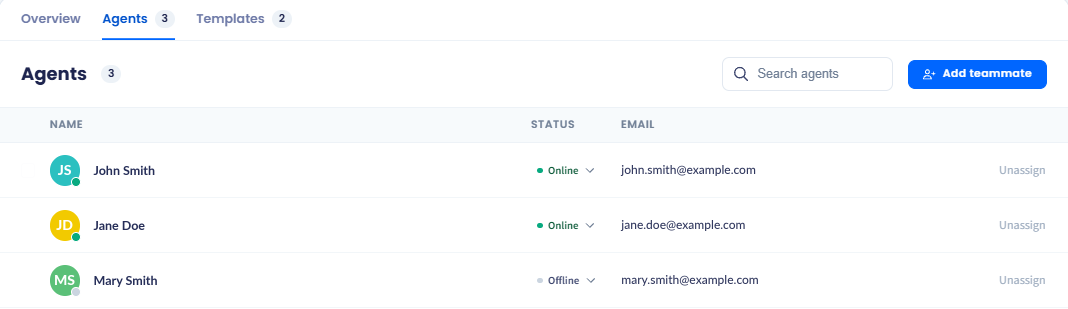
The Agents tab with the Search agents field and Add teammate button.
Choosing how the team assigns conversations
Each team decides for itself how incoming conversations reach its agents - by hand, in rotation, or by current workload. The same space can run a support team on automatic assignment and a sales team on manual.
For the methods and their options, see the Assignments page.
Removing an agent from a team
- Open the Agents tab for the team.
- Find the agent, using Search agents if you need to.
- Click Unassign on their row, then confirm.
NOTEUnassigning an agent removes them from this team only. Their TextPeak account and their membership of other teams are untouched. To change what an agent can do rather than which team they sit in, see the Managing Users page.
Limiting the WhatsApp templates a team can use
By default, a team's agents can use every approved WhatsApp template in the account. Add templates to the Templates tab when you want to narrow that down - for example, so a support team never sends a sales template.
- Select the team, then open the Templates tab.
- Click Add template.
- Select the approved templates the team should be able to use, then confirm.
The tab lists each template with the stream it belongs to.
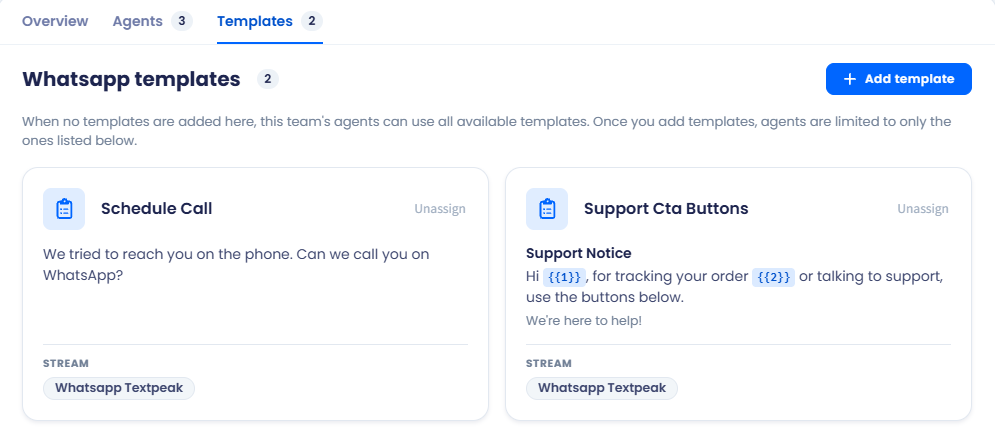
The Templates tab, where you limit a team to specific approved WhatsApp templates.
IMPORTANTAn empty Templates tab means no restriction, not no access. While the tab is empty, the team can use every available template. As soon as you add one template, the team is limited to the templates listed there - so add every template the team needs, not just the new one.
To create and submit templates for approval, see the Whatsapp template page.
Reviewing a team's sender profiles and incoming routing
The Sender profiles and Incoming routing tabs show what is attached to the team, so you can check a team's setup without leaving the page.
-
Sender profiles lists the sender identities the team's agents can write from. To create a profile or restrict which teams can use it, see the Sender Profiles page.
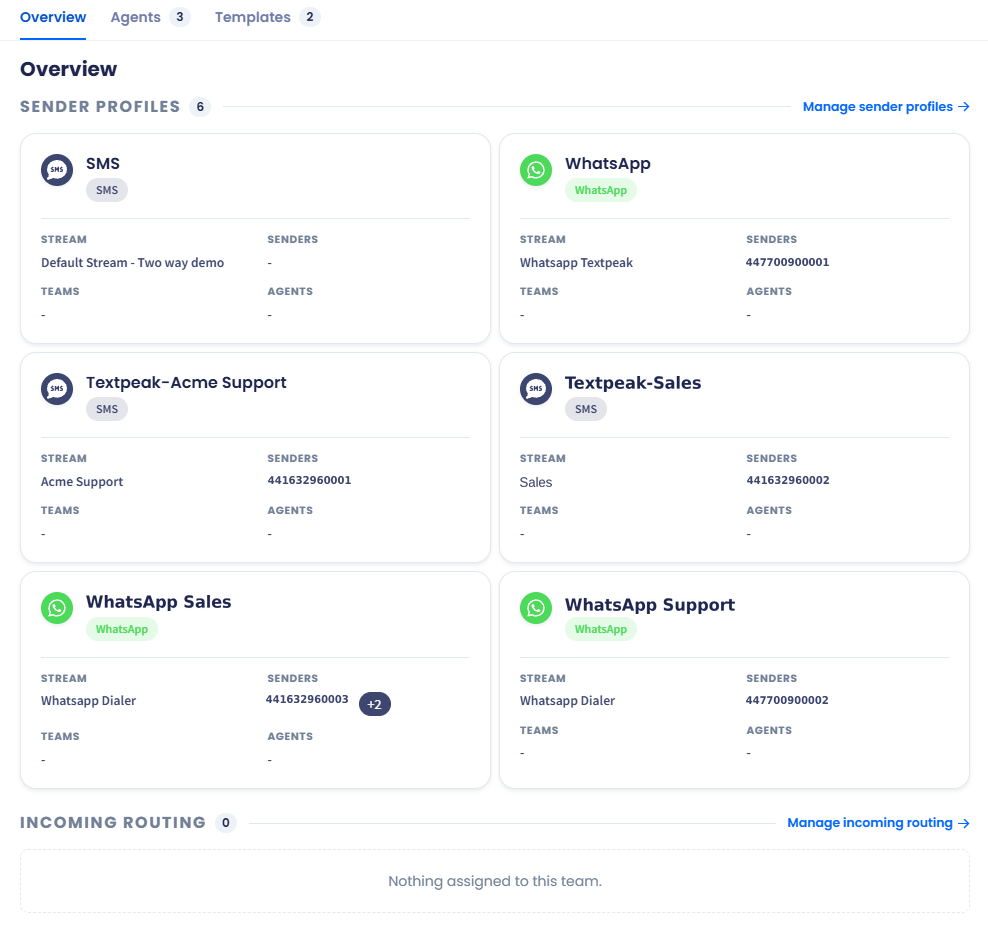
Sender profiles assigned to a team
-
Incoming routing lists the rules that send messages to this team. To add or change a rule, see the Incoming Routing page.
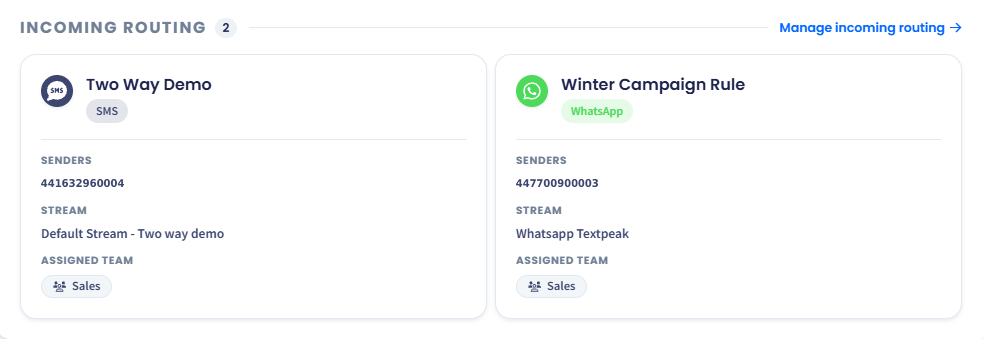
Incoming routings assigned to a team
A team with no sender profiles cannot start outbound conversations, and a team with no incoming routing rules receives no inbound messages. Check both tabs after creating a team.
NOTEThis page was redesigned and renamed from Team management to Teams in v1.1.0. Teams, agents, and templates work the same way as before - the options are now grouped into tabs instead of a three-dot menu on each team card.
For the rest of the manager options, see the Manager's Guide: Inbox Settings page.
Updated 4 days ago