

AI Flows: Realtime Management
Monitor and control your AI voice bots live: where bots appear, inbound bot calls, whisper / manual transfer / manual hangup, and the AI Flows management modal.
The Realtime page is where managers watch and control voice AI bots live, side by side with human agents - there is no separate AI screen. This guide covers where the bots appear, how inbound bot calls show up, the live-call actions (whisper, manual transfer, manual hangup), and the AI Flows modal used to manage flows, agents and clock-in state.
Who sees AI on the Realtime page?You need the Manage AI Agents permission and AI enabled on your account. Visibility is scoped by skill groups - a manager sees only the AI voice agents, bot flows and inbound bot calls whose skill groups intersect their own (superusers and all-skill-group managers see everything).
Where AI bots appear
Agents roster
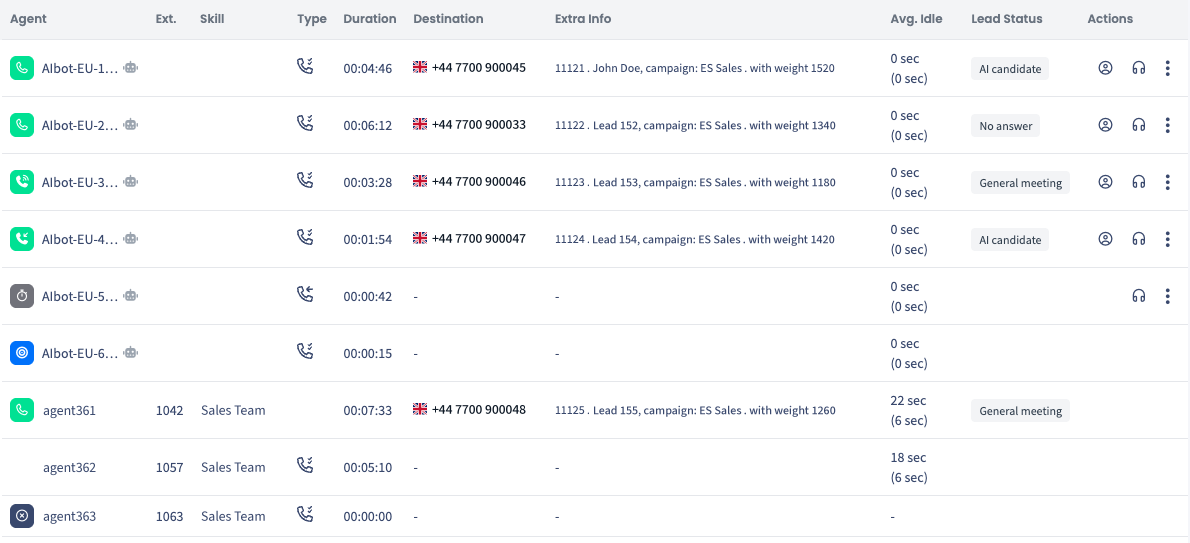
AI agents are merged into the regular agents view (grid and table), clustered after the human agents. Each bot channel is one agent row named aibot-<flw>-<n>, with the familiar status icons:
| AI status | Meaning | Shown like |
|---|---|---|
| Waiting for Call | Ready and idle, available to take the next call |  |
| Dialing Direct | Dialing a direct (priority) lead |  |
| In a outbound Call | Live, connected with a lead |  |
| In a Incoming Call | On an inbound call from a known / unknown lead |  |
| Predicting Stopped | Clock out and still with a lead call. No longer receiving new calls, leaving the dialing pool after the current call ended |  |
| Offline | Clocked out, waiting to manual Clocked in by ratio of fixed mode |  |
AI rows are not affected by the desk/status filters - they always stay visible to their managers.
Group cards
Each user group card shows the Human/AI split: the agents donut and loaded-leads counters are split between human and AI, and the card gets a dedicated AI Drop rate row (the main Drop rate stays the combined total). A group card shows AI data only while at least one AI agent covers that group.
All AI data rides the same ~5-second realtime refresh as everything else on the page - any action you take is reflected on the next tick.
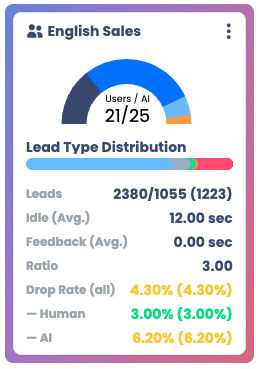
Leads section separate to AI leads and Human leads
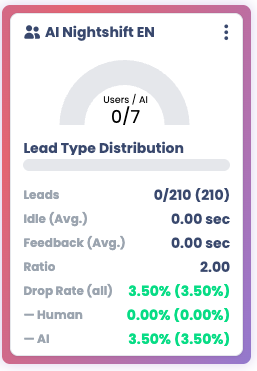
Only AI Leads in this group with 7 AI Bot agents
Inbound calls to bots
When a bot flow allows inbound, each live inbound call to the bot appears as a temporary AI row named aibot-<flow>-incoming-<n>, showing the caller number and the DID that was dialed. These rows exist only for the duration of the call - they are not real agents, do not consume the flow's outbound channels, and disappear when the call ends. The live-call actions below (whisper, transfer, hangup) work on them exactly like on outbound bot calls.
Live-call actions on a bot
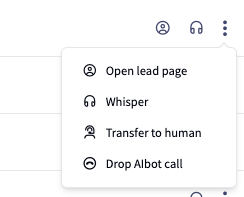
Open the actions menu (⋮) on an AI row while the bot is On call:
| Action | What it does | Permission |
|---|---|---|
| Whisper (listen) | Listen in live on the bot ↔ lead conversation | Whisper |
| Transfer to human | Manually pushes the AI bot call out and stay the lead call on hold while searching an human agent via skill group queue - same path as when the bot decides to transfer | Transfer AI Call to Human |
| Hang up call | Immediately ends the bot's call and the lead call (no confirmation prompt) | Kill AI Call |
| Open lead page | Opens the connected lead in a new tab | - |
Each permission is independent - a manager can have one without the others. Every action is recorded in the activity log under the manager's name, and the result shows on the next realtime tick.
The AI flows modal
Open it from the robot button in the Realtime page header. This is the fleet-management panel - monitoring stays on the main page, capacity control lives here.
Use the List / Split toggle in the modal header to switch how flows are shown:
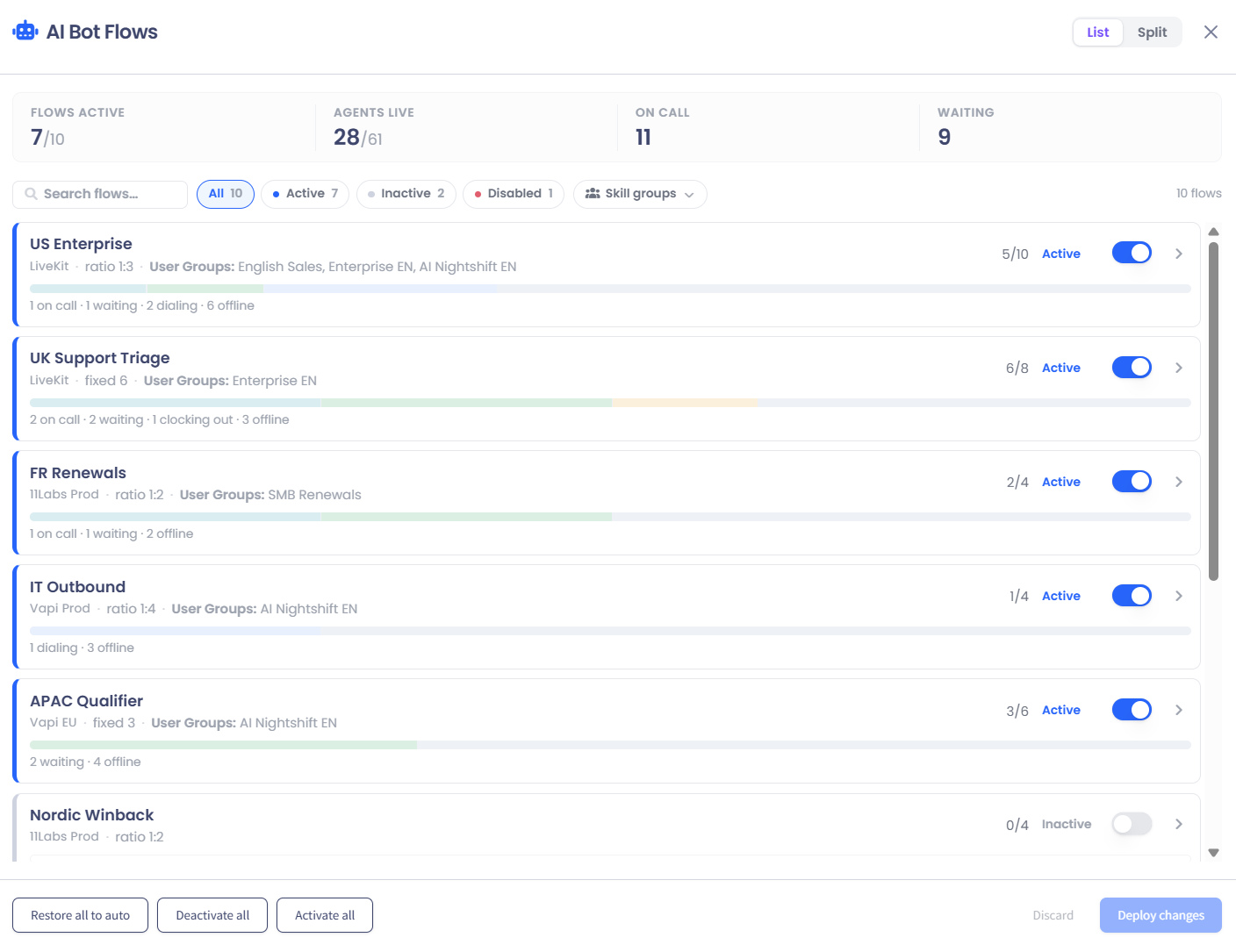
- List - every bot flow stacked as a row, each with its status counts, channel distribution bar, engine and activation mode. Use it to scan the whole fleet at a glance and activate, deactivate or restage flows in bulk.
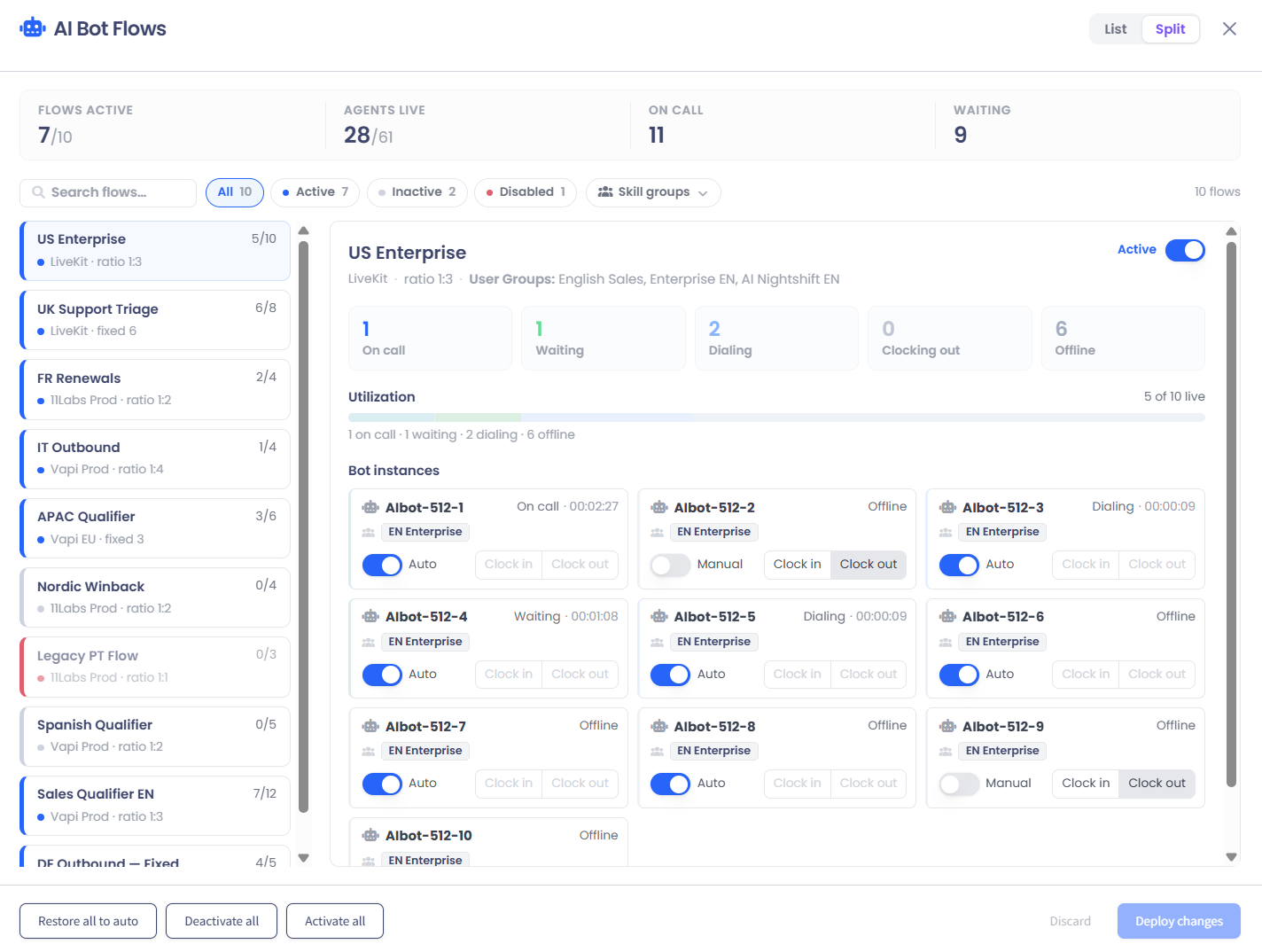
- Split - a two-pane view: select one flow on the left and the right pane focuses on just that flow, showing its live stat tiles (on call, waiting, dialing, clocking out, offline), a utilization bar, and a tile for every individual bot instance. Use it to zoom in on and manage a single flow.
LIST view
SPLIT view
Per bot flow you get:
- Activate / Deactivate toggle - an inactive flow stops receiving calls.
- A channel distribution bar - the flow's channels colored by live agent state (waiting / dialing / on call / offline).
- The groups the flow feeds - which priority groups its skill groups serve.
- Agent tiles - one tile per channel with its live state.
Per agent tile (and as bulk actions per flow):
- Clock in / Clock out - manual staffing. Clocking out a bot that is mid-call is graceful: it finishes the current conversation first, then goes offline. Manual clock-in also pins the agent (see below).
- Auto - staffing mode. Auto agents are managed by the auto-staffer, which clocks bots in and out to hold the flow's target (Ratio: scales with your clocked-in human agents. Fixed: a constant count).
Save changes (Deploy): nothing is applied while you click around - the tiles stage your intended changes, and everything fires together when you press Save.
Staged tiles then show as pending until the next realtime tick confirms the new state. If a change fails, the tile returns to a staged (undeployed) state so you can retry.
Updated 7 days ago