

Creating a Queue in PBX
Create and configure call queues in CommPeak Classic PBX, including setting up queue settings, ring strategies, and failover destinations.
Step 1: Access the Classic PBX web interface
Get your server credentials
Obtain your Cloud PBX server's domain and admin credentials from CommPeak support team.
Log in to the server
Open a web browser, navigate to the domain, and log in to the server.
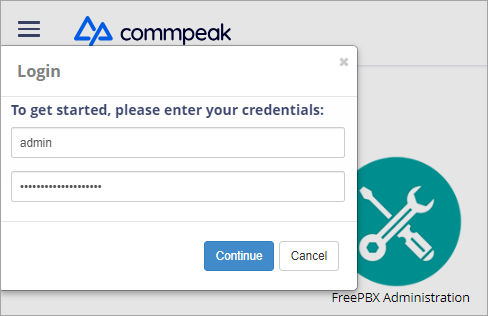
Accessing Classic PBX Web Interface
Step 2: Create a queue
Open Queues
Go to APPLICATIONS > Queues .
Add a queue
Click + Add Queue.

+ Add Queue button
Set the general settings
In General Settings, we recommend setting the following basic configurations:
| Field | Value |
|---|---|
| Queue Number | Manually enter the number of your queue. |
| Queue Name | Manually enter the name of your queue. |
| Agent Restrictions | Extensions Only |
| Ring Strategy | You can define the order or pattern in which agents or devices associated with the queue are alerted when there's an incoming call (which phone or extension within the queue will ring when a call arrives). Select a value from the drop-down list depending on workload distribution, agent availability, and service level goals of your call center: • _ringall_*: all available agents' phones ring simultaneously, and the call is answered by the first one to pick up • _leastrecent_*: the agent who has been least recently called by the queue is the first to be alerted • _fewestcalls_*: the agent who has taken the fewest calls from the queue is the first to be alerted • _random_*: calls are distributed randomly among available agents • _roundrobin_*: calls are distributed circularly, rotating through available agents • __rrmemory_:_* round robin with memory remembering the last ring pass (recommended value) • _linear_*: similar to round robin but allows skipping unavailable agents • _wrandom_*: similar to random, but agents who have been idle longer are more likely to be chosen. |
| Autofill | No |
| Skip Busy Agents | Yes + (ringinuse=no) |
| Fail Over Destination | Select a failover destination to the queue, such as VM, or any other destination. |
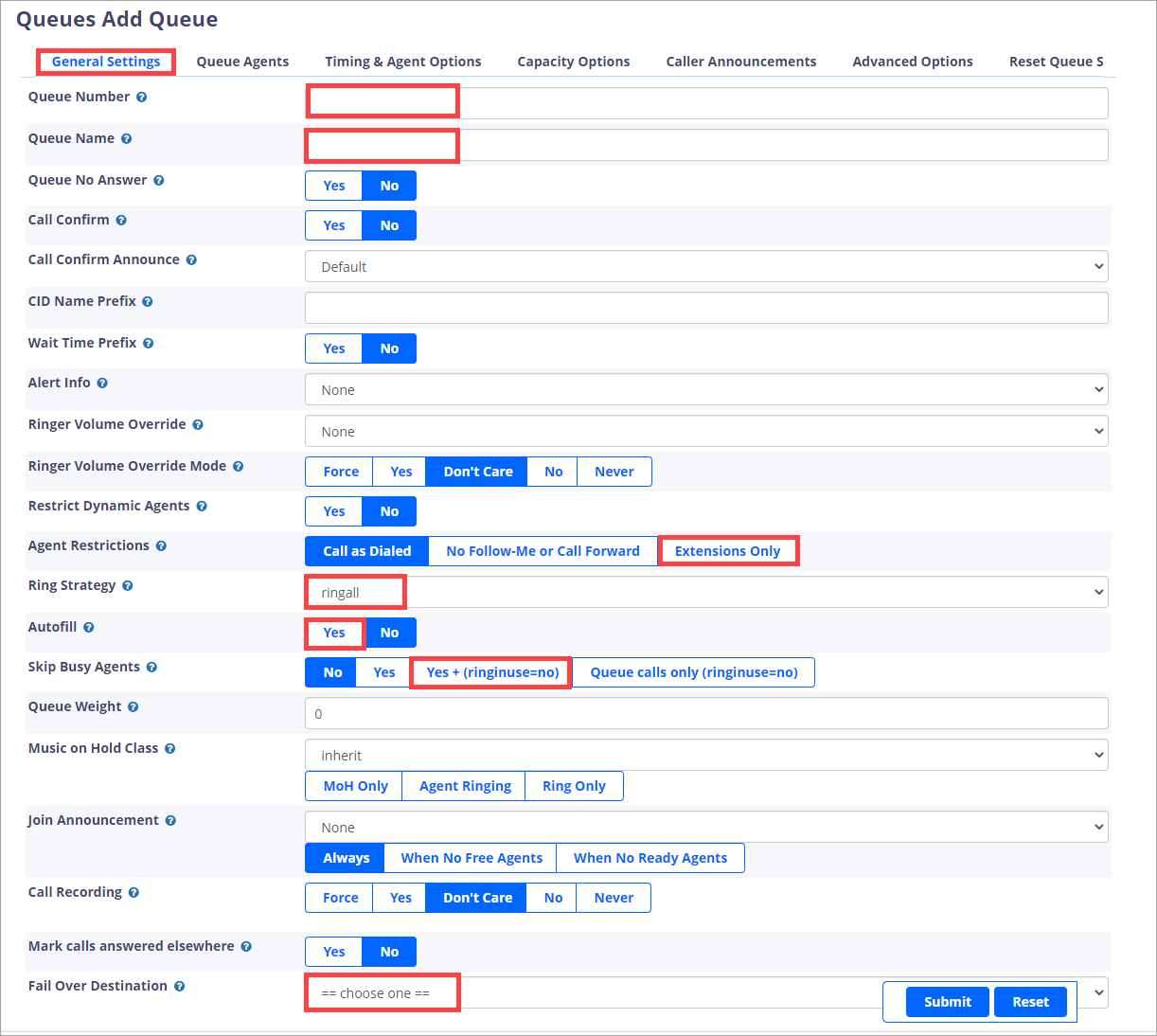
General Settings tab
Set the timing options
On the Timing & Agent Options tab, please set from 2 to 5 minutes for the Max Wait Time field.
Submit the queue
Click Submit.
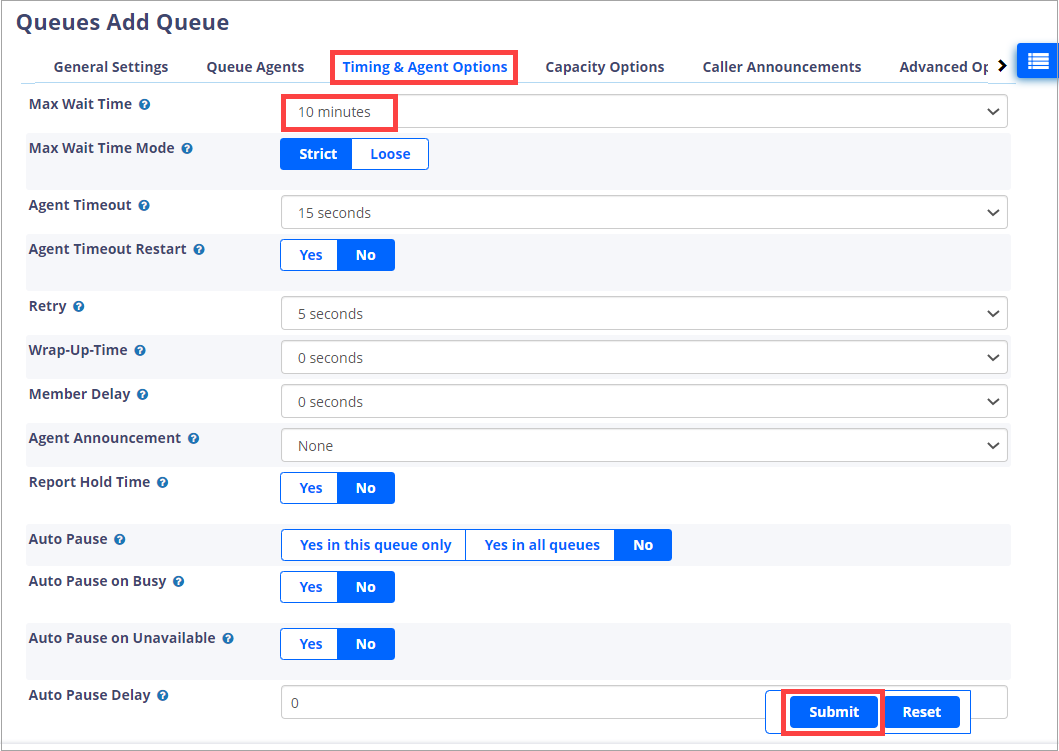
Timing & Agent Options tab
Apply the configuration
Click APPLY CONFIG in the top right corner.

APPLY CONFIG button
Step 3: Assign agents to the queue
Please look at the Queue Manager article for guidance.
Step 4: Test the queue
Place a test call
Place a test call to the designated phone number or DID routed to the queue.
Check the queue
Verify that the call is placed in the queue and that agents receive the call according to the configured queue strategy.
We recommend that you contact our support team with a request to configure inbound call routes and destinations for you, and we will be happy to do it.
Updated 4 days ago