

Agent Presence
Learn how to turn on agent presence in TextPeak, set automatic away mode, and view or change an agent's status from the Users and Teams pages.
Agent presence shows agents as online, away, or offline, and let them set their own status. When off, presence is hidden everywhere in this space. TextPeak does not assign new conversations to an agent who is Offline.
This article walks you through turning agent presence on, tuning how it behaves, and changing an agent's status from the Settings > Users and Settings > Teams pages.
NOTEAgent presence applies to your whole space, not to individual teams. Turning it on affects every agent in every team.
Turning agent presence on
Agent presence is off by default. Some accounts do not need to track agent availability, so it is optional.
-
In your browser, log in to TextPeak.
-
In the main menu, select the Inbox tab.
-
Click Settings at the bottom of the Inbox sidebar.
-
Select the General settings tab.
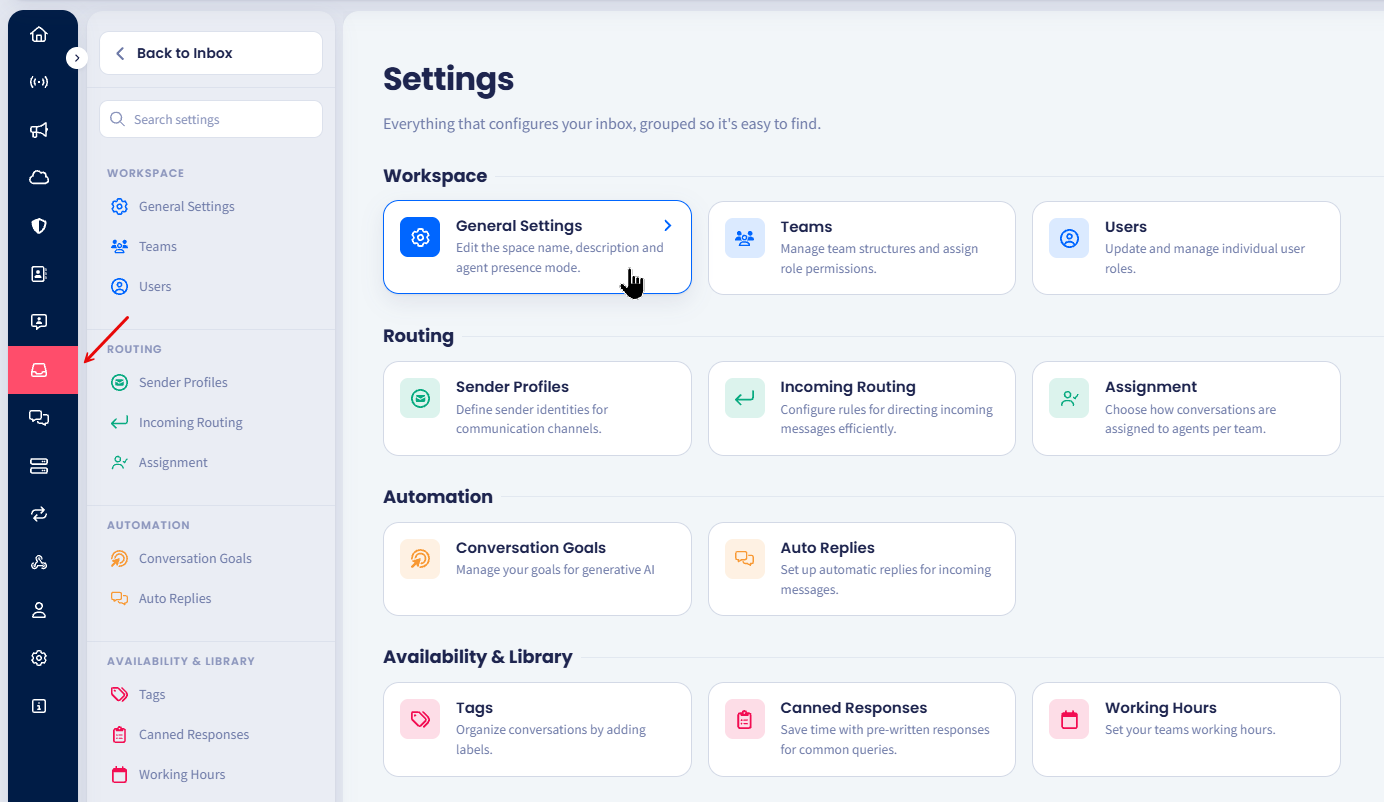
Inbox General Settings tab
-
Turn on Agent presence toggle.
-
Scroll down and click Save changes.
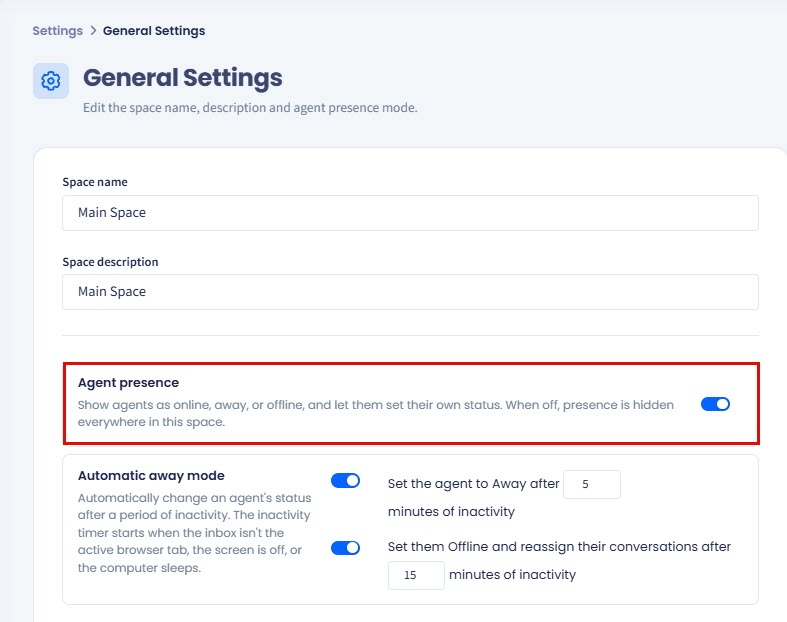
Inbox General Settings page: Agent presence toggle
Once the setting is on, every agent sees their own status control in the top bar (provided it is offline/away), a Status column appears on the Users and Teams pages, and the automatic timers below become available.
Understanding the three statuses
| Status | What it means | Who or what sets it |
|---|---|---|
| Online | The agent is working and can receive conversations. | The agent, or a manager. |
| Away | The agent has been inactive for the period you set. | The automatic away timer. Agent can also set their status to Away. |
| Offline | The agent is not working and receives no new conversations. | The agent, a manager, or the automatic offline timer. |
Setting the automatic timers
Automatic away mode changes an agent's status after a period of inactivity, so nobody has to remember to do it at the end of a shift.
The timer starts when the Inbox is not the active browser tab, the screen is off, or the computer sleeps. An agent working in another tab counts as inactive.
Two timers are available, and you turn each one on separately. Use one, both, or neither.
- In General Settings, find Automatic away mode.
- Turn on Set the agent to Away after ... minutes of inactivity and enter a number. The default is 5.
- Turn on Set them Offline and reassign their conversations after ... minutes of inactivity and enter a number. The default is 15.
- Click Save changes.
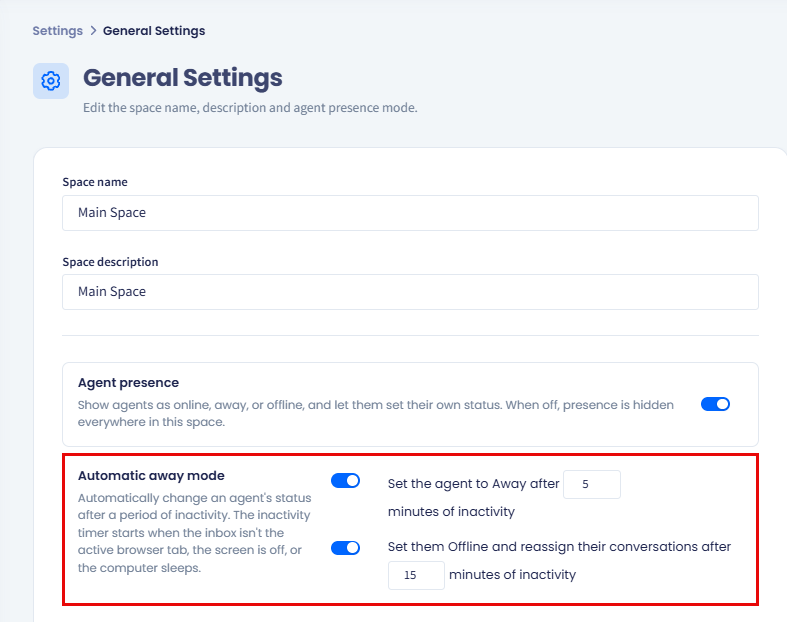
Inbox Automatic away mode settings
IMPORTANTThe second timer does two things. It sets the agent Offline, and it returns their open conversations to the queue; even if Reassign when an agent goes offline is turned off for their team. Set it long enough that a short break does not cost an agent their conversations.
TIPThe offline timer starts when the away timer finishes. With the defaults, an agent who stops working goes Away at 5 minutes and Offline at 15: in total 20 minutes from when they stopped.
When an agent is away or offline and they start writing a message they get a warning saying they're not online and suggesting they switch to active.
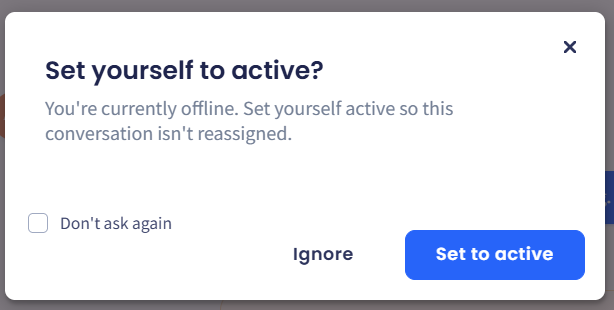
Set yourself to active? dialog box
NOTEWith both timers off, only Online and Offline are in play. Agents move between them themselves, and TextPeak never changes a status for inactivity.
Setting your own status
Every agent controls their own status from the top bar (for Offline or Away statuses), whatever their role.

Agent status notification in the top bar
-
In your space, click your profile icon in the bottom left. The dot color next to the icon indicates the current status.
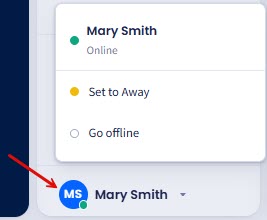
Status selection options
-
Select Set to Online, Set to Away, or Go Offline.
-
If you select Go Offline, choose a reason.
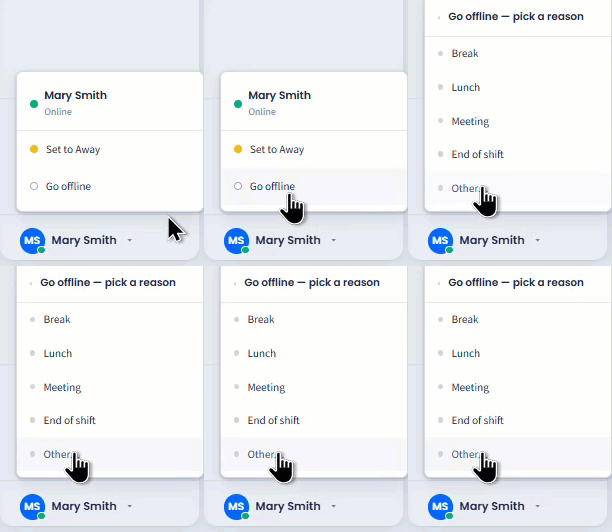
Selecting the reason
Your status remains visible in the top bar while you are offline or away, so it is obvious why conversations have stopped arriving.

Offline status notification in the top bar
Managing your agents' statuses
You can see agent statuses in two places: on the Users or Teams tab. Both are read-and-write, so you can put someone online or offline yourself; useful when an agent forgets to change their status at the end of a shift.
Viewing statuses on the users page
-
Go to Settings > Users.
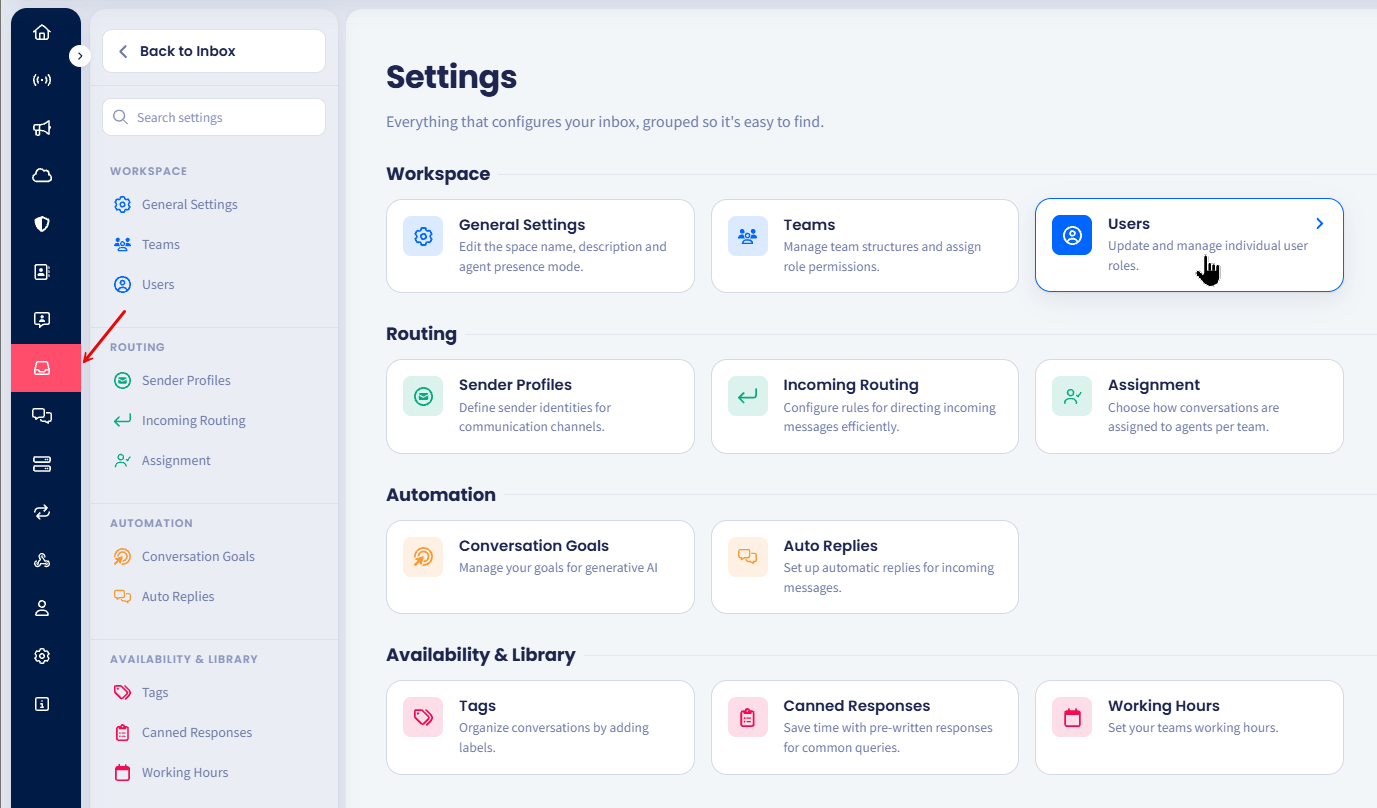
Inbox Users tab
-
In the Users table, view the Status column to see where everyone stands.
-
To change a status, select the new value on the agent's row.
For more details, check the Users page.
Changing another agent's status does not ask you for a reason. TextPeak asks for a reason only when an agent sets their own status to Offline.
NOTEYou can set an agent to Online or Offline, but not to Away. Only the automatic timer sets that status.
Viewing statuses on the teams page
-
Go to Settings > Teams.
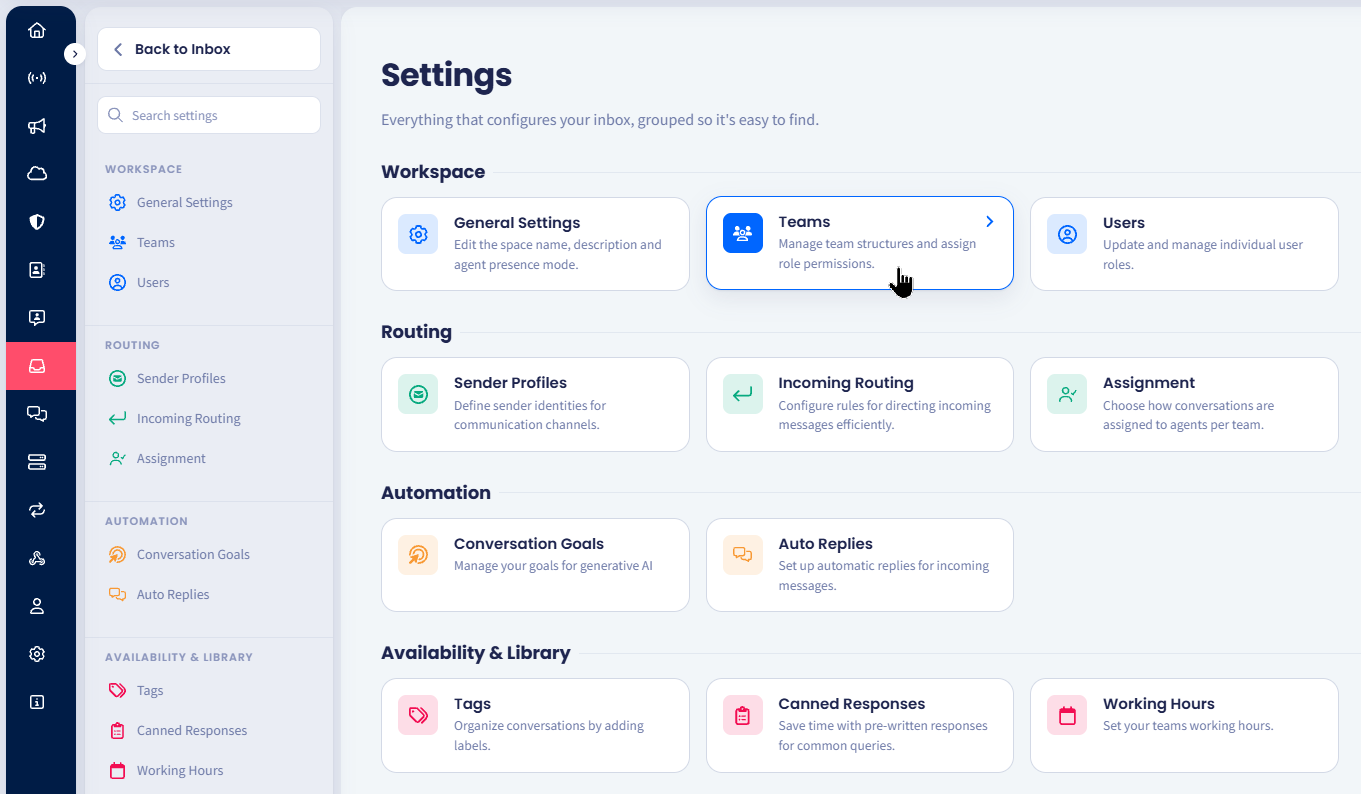
Inbox Teams tab
-
Select a team and open the Agents tab. Each agent's status appears beside their name and email address.
-
To change a status, select the new value on the agent's row.
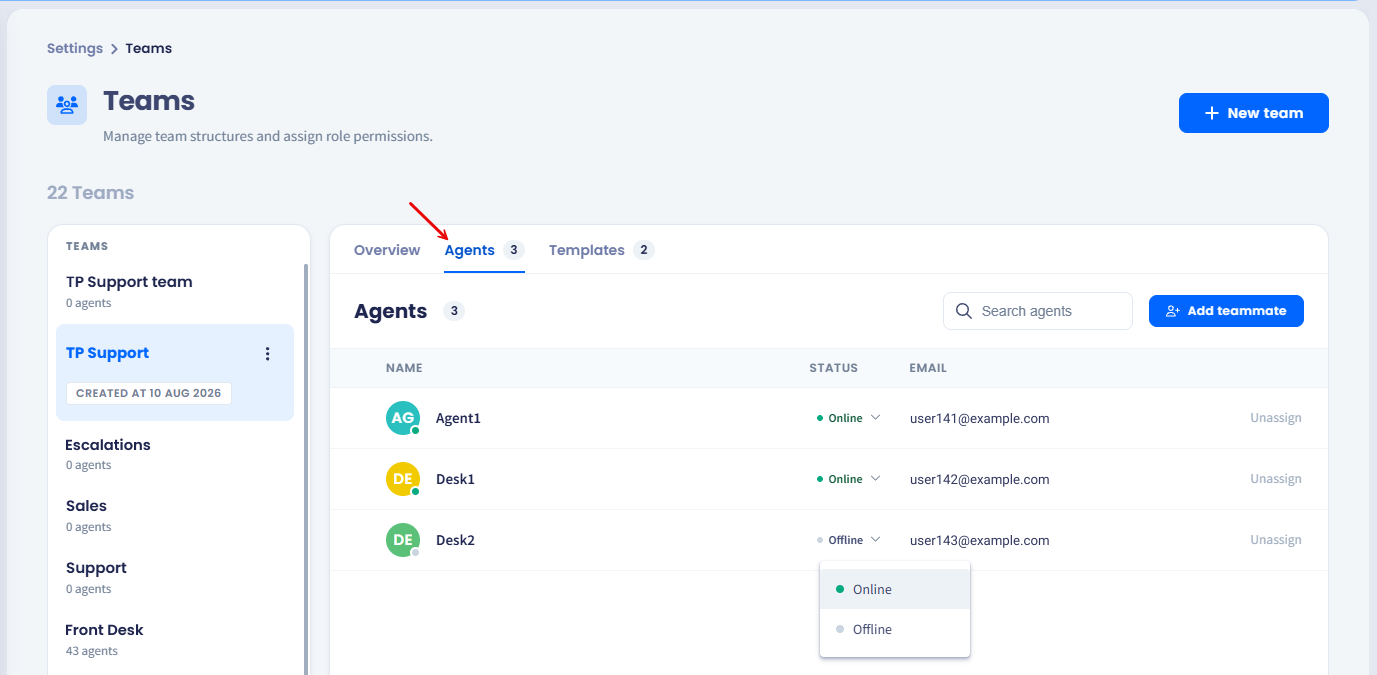
Setting statuses on the Teams page
TIPUse the Teams > Agents tab when you are checking one team's coverage, and the Users page when you want the whole space at a glance.
What an offline agent misses
Status is not only a label. Setting an agent to Offline changes what reaches them.
- Automatic assignment skips them. New conversations go to an agent who is online.
- Manual assignment to an offline agent is still possible, if you hold the permission for it.
- If Reassign when an agent goes offline is on for their team, TextPeak returns their open conversations to the queue as soon as they go offline, and hands them to another agent who is online.
- If no agent in the team is online, conversations wait in the queue until someone comes back.
For the full set of assignment options, see the Assignment page.
NOTETextPeak added agent presence in v1.1.1. The Agents tab on the Teams page has always shown a status column: this release is what gives those values meaning.
Updated 12 days ago