

Agents Are Calling Only Old or Personal Leads
Learn how to address issues with agents calling only old or personal leads.
Issue
Your agents report that all the leads they call are old or belong to their personal callback list.
Possible causes
This situation harms both the agent and the company. On the one hand, the agent gains excessive control over the lead database and gets a lot of leads in private access. On the other hand, the agent drops out of calling the hottest leads because personal assignments always have the highest weight for the CommPeak Dialer and will be called first.
It can have two reasons:
Reason 1
The agent sets the status corresponding to a personal meeting by mistake. If the lead he is calling is not high-priority and just needs to be called back later, a status for a general meeting should be assigned.
In this case, the system will dial the lead at the scheduled time but connect them with any available agent.
Personal meetings should be scheduled for the highest-priority leads only.
NOTEHereafter, we will call the status that corresponds to a personal meeting assigned to a specific agent the Personal Meeting status, but it can have a different name in your system.
Reason 2
The agent makes a lot of personal appointments on purpose, assuming to gain benefits in case these leads make a deposit on their own in the future.
Background
The manager can take the following steps to confirm that an agent assigns leads incorrectly:
Step 1: Check how many personal assignments each agent has
Option 1
Open Scheduled Calls by Agents
Go to the Scheduled Calls by Agents list (Workspace > Contacts).
Set the filters
Set filters: select а campaign, the status corresponding to personal meetings, and user desks assigned to your team.
The list of agents with personal assignments will be displayed. By sorting it by agent, you will easily see how many personal appointments each agent has and who has many more leads assigned.
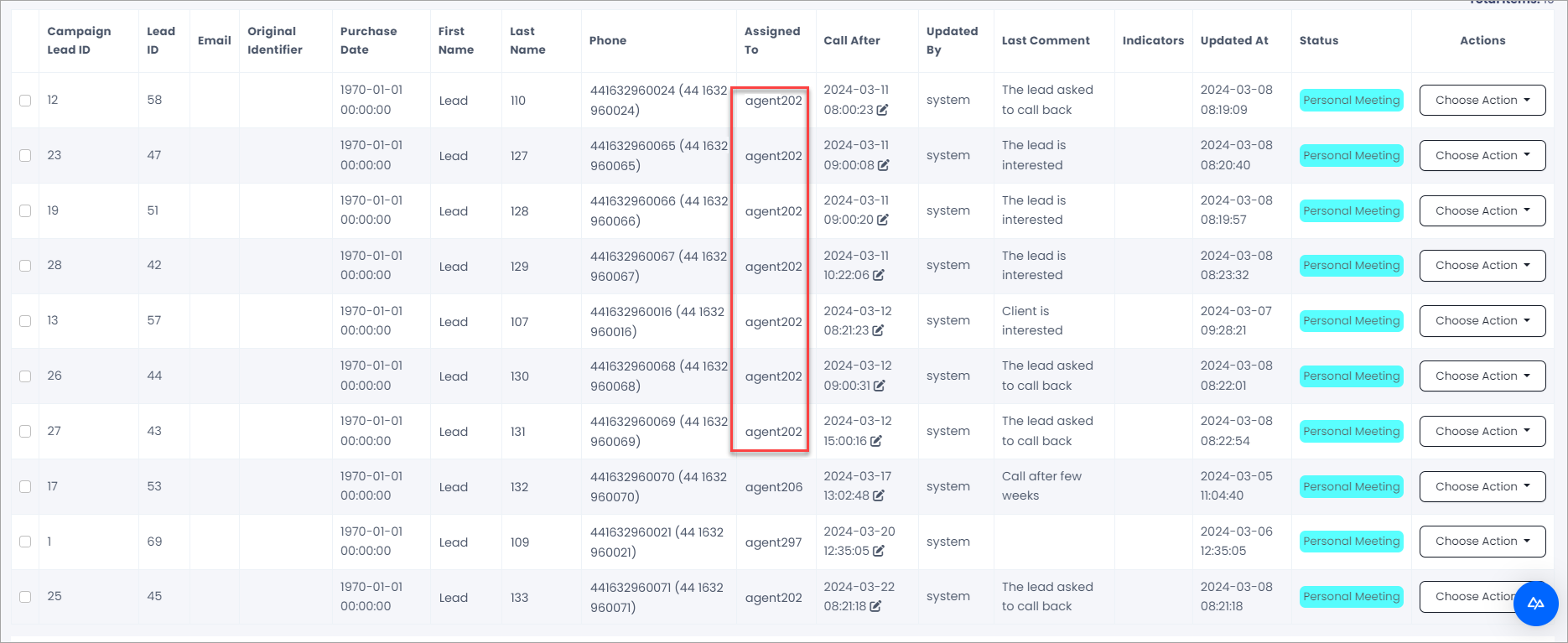
List of agents with personal assignments
Option 2
Open Agents Scheduled Calls Stats
Go to Reports > Agents Performance > AgentsScheduled Calls Stats.
Filter and show the report
In filters, select users or groups and skill groups and click Show.
The Total column will display the number of personal meetings assigned to each agent in the group.
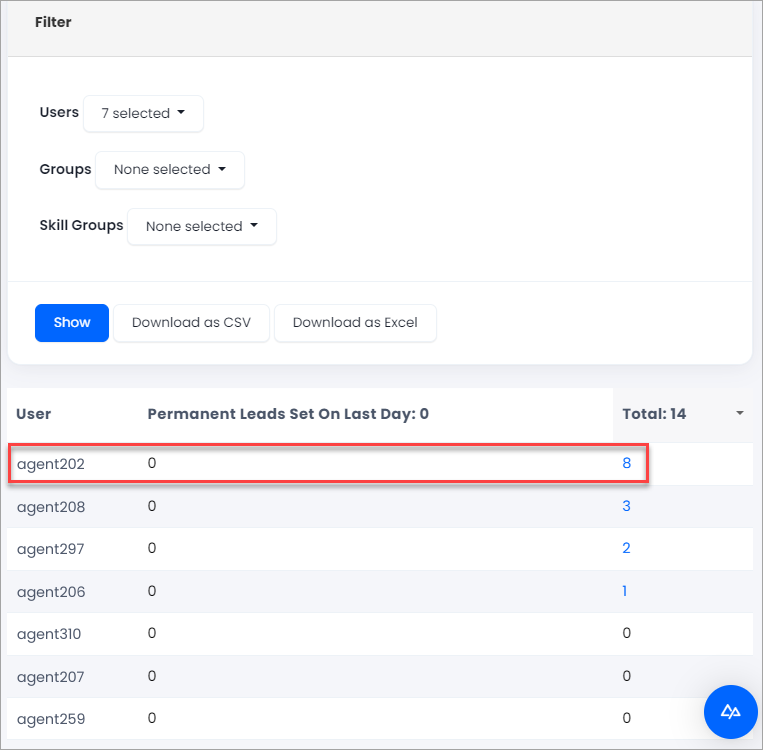
Total numbers of personal meetings for agents in the group
NOTEYou can also check this section to learn how to customize reports to meet your specific informational needs.
Step 2. Investigate the cases of agents having more leads assigned compared to others
Option 1
Read the last comment
On the Scheduled Calls page, you can view the last comment about each lead or change the Call After time.
View all comments
Click Choose Action in the Actions column and see all the comments and history of the lead.
Option 2
Open the agent’s personal leads
In the Agents Scheduled Calls Stats report, click the number of personal assignments in Total.
Review the leads
You will be redirected to the Campaign LeadSearch Results page for this agent, where you can view more information about leads assigned and their call-back time.
Open comments or lead history
In Select action, you can also access comments or lead history.
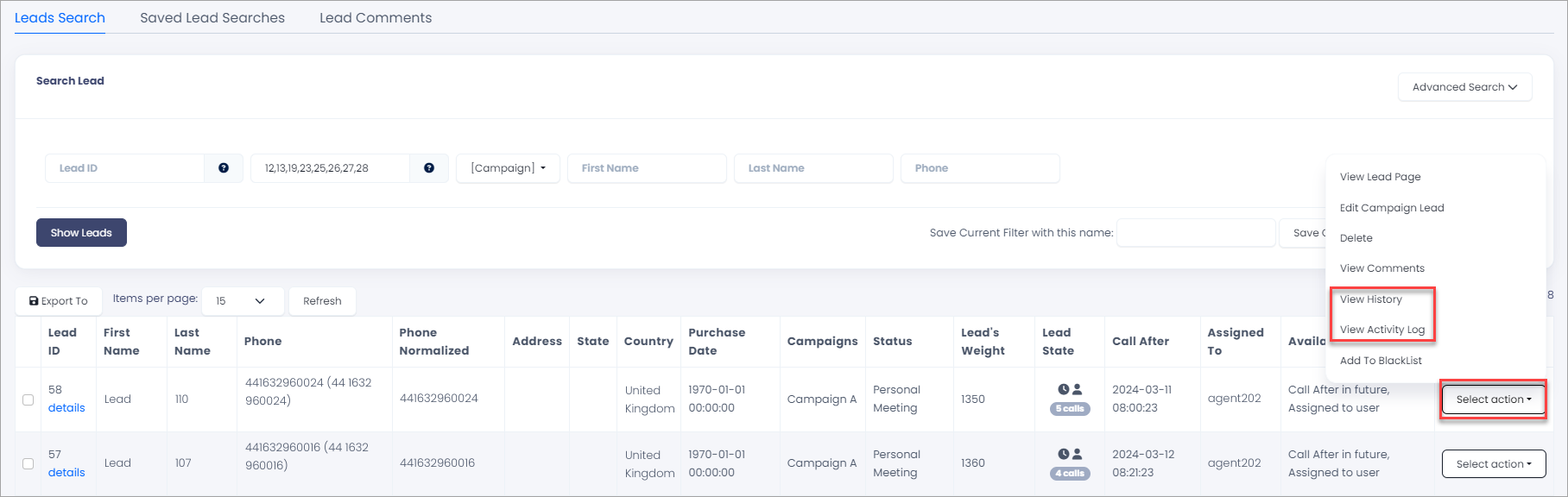
Actions with the lead
Solutions
To solve the lead assigning issues or prevent them in the future, try the following.
1. Unassign leads
If, after investigation, you find an issue with the Personal Meetings status, you can unassign leads in the Future Call-Backs list.
Open Contacts
Go to Workspace > Contacts.
Find the lead
Find the lead in the list of scheduled calls.
Unassign the lead
Click Choose Action. Then click Unassign.
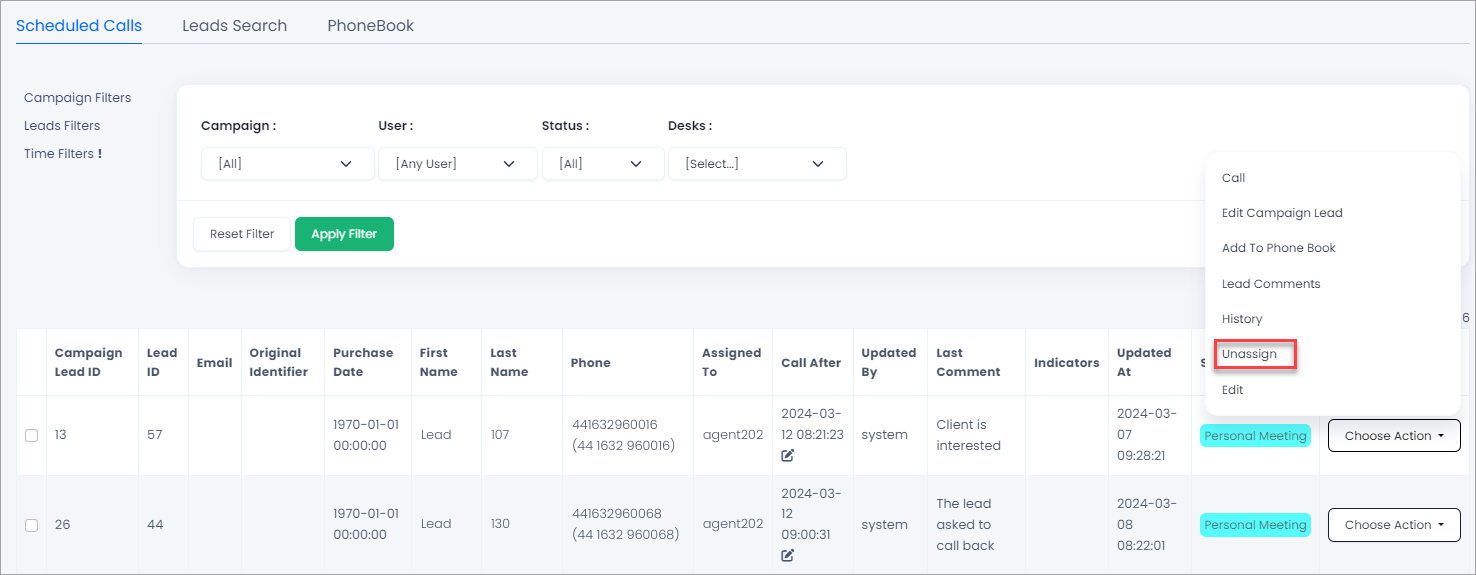
Unassign in lead actions
For more details, please check the Scheduled Calls by Agents article.
2. Set personal assignment limit
In campaigns, you change permanent assignment parameters to set the maximum number of leads the agents can assign to themselves:
Open Campaigns
Go to Leads & Campaigns > Campaigns.
Find your campaign
Find your campaign.
Edit the campaign
Go to the Actions column and click Edit under Frequent.

Edit campaign menu in actions
Set the assignment limits
Scroll down to agent permanent lead assignment settings and set limits:
-
Permanent assignment 12-hours limit per agent - the number of leads the agents can assign to themselves within any given shift. We recommend a number at most 50.
-
Permanent assignment total limit per agent - the number of leads the agents can assign to themselves. We recommend a number at most 150.

Agent personal lead assignment settings
Save the campaign
Click Save at the bottom of the page.
For the permanent assignment parameter explanation, please look at the Guide to Campaign Parameters.
3. Edit settings for the personal meeting status
You can limit the time range within which agents can set a callback.
Also, personal assignments should be made possible for one status only.
Finally, agents can be made mandatory to comment on the feedback page (if they set the Personal Meeting status) and specify the callback time.
Open Campaigns
Go to Leads & Campaigns > Campaigns.
Find your campaign
Find your campaign.
Open Lead Statuses
Go to the Actions column and click Lead Statuses under Frequent.
Check Affects Permanent Assignment
On the Lead Statuses page, ensure the Affects Permanent Assignment column is marked with Yes for the Personal Meeting lead status only.
Edit Personal Meeting
On the line for the Personal Meeting status, click Edit.

Edit lead status settings button
Modify the fields
In the Edit window, modify the following fields:
- Max Call After Days - enter the number of days to make sure that the agents set meetings not too far away in the future
- in the Required fields for feedback submission, add comment and call_after

Editing lead status settings
Save the status
Click Save.
4. Edit lead status workflow
Limiting the minimum conversation time is possible, after which the Personal Meeting status will become visible to agents. Please contact your account manager for assistance.

Editing lead status workflow
Updated 4 days ago