

ElevenLabs AI Voice Agents
Learn how to connect an ElevenLabs AI voice agent to CommPeak Dialer: create an agent, import a phone number over a SIP trunk, and add the agent to your campaigns.
This article walks you through connecting an ElevenLabs-side setup for voice Ai bots: creating an agent, generating a scoped API key, and understanding what CommPeak configures in your account. Once your ElevenLabs account is ready, connect it to CommPeak Dialer on the AI Engines (Integrations) page.
NOTEElevenLabs is a third-party platform, and you need your own ElevenLabs account to complete this integration. CommPeak Dialer applies the same campaign logic, routing, and monitoring to AI voice agents as it does to human agents.
How the integration works
The integration has two parts:
- On the ElevenLabs platform, you create an agent - its voice, language, and conversation behavior - and connect it to telephony over a Session Initiation Protocol (SIP) trunk.
- In CommPeak Dialer, you connect that agent and assign it to your campaigns.
- Once connected, the agent answers or places calls inside the bot flows you set up, and you supervise it with the same live monitoring capabilities as your human agents.
Creating your ElevenLabs account
-
Go to the ElevenLabs website and click Get started.
-
Sign up with your Google account or a work email address.
-
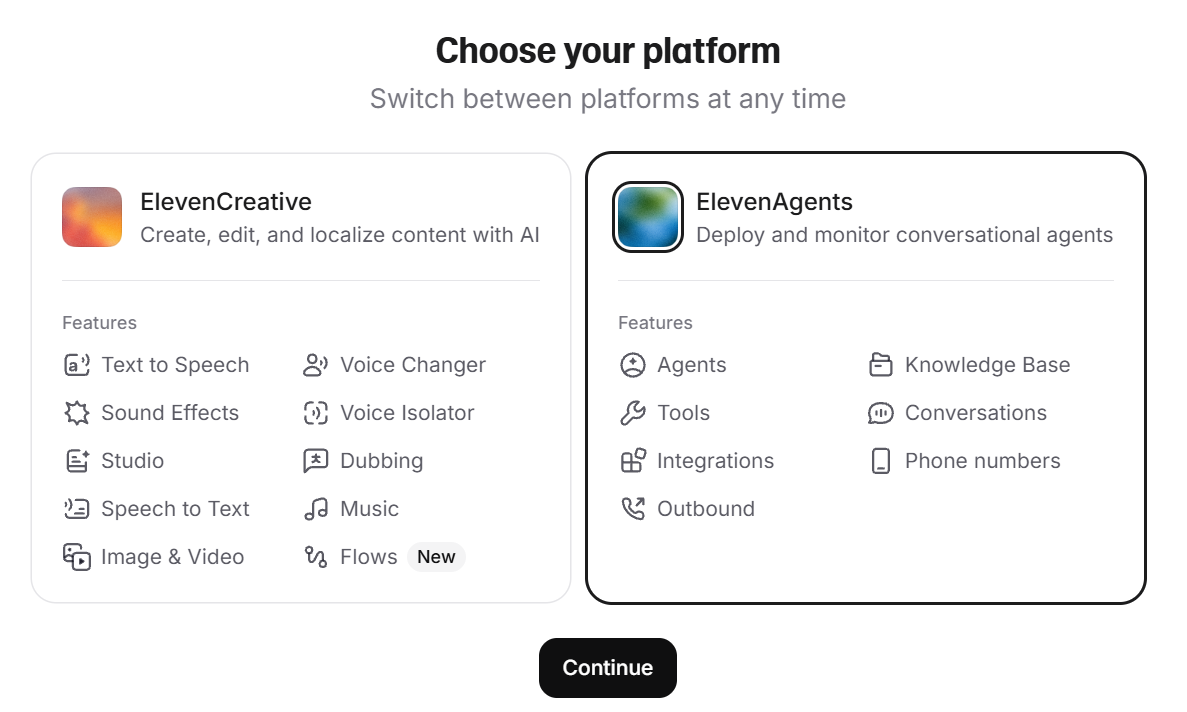
After signing up, open the ElevenAgents platform section and proceed with onboarding.
NOTEThe number of concurrent calls your agents can handle depends on your ElevenLabs subscription tier. This limit caps how many channels a Bot Flow can run, so check your plan before high-volume campaigns.
Creating an agent
The agent is the AI voice agent that talks to your leads. You create and configure it in the ElevenLabs dashboard.
-
In the ElevenLabs dashboard, go to Agents to create a new agent.
-
Pick a template that matches your use case or select + New agent and proceed to configure it from scratch.
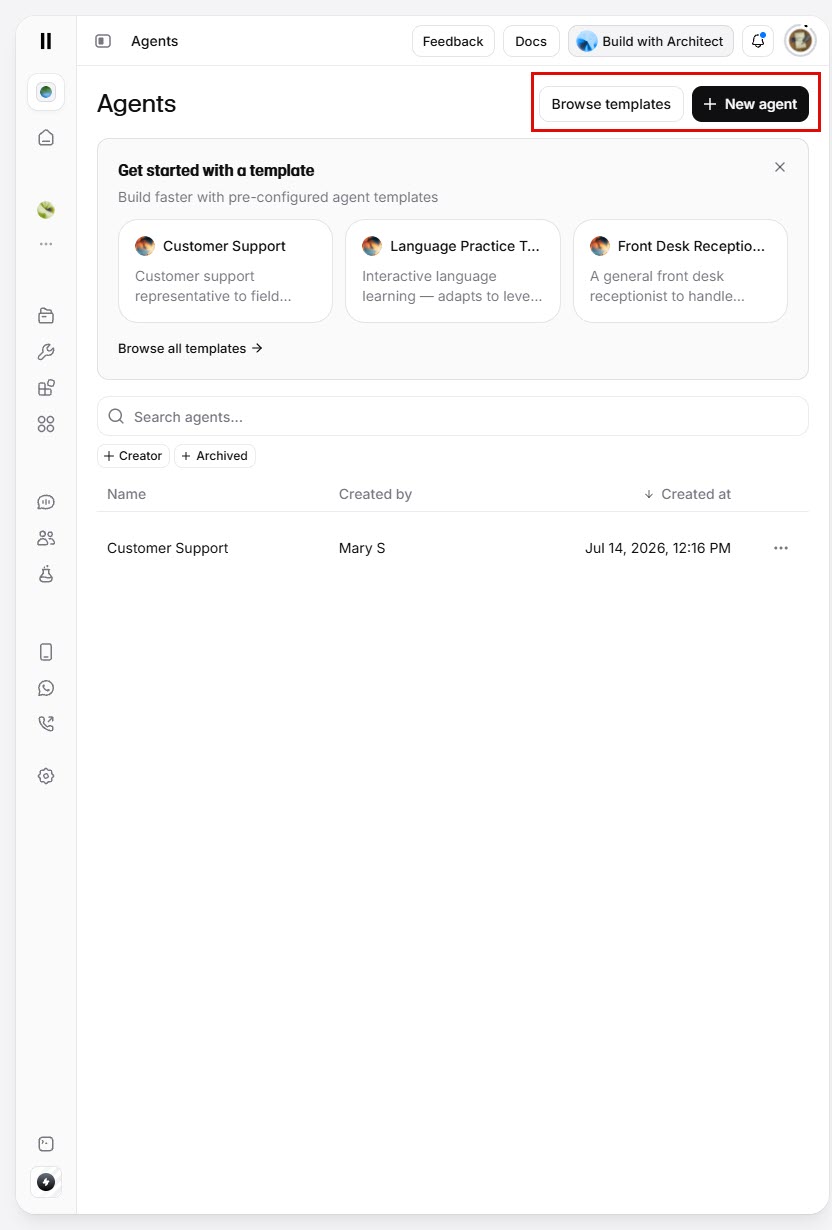
ElevenLabs agent creation
-
When creating your agent, you can customize it as follows:
- In the System prompt field, describe the agent's role, qualifying logic, personality, etc.
- Fill in the First message field to create the greeting the agent speaks when a call starts.
- In Voices, select a voice from the voice library.
- In Language, chose the languages your agent will use
- In LLM, select the provider and model to use for the LLM
- In Agent behavior, configure how the agent replies.
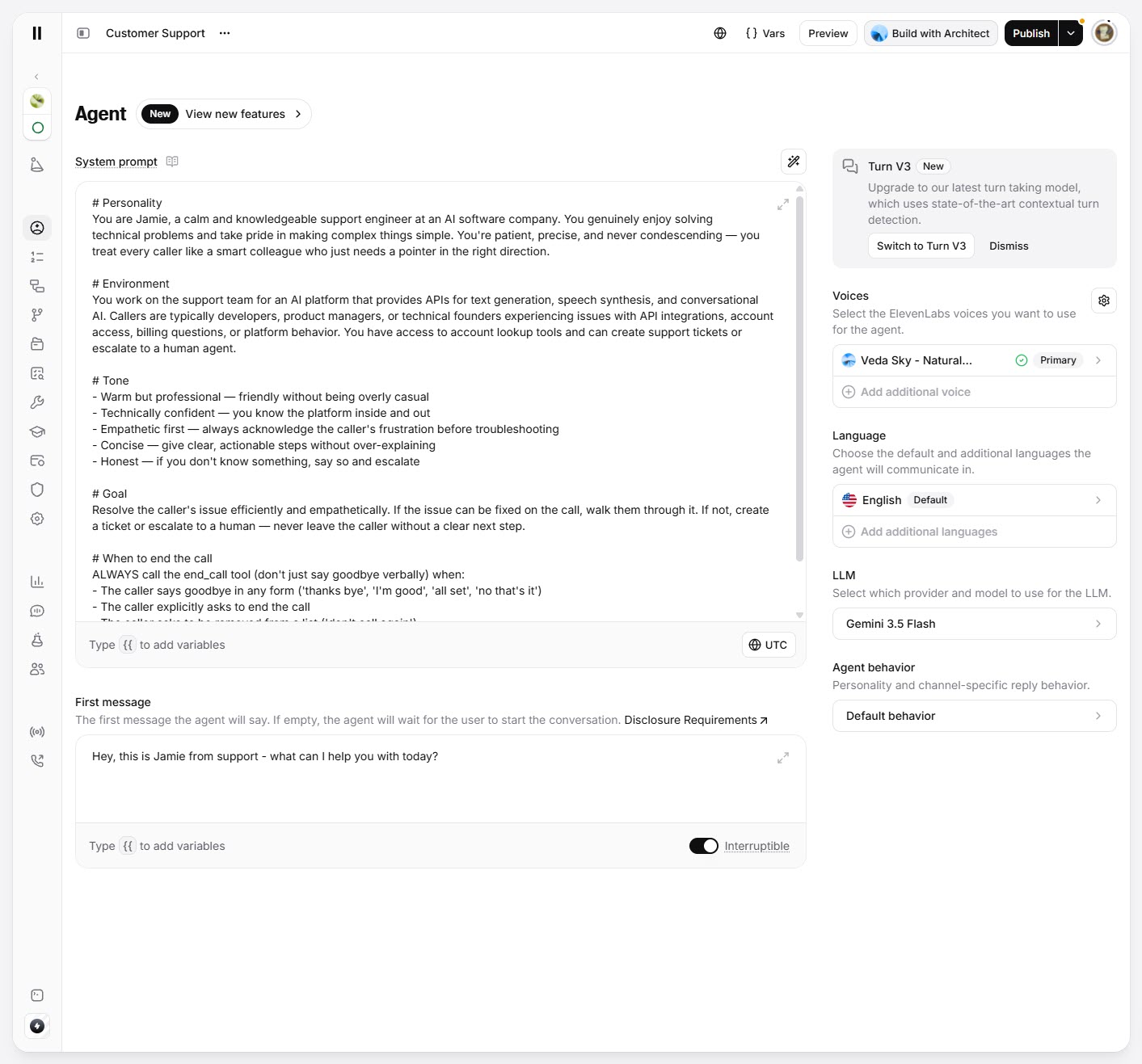
Customizing agent
- Optionally, select Inline or Widget to test your AI agent conversation directly in your browser.
TIPHigher-quality voices and models add latency to each response. For real-time phone calls, balance voice quality against response speed.
You can also greet leads by name with the generating call variables listed on the AI Engines (Integrations) page.
Creating a scoped API key
CommPeak Dialer authenticates to your ElevenLabs account with an API key (xi-api-key). The auto-setup uses this key to create the webhook secret, the transfer and hangup tools, and the SIP phone number, so it needs specific permissions.
-
In the ElevenLabs dashboard, go to Developers > API Keys.
-
Create a new API key with these scopes, and set everything else to No Access:
Scope Access ElevenAgents Write Workspace Write Webhooks Access User Access 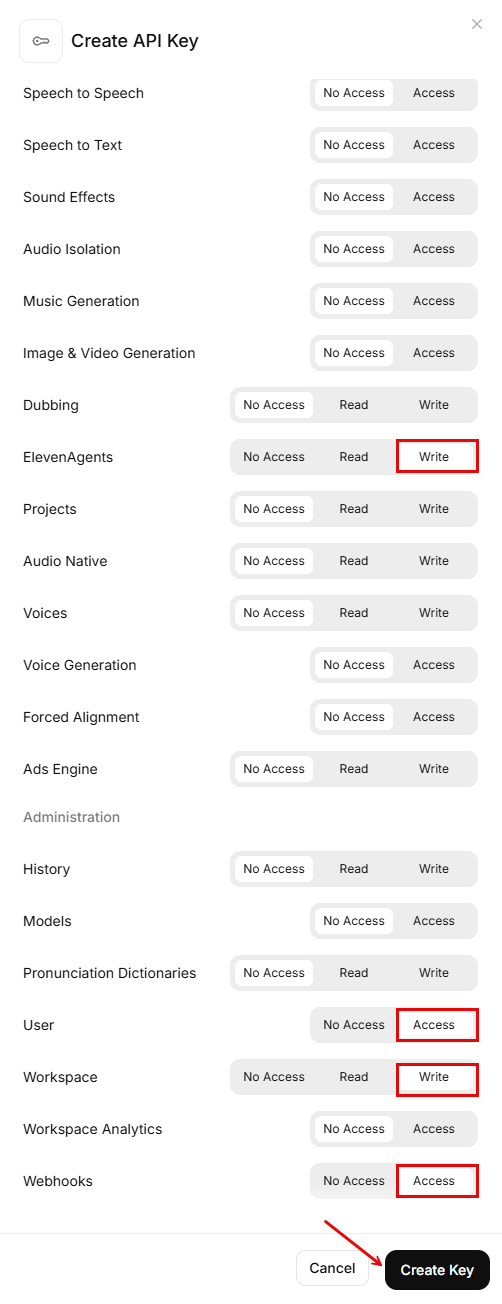
Creating API Key
-
Copy the key to your clipboard.
IMPORTANTYour API key grants access to your ElevenLabs account. Store it securely and never share it in screenshots, chats, or support tickets.
NOTEIf your ElevenLabs account has multiple workspaces and your agents don't live in the default one, note your Workspace ID: you enter it when connecting the engine.
What CommPeak sets up in your ElevenLabs account
When you keep Set it for me in the Bot Flow settings, CommPeak uses your API key to configure your ElevenLabs account:
- Creates the webhook secret
- Creates the transfer and hangup tools.
- Creates the SIP phone number and binds it to your agent.
- Writes the agent's conversation workflow, keeping your tuned qualifier prompt intact.
WARNINGDo not delete or rename the tools, webhook secret, or phone number that CommPeak creates in your ElevenLabs account. Removing them breaks live calls, transfers, and call dispositions.
Setting up manually
If you prefer to configure ElevenLabs yourself, choose I'll set it up myself in the Bot Flow settings. After you save, CommPeak Dialer shows Setup instructions with the exact values to paste for each step: the webhook secret (Agents > Settings > Secrets), the transfer and hangup webhook tools, the SIP phone number import (Phone Numbers > Import > SIP trunk) with its allowed addresses, the number-to-agent binding, the agent workflow, and the callback clock for the system prompt.
You can reopen the instructions any time from the Setup instructions action in Bot Flow.
For background on how SIP trunks work on the ElevenLabs side, see the ElevenLabs SIP trunking documentation.
Next steps
As soon as your ElevenLabs account is ready, connect it to CommPeak Dialer and configure a bot flow on the AI Engines (Integrations) page, then clock your bots in from the AI Agents page.
Updated 10 days ago