

SIP Account Authentication
Set password-based or IP-based authentication for your SIP account in CommPeak Portal.
Video tutorial
Password-based authentication is enabled by default. However, you may want to switch to IP-based authentication when setting up a CommPeak server SIP trunk.
To switch between authentication types:
Expand VoIP Services
Expand VoIP Services in the left pane.
Open SIP Accounts
Click the SIP Accounts (Trunks) tab.
Edit the account
Click Edit for the SIP account you wish to modify.
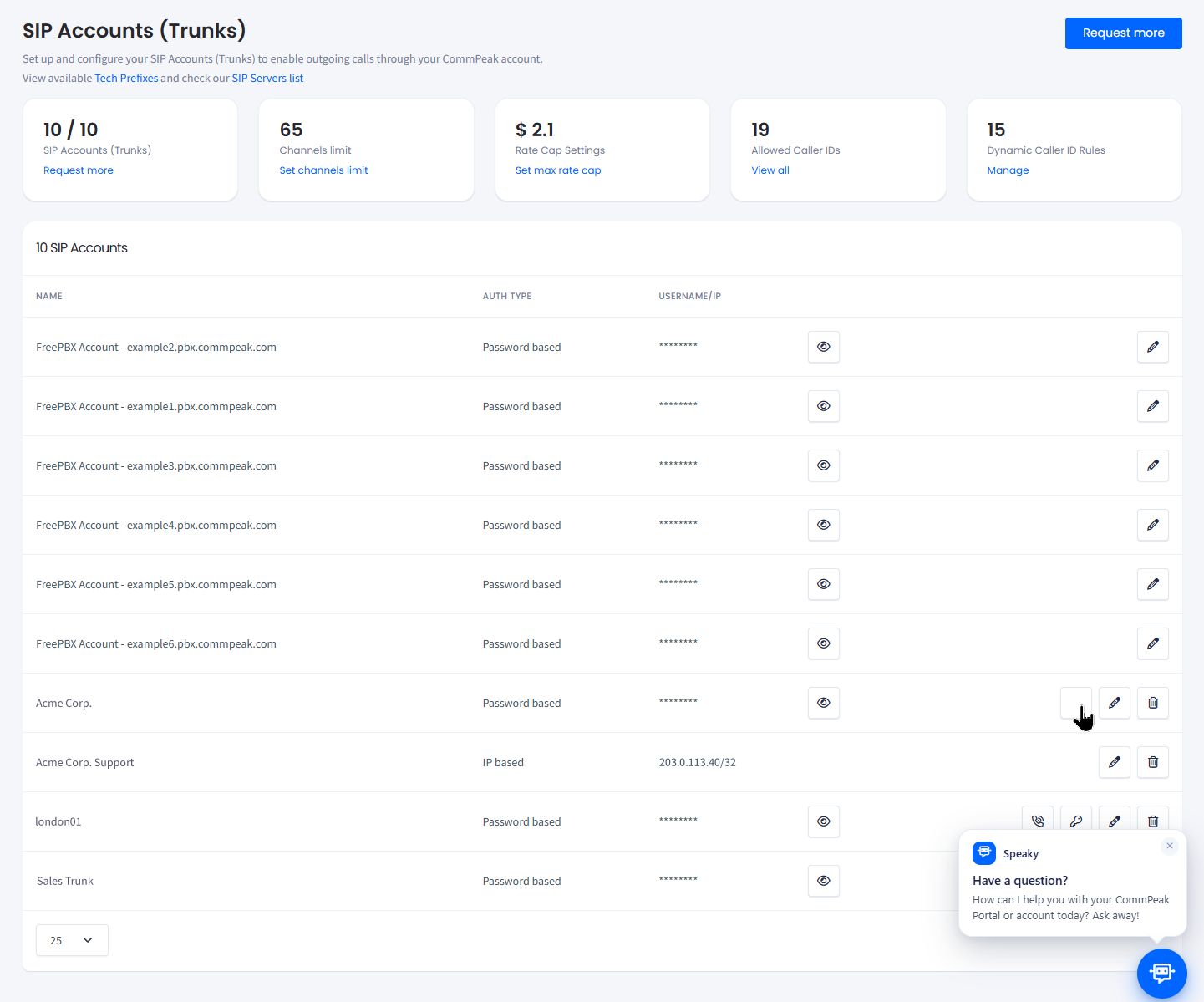
SIP account data in CommPeak Portal
Open Authentication
On the Edit SIP Account page, go to the Authentication section. Use the Password authentication / IP authentication switch to pick a method, then fill in the corresponding fields.
- IP-Based Authentication
Select IP authentication
Select the IP authentication tab.
Enter the IP addresses
Enter one or more IP addresses allowed to access this SIP account. To enter an IP address, type in the field and click Add.
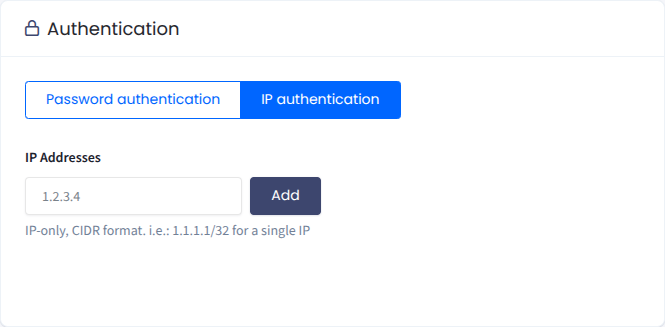
SIP account authentication by IP settings
Save the changes
Click Save changes.
Confirm with your password
Confirm the operation by entering your password and click Save Settings:
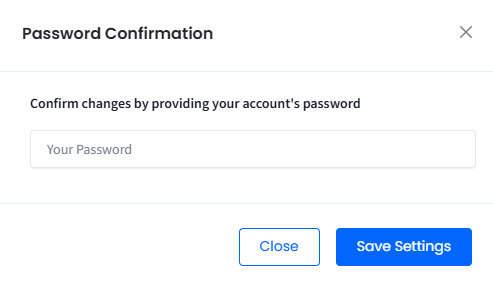
Password Confirmation window
NOTEFor your SIP account, you can only apply IP authentication to static IP addresses. However, Cloud PBX and CommPeak Dialer users have more IP access options.
- Password-Based Authentication
Select Password authentication
Select the Password authentication tab.
Enter the credentials
Enter your username, which must be at least eight characters long, and set a password (at least eight characters). Use the eye icon in the password field to reveal what you typed. Optionally, you can add extra authentication with an IP ACL (access control list) - specify one or more IPs from which you can access the SIP account with these credentials.
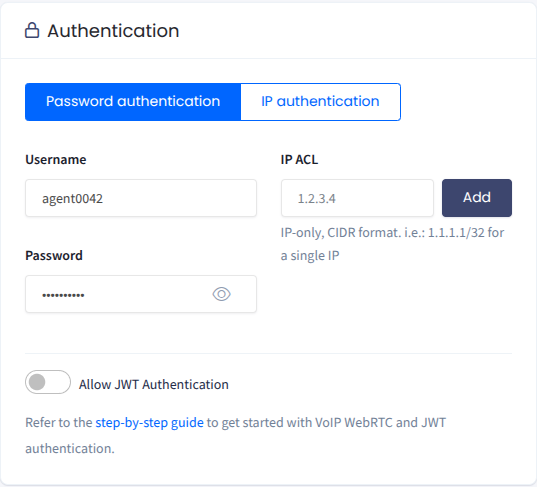
SIP account authentication by password settings
NOTEYour SIP account username can be a combination of lowercase letters and numbers!
Save the changes
Click Save changes.
Updated 6 days ago