

AI Agents
View and staff the AI agent channels created from your bot flows - clock them in and out and control activation.
The AI Agents page is the roster of your AI bot "seats." For every channel in a bot flow, the dialer automatically creates one AI voice agent- so a bot flow with 5 channels gives you 5 AI Agents. Each one joins the dialing pool through its skill groups, exactly like a human agent.
New to the feature?
Start with the Voice AI Bot overview.
Open it from Settings → AI Engines → AI Agents in the main menu.
You don't create AI Agents hereAI Agents are created and removed for you when you set a bot flow's Channels. This page is where you staff them - clock them in/out and control how they're activated.
The roster
Each row is one AI Agent:
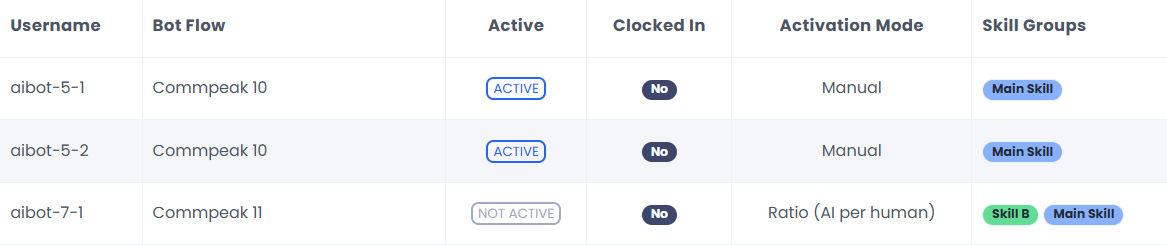
AI Agents list
| Column | Meaning |
|---|---|
| Username | The agent's name, e.g. aibot-<flow>-<n> |
| Bot Flow | The Bot Flow this agent belongs to |
| Active | If the agent is active or not active |
| Clocked in | Yes = on shift and available to take calls; No = offline |
| Activation Mode | How this agent is being staffed - Ratio, Fixed, or Manual (see below) |
| Skill Groups | The skill groups that route calls to this agent (read-only here; set on the Bot Flow) |
Use the filter bar to narrow the list by AI Engine, Bot Flow, Staffing Mode (Auto/Manual), or Skill Groups.
Clocking in and out
Like a human agent, an AI Agent must be clocked in before it can take calls. Use the Clock In/Clock Out button on each row.
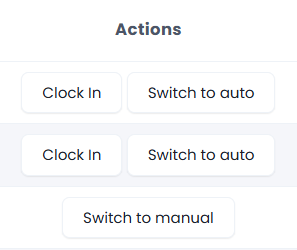
Auto vs. manual staffing
Each AI Agent is staffed in one of two modes:
- Auto (default): CommPeak clocks the agent in and out automatically to match its bot flow's activation strategy (Ratio or Fixed) against your live human staffing. You don't manage it by hand.
- Manual: you take direct control: the agent stays exactly as you set it (clocked in or out) and is excluded from auto-staffing. Use this to force a specific bot on or off regardless of the strategy.
Switch a row with Switch to manual/Switch to auto. The Activation Mode column shows the result: Ratio/Fixed for auto agents, or Manual for pinned ones.
Bulk actions
To act on many agents at once, tick the row checkboxes (or use Select All), choose an Action, pick the scope, and click Process:
Actions
-
Clock in/Clock out
-
Switch to auto/Switch to manual
-
Assign Skills: set the skill groups for the selected agents (reveals a skill-group picker; choose at least one).
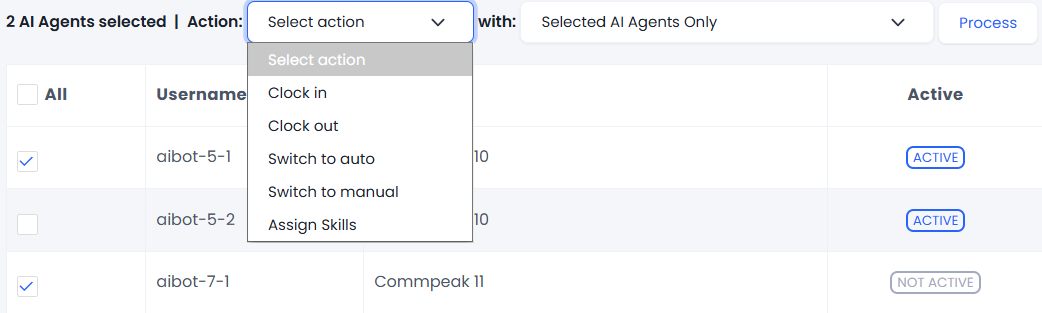
Mass Action
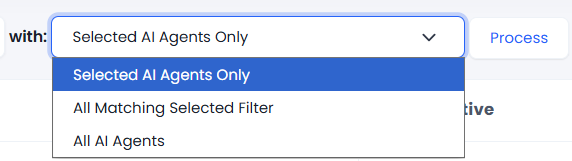
Scope
-
Selected AI Agents Only: just the rows you ticked
-
All Matching Selected Filter: every agent matching the current filter
-
All AI Agents: your entire roster.
✔️ Clock your bots in and they'll start taking predictive calls. To let them answer inbound calls too, see Inbound Voice Agents.
Updated 22 days ago