

Dialer Routes
Learn how to manage routing rules for trunks: create, modify, and delete routes, assign or unassign trunks, divide usage, simulate rules, and assign trunks to specific leads in campaigns.
In the Dialer Routes section, you can manage routing rules for trunks. To access the section, select Settings > Outbound Configurations in the main menu, then switch to the Dialer Routes tab. You will see a full list of all the Routing Rules, including those for specific Prefixes and user groups. The routing rules are combined into groups that follow the same settings and restrictions.
In this article, you will learn how to perform the following actions:
- create new routes
- modify or remove existing ones
- assign or unassign trunks
- divide usage
- simulate a rule
- assign trunks per lead
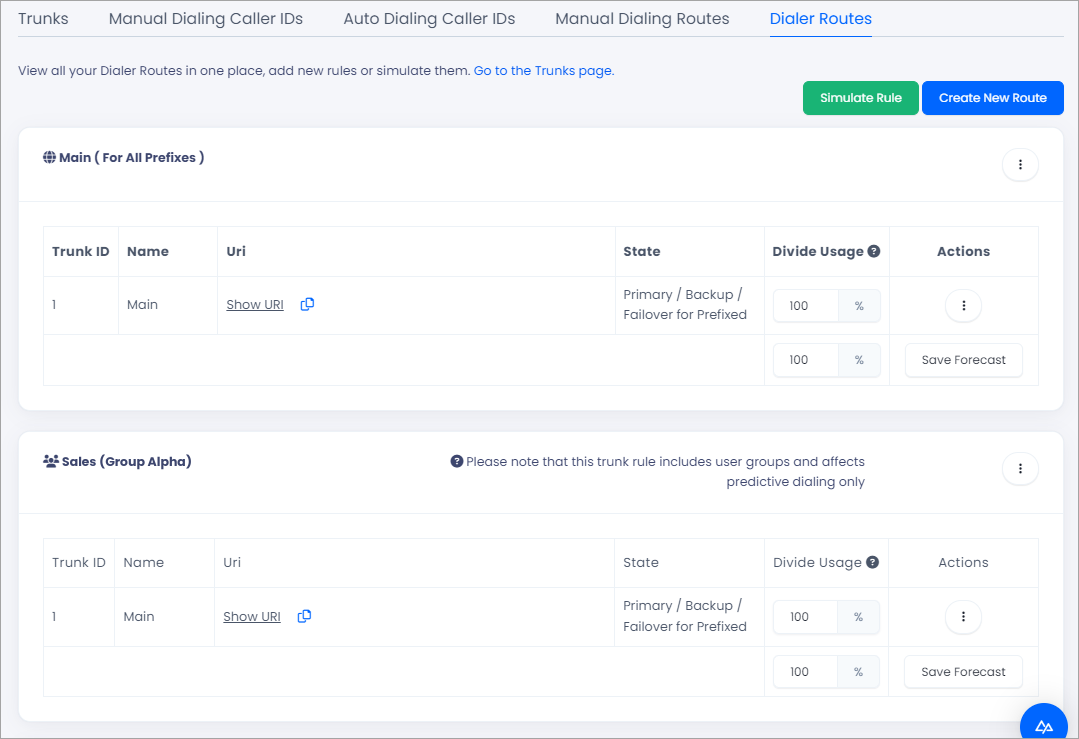
Dialer Routes tab
Creating routing rules
Creating a route allows you to customize your call routing and trunk selection based on specific criteria. For example, you can create routing based on the caller's location or the department they are trying to reach.
To create a new routing rule:
Start a new route
Click Create New Route in the top right.
Fill in the routing rule
Fill in the Routing rule section. You can create rules based on countries and user groups. Once rules are created, they will be automatically separated into subsections for easier management.

Adding a Dialer route
- Dialer Route Name: Enter a name.
- Country: Select the country from the drop-down list to create a rule for a specific country. For instance, to create a rule for Germany, select it from the list of countries. If you need a more specific setup, you can also utilize the Prefix option; for instance, using the prefix 492 denotes a particular city in Germany.
Press the + sign and proceed if you want to create a rule for multiple countries and user groups. - User Group: To create a rule for specific user groups, select one or several user groups from the drop-down list. Please note that the User Groups option is unavailable for a PBX client.
- Route: Here, you can enter a name for the route you want to use for manual calling. Then, you can select it when creating a manual dialing route.
Select the trunks
Select one or several trunks from the drop-down list.

Selecting trunks
Check the rule preview
Click Next. You will see the Rule Preview page to check your configuration.

The Rule Preview page
Create the rule
Click Create New Rule at the bottom of the page.

The Create New Rule button
Editing and deleting routing rules
To edit a routing rule:
Open the rule menu
Click the three-dot icon in the top right of the rule section.
Select Edit rule
Click Edit rule.

Editing a routing rule
Change the trunk assignment
You can change the trunk assignment by modifying the selection in the Trunks drop-down list. Select Calculate the equal usage ratio among all primary trunks to display the rule's usage forecast.

Dialer route settings
Save the changes
Click Save.
To delete a routing rule:
Open the rule menu
Click the three-dot icon in the top right of the rule section.
Delete the rule
Click Delete rule.
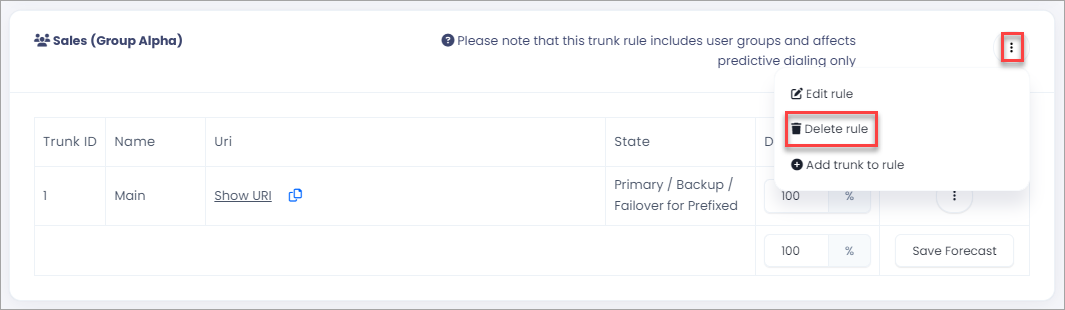
Delete rule option
IMPORTANTWhen a trunk is exclusively assigned to the routing rule you're removing, it will also be removed. This ensures that your system remains organized and clutter-free.
Adding trunks to a rule
When you assign trunks to a routing rule, you're indicating which trunks will handle calls meeting that rule's criteria.
To add a trunk to a routing rule:
Open the rule menu
Click the three-dot icon in the top right of the rule section.
Select Add trunk to the rule
Click Add trunk to the rule.
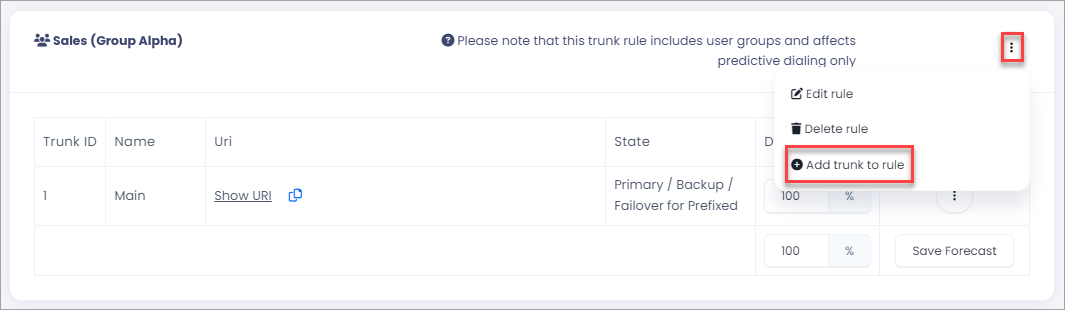
Adding trunks to the rule
Select the trunks
Select additional trunks from the drop-down list in a pop-up window.

Selecting additional trunks
Add the trunks
Click Add Trunk.
Unassigning trunks from a rule
If you want to remove a trunk from a Routing Rule, follow these steps:
Open the rule menu
Click the three-dot icon in the Actions column for the rule you wish to modify.
Disable the trunk
Click Disable trunk from this rule.
NOTERemoving trunks from a routing rule can be helpful if you aim to alter call flow or redistribute trunks to other rules.
Dividing usage
This feature allows you to change the distribution of calls between specific trunks in a routing rule.
To set a custom usage ratio for a routing rule:
Enter the usage percentage
Enter the desired percentage in the Divide Usage box.

Setting a custom usage ratio
Save the forecast
Click Save Forecast.
Simulating a rule
This feature allows you to test which trunk will be used to handle a call based on the routing rules' priority.
To simulate a rule:
Open the simulator
Click Simulate Rule in the top right.

Simulating a rule
Enter the test details
Enter a destination phone number. Use the following additional options that enable you to experiment with various scenarios and determine the trunks used in each instance.
- campaign lead: you can use a campaign rule to override the flow of the trunks
- Rule group: select a user group from the drop-down list to simulate leads that are called by the group and see trunks for predictive calling
- Rule route: select a route from the drop-down list.
Run the simulation
Click Simulate Rule.

Dialer route simulator
Assigning trunk per Leads in your Campaigns
The Trunk per Lead feature allows you to customize the trunk flow in your campaigns. Instead of using the default trunk for all leads in your campaign, you can assign a specific trunk for each individual lead.
This can be especially helpful if you have different trunks for different types of leads or if you want to prioritize certain trunks for specific leads.
To use the feature, add the Override Trunk action to your campaign rules.

Rule actions
You can find more information in the Understanding Campaign Rules article.
Updated 10 days ago