

Signing In With Google or Microsoft
Sign in to CommPeak Portal with a Google or Microsoft account, link a provider to an account you already have, and fix problems with social sign-in.
Google and Microsoft sign-in works as single sign-on (SSO), so instead of entering a password, you sign in to the CommPeak Portal with your Google or Microsoft account.
NOTEThe email address of the social account must match the email address of your CommPeak account. To connect or disconnect a provider, see Your Profile.
Signing in with a provider
To sign in with Google or Microsoft:
- On any login screen, select one of the two social login options, Continue with Google or Continue with Microsoft.
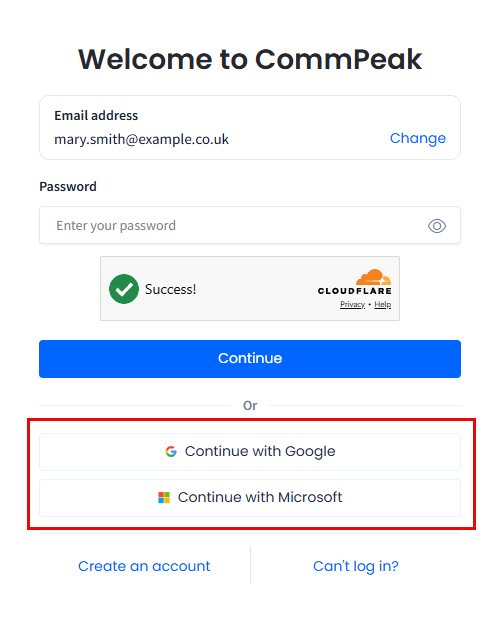
Social login options
- Complete the steps required by Google or Microsoft.
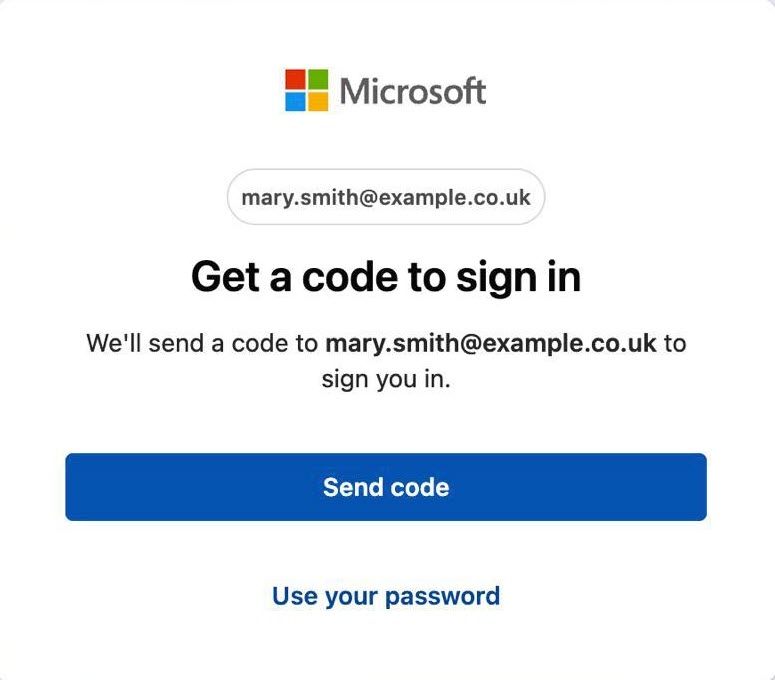
Signing in with Microsoft
- After the provider verifies you, CommPeak signs you in and returns you to your Dashboard.
Linking an existing account
If you use a social login whose email address already belongs to a CommPeak account created with an email and password, the portal displays the Looks like you already have a CommPeak account screen.
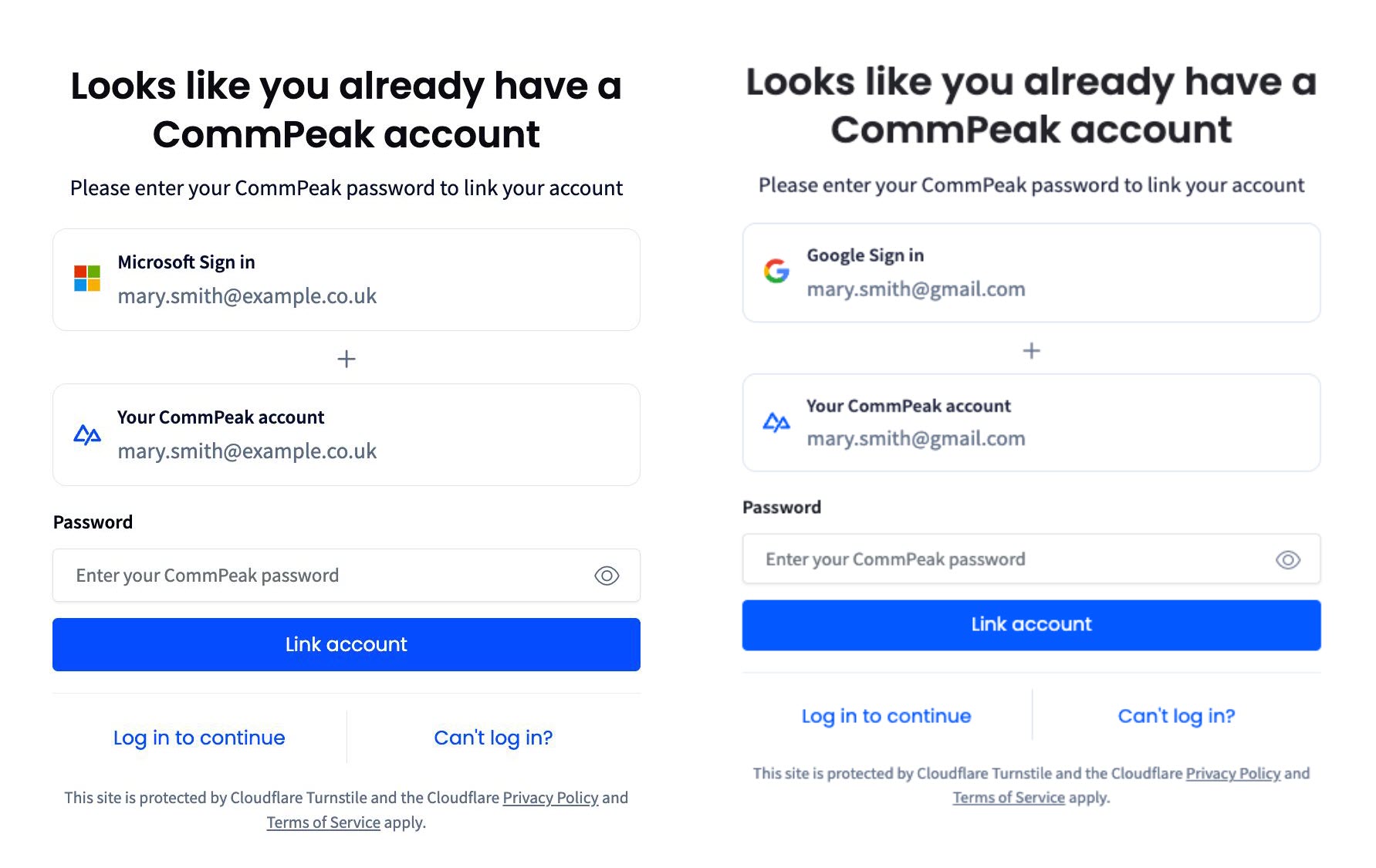
Looks like you already have a CommPeak account screen
Confirm the linking to sign in with the social account from now on. Your existing account data, balance, and settings remain unchanged: both login methods lead to the same account.
To proceed with your regular email login instead, click the Log in to continue link.
If the provider does not sign you in
If you signed up with Continue with Google or Continue with Microsoft and never set a CommPeak password, a password reset does not apply to your account, because there is no password to reset. Sign in with the provider instead.
For other sign-in problems, see Login Difficulties in CommPeak Portal.
Updated 13 days ago