

Setting Up Call Recording
Switch call recording on for CommPeak Dialer and Cloud PBX, change how long recordings are stored, and switch recording off again from the Call Recordings page.
This article walks you through switching call recording on for your account, changing how long recordings are stored, and switching recording off again. All three tasks live on the Call Recordings page in the CommPeak Portal Cloud PBX & Dialer menu.

Cloud PBX & Dialer menu tabs
IMPORTANTCommPeak provides the technical means to record calls and stores recordings on your instruction. You remain responsible for complying with the laws that apply to you and to the people you call, including giving notice and obtaining consent where required. Consent rules differ by country, and some require the consent of every party to the call.
CommPeak does not play any announcement on your behalf, and does not verify that required disclosures were given or that required consent was obtained. Obtain your own legal advice before you record.
NOTEFor what recording costs, how it reaches your invoice, and your notice and consent obligations in full, see the Call Recording: Billing, Storage, and Compliance guide.
What you need before you start
Activation has three requirements:
- You must be the primary account holder or a delegate the account holder has authorized. Other users cannot switch recording on or off, or change the retention period.
- Every identity on your account must hold Approved status. CommPeak suspends recording automatically on any identity that loses Approved status, including identities you add later.
- You must accept the Call Recording & Data Retention Terms and Conditions during activation.
You also need your account password. The CommPeak Portal asks for it before it activates recording, before it deactivates recording, and before it applies a retention change.
Activating recording for your account
Activation runs as a three-step flow.
- Go to Cloud PBX & Dialer > Call Recordings.
- Click Enable call recording.
- Review the identities listed under Service provisioning requirements, then click Begin activation.

Enable call recording button on the Call Recordings page
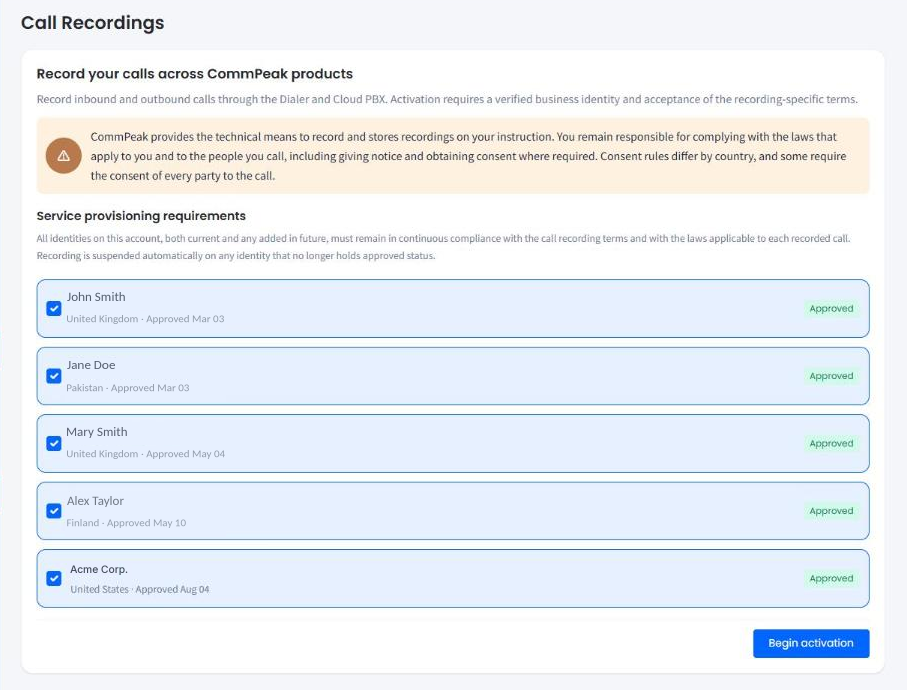
Service provisioning requirements on the activation screen
Setting the use case and disclosure
- Select your Primary business purpose from the drop-down. The options are:
- Internal quality assurance & agent training
- Dispute resolution and order verification
- Regulatory compliance (e.g. FCA, MiFID II, FINRA)
- Fraud prevention & security investigations
- Other - please specify.
- Select Enable call recording for all calls across all departments. When on, every inbound, outbound, and internal call placed through CommPeak Dialer and Cloud PBX is recorded.
- Select the disclosure acknowledgment to confirm that you handle disclosure to call participants yourself, off the CommPeak platform.
- Click Continue.

Use case and disclosure step
Choosing the retention period
- Select how long CommPeak retains your recordings before automatic deletion: 60 days, 3 months (90 days), 6 months (180 days), or 1 year (365 days).
- Click Continue.

Retention period step
Your choice drives the storage line on your invoice. For what each period costs you, see Call Recording: Billing, Storage, and Compliance.
Accepting the policy and activating
- Click Recording Acceptable Use Policy and scroll to the end of the agreement. The Accept button becomes active only when you reach the end.
- Click Accept, then select I agree to the Recording Acceptable Use Policy and the recording-specific terms.
- Click Activate call recording.
- Enter your account password in the Confirm activation dialog, then click Activate.

Acknowledge and activate step
Recording starts on calls placed after activation. CommPeak does not record calls already in progress.
Changing your retention period
You can change the retention period at any time after activation.
-
Go to Settings > Call Recordings.
-
Under Data Retention Period for Recordings, select a period from the drop-down.
-
Click Update.
-
Enter your account password in the Confirm retention change dialog, then click Confirm change.

IMPORTANTExtending and shortening the period do not behave the same way, and only one of them affects recordings you already have. Before you change the period, read Call Recording: Billing, Storage, and Compliance so the effect on your stored recordings and your invoice is no surprise.
Encrypting your recordings
To encrypt your recordings with keys only you control, go to Settings > Recordings Encryption.
IMPORTANTIf you enable customer-managed encryption without authorizing a master key backup, and you then lose your passphrase, your encrypted recordings become permanently inaccessible. CommPeak cannot restore them, and the loss does not suspend storage charges or extend any retention period.
Turning off call recording
Deactivation switches the feature off for your account right away.
- Go to Settings > Call Recordings.
- Click Deactivate call recording.
- Enter your account password, then click Deactivate.
While recording is off:
- CommPeak does not record new calls.
- Recordings you already made are not deleted. They remain available until the end of their retention period, and storage charges continue to apply. See Call Recording: Billing, Storage, and Compliance.
- You can enable recording again at any time. Only calls placed after you re-enable it are recorded.
Updated 8 days ago