

Incoming Routing
A comprehensive guide for managers on how to create and manage Inbox incoming routing rules.
In the Incoming Routing view, Inbox admins or managers (provided they hold the corresponding Inbox role permissions) can manage existing incoming routing rules and create new ones.
Such routing rules relate to messages initiated by contacts and can be used, for example, in customer support services, where a customer initiates the conversation.
To access the Incoming Routing tab options:
Log in to TextPeak
In your browser, log in to TextPeak with manager access privileges.
Open Inbox
In the main TextPeak menu, select the Inbox tab.
Open Settings
Click Settings at the bottom of the Inbox sidebar.
Open Incoming routing
In the Routing group, click Incoming routing.
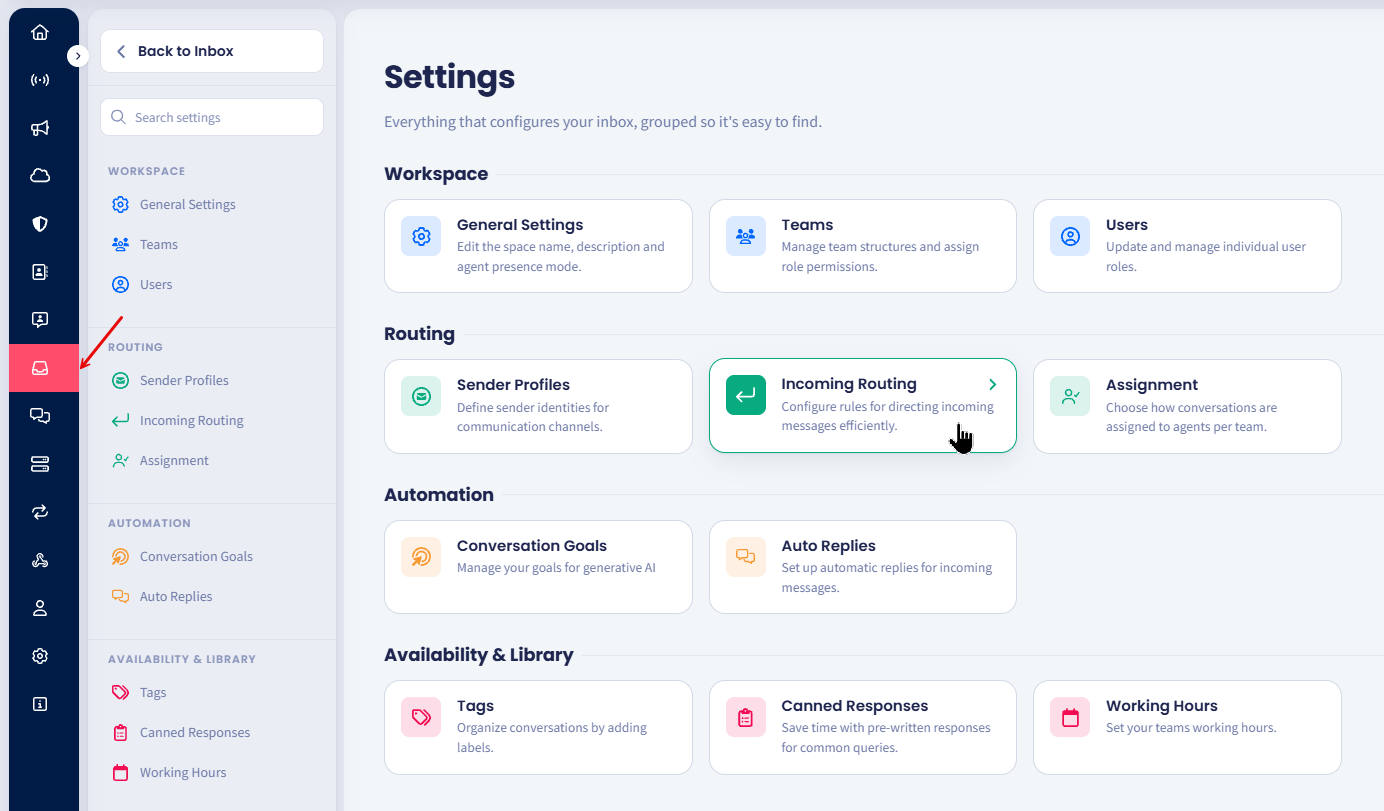
Incoming Routing page
IMPORTANTInbox agents have no access to the Settings > Incoming Routing page and can manage conversations only.
Here, you can view existing incoming routing rules.
The view organizes all information about incoming routing rules: Routing Name, Senders, Stream, Assigned Team, and Actions buttons.

Inbox > Settings > Incoming Routing page
Creating incoming routing rules
To create a new incoming routing rule:
Create a rule
Click Create incoming routing rule at the top right.
Name the rule
In the pop-up window that appears, provide a name for your new incoming routing rule, then click to select the stream, senders, and assigned team from the drop-down menus.
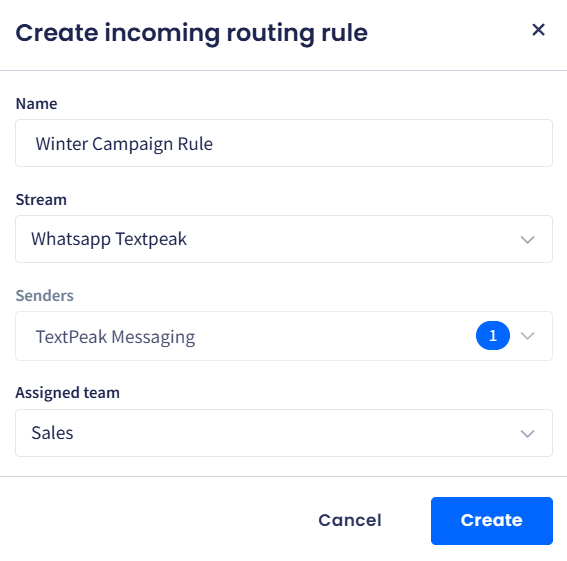
Create incoming routing rule dialog box
NOTE
- All the messages that are initiated by contacts from the selected senders are automatically assigned to the team you assign for this routing rule.
- You cannot assign the same sender to multiple incoming routing rules.
Create the rule
Click Create.

Incoming routing rule created
Managing incoming routing rules
To edit an existing incoming routing rule:
Edit the rule
Click the pencil button next to the profile record.

Incoming routing rule actions
Update the rule
In the Edit incoming routing rule dialog, update the rule data.

Edit incoming routing rule dialog box
Save the rule
Click Save.
Delete a rule
Alternatively, to remove the incoming routing rule, click the bin action button.
Confirm the deletion
In the pop-up window, confirm that you want to delete this rule.
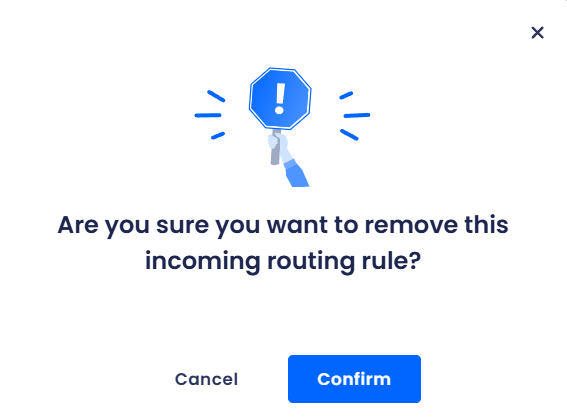
Removing incoming routing rule confirmation dialog
Go back
Click Cancel to navigate back to the Inbox Settings menu.
Updated 7 days ago