

Making Calls
Detailed instructions for making and receiving calls in the web-based Softphone widget
Check below to learn how to start, receive, or complete a call in the Web-based Softphone Widget.
Outgoing calls
TIPAlternatively, you can use our quick launch Softphone Chrome Application option to start the web-based version of CommPeak Softphone from your browser's address bar or bookmarks.
To start an outgoing call:
-
Login to the Web-based Softphone at https://web-softphone.commpeak.com/.
-
Click numbers on the dialpad or enter the number into the field above it.
-
Then click the dial button.
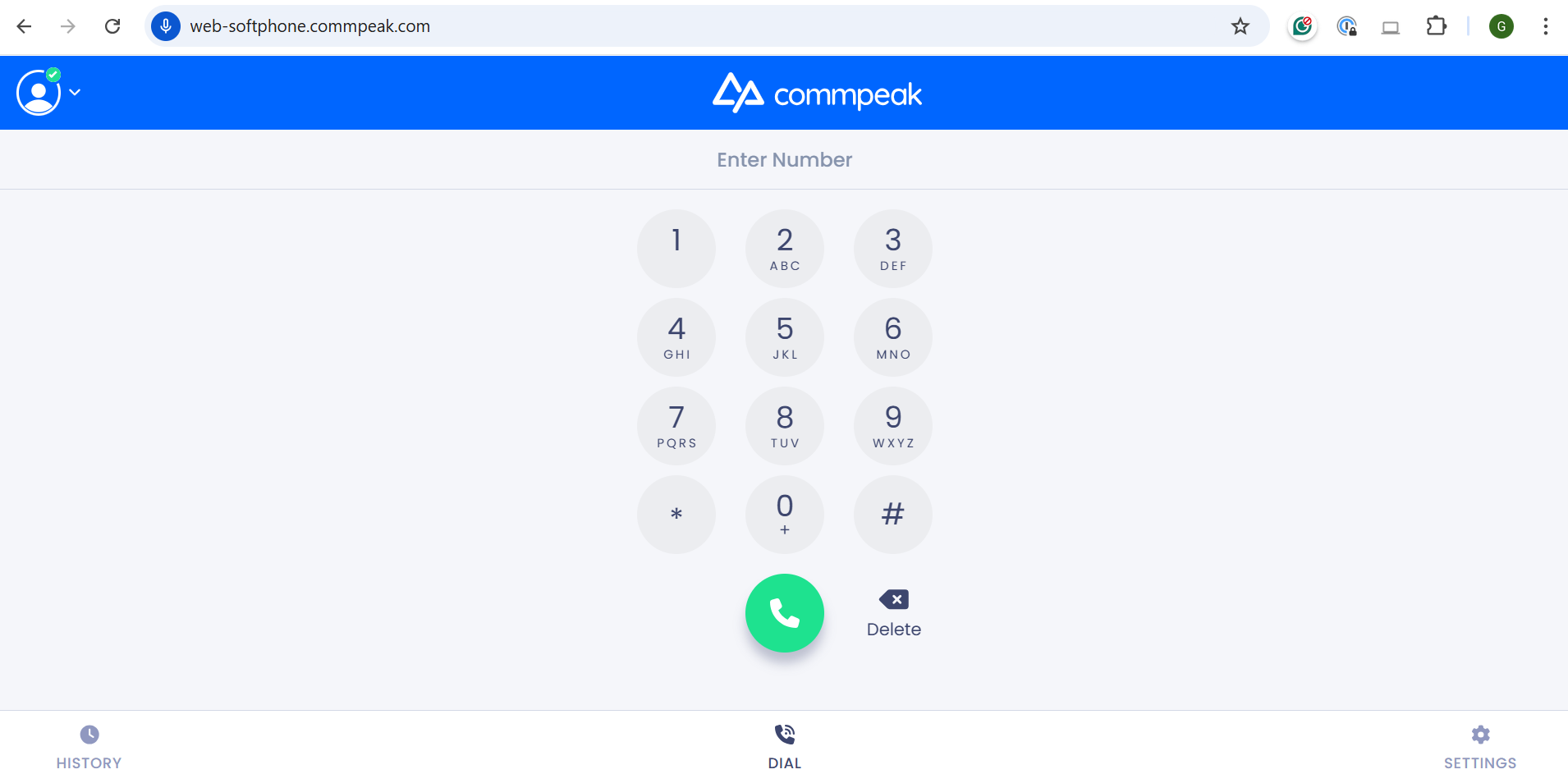
Web-based Softphone dialpad
Using predefined dialing Prefixes
You can also use predefined prefixes to match your call center's specific dialing requirements.
If your manager has enabled this feature, a drop-down menu will appear next to the destination bar on your Softphone instance.
Prefixes are loaded automatically upon login based on your user settings.
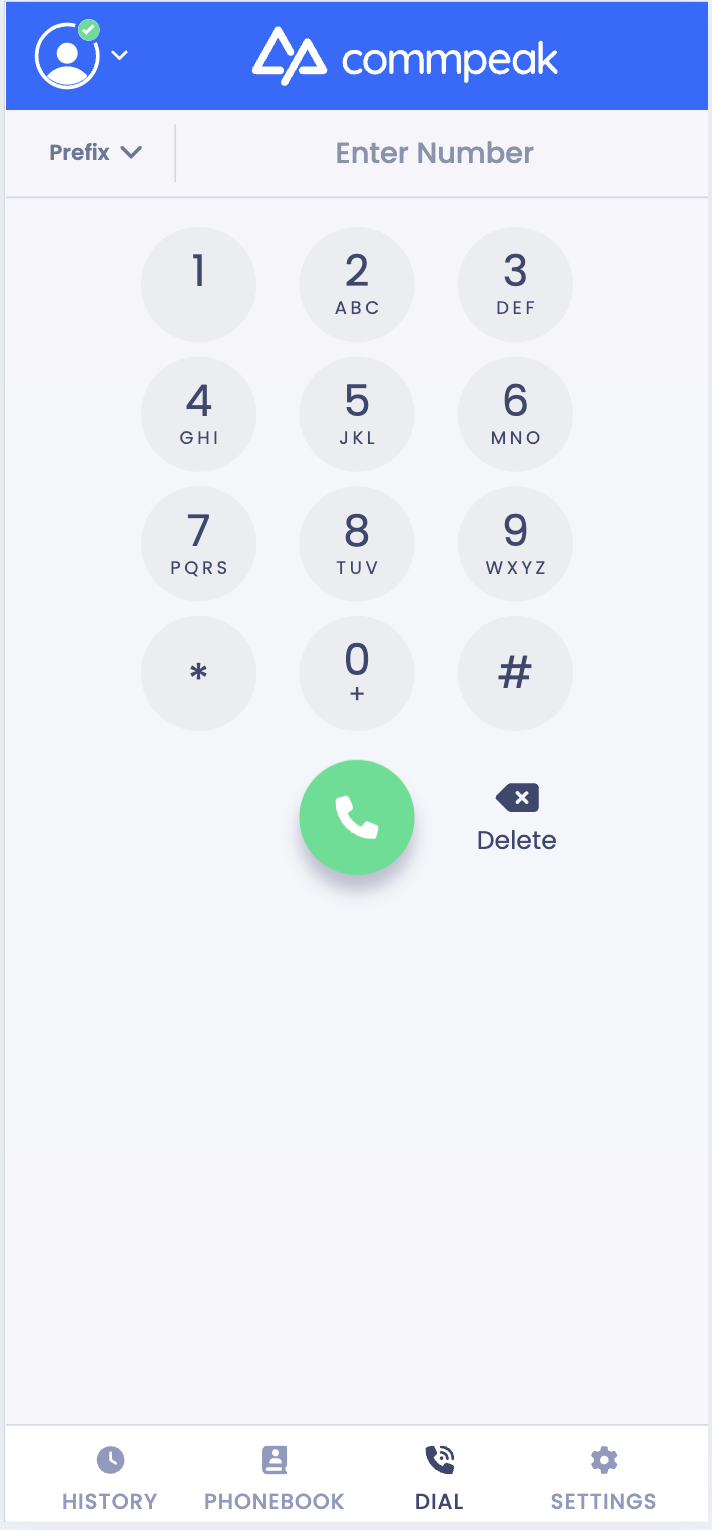
Prefix option
NOTEThis feature is available on the Standalone CommPeak Softphone, Built-in CommPeak Softphone, and Web-Based Softphone Widget.
IMPORTANTThe prefix dropdown is hidden by default. It will only appear in the full mode version of your instance if your manager has configured specific prefixes for your account.
To use the feature, choose the required prefix (which may include numbers, *, or #) from the drop-down list and the softphone automatically adds the selected prefix to the beginning of the phone number you are calling.
Incoming calls
IMPORTANTYou won't receive any calls if the DND status is enabled. You can learn how to exit DND and receive calls again from Available and DND Statuses article.
NOTEIf the Auto-Answer feature is turned on for the SIP account you are using, the ringtone will play for the number of seconds you have set. Then, the ringtone will be interrupted by a short beep signal, meaning that you have been connected and can start talking.
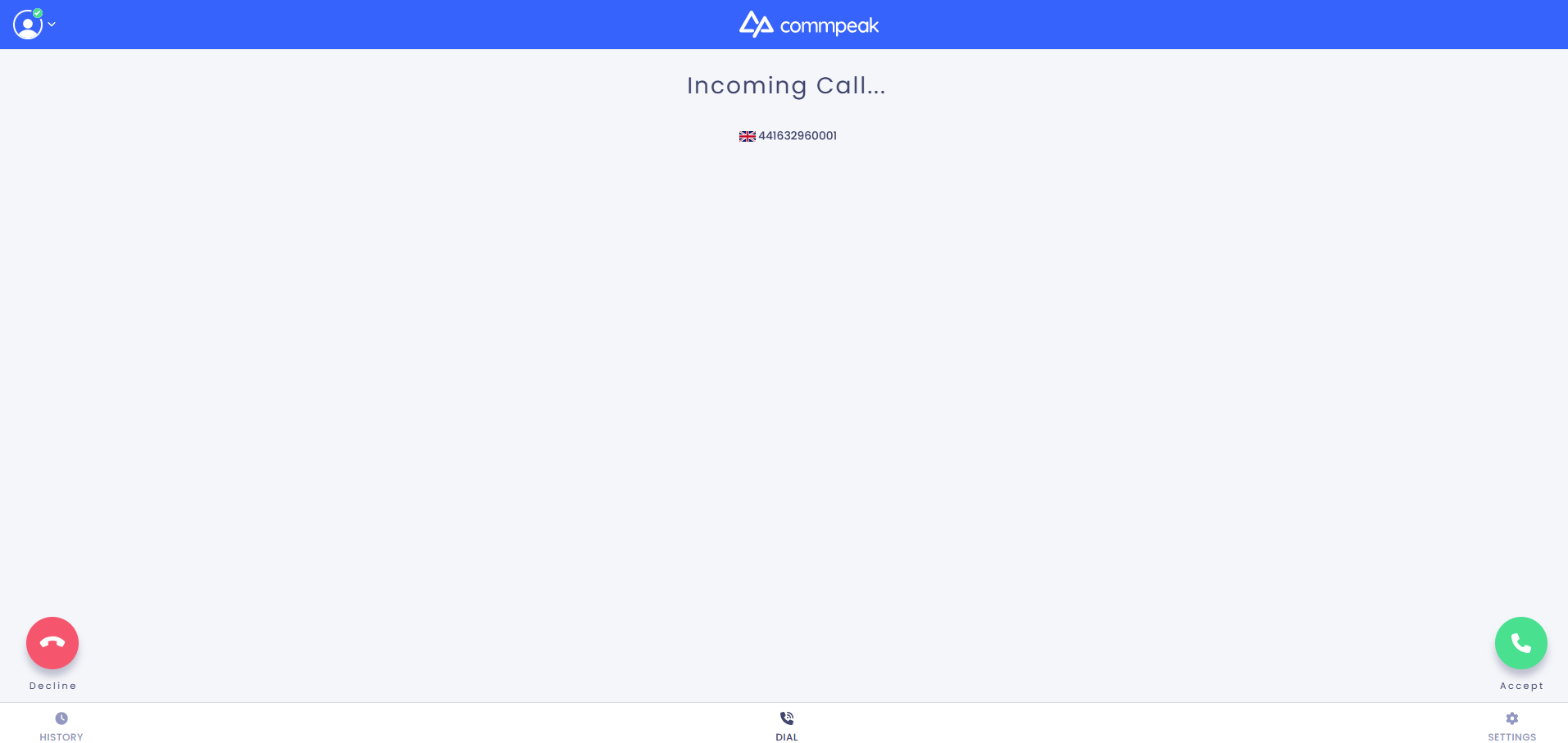
Incoming call
To receive the incoming call, click Accept.
If you cannot receive it, click Decline.
Completing calls
To complete an active call, click the red call end button.
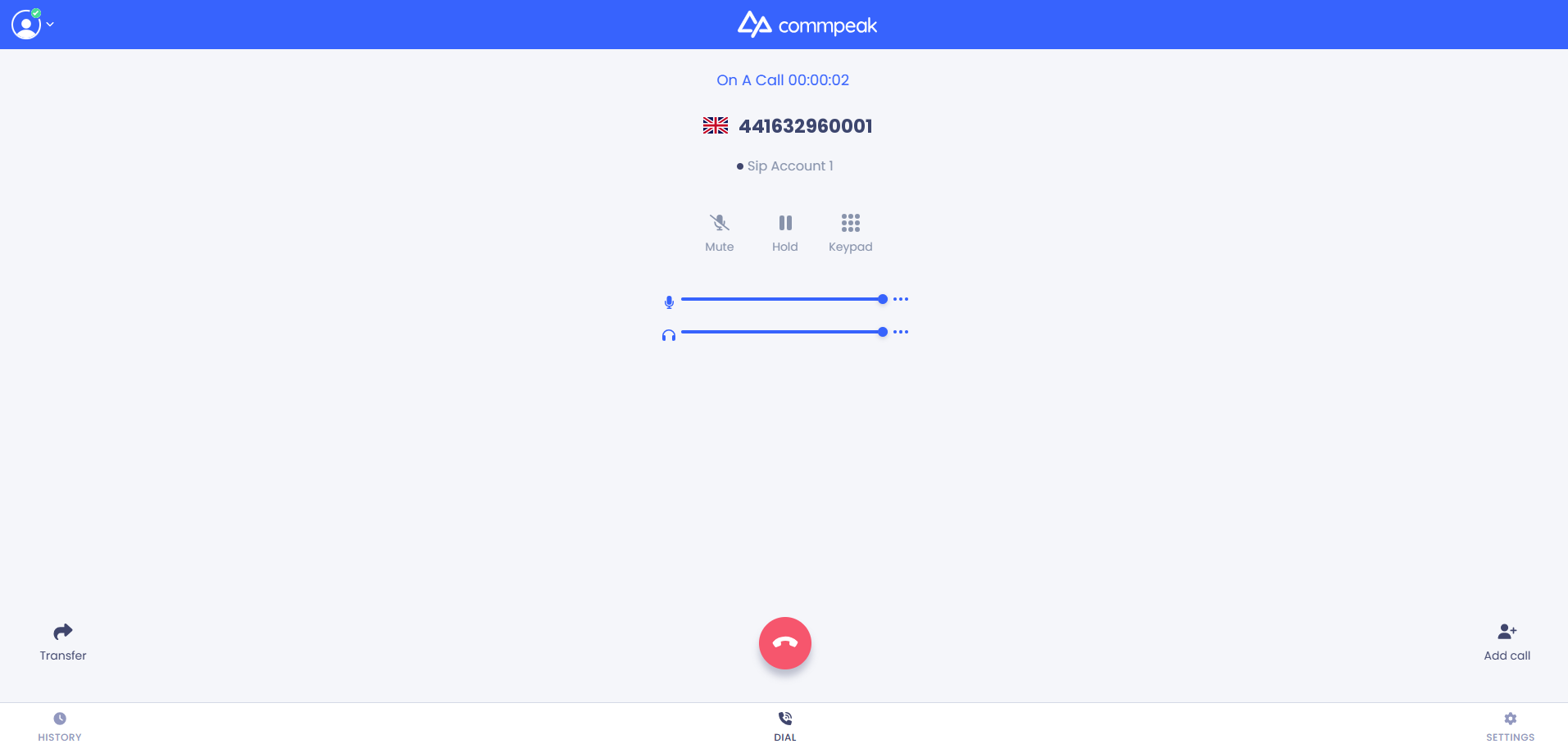
Active call in progress
Updated 4 days ago