For AI agents: visit https://docs.commpeak.com/llms.txt for an index of all pages formatted in Markdown and endpoints in OpenAPI. Append .md to any documentation page URL to get its markdown version.
Learn about the Inbox Calls feature that lets you handle inbound and outbound VoIP and WhatsApp calls directly from the CommPeak Dialer.
Starting with inbox calls
❗️
IMPORTANT
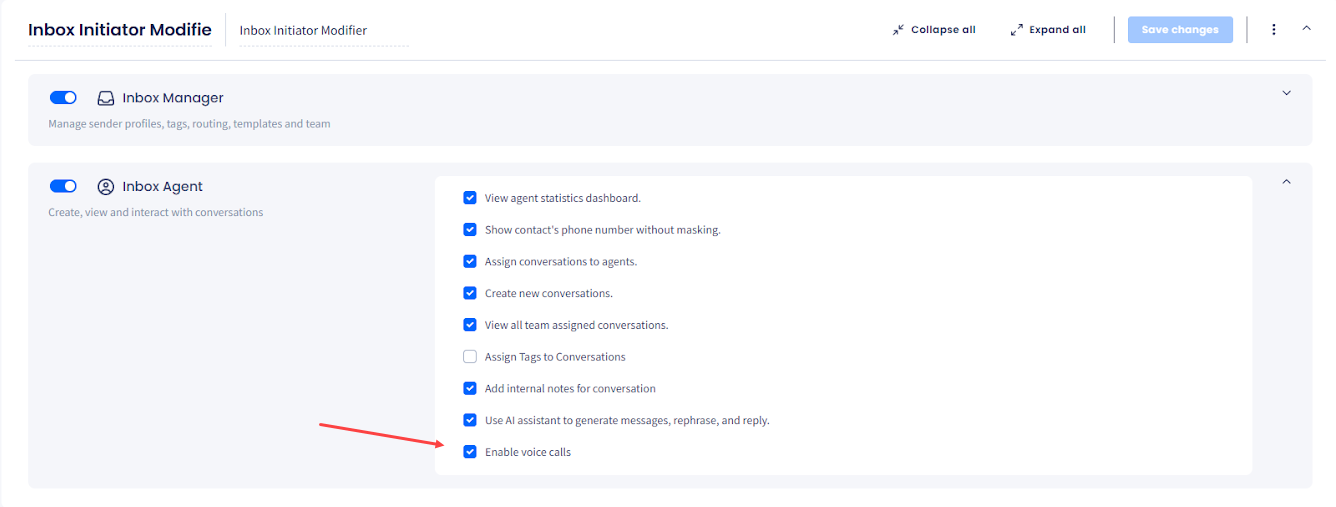
The Inbox Admin or Inbox Manager must enable the corresponding permission (Enable voice calls) for the Inbox Agent before this agent can make phone calls.
Enabling voice calls for Inbox Agent
Also, this agent must be assigned with an extension to be able to make WhatsApp Business or VoIP calls.
To start with Inbox calls:
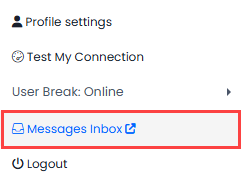
In your CommPeak Dialer instance, click on your name in the upper right panel.
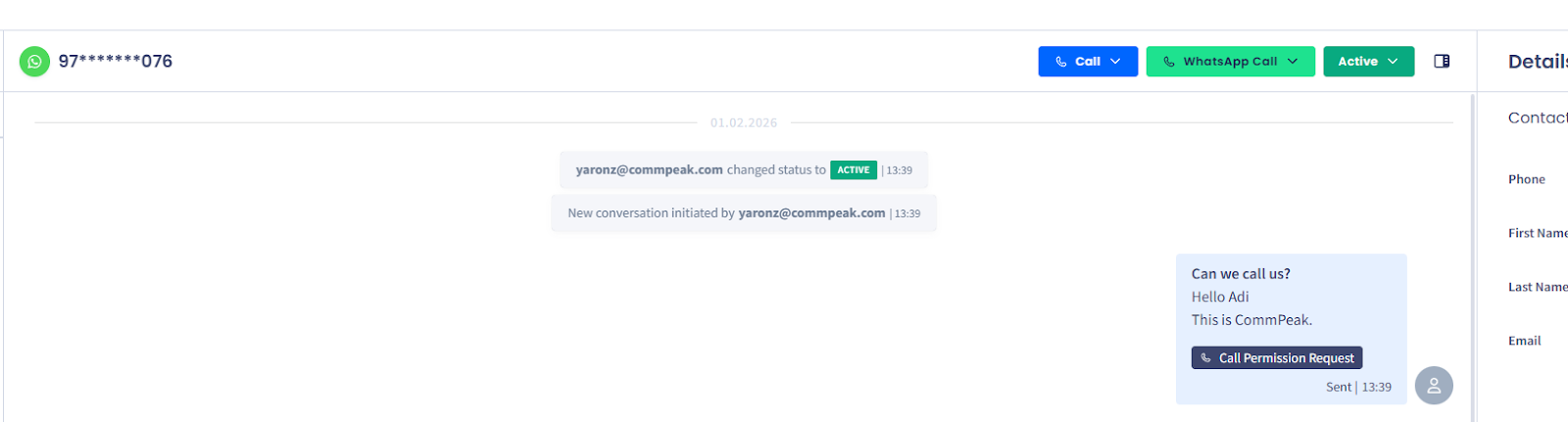
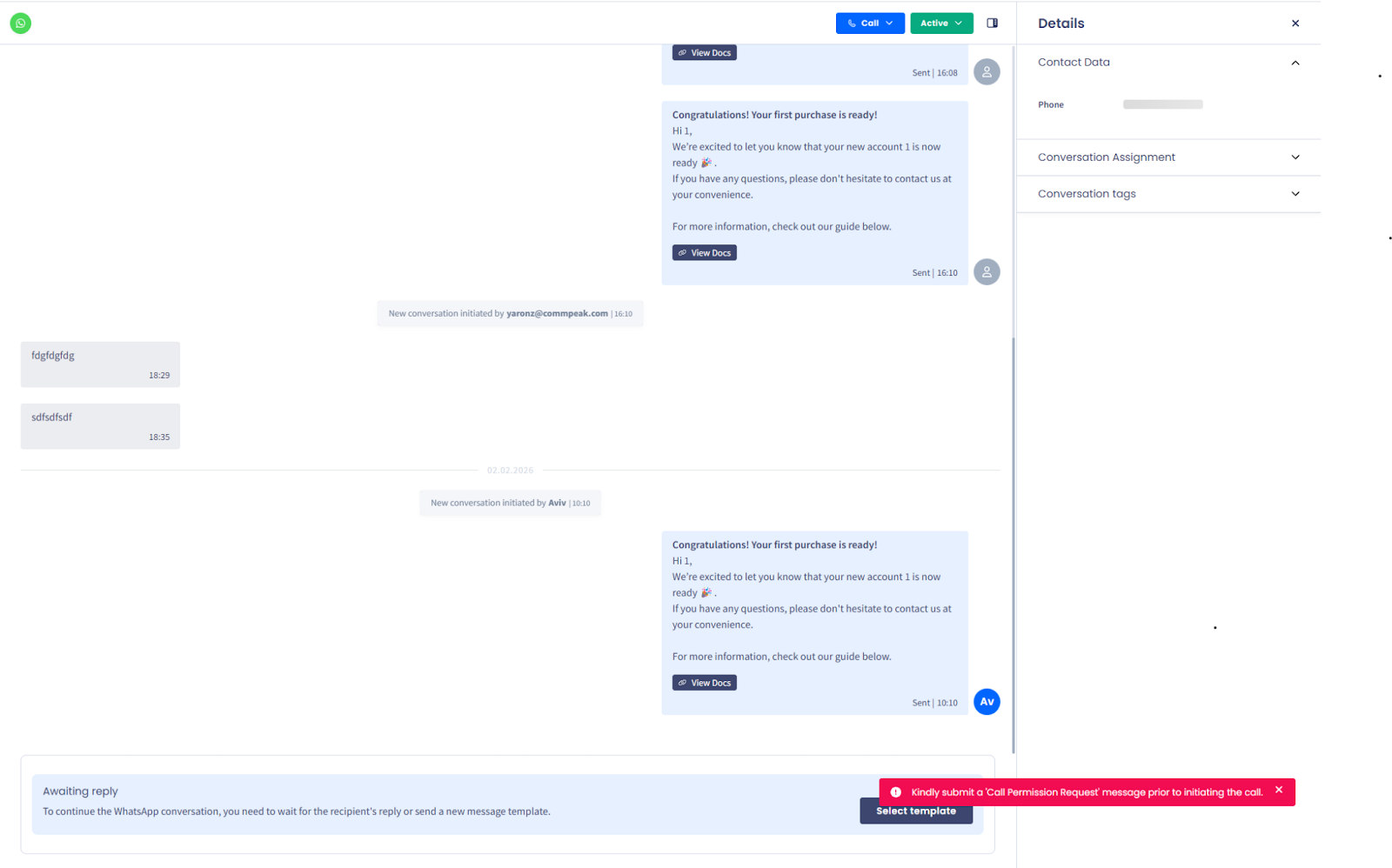
To comply with WhatsApp’s communication policies, initiating a WhatsApp Business call requires a pre-approved template to request call permission from the contact/lead. The user must approve the call for a limited or indefinite time before the agent is able to see and use the WhatsApp Call button.
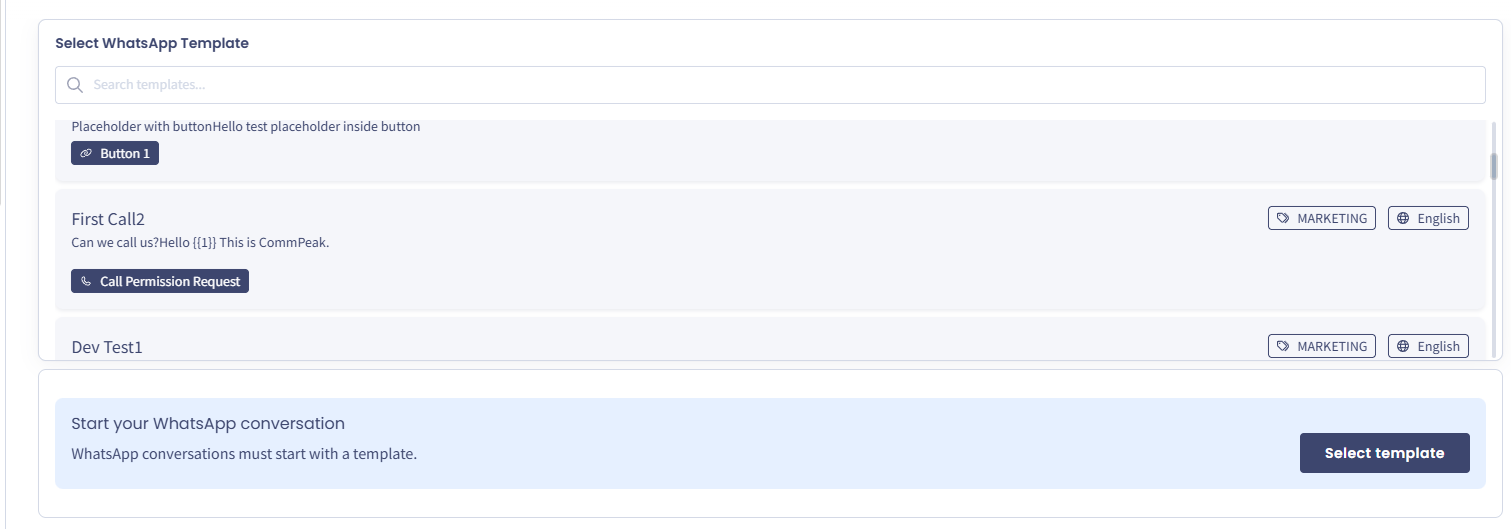
To request such call permission, the agent must send a short WhatsApp message using an event template to trigger a request-a-call message asking for customer consent, for example:
Selecting WhatsApp templates
See the WhatsApp Calls article for more details about the WhatsApp Business Calling feature.
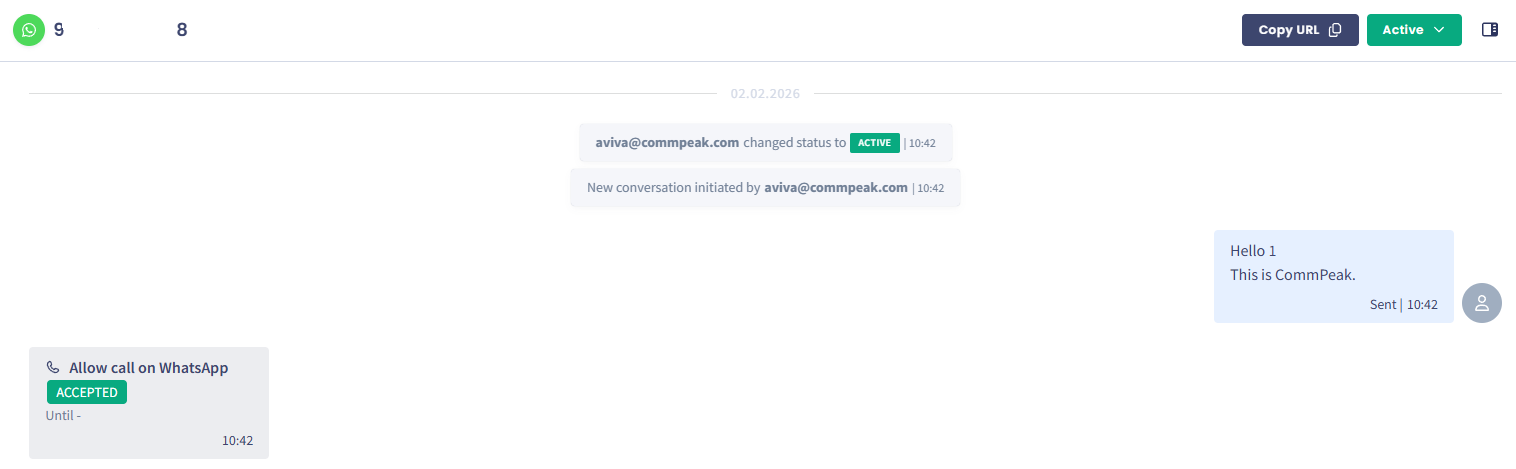
After a contact/lead approves this call, you will see the following notification which means you have the permission to call this lead:
Permission request is granted
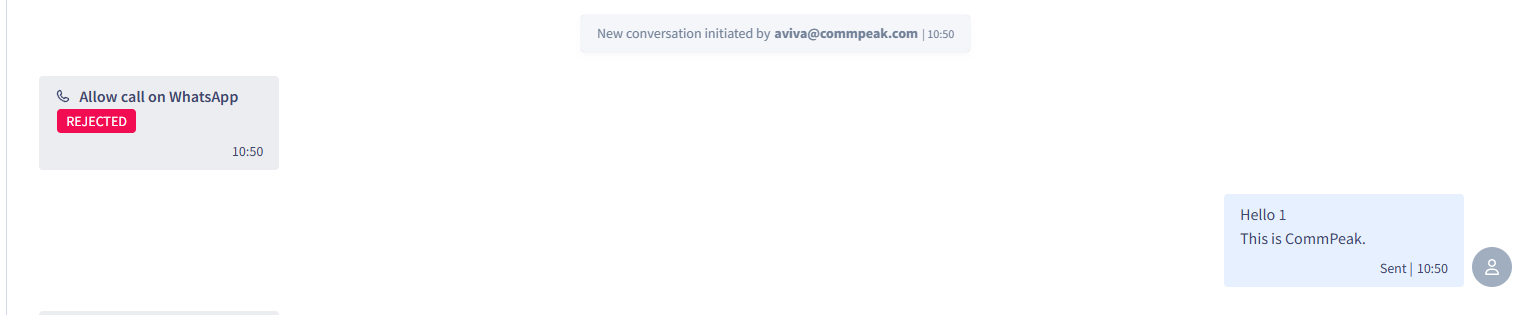
If a contact/lead rejects the permission request, you will see the following message:
Permission request is regected
Once a contact/lead replies or grants permission, in the upper right, you will see the WhatsApp Call Click2Call button:
WhatsApp Call Click2Call button
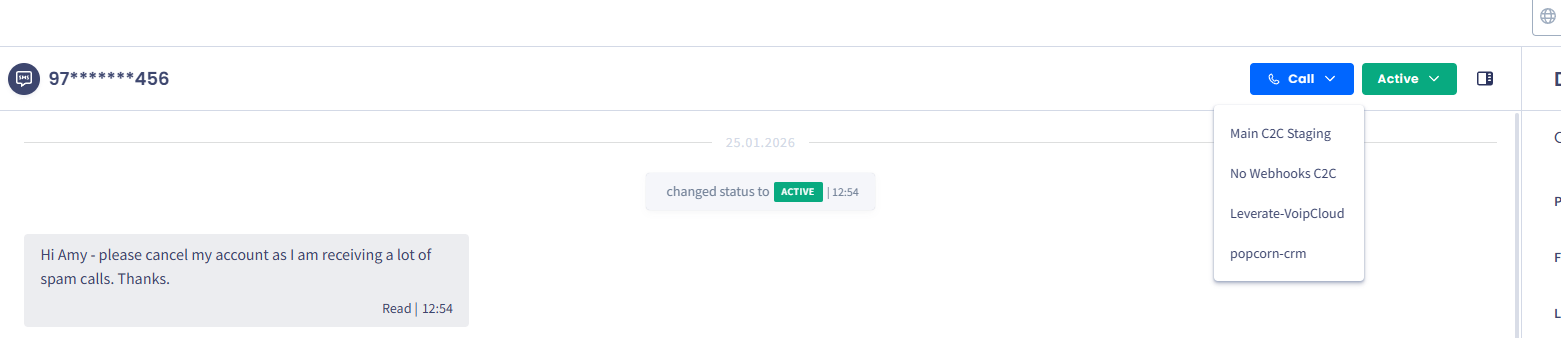
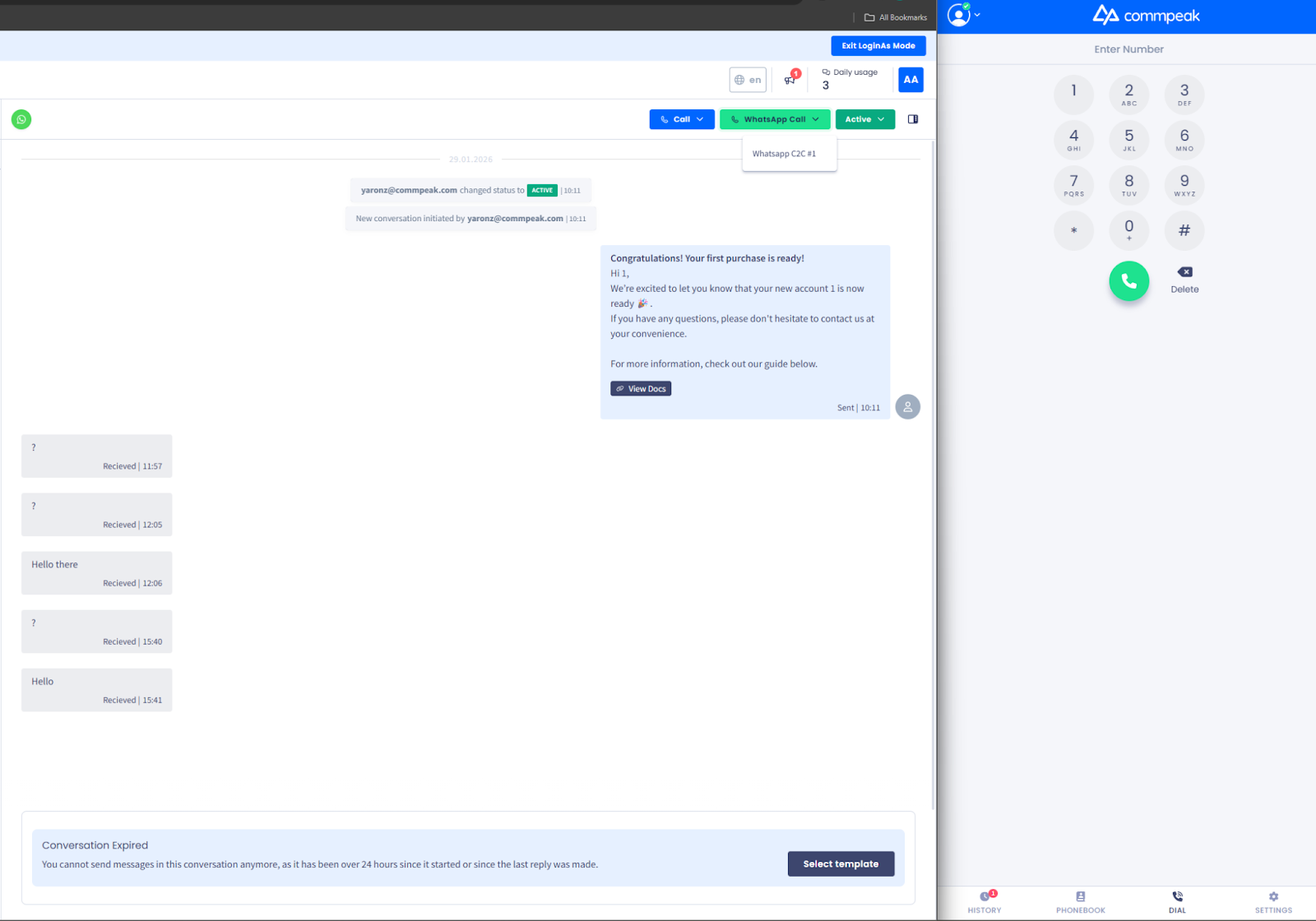
Click the button and choose the sender from the drop-down list:
Selecting the sender to call
When a contact's/lead's consent gets expired, you will see the following message which means you must initiate a new WhatsApp Business call:
Consent is expired
Making voice calls
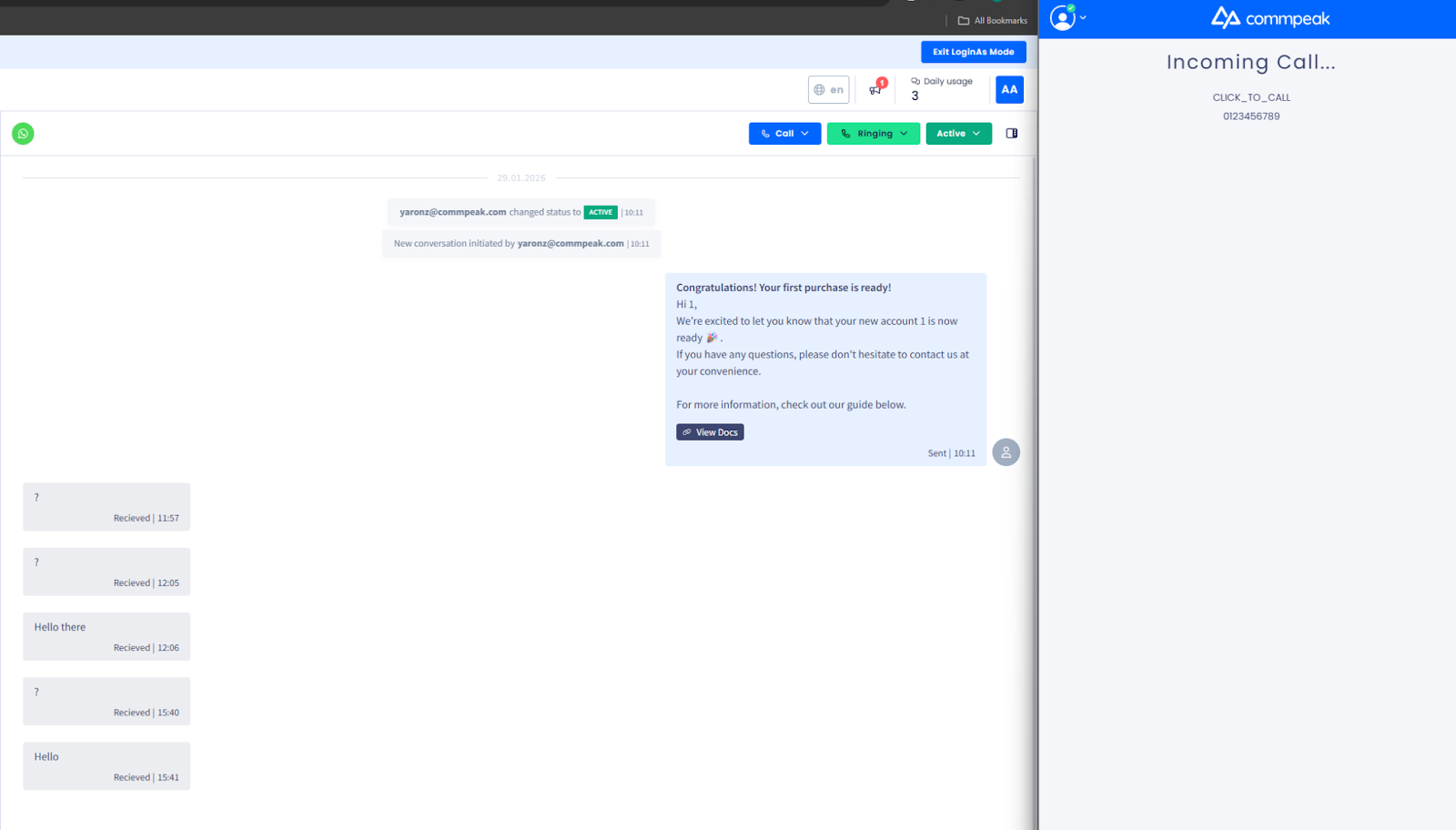
After you select the sender, an incoming call will be placed to your Softphone and you will see the WhatsApp Call button change to Ringing:
WhatsApp Call button changed to Ringing
When you click to answer the call, it will appear on the customer phone and you will hear a calling sound; then get a chat notification when a contact/lead answers.
Call statuses
The following notifications are possible:
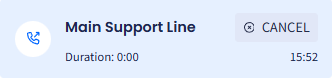
CANCEL: When the agent is rejecting/not answering the first call:
CANCEL status
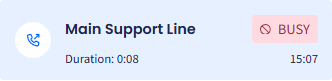
BUSY: When the agent is rejecting/not answering the first call:
BUSY status
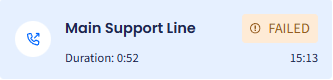
FAILED: When a contact/lead is not answering the call:
FAILED status
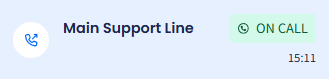
ON CALL: When both sides answer the call and until someone hangs up:
ON CALL status
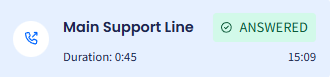
ANSWERED: After the call is finished, you will see this state and the duration of the finished call: