

CommPeak MCP Server
Connect Claude, ChatGPT, Cursor, and other AI assistants to your CommPeak account, choose what they can access, and work with your account in plain language.
The CommPeak MCP server connects AI assistants such as Claude, ChatGPT, and Cursor to your CommPeak account. You ask in plain language, and the assistant works with your SIP accounts, CommPeak Dialer campaigns, TextPeak streams, and number lookups for you. It is for account owners and finance teams, call center supervisors, messaging teams, and developers who already use an AI assistant at work.
MCP (Model Context Protocol) is an open standard that lets AI assistants call tools from other services. CommPeak hosts the server, so there is nothing to install: you add one URL to your AI client, log in to the CommPeak Portal, and choose what the assistant can do. Every tool runs one operation of the CommPeak APIs, with the same permissions and rate limits.
At a glance
The table lists the server details.
| Item | Value |
|---|---|
| Hosting | Hosted by CommPeak at api.commpeak.com. Nothing to install. |
| Transport | Streamable HTTP |
| Sign-in | Your CommPeak Portal login (OAuth), or a Portal API key |
| Tools | CommPeak tools across six APIs: Portal, Dialer, Cloud PBX, TextPeak, TextPeak Streams, and Lookup |
| Who can connect | Any CommPeak Portal user of an active account, whatever their role. No developer enrollment or admin setup is needed. What the assistant can reach is limited to what that user can see. |
| Availability | Generally available on all CommPeak accounts. For help, contact CommPeak support. |
| Cost | MCP has no separate charge. Calls, messages, and lookups the assistant runs are billed at your usual rates. |
NOTEThe MCP server is built for conversations and agent workflows with a person in the loop. For scheduled jobs and high-volume processing, call the CommPeak APIs directly.
What you can do with the CommPeak MCP server
- Check your account: see your balance, payments, invoices, voice and SMS rates, SIP accounts, and DIDs.
- Review calls: pull daily reports, calls by destination, and inbound and outbound call records.
- Monitor CommPeak Dialer and Cloud PBX: see campaigns, leads, agents on break, calls, and CDRs.
- Manage TextPeak: check streams, senders, webhooks, and message history, and send SMS, WhatsApp, and OTP messages.
- Validate numbers: run HLR, LRN, and DNC lookups on one number or a batch.
- Make changes when you allow it: create SIP accounts, update leads, add caller IDs, and more, with your approval in the AI client.
Choose an endpoint
Each endpoint serves one API, or all of them. A single-product endpoint keeps the tool list short, which makes the assistant faster and more accurate.
| Endpoint | Tools it exposes |
|---|---|
https://api.commpeak.com/all_mcp | All six APIs in one server (212 tools). Tool names carry an API prefix, such as portal_ or dialer_. |
https://api.commpeak.com/portal/mcp | Portal: account, balance, SIP accounts, DIDs, call records, invoices, rates, voicemails, caller IDs, and users |
https://api.commpeak.com/dialer/mcp | CommPeak Dialer. Each tool takes your tenant as the sub_domain argument. |
https://api.commpeak.com/dialer/{sub_domain}/mcp | One CommPeak Dialer tenant, set in the URL |
https://api.commpeak.com/pbx/mcp | Cloud PBX. Each tool takes your tenant as the sub_domain argument. |
https://api.commpeak.com/pbx/{sub_domain}/mcp | One Cloud PBX tenant, set in the URL |
https://api.commpeak.com/textpeak/mcp | TextPeak setup: domains, senders, streams, stream events, webhooks, and messages |
https://api.commpeak.com/textpeak/streams/mcp | TextPeak sending: simple, template, and event sends, OTP, and WhatsApp |
https://api.commpeak.com/lookup/mcp | HLR LookUp: HLR, LRN, and DNC lookups, single or batch |
Replace {sub_domain} with the name of your CommPeak Dialer or Cloud PBX tenant. For example, for a tenant at acme.td.commpeak.com, the endpoint is https://api.commpeak.com/dialer/acme/mcp.
Connect your AI client
The examples use the all-in-one endpoint. To connect one product only, use its endpoint from the table above. The first time your client connects, a browser window opens so you can log in to the CommPeak Portal and approve access.
Claude
Open Connectors
In Claude, open Customize > Connectors. In older versions, open Settings > Connectors.
Add a custom connector
Click Add connector > Add custom connector.
Enter the server details
Enter CommPeak API as the name, paste the endpoint URL, and click Continue. Claude checks the server and shows Server found.
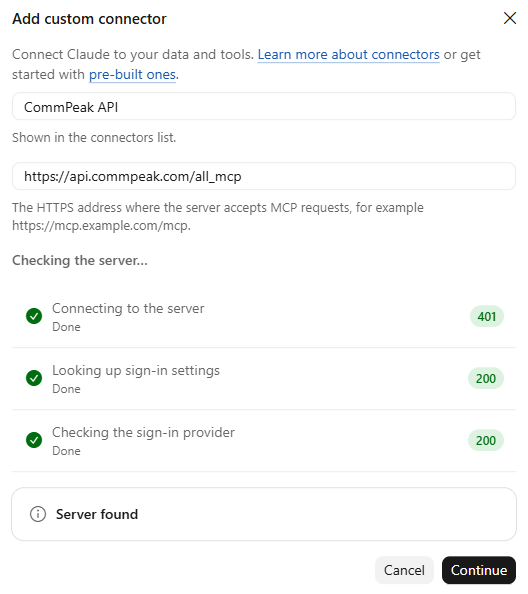
Claude confirms Server found for the CommPeak endpoint
Review the sign-in settings
Keep the detected settings: Sign in now under Authentication and Register automatically under OAuth client. Click Add.
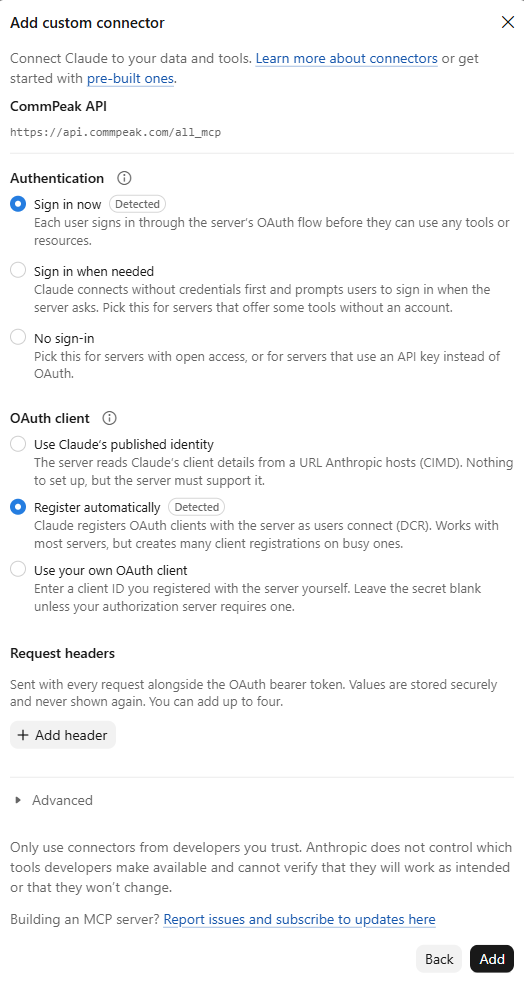
Sign-in settings detected for the CommPeak API connector
Log in and authorize
In the browser window that opens, log in to the CommPeak Portal, choose what Claude can access, and click Authorize. The Connected page confirms the connection, and you can close the tab.
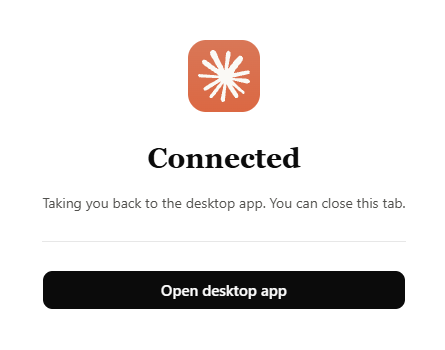
The Connected page after you authorize Claude
Set tool permissions
Open Customize > Connectors and select CommPeak API. Under Tool permissions, choose when Claude can use read-only tools and write/delete tools. Keep Write/delete tools set to Needs approval, so Claude asks you before it changes data, sends messages, or places calls.
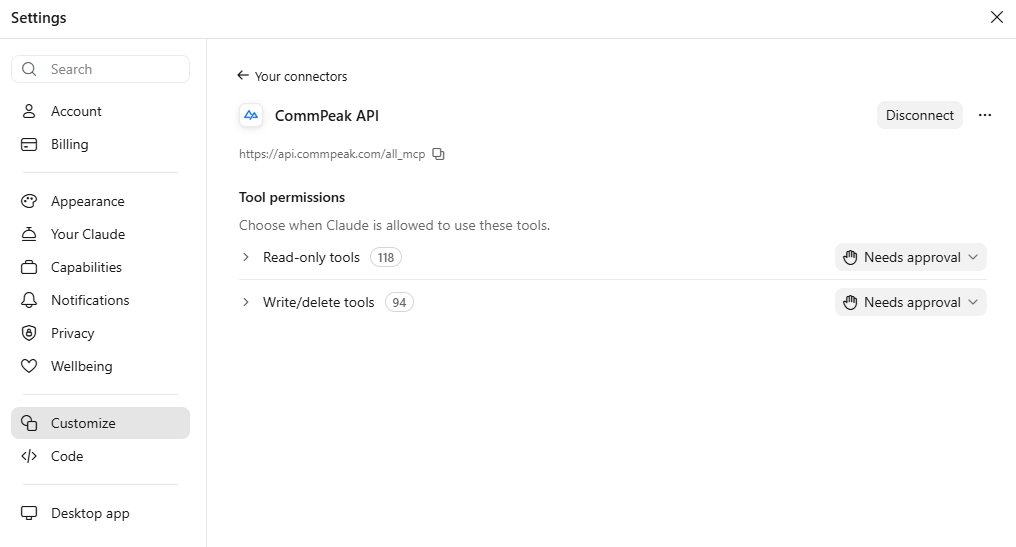
Tool permissions for the CommPeak API connector in Claude
On Claude Team and Enterprise plans, only an organization owner can add a custom connector. The owner adds it once, and each member then connects with their own CommPeak login.
ChatGPT
Add a custom MCP server
In the ChatGPT sidebar, open Plugins, then click Add > Add custom MCP server.

Add custom MCP server in the ChatGPT Plugins page
Enter the server details
Enter CommPeak API as the name, paste the endpoint URL under Connection, and set Authentication to OAuth. Leave the Advanced OAuth settings as they are.
Create the plugin
Select I understand and want to continue, then click Create as a plugin.
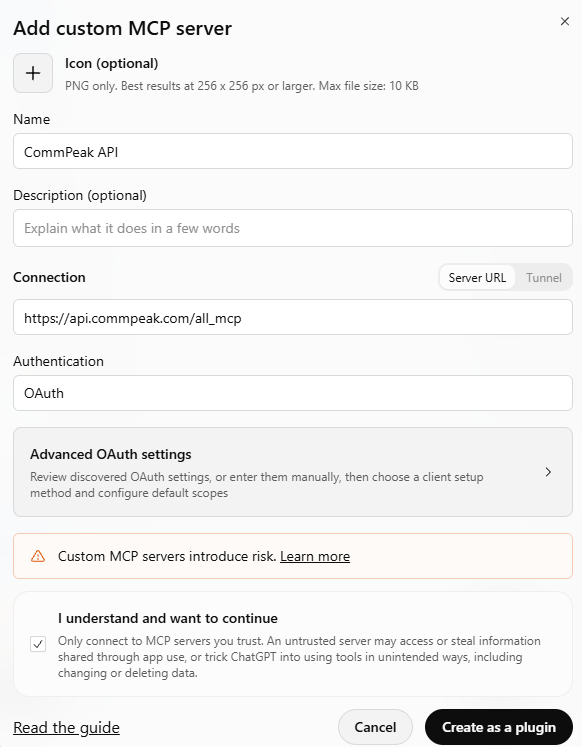
The Add custom MCP server form, ready to create
Connect CommPeak API
ChatGPT installs the plugin and asks you to connect it. Click Connect CommPeak API.
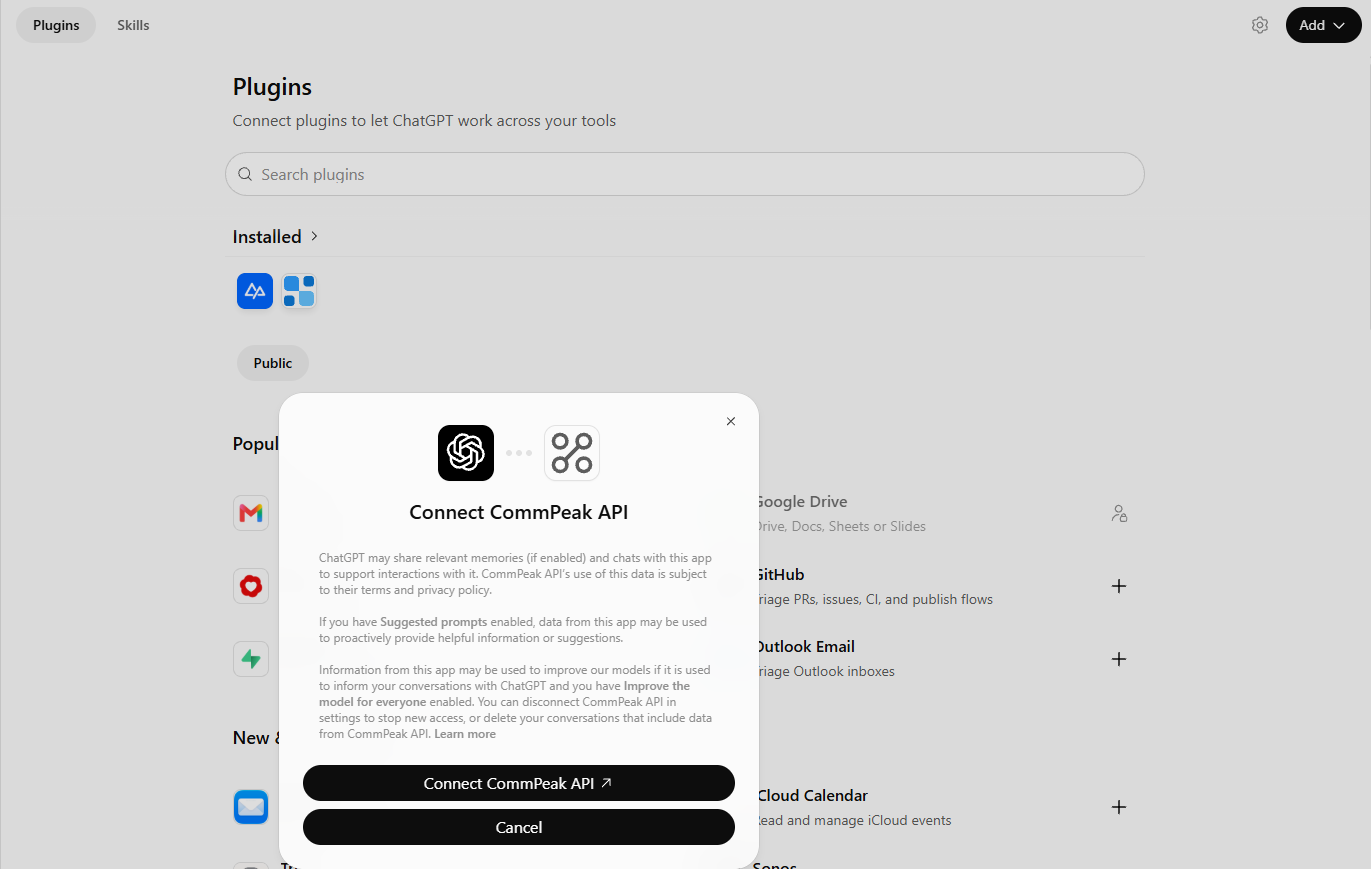
The Connect CommPeak API dialog
Log in and authorize
Log in to the CommPeak Portal, choose what ChatGPT can access, and click Authorize. For the options, see Authentication and permissions.
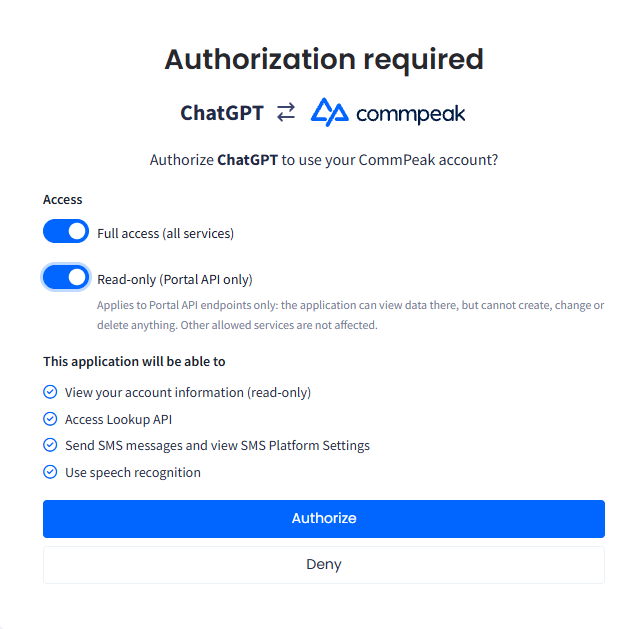
Authorizing ChatGPT with Full access and Read-only turned on
Use the app in a chat
In a new chat, select CommPeak API in the message box, or name the app in your request, for example: Using the CommPeak API app, list my SIP accounts.
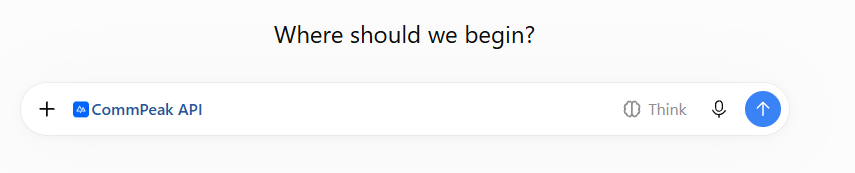
The CommPeak API app selected in a new ChatGPT chat
Custom MCP servers in ChatGPT depend on your ChatGPT plan and workspace settings. To change what the app can access later, open the app's Manage page and click Reconnect.
Claude Code, Cursor, Visual Studio Code, and other clients
Add the server
Pick the tab for your client and add the server. In Cursor, add the configuration to ~/.cursor/mcp.json. In Visual Studio Code, add it to .vscode/mcp.json. Any other client that supports remote MCP servers over Streamable HTTP, with OAuth sign-in, connects with the same URL.
claude mcp add --transport http commpeak https://api.commpeak.com/all_mcp{
"mcpServers": {
"commpeak": {
"url": "https://api.commpeak.com/all_mcp"
}
}
}{
"servers": {
"commpeak": {
"type": "http",
"url": "https://api.commpeak.com/all_mcp"
}
}
}Sign in
In Claude Code, start a session, run /mcp, select commpeak, and choose Authenticate. In Cursor, Visual Studio Code, and other clients, the first connection opens the login automatically.
claude
/mcpLog in and authorize
In the browser window that opens, log in to the CommPeak Portal, choose what the client can access, and click Authorize.
To skip the login, connect with a Portal API key instead. See Connecting with an API key.
Check the connection
Ask a test question
In a new chat, ask your assistant: What is my current CommPeak balance? or Can you list my SIP accounts?
Review the answer
The assistant calls the CommPeak server and returns the data from your account. If your client asks for approval first, approve the tool call.
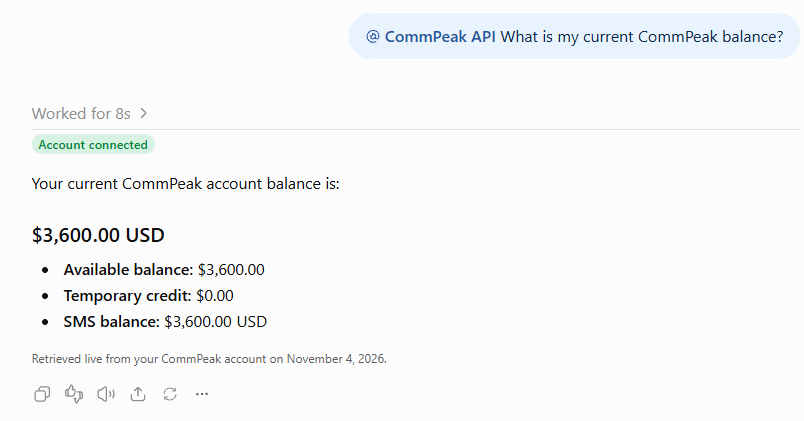
ChatGPT returns the account balance through the CommPeak API app
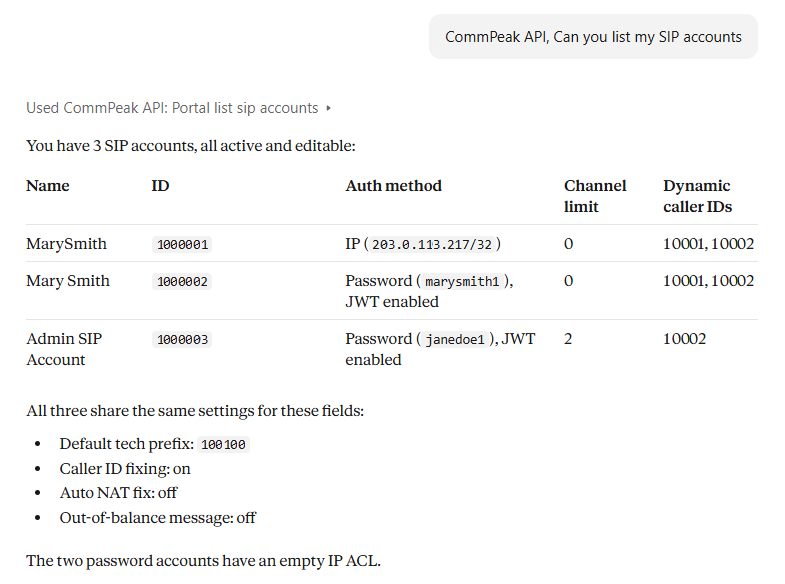
Claude lists your SIP accounts with the Portal list sip accounts tool
Fix any error
If the assistant returns an error or no CommPeak data, see Troubleshooting.
Authentication and permissions
You log in with your existing CommPeak Portal account. Your AI client registers itself with CommPeak automatically, so there are no client IDs or secrets to copy. After you log in, the CommPeak Portal opens the Authorization required page. It names the AI client that asks for access, such as ChatGPT, and lets you choose what the assistant can do.
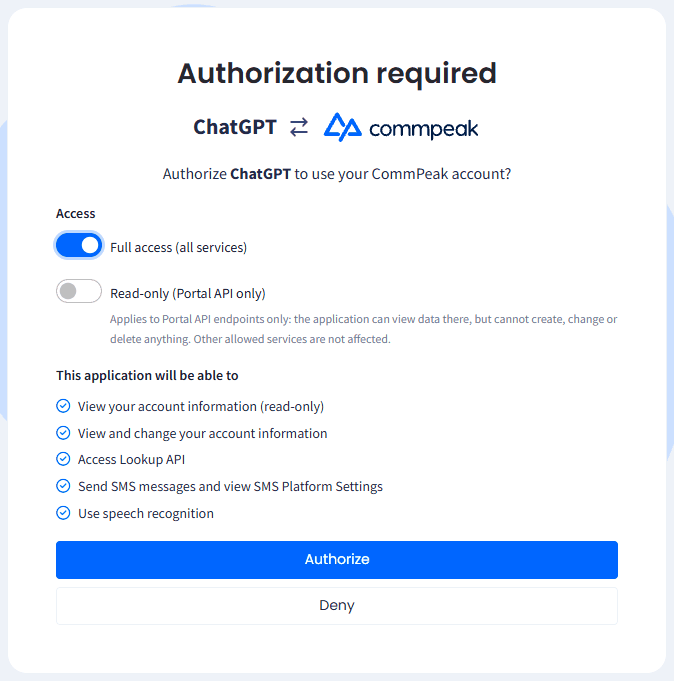
The Authorization required page with Full access turned on
The table describes the options on the page.
| Section | Option | Effect |
|---|---|---|
| Access | Full access (all services) | The assistant can use every service your account has. The page replaces the service checkboxes with This application will be able to, a list of what the assistant can do. |
| Access | Read-only (Portal API only) | The assistant can view Portal data but cannot create, change, or delete anything there. Other allowed services are not affected. |
| Allowed services | Dialer | The assistant can view and manage CommPeak Dialer and Cloud PBX data. After you select it, choose the tenants the assistant can use. |
| Allowed services | Lookup | The assistant can run HLR LookUp checks. |
| Allowed services | SMS Platform | The assistant can send SMS messages and view TextPeak settings, through the TextPeak and TextPeak Streams tools. |
| Allowed services | Speech Recognition | The assistant can use speech recognition. |
Allowed services appear only when Full access is off. Portal account data is always included, even when you select no services. Click Authorize to return to the AI client and connect it, or click Deny to cancel the connection.
The Authorization required page offers the same choices as a Portal API key, and CommPeak enforces them on every tool call. The assistant acts as you, so it can never reach more than your CommPeak user can see or more than you approved.
IMPORTANTRead-only (Portal API only) limits Portal tools only. If you also allow other services, the assistant can still place calls, send messages, run lookups, and change CommPeak Dialer data. For an assistant that only reports, turn on Read-only and allow no other services.
Sessions and revoking access
- Access tokens last one hour. Your AI client renews them in the background, so you normally log in once.
- Revoking one connection does not affect your API keys or other AI clients.
- When a user is disabled, the assistant acting for that user loses access at once.
To end access, disconnect the server in your AI client, or revoke the app in the CommPeak Portal.
Open Authorized Applications
In the CommPeak Portal, expand Settings in the main menu, open the API Access tab, and select Authorized Applications.
Find the app
The table lists each connected app with its authorization date, last usage date, and access.
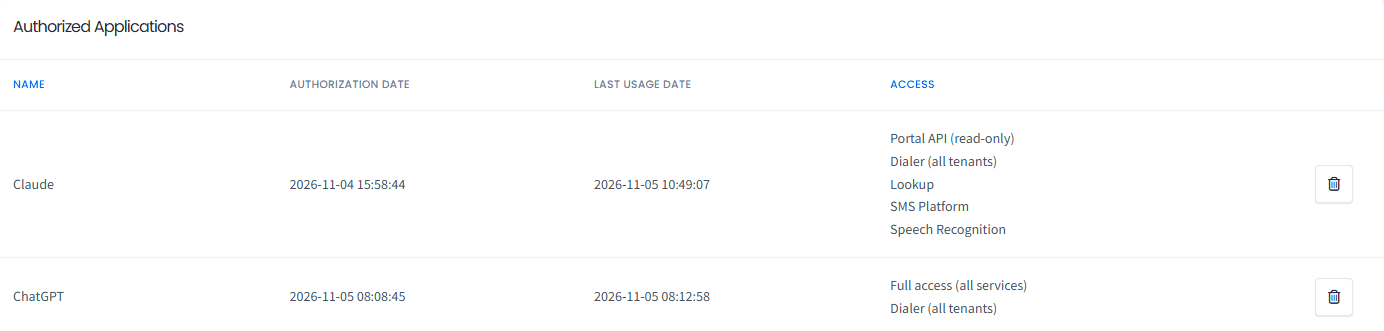
Connected apps on the Authorized Applications tab
Revoke access
Click the delete icon next to the app. CommPeak refuses its tokens within three minutes.
Connecting with an API key
If your client does not support OAuth, connect with a Portal API key instead. The key's own settings apply: its services, tenants, read-only access, and IP allow list.
Create a Portal API key
Create a key with the services the assistant needs. For the CommPeak Dialer, Cloud PBX, and HLR LookUp tools, keep Full access (all services) turned on. See Authentication and API Keys.
Add the server with the key
Send the key in the Authorization header, as the raw value without a Bearer prefix.
claude mcp add --transport http commpeak https://api.commpeak.com/all_mcp --header "Authorization: <API_KEY>"{
"mcpServers": {
"commpeak": {
"url": "https://api.commpeak.com/all_mcp",
"headers": {
"Authorization": "<API_KEY>"
}
}
}
}Check the connection
Ask a test question, as in Check the connection. No login window opens.
Available tools
The server exposes available tools in six groups, one per API. Read tools only view data. Write tools can create, change, delete, send, or place calls. Whether your AI client asks before running a tool depends on its tool permissions, so keep write tools set to require approval, as shown for Claude.
The table summarizes each group.
| API | Endpoint | Service required |
|---|---|---|
| Portal | /portal/mcp | Included with every connection. Speech tools need Speech Recognition, and sending SMS needs SMS Platform. |
| Dialer | /dialer/mcp | Dialer, plus the tenants you allowed |
| Cloud PBX | /pbx/mcp | Dialer, plus the tenants you allowed |
| TextPeak | /textpeak/mcp | SMS Platform |
| TextPeak Streams | /textpeak/streams/mcp | SMS Platform |
| Lookup | /lookup/mcp | Lookup |
You do not need to know tool names: describe what you want, and the assistant picks the tool. For every tool and what it does, see CommPeak MCP Tools Reference.
These operations are not available as tools: file uploads (lead files, batch lookup files, and audio for speech recognition), Click2Call, and Dispatch Automation.
Example prompts
Copy a prompt into your assistant and change the names, dates, and IDs. Replace acme with your tenant.
Account owners and finance teams
- What is my current balance, and what were my last five payments?
- Show yesterday's outbound calls to Germany with their cost.
- List my SIP accounts and tell me which ones are inactive.
Call center supervisors
- In CommPeak Dialer tenant acme, list the active campaigns and how many leads each has.
- Which agents in acme are on a break right now?
Messaging teams
- List my TextPeak streams and the sender used by each.
Number validation
- Run an HLR lookup on +44 7700 900123 and tell me the network.
Reporting only
- Use only read tools: summarize my account, SIP accounts, and DIDs in one table.
Changes
- Move the leads with no answer in campaign Spring Renewals to campaign Follow-Up. Show me before you change anything.
- Create a SIP account named Support Desk with the same settings as Sales Desk. Show me before you change anything.
TIPEnd every request that changes data with Show me before you change anything. The assistant lists what it plans to do, and you confirm.
Safety, costs, and limits
- Approve write tools: keep write tools set to require approval in your AI client, and check the details before you approve a tool that sends, calls, deletes, or changes data.
- Costs: calls placed with
place_call, messages sent through TextPeak, and HLR LookUp checks are billed to your CommPeak balance at your usual rates, the same as from the CommPeak Portal or the API. - Rate limits: tool calls count toward the same limits as direct API requests. See Requests, Errors, and Rate Limits.
- Long lists: list tools return the same pages as the API. If a list is cut short, ask for the next page or narrow the request with a date range or filter.
- Large tool lists:
/all_mcpsends the tool definitions to your assistant, which takes up a large share of its context. Use a single-product endpoint when the assistant needs one product only. - Logging: every tool call is logged as a regular API request.
IMPORTANTContent the assistant reads, such as an incoming message, a lead comment, or a contact name, can contain instructions written by someone else. Review every write action before you approve it, and take extra care when the same chat also uses other MCP servers.
Troubleshooting
The table lists common errors and how to fix them.
| Problem | Cause and fix |
|---|---|
| Couldn't discover OAuth settings or Dynamic Client Registration rejected | The client could not read the CommPeak sign-in settings. Use the full endpoint URL, such as /all_mcp or /portal/mcp, never a bare /mcp. If your network filters outbound traffic, allow api.commpeak.com and my.commpeak.com. |
| 404 Not found | The URL points to the wrong host or path. Use an endpoint on api.commpeak.com from Choose an endpoint, such as https://api.commpeak.com/all_mcp. |
| 401 Authorization required | The client sent no credentials. Connect and log in, or add an API key header. |
| 401 The access token has expired or was revoked | The client renews the token automatically. If the error repeats, disconnect and connect again. |
| 403 API token has no access to this service | The service was not selected on the Authorization required page, or the API key does not include it. Reconnect and select it, or edit the key under Settings > API Access. |
| 403 API token has no access to this tenant | The CommPeak Dialer or Cloud PBX tenant was not selected on the Authorization required page. Reconnect and select it. |
| 403 IP address not allowed for this API token | The API key has an IP allow list that does not include the client's IP address. |
| 422 Field required | The argument names did not match the tool. Ask the assistant to check the tool's input schema and try again. |
| 503 Service Unavailable | The server is restarting. Try again in a minute. |
| No CommPeak tools appear | Reload the server in your client or restart the client. Some clients hide long tool lists from /all_mcp, so switch to a single-product endpoint. |
| Add custom connector is unavailable in Claude | Your organization lets only owners add custom connectors. Ask an owner to add it for the team. |
If the problem continues, contact CommPeak support.
Search the CommPeak docs from your assistant
CommPeak also runs a separate MCP server for its documentation. Your assistant can search docs.commpeak.com and the API Reference while it works, so it answers with current steps and endpoints instead of guessing.
| Resource | URL | Sign-in |
|---|---|---|
| Docs MCP server | https://docs.commpeak.com/mcp | None |
| Page index for AI tools | https://docs.commpeak.com/llms.txt | None |
| Any page as Markdown | Add .md to the page URL | None |
The docs server offers these tools: search and fetch for documentation pages, and list-specs, search-endpoints, and execute-request for the API Reference. execute-request sends a real API request with the Authorization header you set in your client, so treat it like any write tool.
Add the docs server the same way as the CommPeak MCP server, with the URL above and no sign-in. For example, in Claude Code:
claude mcp add --transport http commpeak-docs https://docs.commpeak.com/mcpFAQs
Does the CommPeak MCP server cost extra?
No. MCP has no separate charge. Actions that are billed in the CommPeak Portal, such as calls, messages, and lookups, are billed the same way when your assistant runs them.
How is this different from Speaky and Voice AI Bot?
Speaky is the AI assistant built into the CommPeak Portal. Voice AI Bot lets AI voice agents handle calls in CommPeak Dialer. The CommPeak MCP server lets the AI assistant you already use work with your CommPeak account.
Can CommPeak see my conversations with the assistant?
No. CommPeak receives only the tool calls your assistant sends and the details each call needs, such as a date range or a campaign name. Your conversation stays with your AI provider, under that provider's data policy.
Next steps
See all 212 tools, what each one does, and whether it reads or writes.
Create a Portal API key for clients without OAuth, and set its restrictions.
Learn the status codes and limits that also apply to MCP tool calls.
Call the REST APIs directly for scheduled and high-volume work.
Updated about 5 hours ago