

Using Speaky, Your AI Assistant
Learn how to use Speaky, the CommPeak AI assistant, to check your balance, invoices, SIP accounts, rates, and DID setup, and to reach a support agent when needed.
Speaky is CommPeak's AI assistant, built into the CommPeak Portal. Ask Speaky about your account in plain language, and it replies instantly with answers based on your account data and the Documentation and Developer Hub.
What you can do with Speaky
- Check your account data: view your current balance, invoices, reports, and SIP accounts.
- Look up pricing: get voice and SMS rates for any destination.
- Get setup guidance : ask how to configure Caller IDs or set up your DIDs.
- Find answers from the documentation: Speaky's responses draw on the Documentation and Developer Hub, so you get the same guidance as in the articles, without leaving the portal.
- Reach a support agent: every Speaky response includes an option to continue the conversation with the CommPeak support team.
Starting a conversation with Speaky
-
Log in to the CommPeak Portal at my.commpeak.com.
-
Click the Speaky button at the bottom right corner of any page.
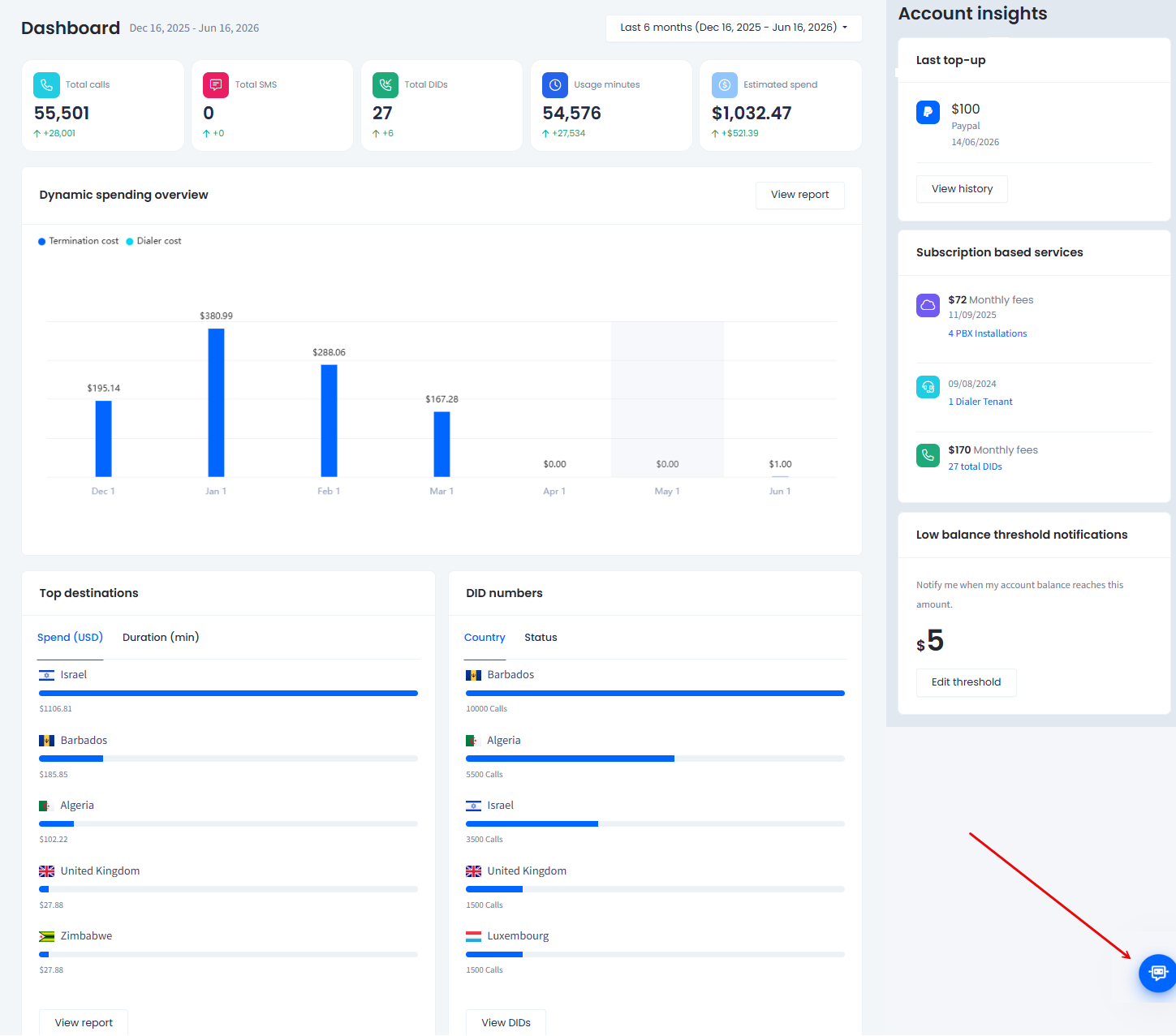
Speaky button
-
In the dialog box, click one of the suggested questions, or type your own message and click the Send button.
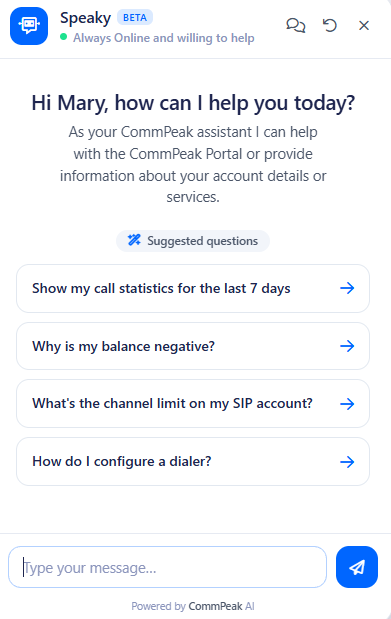
Speaky dialog box: using suggested questions.
EXAMPLE
Ask Speaky questions like "What's my current balance?", "Show my recent payments", "How do I download my CDRs?", or "What's my rate to call the United States?".
Speaky replies in the chat, and you can ask follow-up questions in the same conversation.
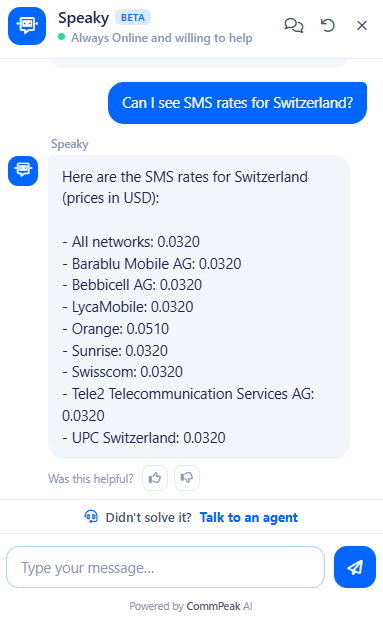
Speaky reply in the chat
Talking to a support agent
If Speaky's answer didn't solve your issue, you can hand the conversation over to the support team:
-
Click the Talk to an agent link at the bottom of any Speaky response.
-
Click the arrow button to start the conversation with a CommPeak support agent. Speaky attaches a summary of your conversation, so you don't have to repeat yourself.
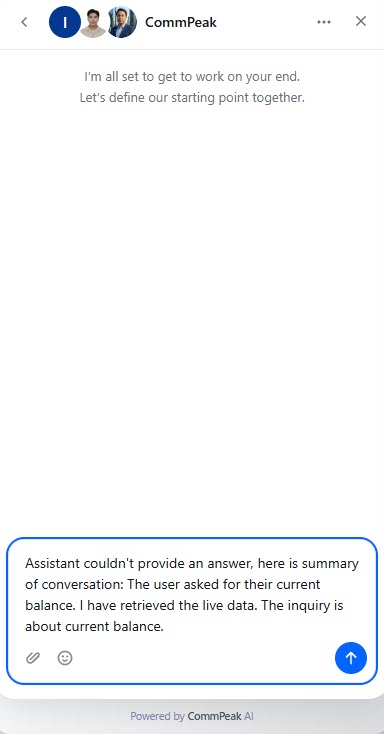
Talk to an agent option in a Speaky response
3. If needed, you can expand the messaging window or use extras such as attaching files or inserting emojis.
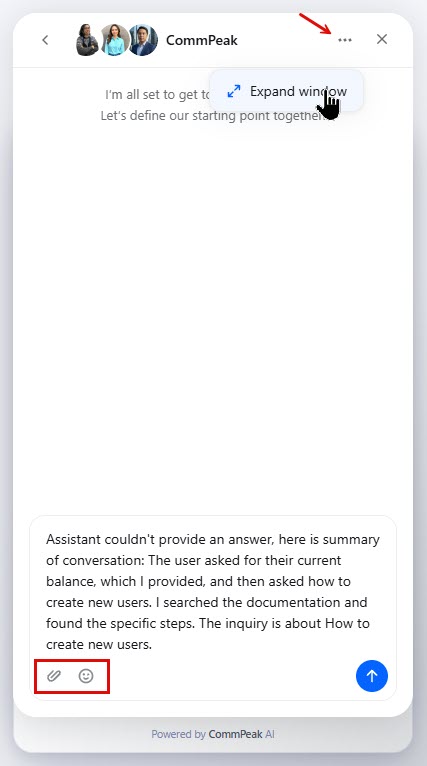
Additional support options
NOTEIf a CommPeak support representative is unavailable, or if you leave the CommPeak Portal before a reply arrives, CommPeak sends a copy of your conversation to the email address used to log in to your account.
For all other ways to reach the support team, see the Help & Support page.
Updated 3 days ago