

Setting Triggers in Make
Create triggers to send data to Make and set up further actions after customers respond to your SMS messages or click links.
Perform several steps as follows.
To elaborate further, visit the Webhooks section in the Make Help Center.
Step 1: Start creating a scenario
-
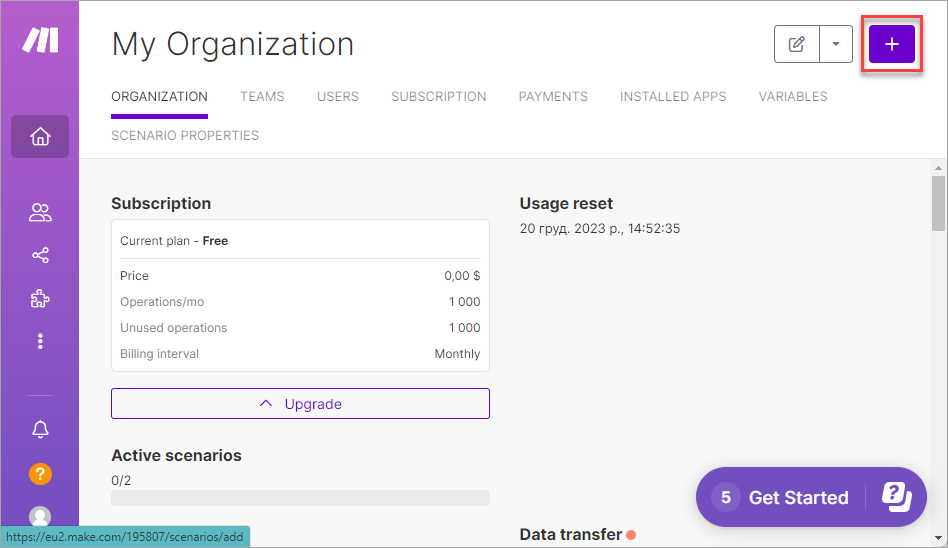
Click Create a new scenario at the top right of your organization page.
-
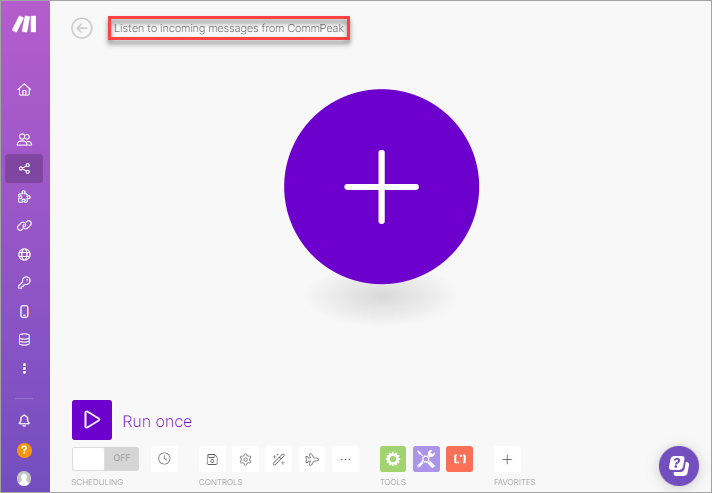
Give a name to your scenario.
-
Click + again.
Step 2: Set up a trigger
-
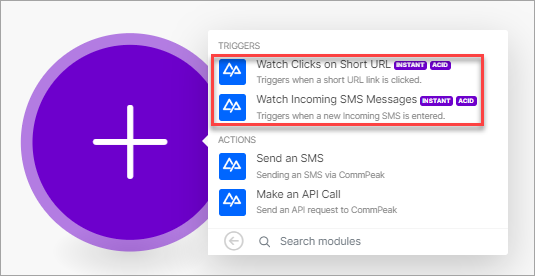
Search for CommPeak, click it, and select a trigger. Currently, we provide the following instant triggers:
-
Short URL clicks and
-
incoming SMS messages.
-
-
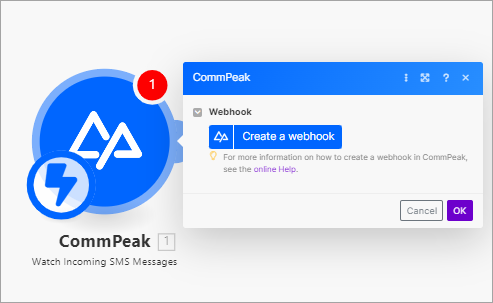
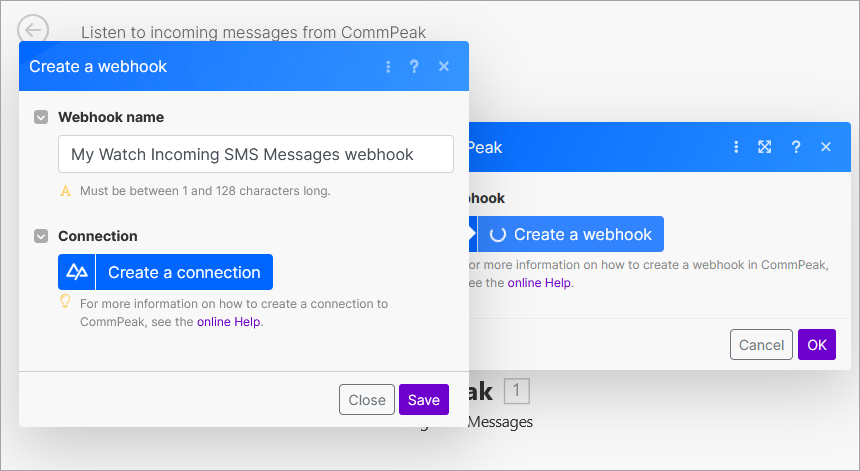
Click Create a webhook to add a Webhook.
-
Click Create a connection.
-
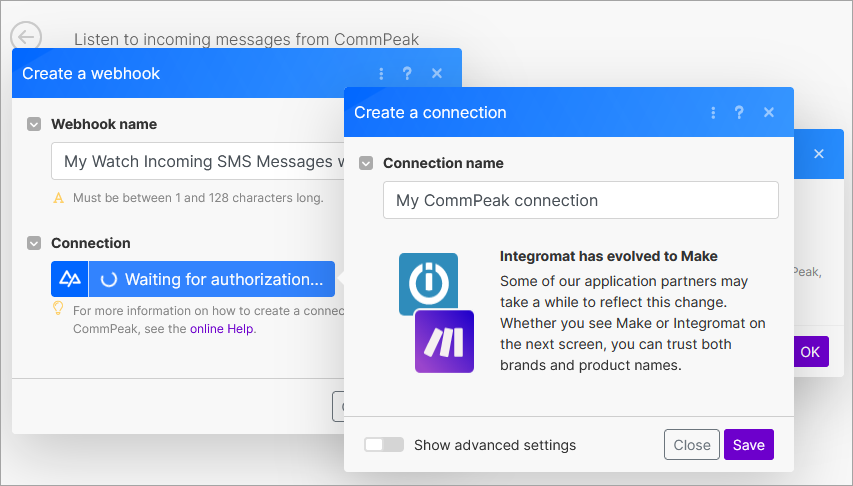
Enter the connection name and click Save.
-
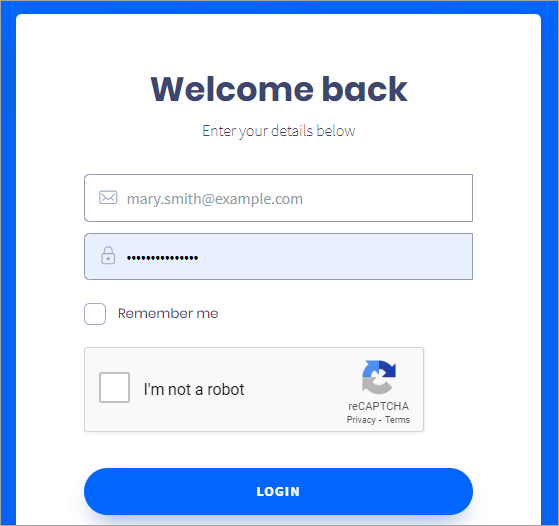
Connect to your CommPeak Portal account. To do this, enter your credentials, complete the captcha authentication, and click LOGIN .
-
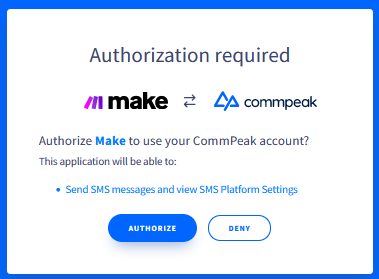
Authorize Make.
-
Click Save.
-
Click OK. Your new trigger is ready and listening to incoming messages from CommPeak.
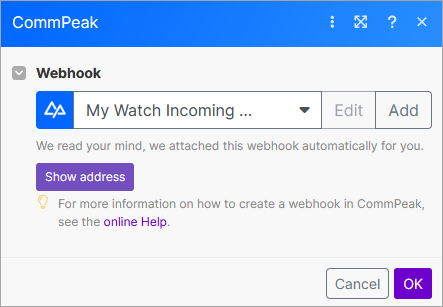
Step 3: Add another module
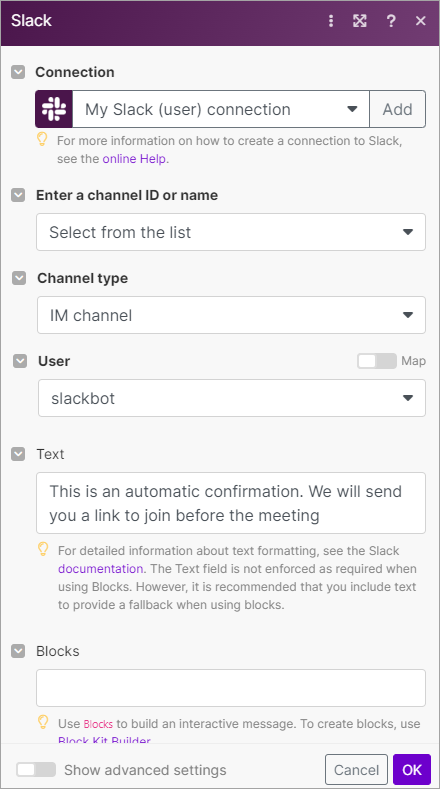
In our example, we want to send a response via Slackbot.
-
Click + Add another module.
-
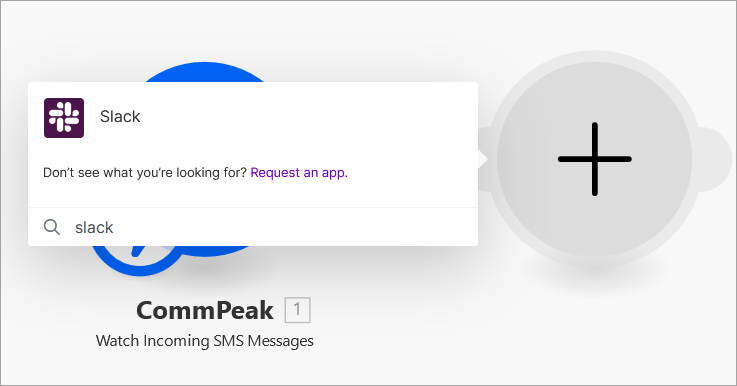
Find Slack and select it.
-
Select an action.

-
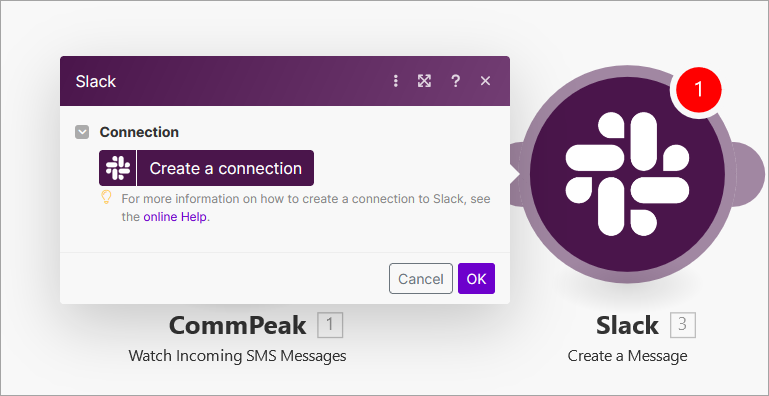
Create a connection with Slack and then provide permission to access your workspace.
-
Complete the action form and click OK.
-
Click Run once to test the scenario and enable it.
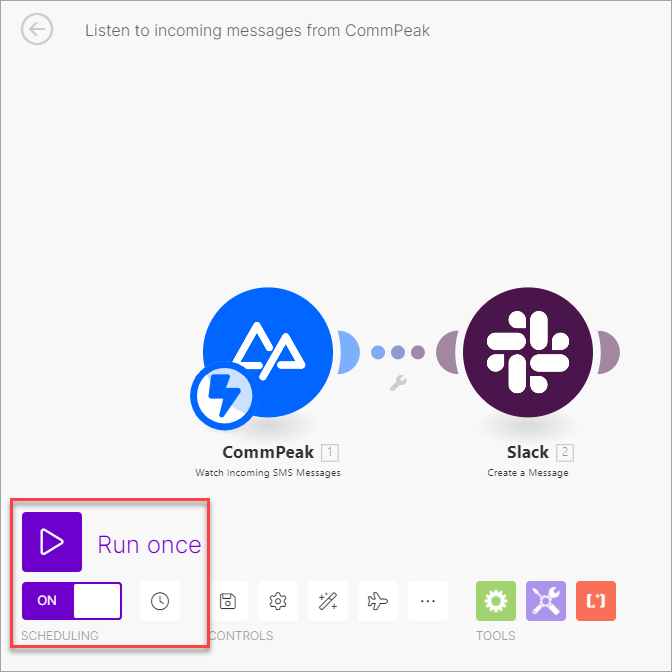
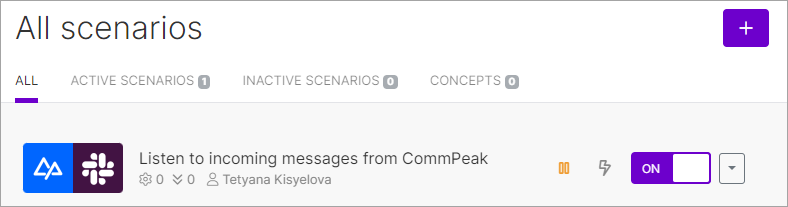
That's it! Your new scenario is active.
Updated 9 days ago