

Account Details
View and manage your CommPeak account's information.
Use the Account Details tab to manage your personal, company, and address details.
Personal and company account data
To open the Account Details tab:
-
Log in to CommPeak Portal.
-
Click your account name in the top-right corner.
-
Select Account Details.
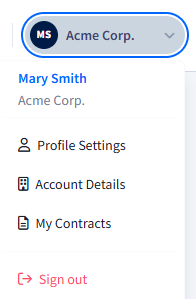
Account Details tab
To update your account details:
- Scroll to the section you want to update.
- Change the existing information or enter any missing details.
- Click Save changes at the bottom of the page.
Account details
In this section, you can:
- View and edit your personal and company data.
- Enter your company name, and update the authorized representative's first and last name if needed.
- Optionally, update the phone number you entered at signup so CommPeak support can reach you.

Identity section
NOTECommPeak won't be able to issue invoices to you without your company details.
NOTESee the Identities & Verification section for details about verifying your Business or Personal identity.
See the KYC Instructions article for a detailed guide to completing the Know Your Customer (KYC) process as part of CommPeak’s extended verification procedures.
Billing address / address
Use this section to manage your registered company address.
- Keep the checkbox selected if your physical address matches the billing address specified above.
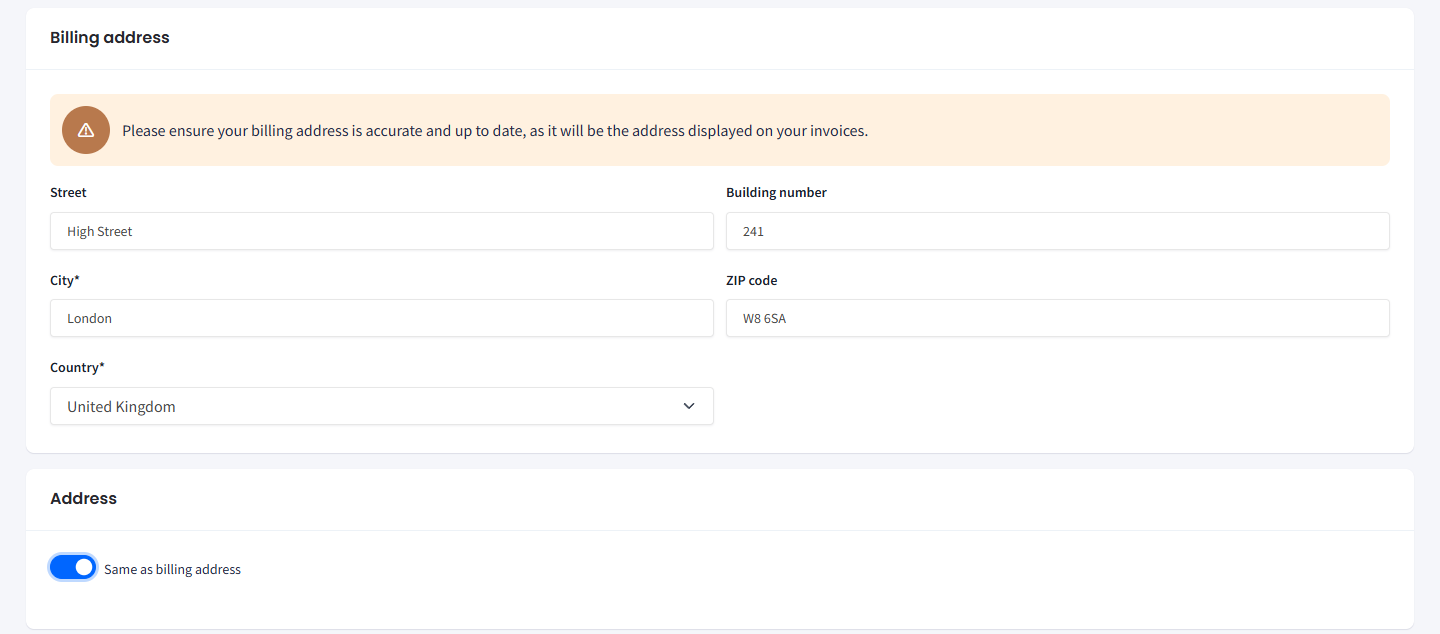
Billing Address section
- If your physical address is different, clear the checkbox and enter the details in the section below.

Entering different physical address details
Updated 7 days ago