

Caller ID Numbers (Allowed Caller IDs)
See the numbers you can show as your caller ID, verify new ones, resume a pending verification, and check which rules and SIP accounts use each number.
The Numbers tab of the Caller IDs page lists every number you can show to the people you call as your Caller ID: DID numbers you bought from CommPeak and your own numbers that you have verified. Most destinations accept only CommPeak DIDs or verified numbers, so verify a number here before your caller ID rules use it.
To open the page:
Expand VoIP Services
In CommPeak Portal, expand VoIP Services in the left pane.
Select Caller IDs
Select Caller IDs. The page opens on the Numbers tab. The Rules tab next to it holds your caller ID rules.
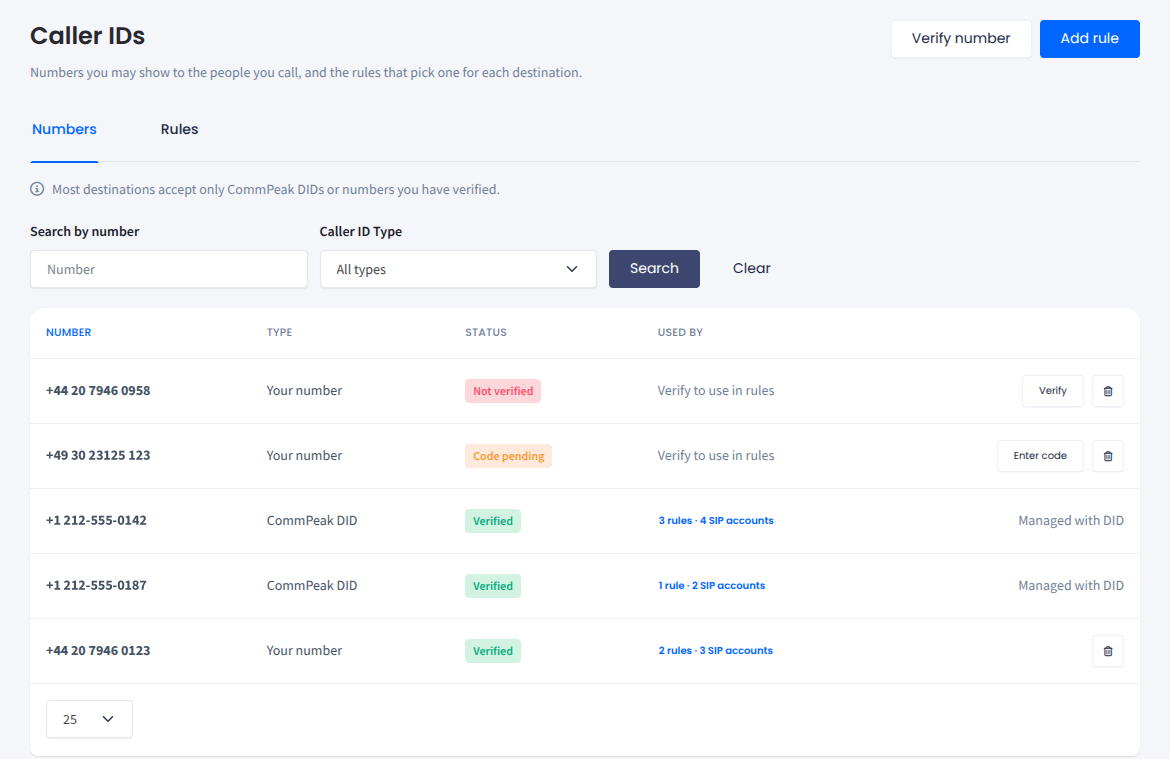
Caller IDs page in CommPeak Portal
NOTETrial accounts can have only one allowed caller ID and can't verify more. To add more, top up your account.
Verifying a number
DIDs you buy from CommPeak appear on this tab automatically and don't need verification. To add a number you own outside CommPeak, verify it with a call:
Open the verification panel
Click Verify number at the top right. The Add / Verify external DID number panel opens.
Enter your number
Select the country and enter your number under Number.
Request the verification call
Wait until the Cloudflare security check below the field shows Success!, then click Make the Call. CommPeak calls the number from a randomly selected number.
Enter the code
Answer the call, listen to the 4-digit code, and enter it under Verification Code.
Finish the verification
Click Finish verification.
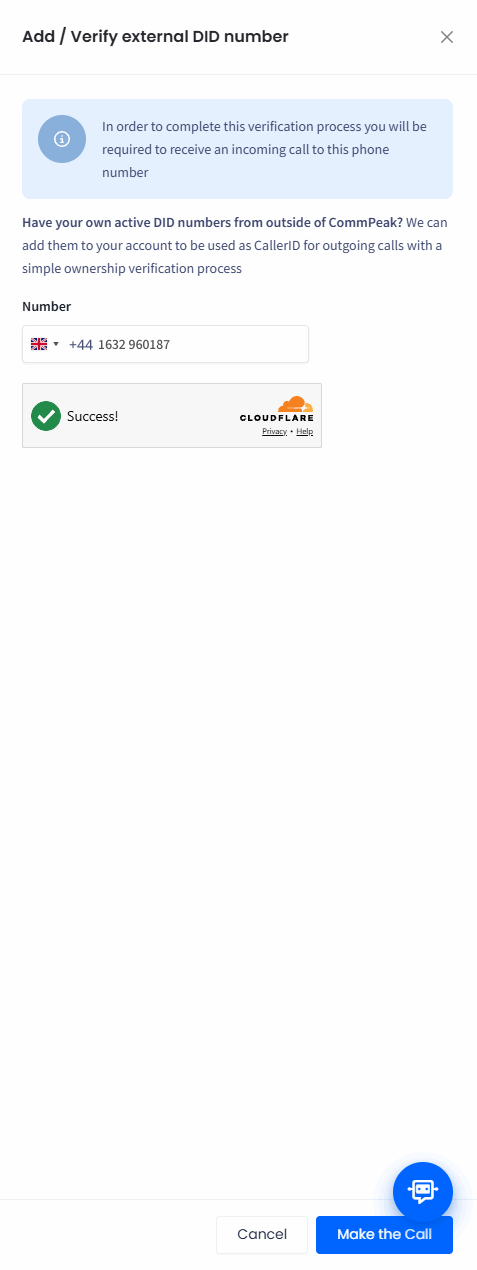
Add / Verify external DID number panel
If the call doesn't arrive, click I did not receive a call in the panel. For more details, see DID Verification: How to Verify Your External Caller IDs.
NOTEA pending verification is never lost. If you close the panel before entering the code, the number remains on this tab as Code pending. Click Enter code to continue where you left off.
Adding a rule
To choose which of these numbers the people you call see for each destination, click Add rule at the top right of the Caller IDs page. For the full steps, see Adding a rule.
Finding a number
Use the filters above the table:
- Search by number - enter the number or part of it.
- Caller ID Type - show All types, only CommPeak DID numbers, or only your own (External DID) numbers.
Click Search to apply the filters or Clear to reset them. To show more numbers at once, select 25, 50, 100, or 250 in the list below the table.
Numbers table
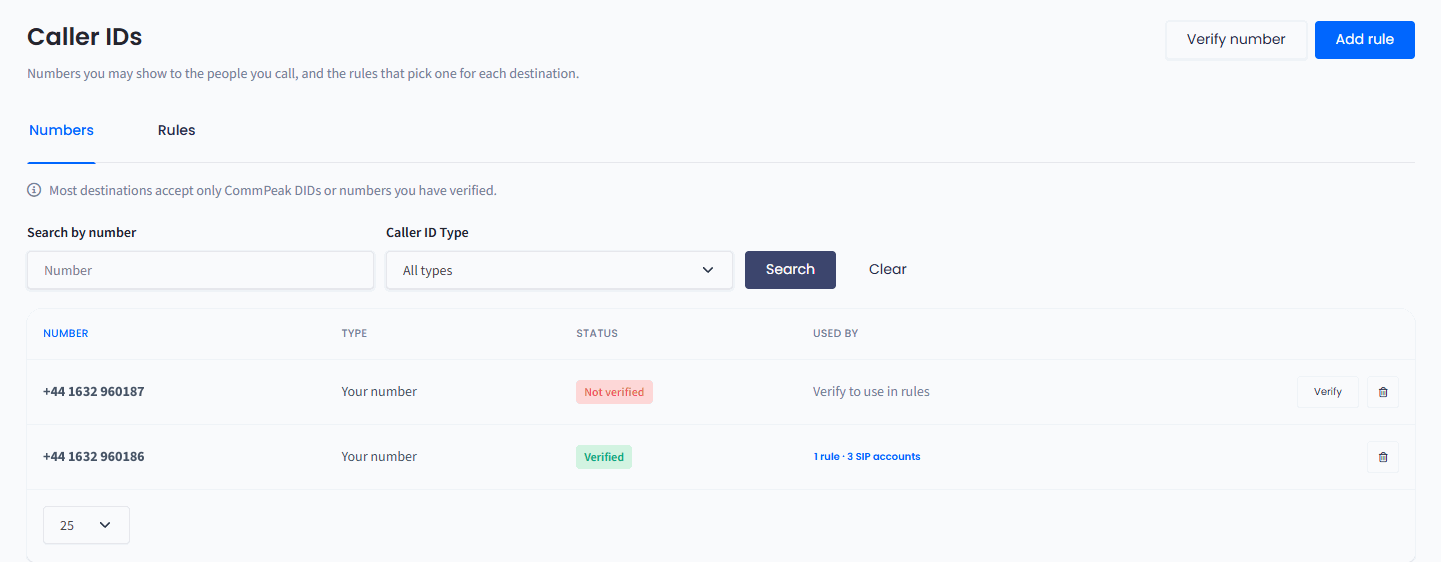
Numbers tab
| Column | Explanation |
|---|---|
| Number | The caller ID number, shown with its country code |
| Type |
|
| Status |
|
| Used by | How many caller ID rules show this number and how many SIP accounts use those rules, for example 2 rules · 3 SIP accounts. Click it to see the rules and SIP accounts by name and open any of them. Not used means no rule shows the number yet. Numbers that aren't verified show Verify to use in rules. |

Used by pop-up
Row actions
The controls at the end of each row depend on the number's type and status:
- Verify or Enter code - start or finish the verification of the number.
- The trash icon - remove the number. If rules use the number, a warning lists them first: CommPeak rejects calls through those rules after you remove it.
- Managed with DID - you can't remove CommPeak DIDs here. Manage them on the My DIDs page.
Doing it with the API
Prefer to do this from your own code? Follow a short API recipe with cURL, Node.js, Python, and PHP samples, each tested against the live API.
See your SIP accounts and how each one authenticates, by password or IP address.
See which caller IDs you can call from, and which still wait for verification.
Retrieve your outbound calls for a date range, page by page.
Place an automated call that reads a message and collects a keypad answer.
Updated 3 days ago