

Listen, Whisper, and Barge
This article explains how to use the Listen, Whisper, and Barge functions in the built-in CommPeak Softphone, allowing managers to monitor and interact with agent conversations.
Use in Built-in Softphone
Use the Listen, Whisper, and Barge options directly from CommPeak Softphone. These actions allow the manager to listen to agent conversations and talk to the agent or both parties.
Call controls in the CommPeak Softphone function similarly whether you log in using credentials from PBX Stats and CommPeak Portal or the CommPeak Dialer and Cloud PBX. The difference lies in the numbers you need to dial on the keyboard.
NOTEStarting from Softphone v6.2.15, the call screen also shows the Enabled/Disabled status of TURN, STUN, and Noise Suppression during monitoring sessions. See Interface Description.
Use in PBX Stats
To start whispering:
NOTE
*222is the default prefix. You can contact support if you wish to use different digits.
-
Dial
*222followed by the agent extension number. You will be connected in the Listen mode. In the example below, 101 is the agent's extension to whose conversation the manager wants to connect.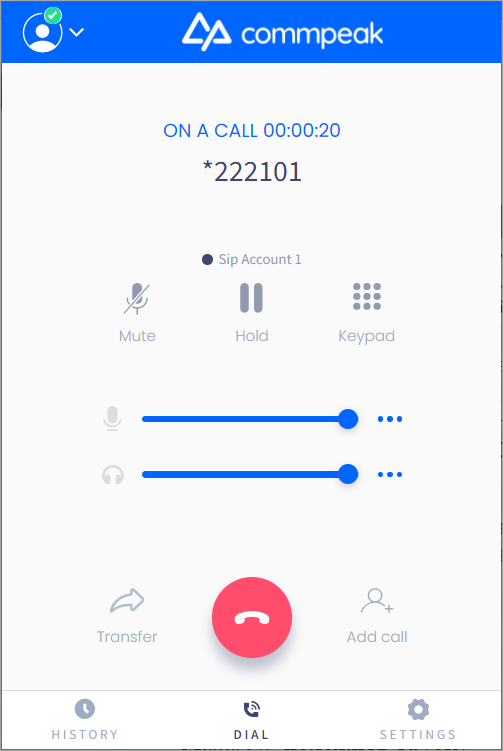
Listen mode
-
To switch to other modes, click on the keyboard icon. You will see the keyboard on the screen, and then you can press the following numbers:
-
5to switch to the Whisper mode and talk to the agent -
6to switch to the Barge mode and talk to both the agent and the customer -
4to switch to the Listen mode again and listen to the conversation.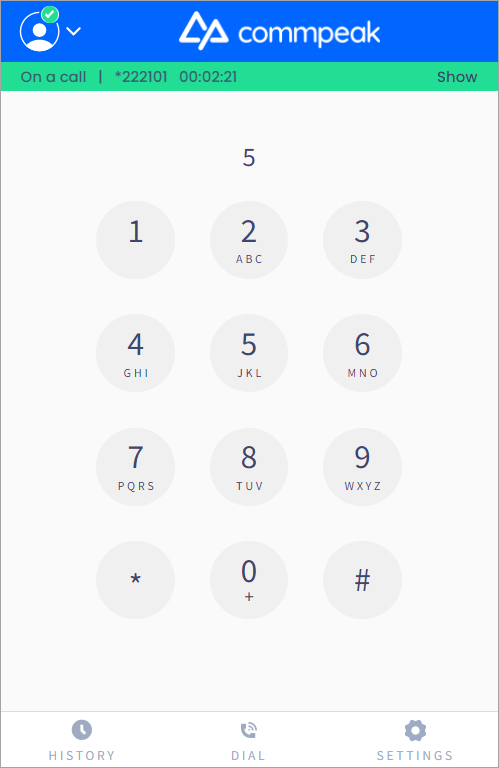
Switching back to Listen mode
You will hear a voice notification that the chosen mode is activated.
-
When you're done, you can click Dial and then click the red button to end the call.
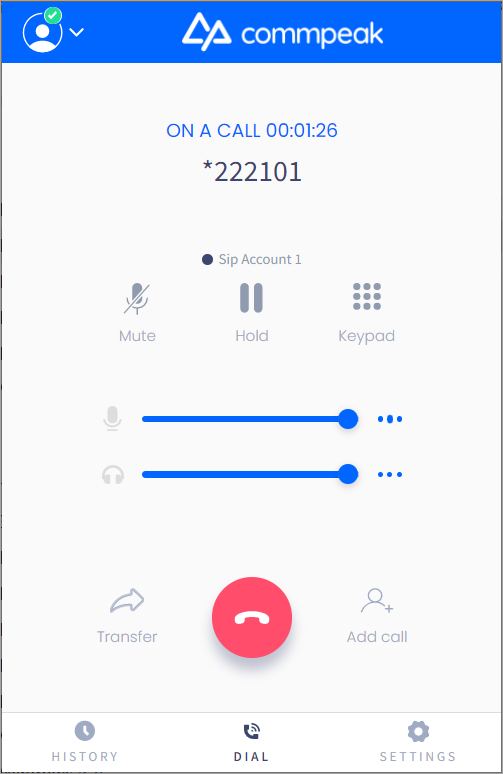
Listen mode
Please look at a similar article about using these actions from the Realtime page in PBX Stats.
Dialer and Cloud PBX
To start whispering:
- Dial
*15followed by the agent extension number. For example, dial*151010to whisper to the agent with the extension 1010.
If you have permission to whisper and speak with the agent and customer side, the call is answered. You will be connected in the Listen mode. - To switch to other modes, click on the keyboard icon. You will see the keyboard on the screen, and then you can press the following numbers:
1to switch to the Whisper mode and talk to the customer2to remain in the Whisper mode and talk to the agent3to switch to the Barge mode and talk to both the agent and the customer0to release and listen to the conversation.
You will hear a voice notification that the chosen mode is activated.
- When you're done, you can click Dial and then click the red button to end the call.
You can check the dedicated article about using these actions from the Realtime page in CommPeak Dialer.
Whisper Feature Guidelines
- Concurrency Limit: A maximum of two managers can whisper to the same extension simultaneously.
A third attempt will trigger an automated message: "Sorry, you have reached the limit of concurrent whispering managers for the requested extension."- Regional Restriction: Whisper is supported only when both the manager and agent are within the same call center region.
- Audio Performance: When multiple managers are whispering, minor latency or choppy audio may occur. To limit this impact, sessions are capped at 2 concurrent managers.
- Quality Dependency: The manager’s audio experience depends on the agent and lead call quality. Any connection issues on their side will affect the manager as well.
- Access Methods: While managers without web access can use *15 for Cloud PBX instances, it is highly recommended to whisper via the Realtime Page directly for the best experience.
Updated 5 days ago