

Managing Existing Users
Manage user accounts: apply filters, reset passwords, update settings or delete individual users, and apply mass actions.
Go to the Users > Users Management page to perform the following actions for selected user accounts:
-
Reset passwords
-
Update user settings
-
View activity
-
Delete users.

Users > Users Management tab
Searching and filtering users
Use the checkboxes on the left or select users by applying various search filters at the top of the Users page. Just use one or more filters and click Search.
For example, you can filter by desks and user roles.

Filtering users
Search results will include a list of users with their details.
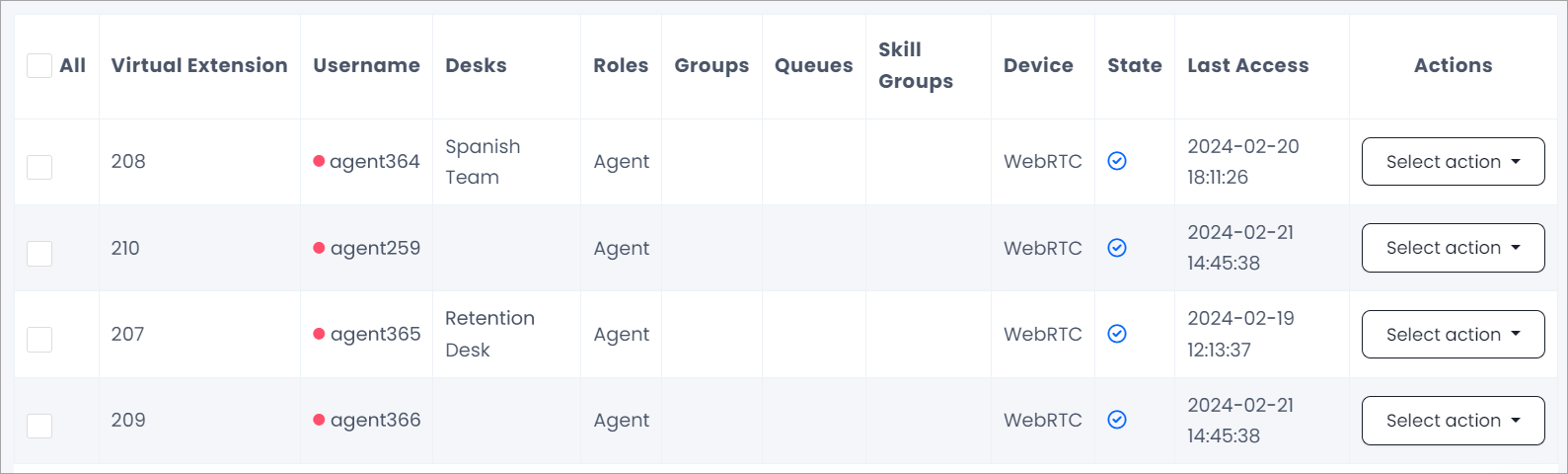
Search results
Managing single users
You can modify the user settings, reset the password or Google Authenticator, view user activity, or delete a user in the Dialer.
NOTEThe system will kick off users after you reset passwords, deactivate users, or delete them.
To apply actions to a user account in the Dialer:
Find the user
Locate the needed user account on the User Management page and go to the Actions column on the right.
Open Select action
Click Select action.
Choose an action
You can select an action from the list and perform further steps. The actions are described in the table below.

Actions with users
| Action | Description |
|---|---|
| Edit | Modify user settings. Then click Save. |
| Active Sessions | View active sessions for the user or all users and log them from the system. Check here for more details. |
| Reset Password | Create a new password for the user. See details in the section below. |
| Revoke Trusted Devices | Revoking a trusted device removes the 2FA bypass, requiring the user to complete full verification on their next login. Clicking here opens a pop-up listing all existing trusted connections, where you can revoke a specific device or all devices at once. |
| Activity | View and search extended user activity records. |
| Activity (Live) | View the summary of the recent activity records. |
| Delete User | Select the action, then click Delete to remove the user and unassign their leads. |
Resetting passwords
To update a user's password:
Open Select action
Click Select action at the end of the user's line.
Choose Reset Password
Choose Reset Password.
Copy the password
Copy the password immediately while it's on the screen.
If you select Require reset password on next login?, users will be prompted to create a permanent password the next time they log in to the Dialer.
Reset the password
Click Reset.
NOTE: This action will also kickoff all of the user's active sessions

Resetting user passwords
NOTEResetting user passwords is only available for the CommPeak Dialer users with super tenant access.
The temporary password will be displayed if you do not have access to the super tenant account.
Managing multiple users
You can apply the following actions to many users at once:
- Activate/Deactivate
- Delete
- Assign skills, desks, or roles.
To apply actions to multiple users:
Select the users
Select users for whom you wish to use mass actions or set filters in the upper section.
Choose an action
Choose an action from the drop-down list at the top of the page.
If you'd like to assign skills, desks, or roles, select those from another box that appears.
The Delete action will delete selected users from the system and unassign all their leads.
Choose who to apply it to
In the next box, choose to whom you wish to apply the action: selected users, those matching the filters, or all users.
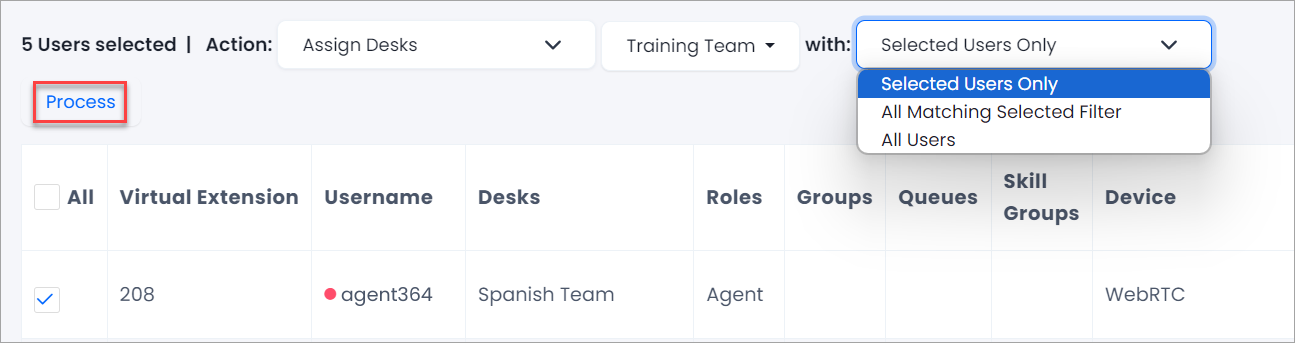
Managing multiple users
Process the action
Click Process.
Updated 5 days ago