

Click2Call: Secure Leg-B Encryption Guide
Learn how to integrate secure Click2Call into your CRM. You will find out how to use AES-256 encryption to make safe calls without exposing destination data.
In this guide, you will learn how to use AES-256 (Advanced Encryption Standard) encryption to protect phone numbers from being visible during transmission or in server logs. By encrypting the phone number on your side, sensitive lead data is never exposed as plain text and is only decrypted by our platform when the call is placed.
Please note, this encrypt method is allowed on the Click2Call custom type only
How it works?
Our system uses AES-256-CBC encryption with a 256-bit key to keep your data secure. It supports two encryption modes and automatically detects which one to use based on the length of the data you send
Mode A: Standard & secure (recommended)
This method prevents pattern attacks by ensuring the same phone number looks different every time it is sent.
- IV: Generate a random 16-byte IV
- Payload: [16-byte IV] + [Ciphertext]
- Result Length: Typically 32 bytes or more (before Base64 encoding).
Mode B: Simple/legacy (no IV)
This method is simpler to implement but less secure (the same phone number always produces the same encrypted string).
- IV: Do not generate an IV (Use a Zero/Null IV or omit it)
- Payload: [Ciphertext] only
- Result Length: Typically exactly 16 bytes (before Base64 encoding).
1. Encryption requirements
To ensure proper integration, your encryption logic should meet the following requirements:
- Algorithm: AES-256-CBC
- Key Size: 32 bytes (256 bits). Must match the key set in your Click2Call settings
- Padding: PKCS7 (Standard).
2. Output encoding
Through your Click2Call settings, you can choose the format for the binary encrypted data in your request:
- Base64 (URL-Safe): Compact and standard for web APIs. (Characters + and / should be replaced with - and _)
- Hex: A hexadecimal representation (0-9, a-f). Easier to debug but results in a longer string.
3. Implementation steps (recommended mode)
- Generate/Set Secret Key: Set a 32-character key in your Click2Call Settings panel
- Encrypt: Encrypt the phone number using the shared key and a random 16-byte IV
- Combine: Concatenate the 16-byte IV to the front of the encrypted phone number
- Encode: Encode the combined result to Hex or Base64
- Send: Pass the resulting string into the leg_b parameter of the C2C request.
- PHP Example (Recommended):
<?php
$key = "your_32_byte_secret_key_here"; // Must match C2C Settings
$phone = "+15551234567";

// 1. Generate a random IV
$iv = openssl_random_pseudo_bytes(16);

// 2. Encrypt using the Key and IV
$ciphertext = openssl_encrypt($phone, 'aes-256-cbc', $key, OPENSSL_RAW_DATA, $iv);

// 3. Combine IV + Ciphertext
$payload = $iv . $ciphertext;

// 4. Encode to Base64 (URL-Safe)
$phone_enc = str_replace(['+', '/', '='], ['-', '_', ''], base64_encode($payload));

// Request URL:
// https://mytenant.td.commpeak.com/integrations/c2c/call/{c2c_id}/{leg_a}/$phone_enc/
?>
- PHP Example (Recommended):
Benefits
- End-to-End Privacy: The destination phone number is hidden from the moment it leaves your server until it reaches our system
- Flexibility: Works with both advanced security standards (IV) and simple encryption scripts
- Integrity: AES-256 is a military-grade standard.
Troubleshooting
- Invalid Key Length: Ensure your secret key is exactly 32 characters
- Decryption Error: If using Mode A, check that you are combining $iv . $ciphertext in that exact order
- Encoding Mismatch: Ensure the "Input Text Format" in your Click2Call settings (Hex or Base64) matches the encoding used in your code.
Zoho integration example
This encryption is also compatible with Zoho field encryption.
A dedicated script allows you to open the Click2Call dialer link with leg_b encrypted.
- In Zoho CRM, go to Leads and then select Buttons
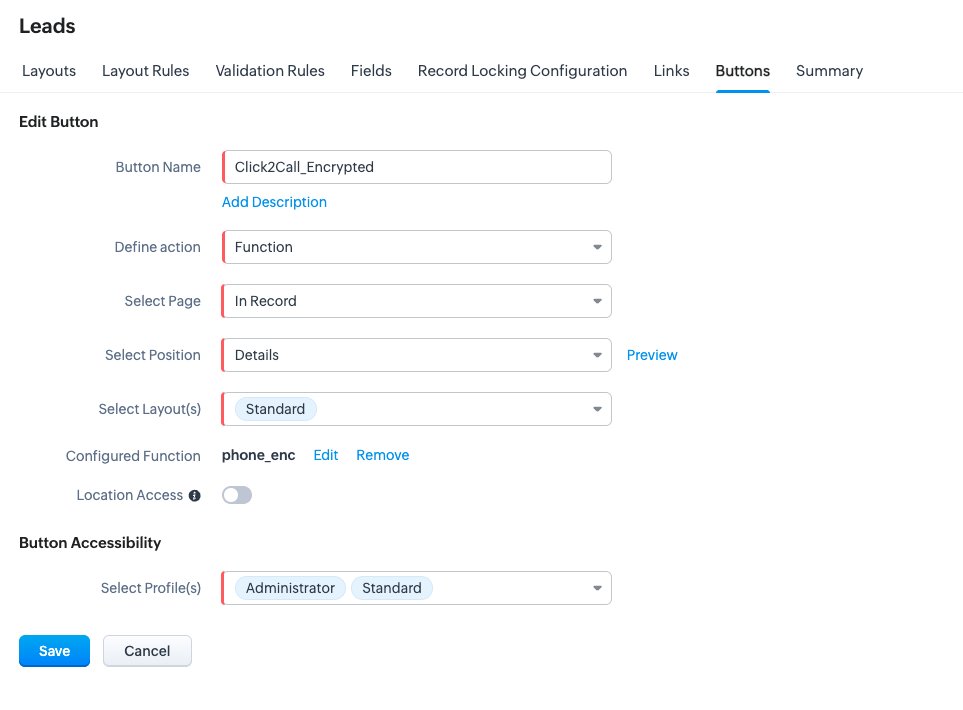
- Set up a function that encrypts the phone number when the agent clicks the Click2Call button
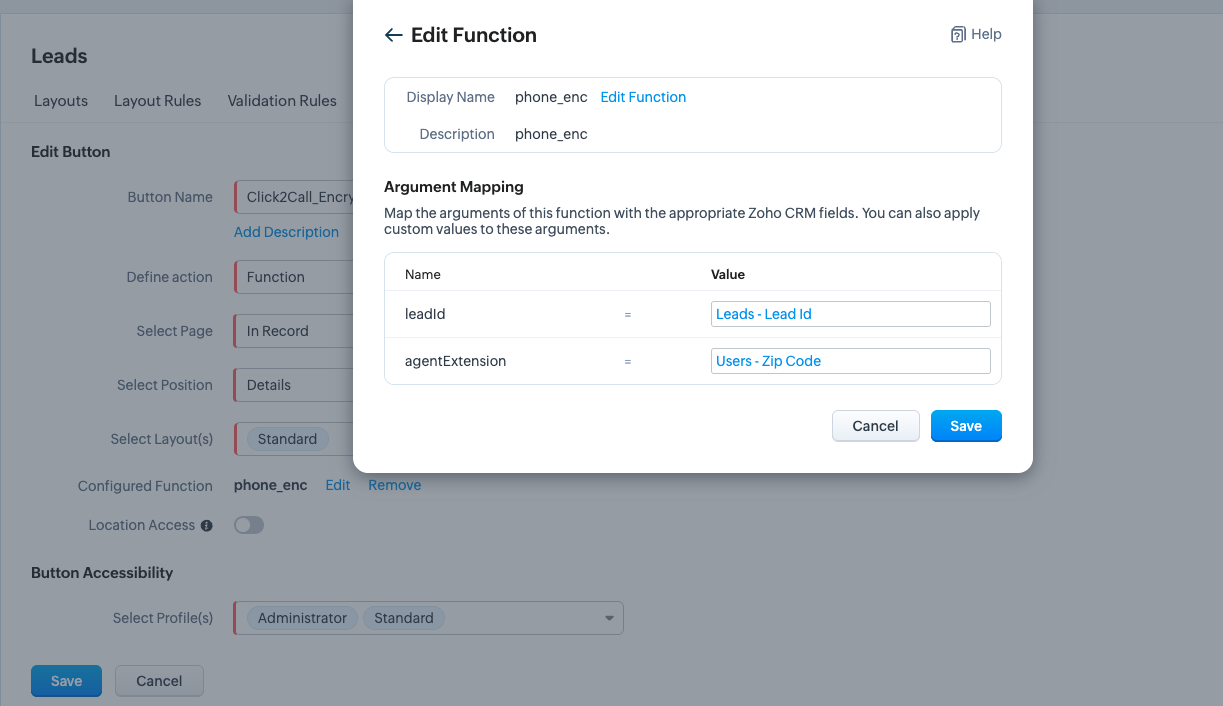
Function:
- Your agentExtension will take in the example from the user.zip_code, change the field that holds the user extension according to the customer data field
- Your key mySecretKey - generate a key with a length of 32 characters only! And input this key in your dialer Click2Call channel
- Your dialer Click2Call url destinationUrl - past here from your dialer Click2Call dashbord.
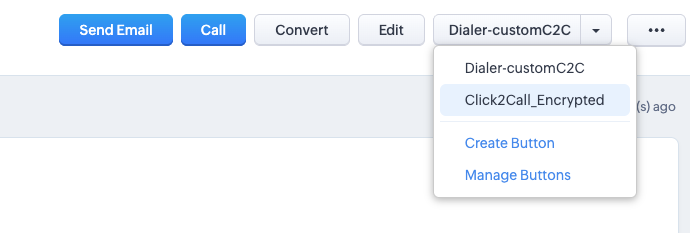
- The script will fetch the lead's phone number and the user's extension, then generate an encrypted phone number with a link that is sent to your dialer account. A new pop-up / new tab will open for the agent when this button is clicked. Make sure to allow pop-ups from your CRM URL in your browser.
string button.phone_enc(String leadId,String agentExtension)
{
// 1. Define your Secret Key (32-bit length)
mySecretKey = "your_32_byte_secret_key_here";

// --- STEP A: Validate Input Arguments ---
// We expect agentExtension to be passed from the button settings
if(agentExtension == null || agentExtension == "")
{
	return "Error: Agent Extension Code (Extension) is missing.";
}

// --- STEP B: Get the Lead Record ---
leadInfo = zoho.crm.getRecordById("Leads",leadId.toLong());
// Extract the Phone Number
plainTextData = leadInfo.get("Phone");
// Safety check
if(plainTextData == null)
{
	return "Error: No phone number found for this lead.";
}

// --- STEP C: Encrypt Phone (AES) ---
encryptedData = zoho.encryption.aesEncode(mySecretKey,plainTextData);
// Make it URL SAFE
safeBase64 = encryptedData.replaceAll("\+","-").replaceAll("/","_").replaceAll("=","");

// --- STEP D: Construct URL ---
// We use the passed 'agentExtension' variable directly
destinationUrl = "https://{your_account_name}.td.commpeak.com/integrations/c2c/call/{your_c2c_id}/" + agentExtension + "/" + safeBase64;

// --- STEP E: Redirect ---
openUrl(destinationUrl,"new window"); //wil opened as new tab according to browser permissions
//openUrl(destinationUrl,"popup window"); //will open as a pop-up, requires allowing pop-ups in browser settings.

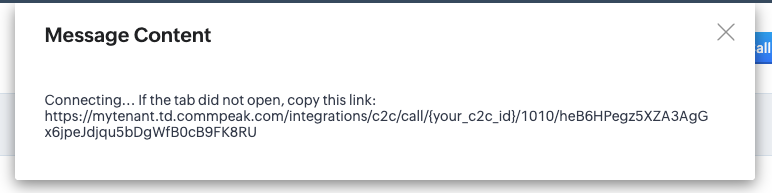
return "Connecting... If the tab did not open, copy this link: " + destinationUrl;
}
Updated 7 days ago