

Adding SIP Accounts
Create SIP accounts in CommPeak Portal, up to the default limit of 100, and request more through support.
If multiple agents use VoIP services within your CommPeak account, you can add multiple SIP accounts.
Video tutorial
Adding new SIP accounts
NOTEThe number of SIP accounts available for adding is displayed on the VoIP Services > SIP Accounts page.
By default, you are limited to 100 SIP accounts, but if you need more, you can create a respective request to our support team.
To add a new SIP account:
Open SIP Accounts
Expand VoIP Services in the left pane and select the SIP Accounts (Trunks) tab.
Add a SIP account
You will see the number of active/available SIP accounts. Click Add SIP Account in the box.
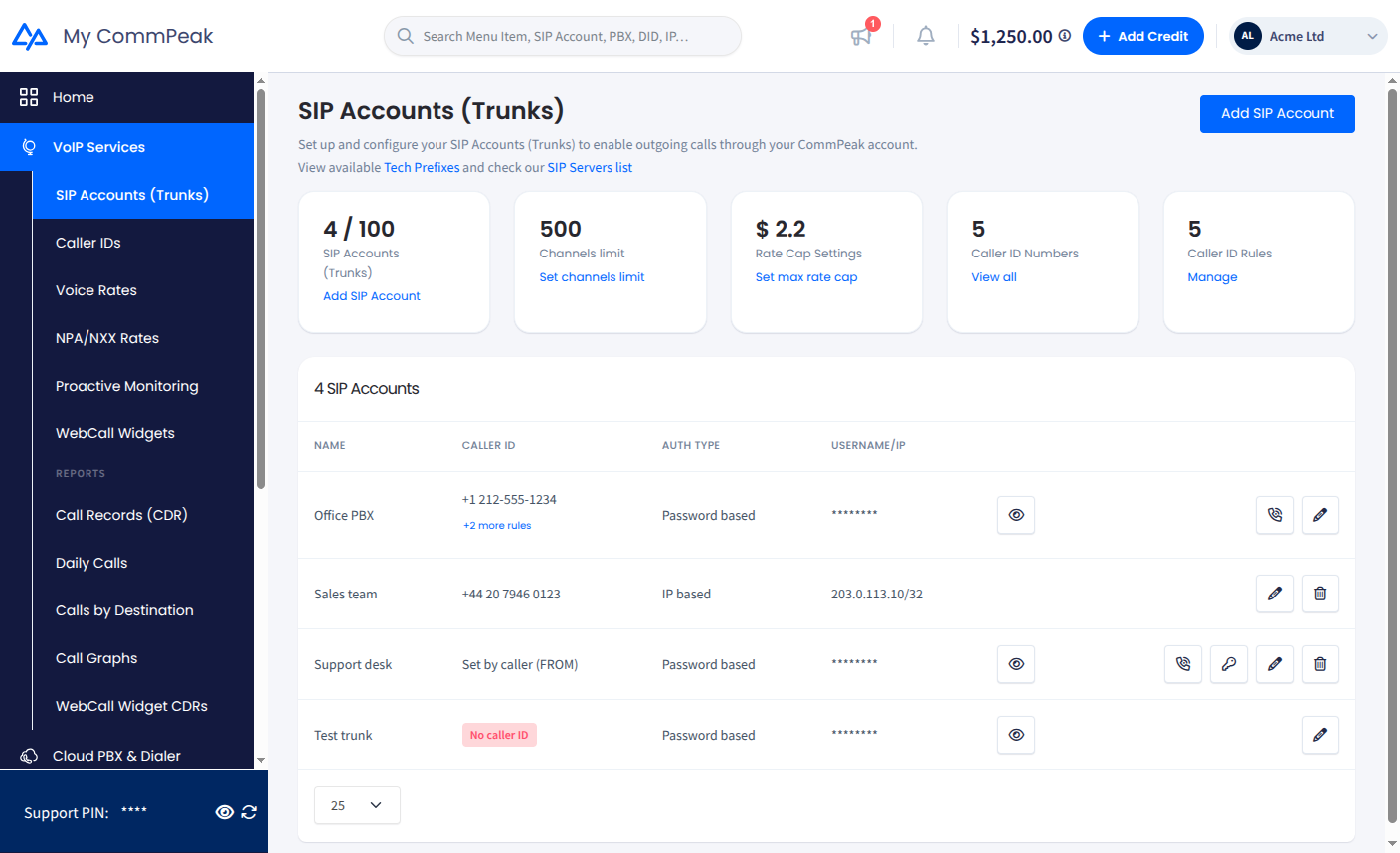
SIP Accounts page in CommPeak Portal
Fill in the sections
On the page that opens, fill in each section as described below. When done, click Save changes.
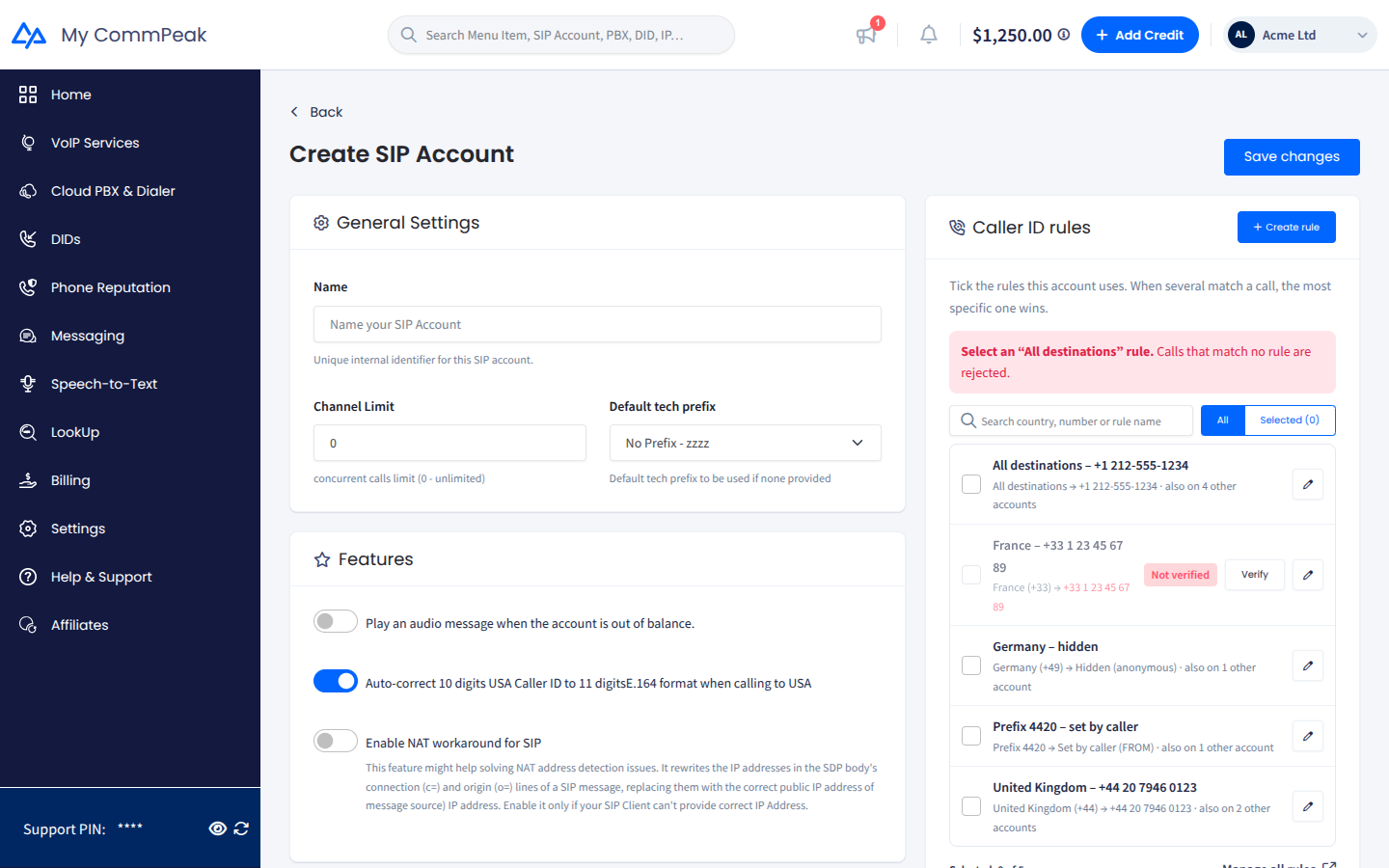
Adding a SIP account
| Section | Description |
|---|---|
| General Settings |
|
| Caller ID rules | In the Caller ID rules panel, select the Caller ID rules this account uses. Each rule sets the number shown for calls to a destination; select at least one rule for All destinations, or calls that match no rule are rejected. The line at the top of the panel tells you when every destination has a caller ID. Find rules with the search box and the All / Selected switch, add a rule with Create rule (it opens in a side panel and is selected automatically), or edit a rule with its pencil icon. To learn more, see Setting the caller ID and Caller ID Rules. |
| Features | Select the checkboxes:
|
| Authentication | Use the Password authentication / IP authentication switch to choose a method. Refer to the SIP Account Authentication article. For password-based accounts, create a password that is at least eight characters in length (use the eye icon to reveal what you typed). |
Confirm with your password
Confirm the operation by entering your password and click Save Settings:
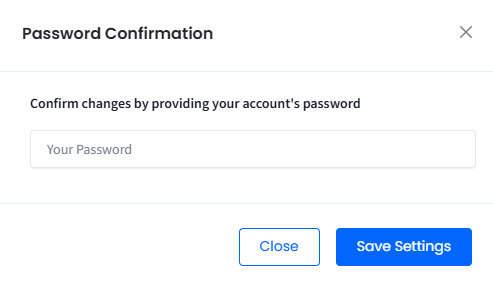
Password Confirmation window
Your new account has been created and will become active in a while.
NOTEIf you need more SIP accounts than are available or want to use other services provided by CommPeak, please open a ticket to our support team.
Updated 4 days ago