

Adding Credit to Your Account
Top up CommPeak account balance via various payment methods, such as credit card, PayPal, or wire transfer.
When you are out of the credit limit provided at signup, you need to top up your account to continue using CommPeak's services.
Video tutorial
NOTETo find out the prices for outgoing calls and SMS messages, please refer to the Call and SMS Pricing article.
Topping up your balance
The methods you can use to pay for CommPeak's services are:
Before topping up your account, make sure that you have done the following:
- Completed your address in the profile settings.
- Made at least one VoIP call.
To add credit to your balance:
-
In your account in CommPeak Portal, click on the + Add Credit button at the top right of any page, next to your balance figure.

CommPeak Portal dashboard with the + (Add credit) button
-
Selected the payment type and click Add promo code if you have one.
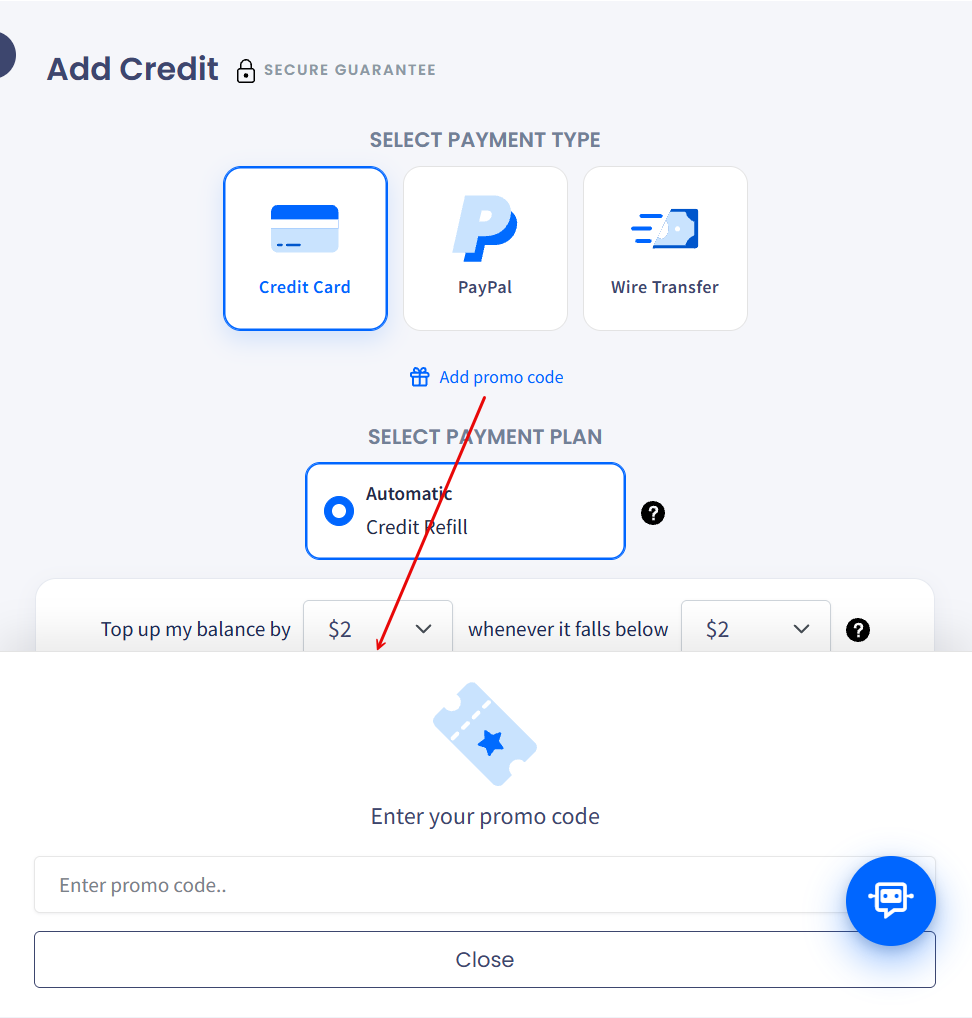
Adding a promo code
Paying with credit card
Credit card payments work as automatic refills only. You set up Automatic Credit Refill once, and CommPeak tops up your balance automatically whenever it falls below your threshold. One-time credit card payments are not available.
- For the Credit Card payment type, the Automatic Credit Refill payment plan is selected.
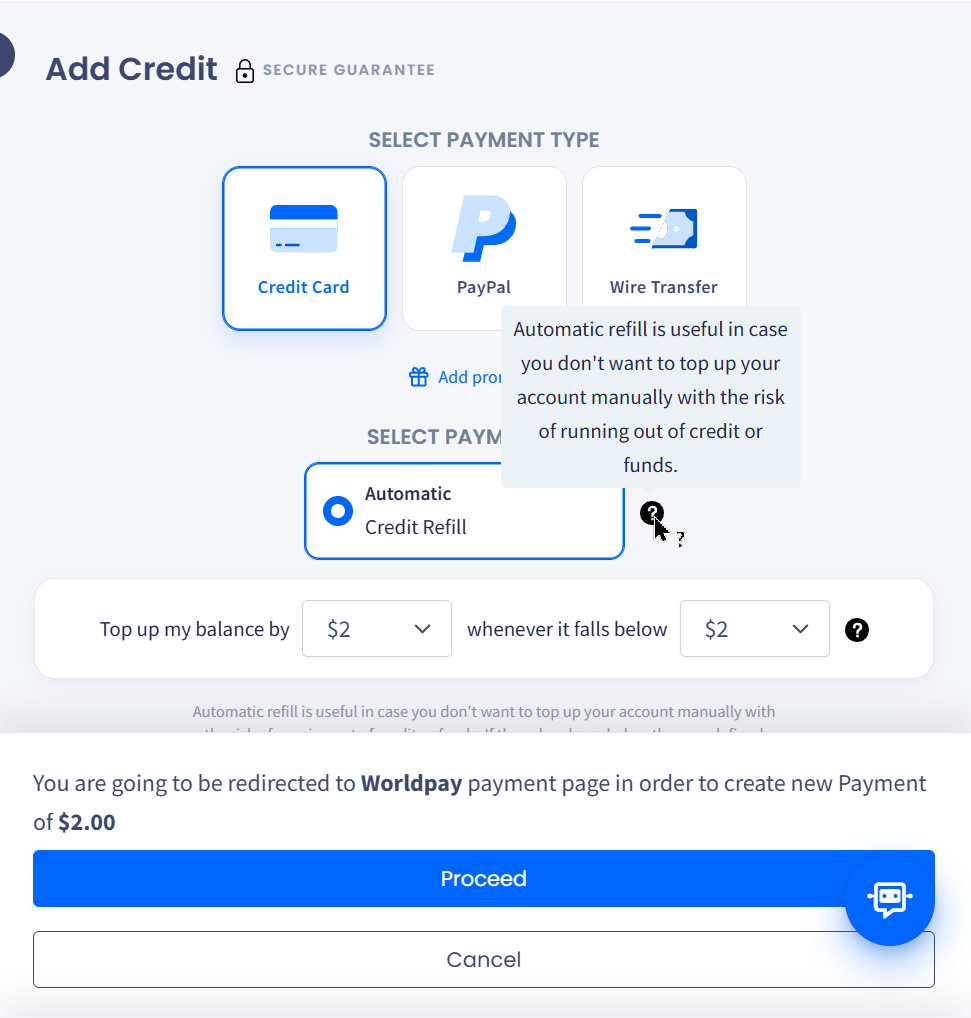
Selecting a payment method: Automatic Credit Refill
- Select the amount to top up your balance by and the balance threshold at which the refill triggers.
- Click Proceed to enter your card details with our payment processor, Airwallex, and complete the 3D Secure verification on screen.
Completing the checkout creates a payment agreement (consent): a recurring payment that allows CommPeak to charge your card each time your balance falls below the threshold.
NOTE
- You can change the refill settings or cancel the agreement at any time from the Billing > Recurring Payments page.
- Automatic payments are limited to 24 per day.
- See more on accepted payment methods and currencies.
Managing an active refill
If the automatic credit refill is already active for the selected account, the Add Credit sidebar displays the AUTOCHARGE IS ON message with your current refill settings instead of the payment plan.
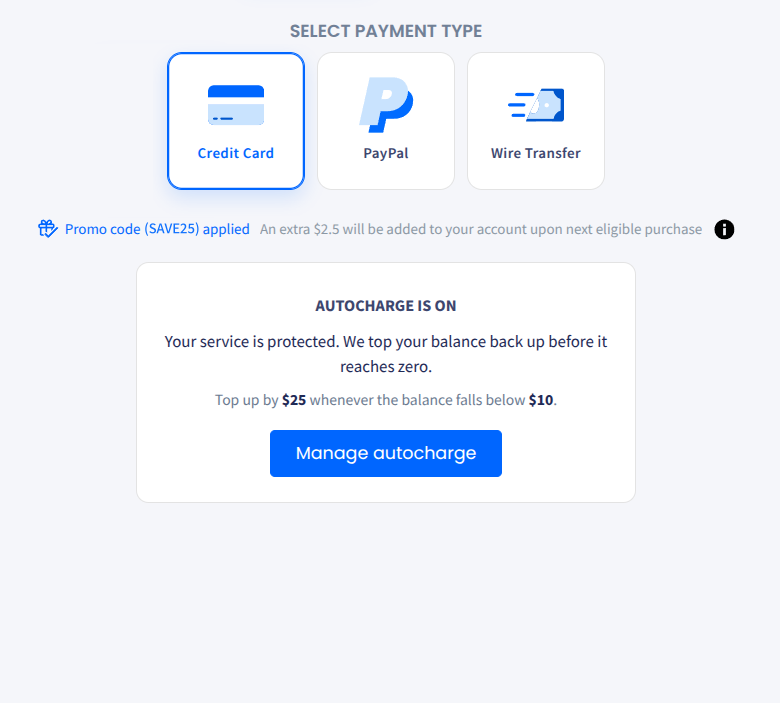
The AUTOCHARGE IS ON message with the Manage autocharge button
Click Manage autocharge to open the Recurring Payments page, where you can update or cancel the refill.
Paying with PayPal
- For the PayPal payment type, select the amount to be credited.
- Click the checkout button to proceed to the Checkout with PayPal page.
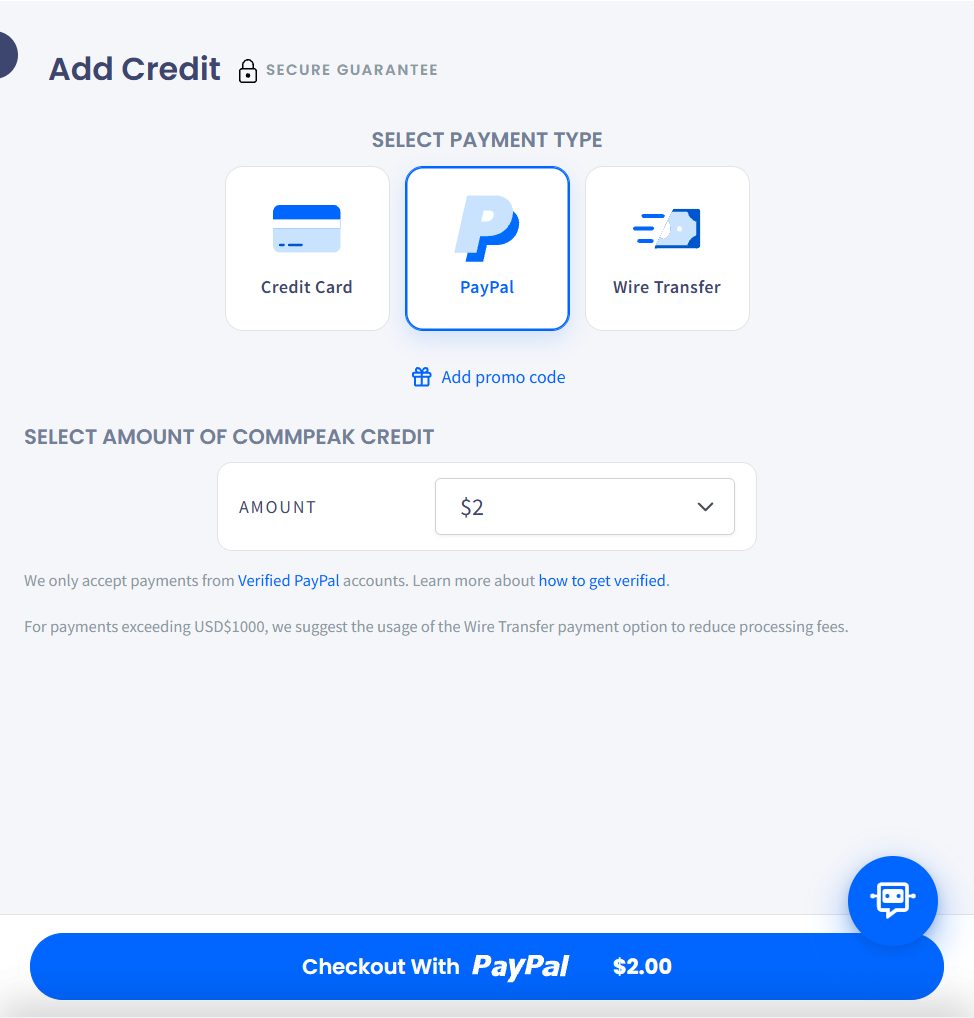
Selecting the PayPal option
- For more details on how to proceed with your payment, refer to the dedicated PayPal payments article.
NOTECommPeak accepts payments only from verified PayPal accounts. For payments over USD $1,000, use Wire Transfer to reduce processing fees.
Paying with wire transfer
- Select the Wire Transfer payment type. The sidebar displays full wire instructions, including beneficiary details and bank accounts for each supported currency (USD, EUR SWIFT, EUR SEPA, and others). Use the account that matches your currency.
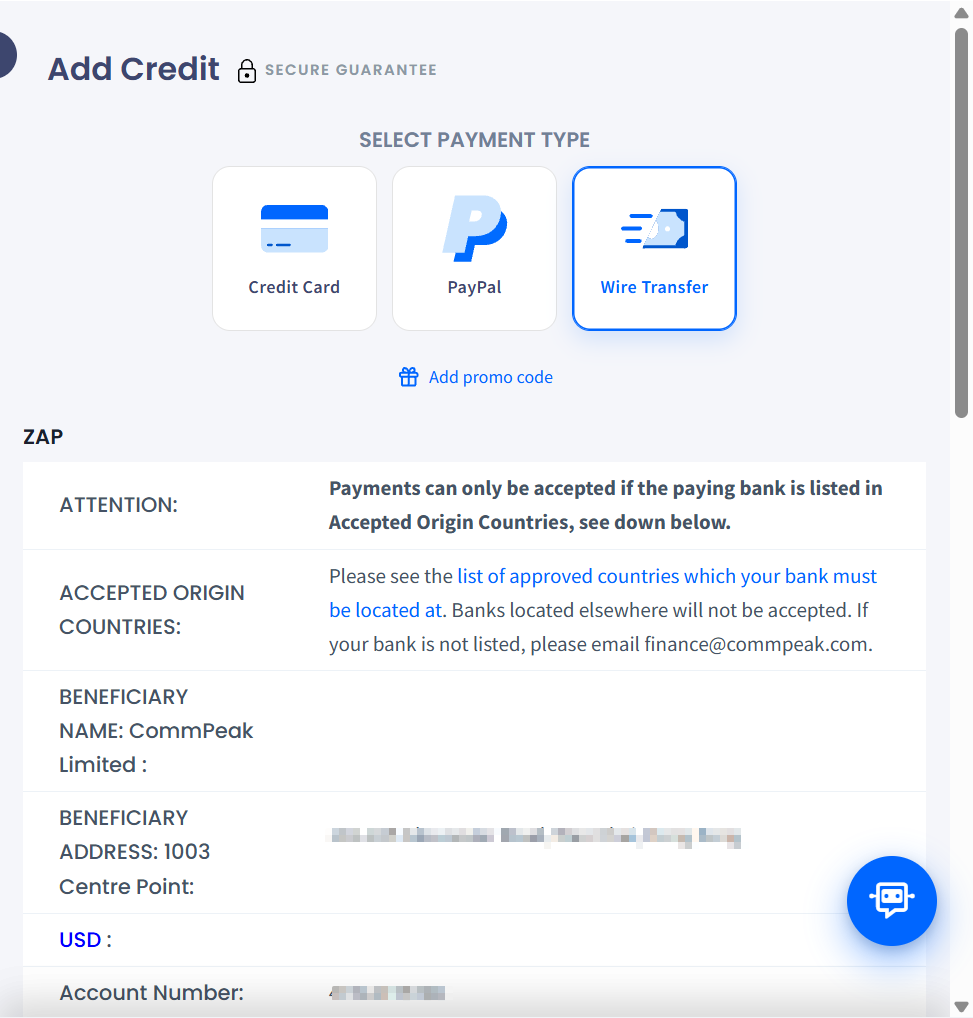
Paying with Wire transfer
-
Proceed with payment in two steps:
- Step 1: Make sure to include your CommPeak account number in the Transaction Description / Reference field of the wire transfer.
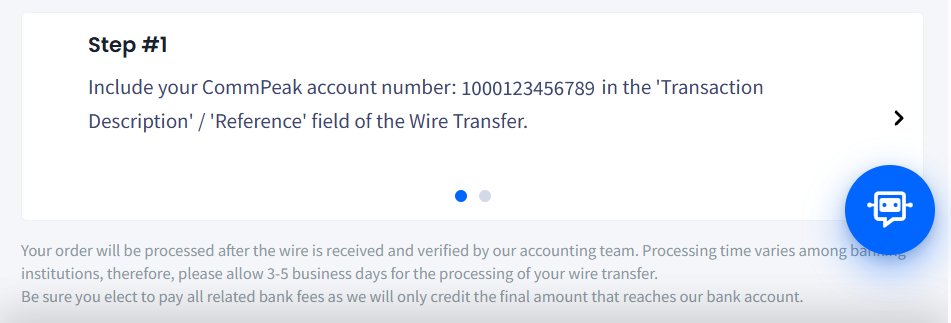
Wire transfer instructions: Step 1
- Step 2: Advise us at [email protected] after the wire transfer is initiated. Be sure to include your first and last name Company name, total amount of the wire transfer, and date the wire was initiated.
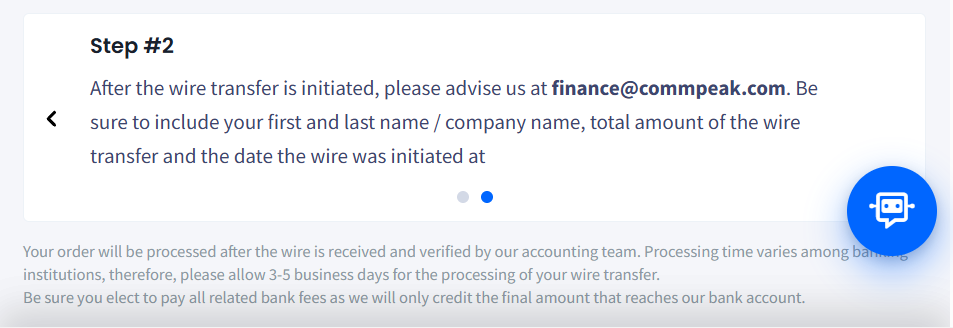
Wire transfer instructions: Step 2
NEED HELP?For common billing and payments questions, check the Billing & Payments FAQs page.
For help troubleshooting common billing and payment issues, see Billing and Payment Issues in CommPeak Portal.
If your question or issue isn't covered in the above articles, contact our CommPeak support team.
Updated 8 days ago