

Group Leads Simulator
Test group filters and see how many available leads the group can call.
To test group filters:
-
In the main menu, click Users > Groups Management and go to the Group Leads Simulator tab.
-
Select a group you would like to test from the User Group drop-down list. Set the number of leads to fetch using the Limit slider. It is recommended to set no more than 100 leads.
-
Click Get Leads. The system will display the leads below. You can see which leads will be called next and how many leads are available to call.
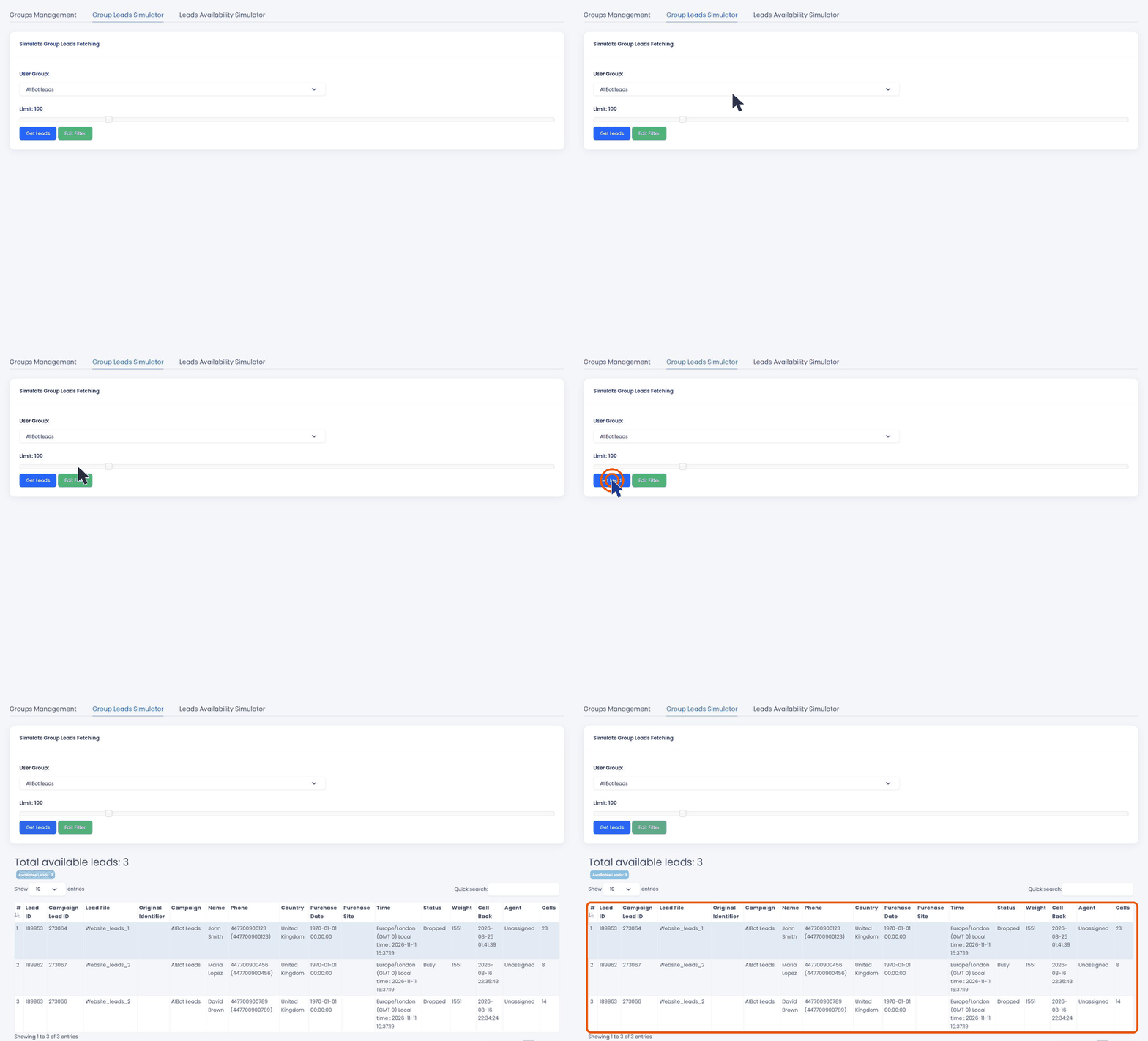
Getting leads in the simulator
-
Click Edit Filter to edit group filters right on the simulator page. The filters use the same builder as on the group page. After you've made changes, click Get Leads again.
-
If the fetched results satisfy you, click Apply filter to group, then Confirm.
WARNINGApplying the filter replaces the current filter groups of this user group. Its previous filter settings are overwritten, and the group calls leads with the new filters. Check the results carefully before you confirm.
In this example, we changed the filter from Lead Weight more than 1550 to Lead Weight more than 1000 and clicked Get Leads to see the results: the available leads went up from 3 to 12. Once we were satisfied with the results, we clicked Apply filter to group to apply the new filter.
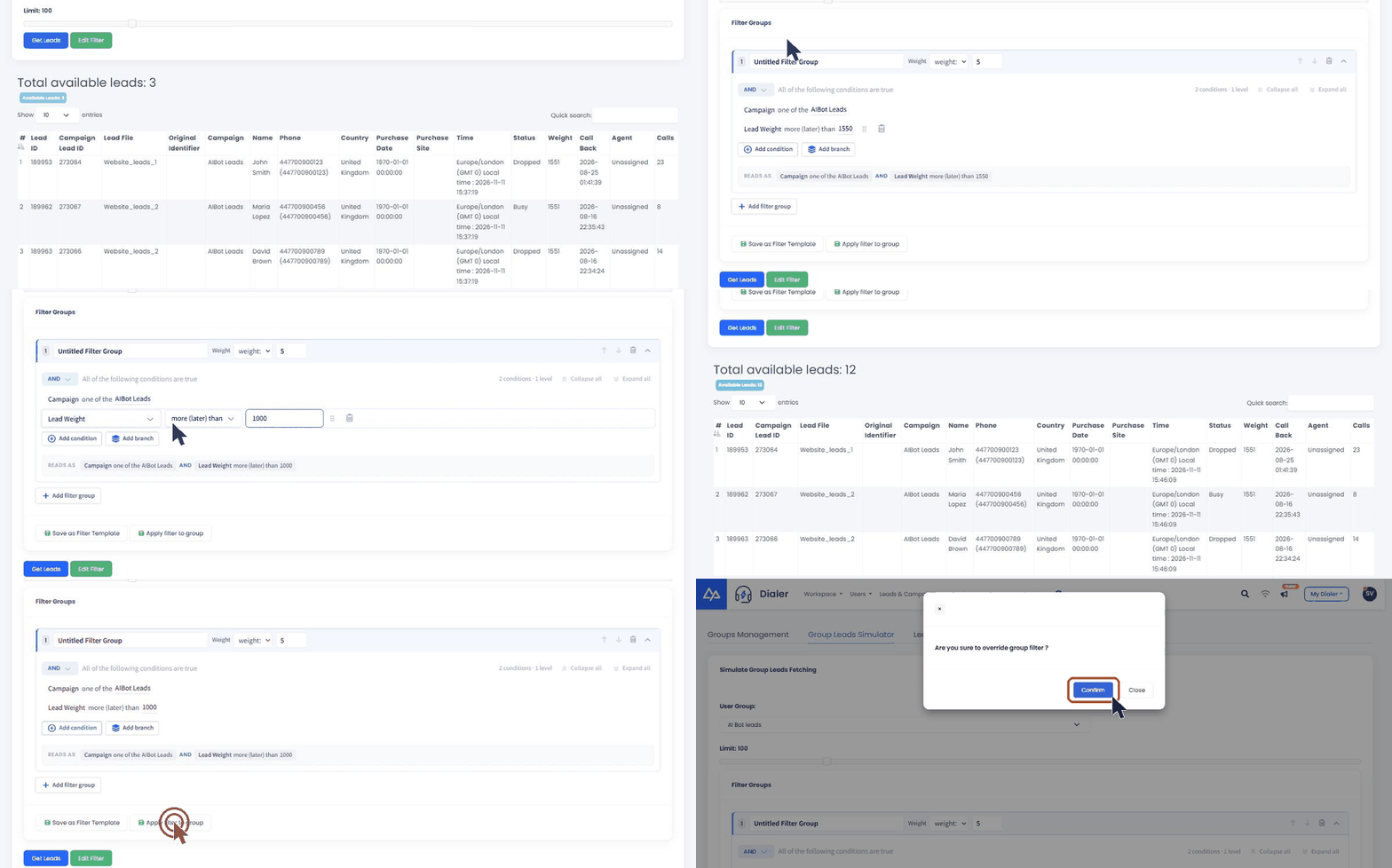
Editing the filter and applying it to the group
The leads on the page belong to several sections:
- Available Leads - the available leads are the leads that are currently in the calling queue.
- No Ratio Leads - leads that are either assigned to agents or dropped calls. When these leads are called, the agent waits for the lead to answer (ratio 1:1).
- Unavailable Leads - the leads not belonging to the calling queue due to the reason stated in the Reasons column, e.g., call hours mismatch or error lead. If the reason is empty, it may be because the country is blocked, the number of allowed calls is exceeded, or the leads don't fit the group filters.
NOTEWhen agents are working in the predictive mode, you can also access the simulator from the Predictive Realtime page. Find the needed group in the Predictive Groups table at the top of the page and click Simulator in the Actions column.
Updated 14 days ago