Inspect DID numbers, set up scheduled checks, monitor their status, and view detailed logs of past checks.
The automatic number reputation checker lets you inspect any DID number used as an outgoing Caller ID, whether the number was purchased from CommPeak or an external provider. The check can be started as a one-time or scheduled event.
Video tutorial
Number Reputation Checks page
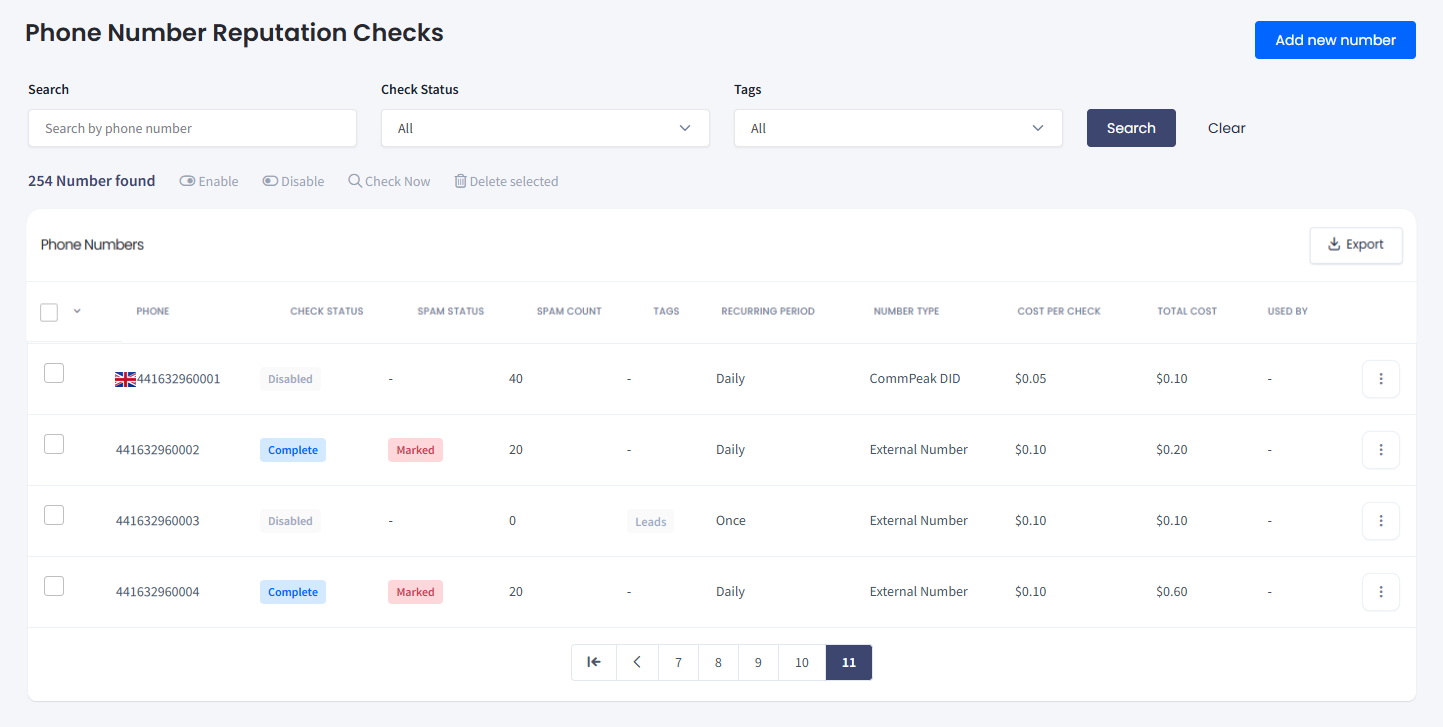
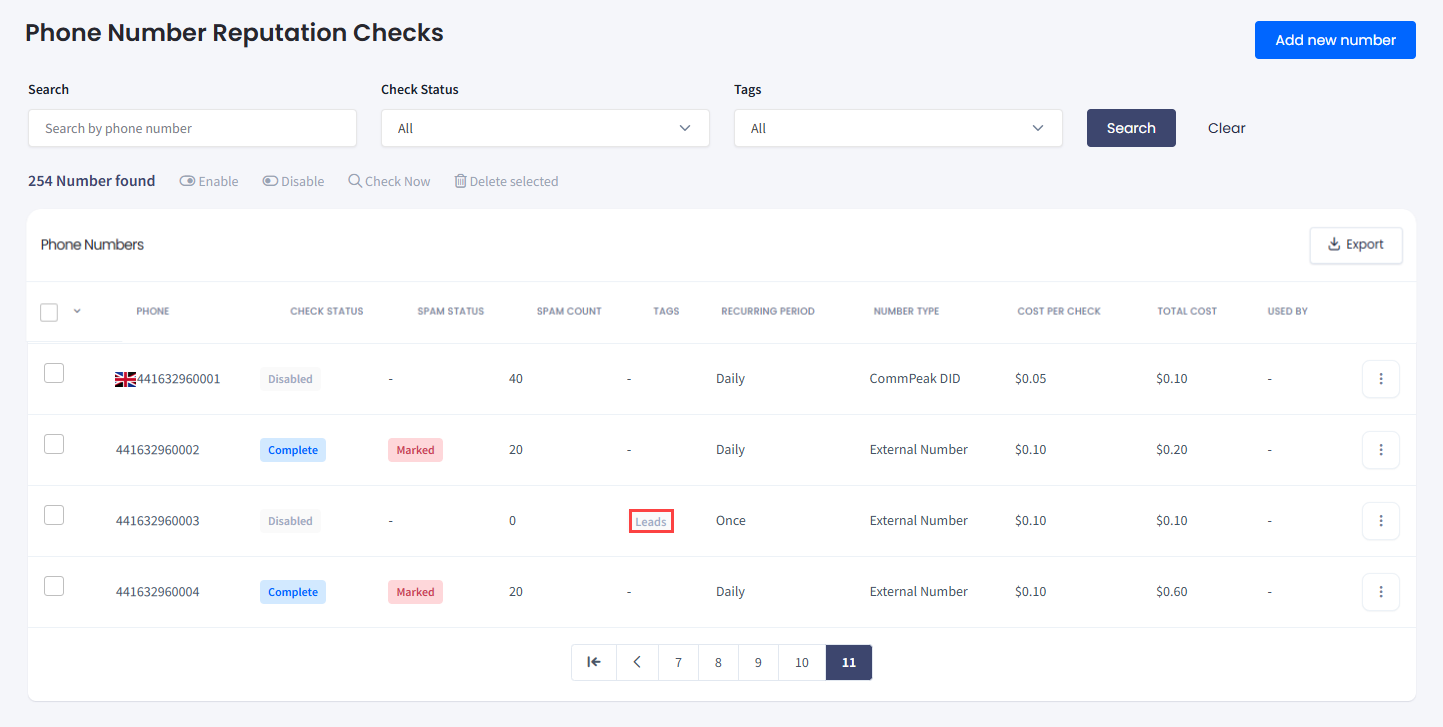
Use the Phone Number Reputation Checks table to monitor active checks and manage phone numbers under your CommPeak account:
Monitor check status and filter phone numbers
View and edit check details
Delete a number or add a new one
Open the number reputation check logs.
Phone Number Reputation Checks page
Number reputation check statuses
In the Status column of the Number Reputation Checks table, you can see the statuses of each check.
Status
Explanation
Pending
The number is waiting for an auto-check.
In progress
The check is being performed.
Disabled
Checks on this number have been stopped.
Once the check is completed, its status updates to Complete with the Spam Status parameter set to:
Clear (The number has been identified as not spam)
or
Marked (The number has been identified as spam).
👍
NOTE
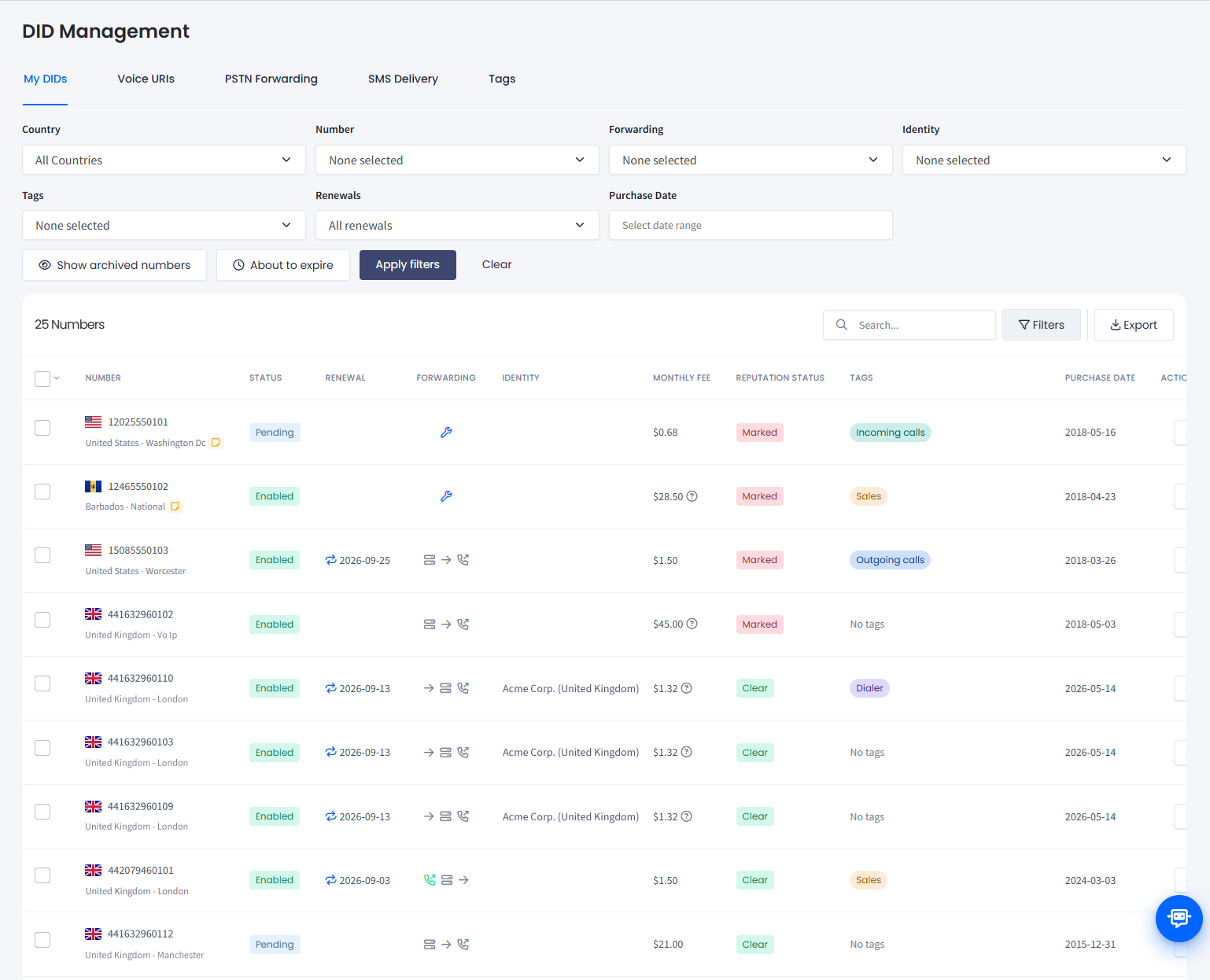
You can also monitor reputation status from the My DIDs table.
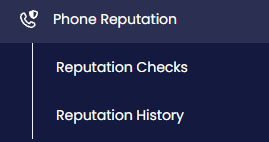
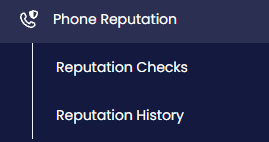
On the main menu on the left, navigate to Phone Reputation and select the Reputation Checks page.
Phone Reputation Checks menu tabs
Click Add new number. It takes you to the New Number Reputation Check page.
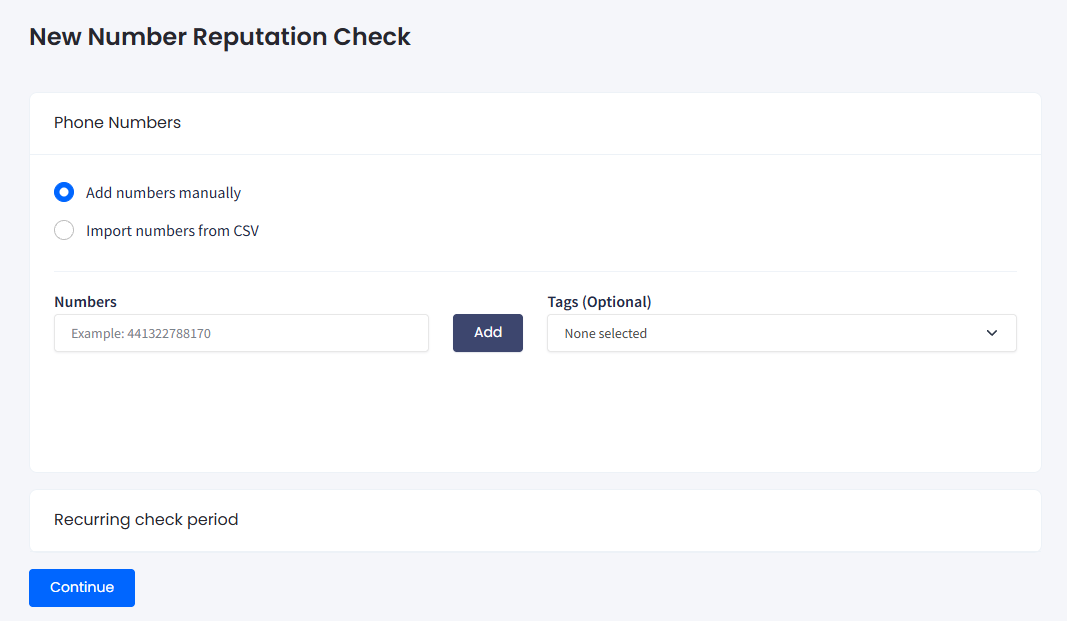
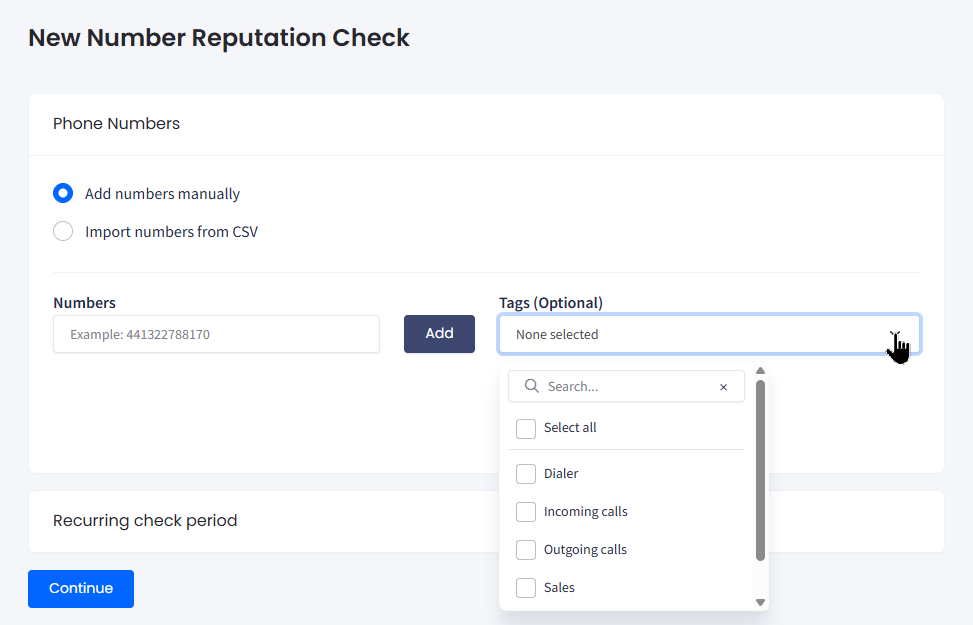
New Number Reputation Check page: Add numbers manually option
In the Phone Numbers section, select one of the following options:
Add numbers manually
Import numbers from CSV.
This selection defines the next flow.
Adding numbers manually
In the Numbers field, enter the number(s) you want to check.
Optionally, click to select tags from the Tags drop-down menu on the right.
New Number Reputation Check page: Add numbers manually option
Click Continue to move to the Recurring check period section.
Importing numbers from CSV
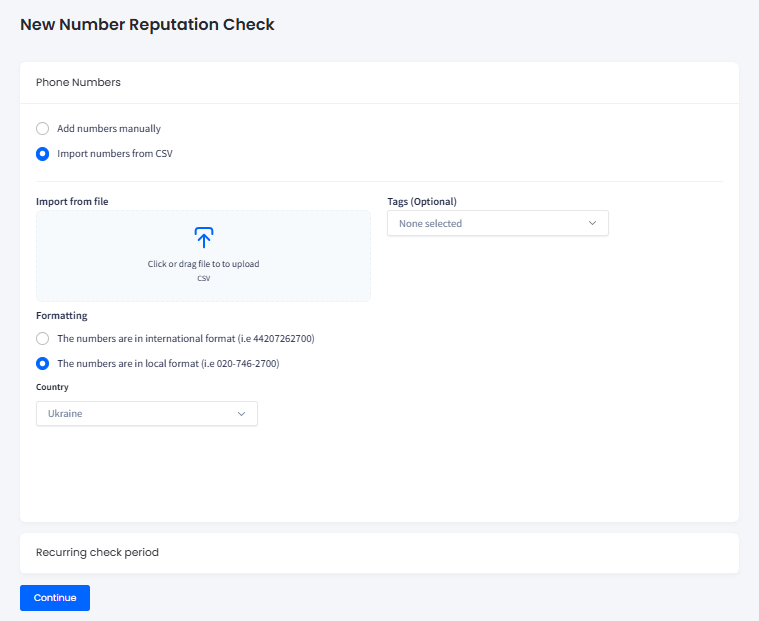
Click or drag a file with numbers(s) to check.
In the Formatting section, specify if the numbers in your file are in the international or local format. If you select the local format, specify the country.
Optionally, click to select tags from the Tags drop-down menu on the right.
New Number Reputation Check page: Import numbers from CSV option
Click Continue to move to the Recurring check period section.
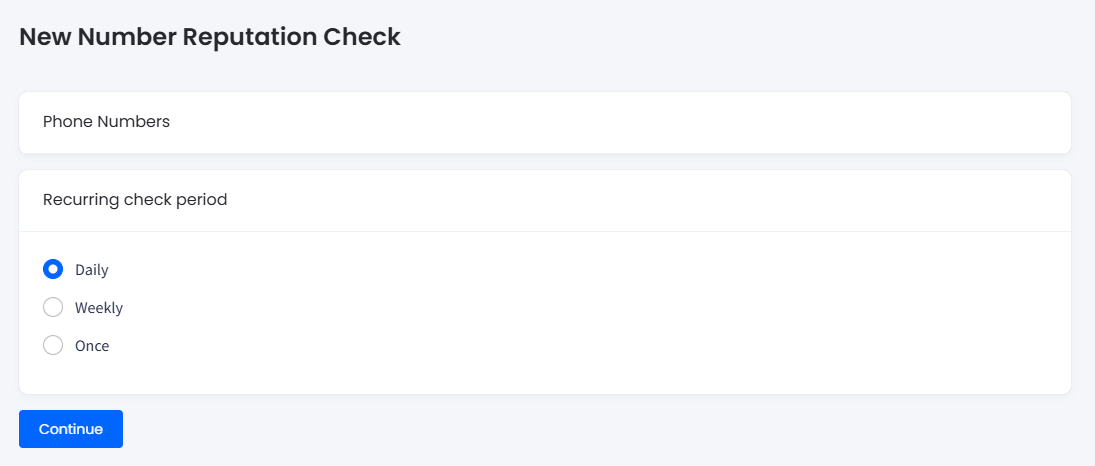
Setting recurring check period
Choose if you want to run a one-time check or perform reputation checks on a daily or weekly basis, and click Continue.
Submitting recurring spam checks
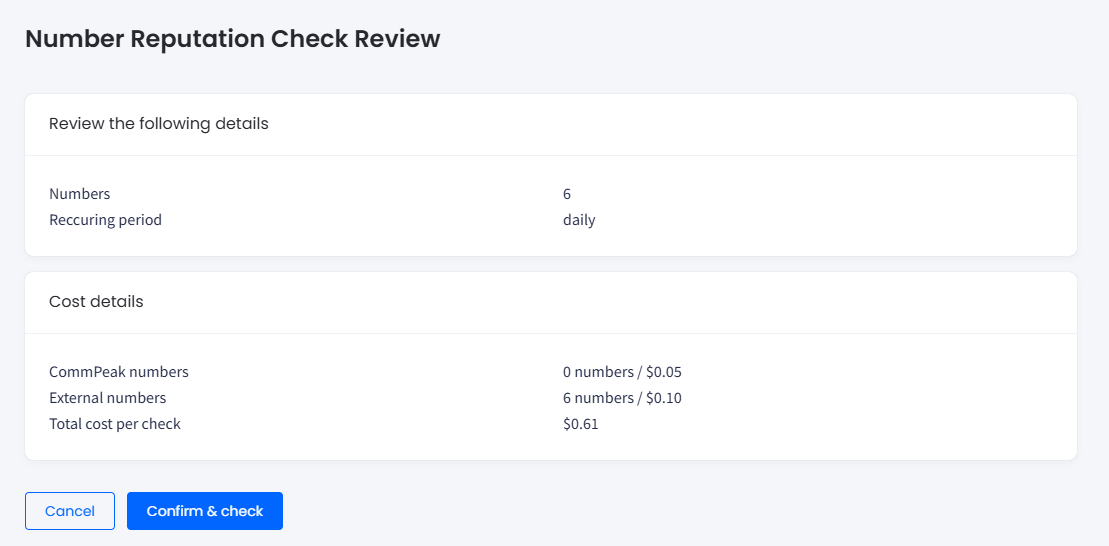
Review the details of the check and click Confirm & check.
Number Reputation Check Review page: reviewing check details
Once started, the submitted checks get the Pending status and can be managed in bulk (for selected items or filtered lists) or separately by using the phone number management menu options.
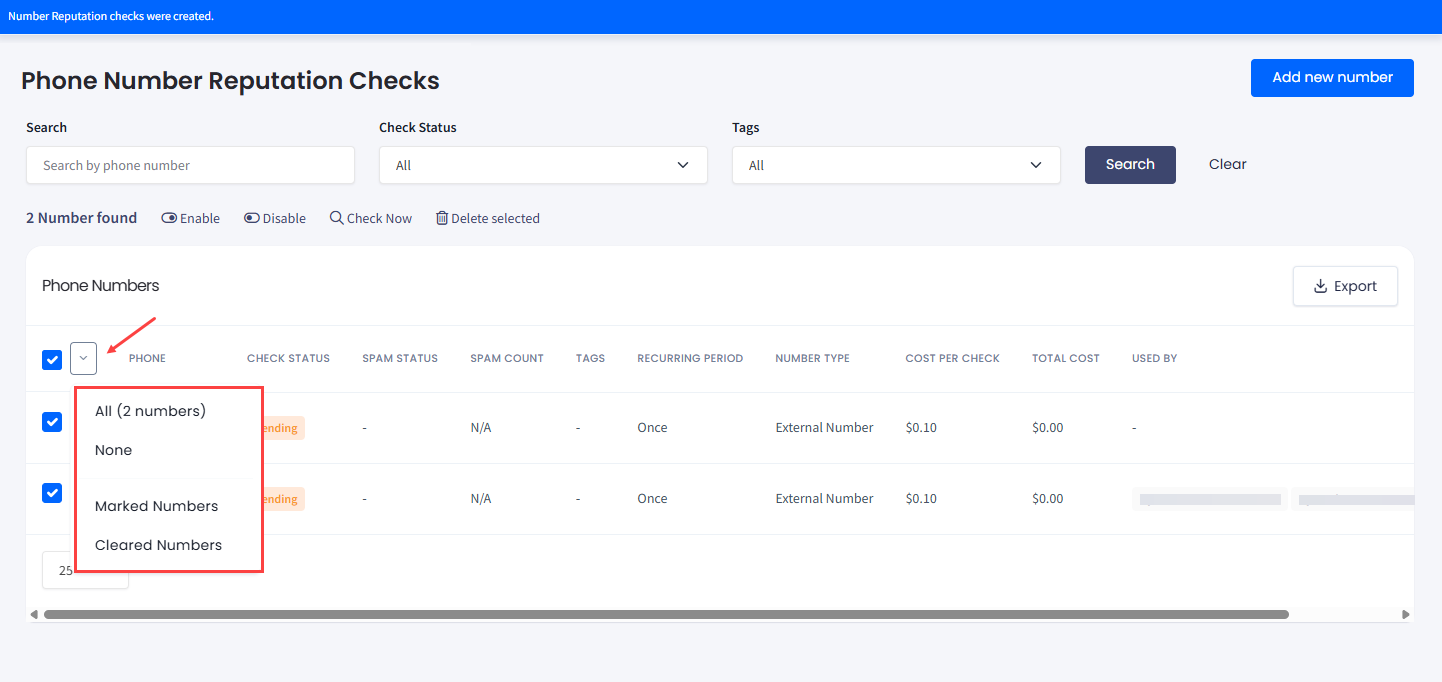
The multi-select box includes smart selection filters to speed up your workflow:
All: Select every number across all pages.
None: Clear all current selections instantly.
Marked Numbers: Target only the numbers you've flagged for spam.
Cleared Numbers: Select only the numbers that have successfully passed reputation checks.
Managing phone numbers in bulk
📘
NOTE
You can edit recurring settings, cancel or delete running checks, or apply other changes later using the Phone Numbers table menu on the Phone Number Reputation Checks page.
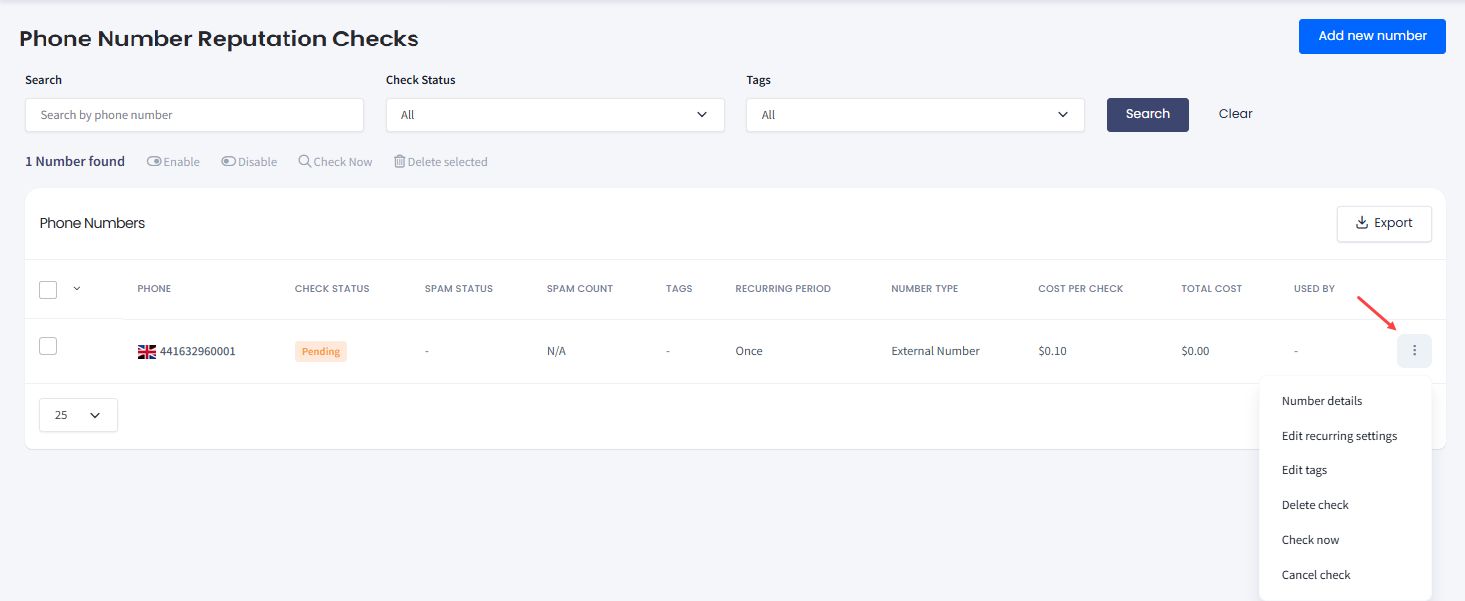
Click the three-dot icon to open the menu with the following phone number management options:
Number details
Edit recurring settings
Edit tags
Delete check
Check now
Cancel check.
Phone Numbers table: menu options
Assigning tags
You can assign a tag to a number checked. Tags help you filter the results of your checks.
DID numbers' tags
📘
NOTE
For CommPeak DID numbers, tags are inherited from your DID configuration page and are displayed once you create a check.
You can optionally assign tags to numbers while adding them on the New Number Reputation Check page or later. Select existing tags from the drop-down list or add a new one.
Alternatively, after starting a check, expand the menu in the Actions column and select Edit Tags. Then, choose one or several existing DID tags.
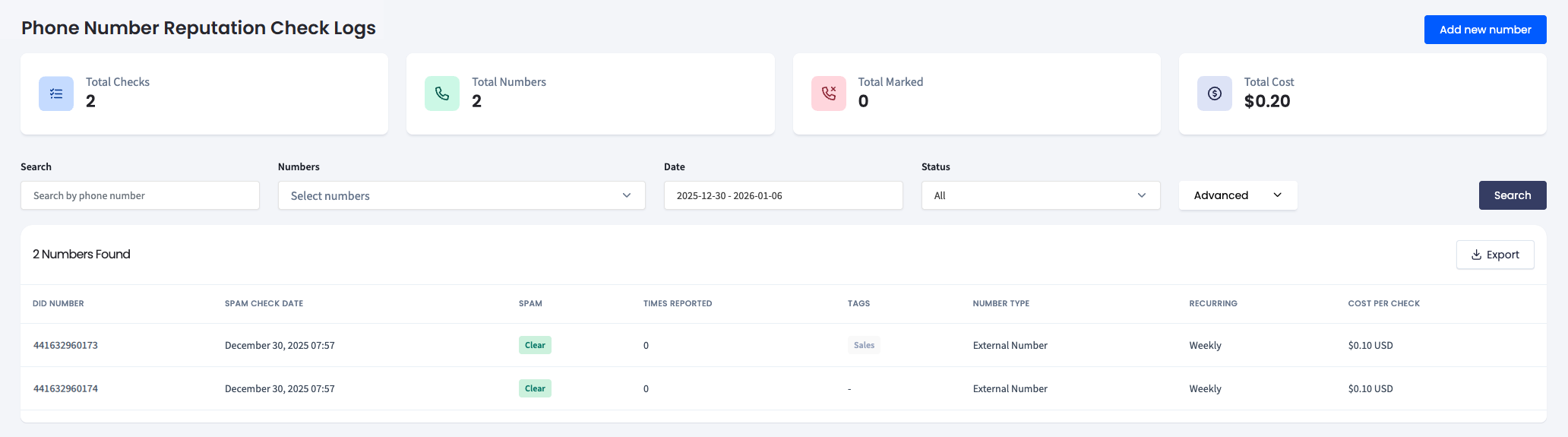
Number reputation check logs
To view the reputation check logs, click Reputation History in the main menu on the left.
DIDs > Reputation History tab
Here, you can review your check history, main statistics, and records filtered by phone number(s), time period, date, or status (Marked or Clear).
Additionally, from the Advanced drop-down menu, you can filter by tags and number type (CommPeak DID or External Number).