

Active User Sessions
View and manage active user sessions, enable auto-refresh, and kick off users individually or in bulk.
You can view active user sessions and kick off online users from the system.
To view active sessions of a user:
-
Go to Users > Users Management tab.
-
Locate the needed user account and go to the Actions column on the right.
-
Click Select action and then click Active Sessions.
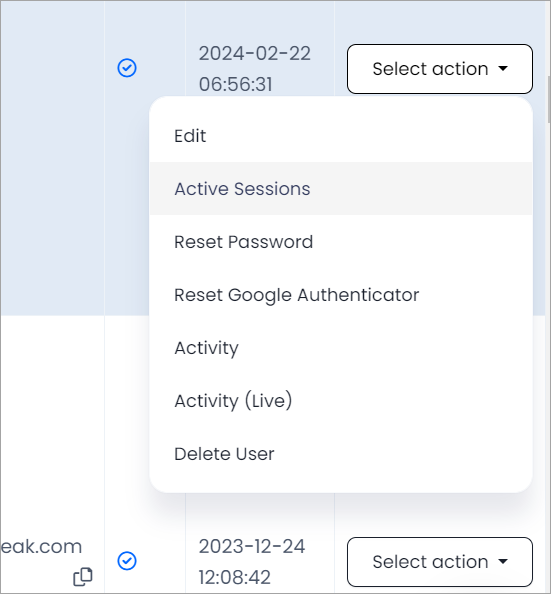
Active Sessions menu option
-
Toggle the Auto Refresh slider to auto refresh every 10 seconds to monitor the users in real-time.
-
Click the kick-off buttons in Actions to end sessions for the user.
To view all active users:
Go to Reports > Global Logs, then switch to the Users' Sessions tab. This will open the page that shows all online users in the tenant.
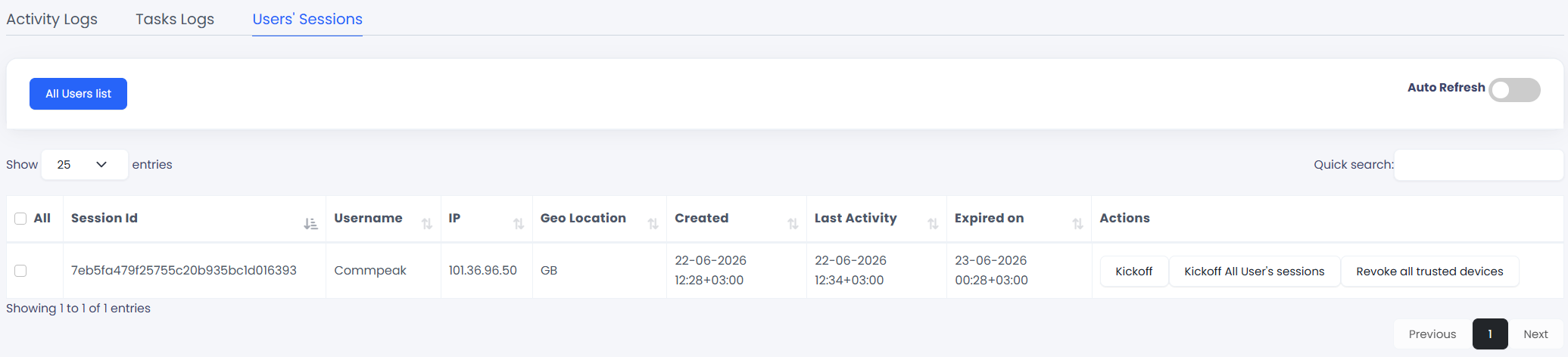
User Sessions tab
Toggle the Auto Refresh slider to refresh every 10 seconds and monitor users in real time.
All Users list button: clicking it shows all active sessions across all users
Kick-off users:
-
Locate the required user; the Quick search field pre-fills with the username when coming from a single user.
-
Click the kick-off buttons in Actions to end sessions for the user.
- Kickoff: to end just that specific session.
- Kickoff All Users' sessions: to end all sessions for that user at once.
-
To kick off mass action for online users, select the users and choose the selected option at the bottom. Or kick off all users. Then click Process.

Bulk kick-off
Revoke users:
Admins can revoke trusted devices for users they manage. Revoking a trusted device removes the 2FA bypass for that device, requiring the user to complete full 2FA verification on their next login.
To revoke trusted devices for a user, click Revoke all trusted devices.
Revoke all trusted devices button
NOTEIf an agent is in the Predictive Dialing mode, the current call with a lead will not hang up until the call ends. Agents will be able to fill in the missing call status after they log in and clock in again.
Updated 5 days ago