

Filter Groups
Learn how to use the filter groups within user groups work and how to configure them.
Video tutorial
An essential part of user group creation are filter groups. They are the filters that will indicate which lead each group of agents can call. When leads go through these filters, they form categories that match groups of agents with corresponding skills.
CommPeak support team can help you with configuring the filters.
To access the groups filtering options, go to Users and select Groups Management. Then click Edit in the Actions column.
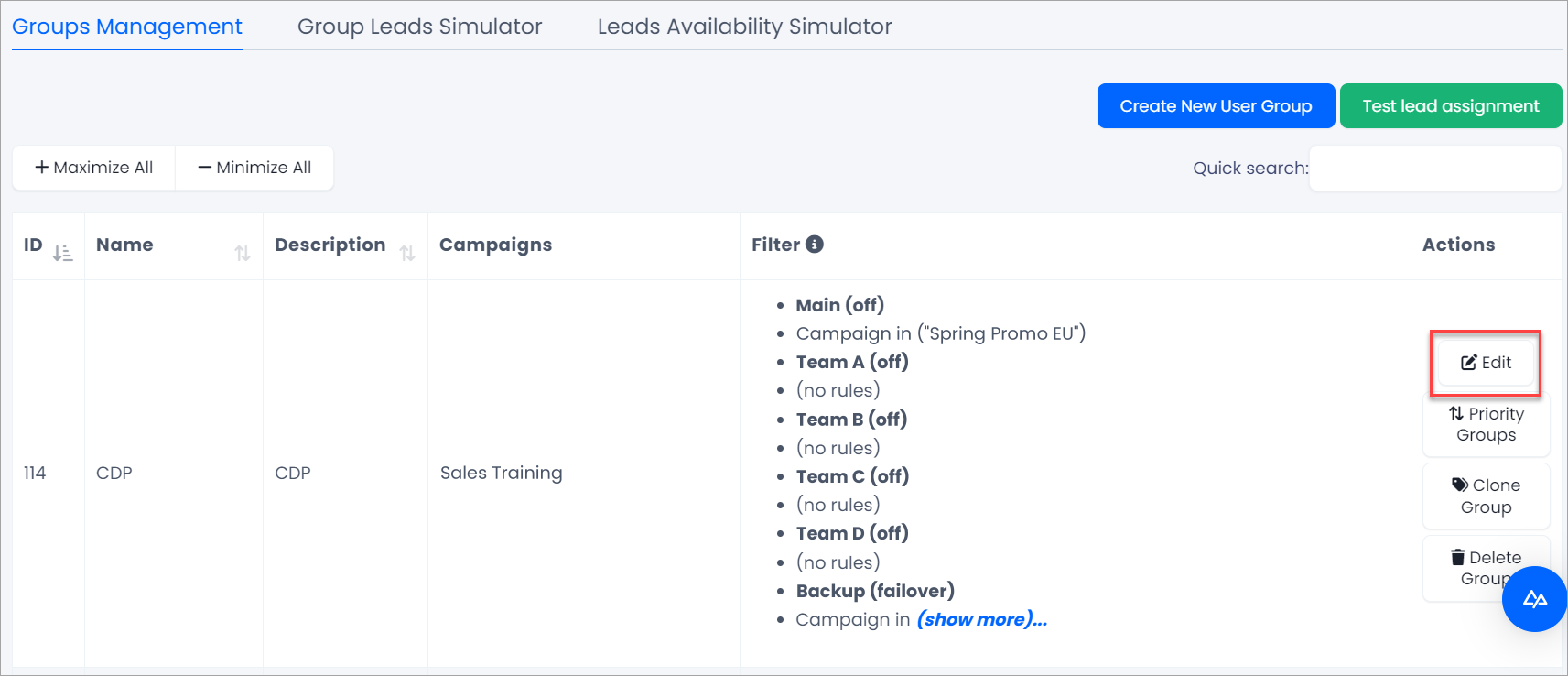
Editing a user group
Scroll down to the Filter Groups section. Usually, several filters combine leads into categories. The bigger box on the left shows the filter name that clearly states the filter's purpose or specific leads you intend to call from this filter.
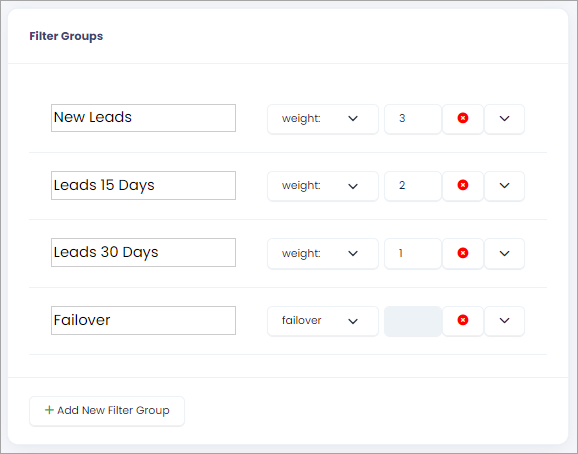
There is a group of modes on the right of each filter rule:
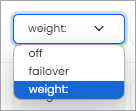
The weight option in filter groups
How filter group modes work
Each filter group within a group has a mode: a weight number (1–100), Failover, or Off. Together they tell the dialer where to take leads from and in what proportion when it loads a new batch of leads for the agents in that group.
Weight (1–100)
To set a weight, select weight: from the drop-down box and enter a number from 1 to 100 in the field that appears next to it. The number is a relative ratio, not a lead count.
Weighted filters are the primary sources of leads. Every time the dialer needs a batch of leads for the group, it runs each weighted filter and then splits the batch between them in proportion to their weights.
The weights are relative, not percentages. A filter with a weight of 100 and a filter with a weight of 50 split the batch 2:1, and two filters with a weight of 10 each split it 50:50.
If one filter cannot supply its share (it has fewer matching leads than its share), the shortfall is passed to the other filters that still have spare leads, so the batch is filled as long as any filter has leads.
Filters with higher weight are checked first.
Failover
A Failover filter is a backup source.
It is checked after all weighted filters, and only when they do not deliver enough leads:
The failover filter is skipped if the weighted filters already fill more than about 80% of the requested batch. If it is checked, it joins the relative split with the same share as a weight of 1, and will add as many leads as necessary to fill the gap as needed.
If you have several failover filters, they are checked in the order they appear on the page, from top to bottom, each one only while the batch is still under the 80% mark.
Leads that were loaded through a Failover filter are treated as valid leads. When the dialer re-checks loaded leads, it accepts a lead that matches any active filter, weighted or failover.
Off
The filter is ignored completely. The dialer will not load leads through it, will not use it for direct-dial leads, and will not count it when checking whether an already loaded lead is still valid. It is a way to keep a filter saved for later without deleting it.
NOTEThe weight: setting works as a ratio. In the example above, we could have entered 30, 20, and 10 with the same effect as 3, 2, and 1.
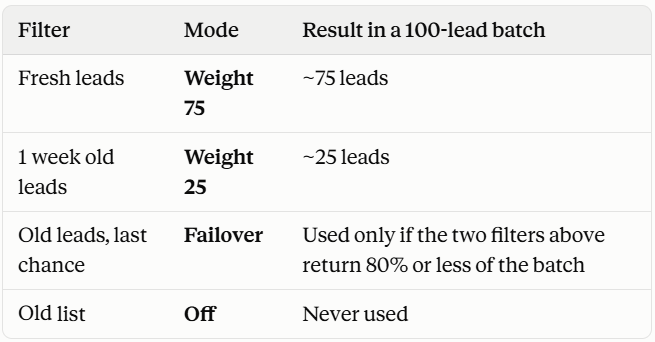
ExampleA group has three filters:
If "Fresh leads" runs dry, "1 week old leads" gets its portion of the batch; if the batch is still short, "Old leads, last chance" kicks in to top it up.
Tips
- Use weights when you want a steady mix of lead types, for example, 3 fresh leads for every 1 week old leads.
- Use Failover for lead pools you want agents to call only when the main pools are exhausted.
These are controls for removing or expanding the filter:

Options for filter removing or expanding
In the expanded view, Leads Filtering Settings section with three filter lines are displayed. You can combine several lines using the AND/OR logic.
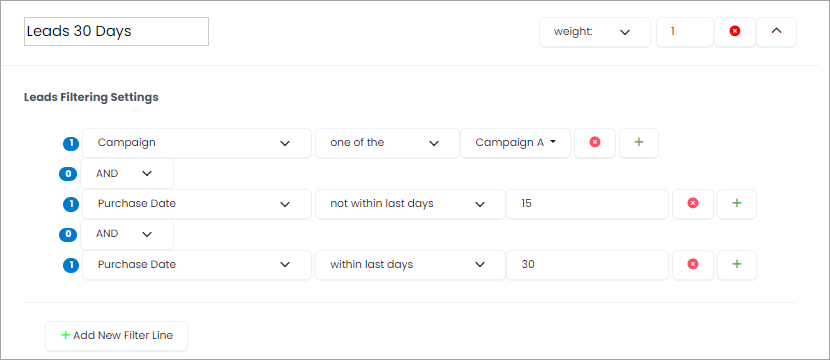
The lead filter settings
TIPWe recommend that you create object lists and use them in filter groups. You will only need to modify the object list when making filter adjustments instead of editing each filter group. You can follow the link to learn how to add object lists.
There are many filtering options and configurations. Contact the support team or your account manager for more information on a particular choice.
IMPORTANTBefore you modify the filter groups and create new ones, be sure to familiarize yourself with the information in this article.
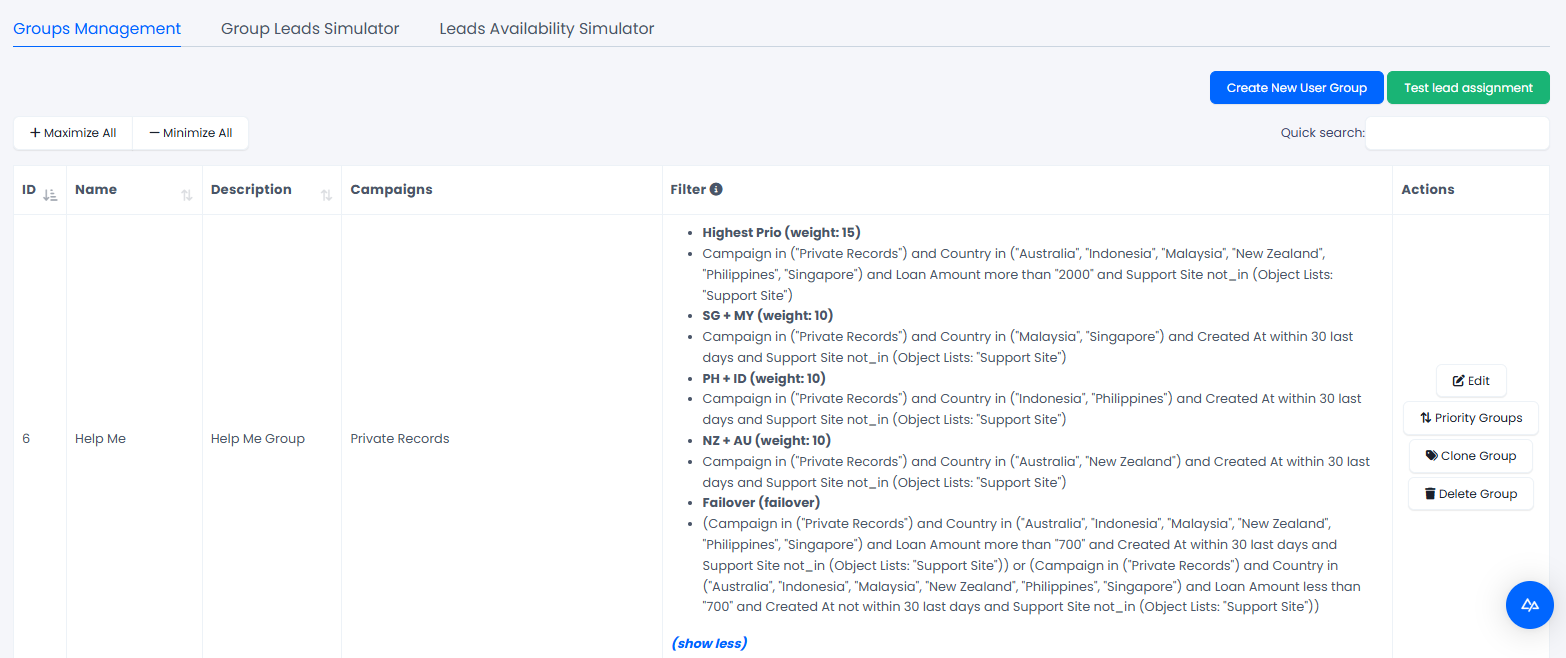
Filter groups set
Not sure your group filters behave the way you expect? Use the lead distribution simulator to check how many leads a group can actually call before you go live. See Testing Lead Assignment.
Updated 23 days ago