

Creating Campaigns
This article will walk you through creating a messaging campaign step by step.
Video tutorial
Preparation
There are a few preparation steps that you can take before you start creating a campaign. You can do most of these actions right from the campaign creation wizard, but it's recommended that you have all the data ready in advance.
- Create custom contact fields
- Upload a contact list
- Add sender ID(s)
- Create a message template
- Set custom domains or domain pools
- Create URL offers
- Add auto word groups.
When you have prepared the data, click Campaigns in the main menu to open the Campaign Management page.
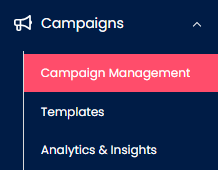
Campaign Management tab
Then click Create new campaign.
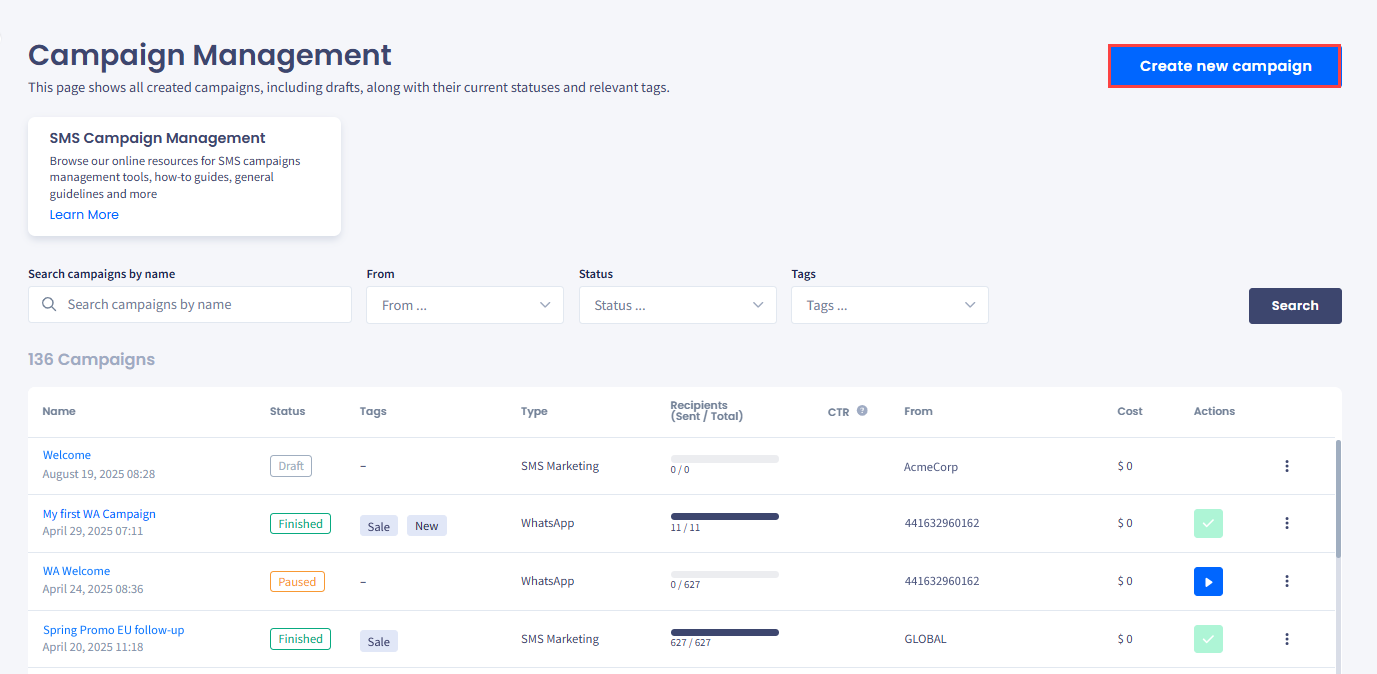
Campaign Management dashboard
You will see a pop-up window. Select one of the campaign types, depending on your needs:
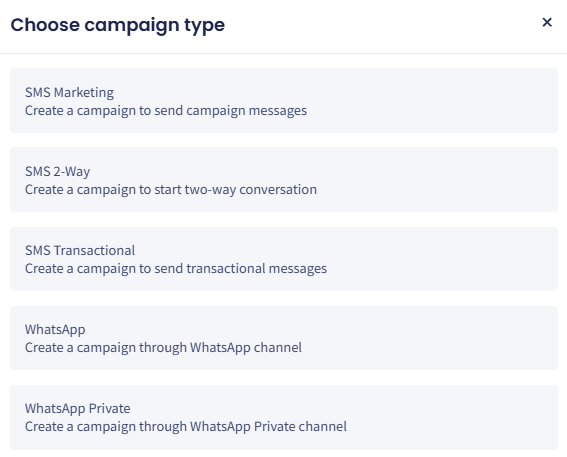
Choose campaign type dialog box
- SMS Marketing - send marketing SMS Campaigns
- SMS 2-Way - use your DID numbers to send SMS campaigns and manage Two-Way SMS conversations
- SMS Transactional - send Transactional SMS messages with critical customer updates using transactional routes.
- WhatsApp - create campaigns using WhatsApp channels.
- WhatsApp Private - create private campaigns using WhatsApp channels.
IMPORTANT
- Creating SMS Transactional and WhatsApp campaigns is a Beta feature that is not available to all users by default. If you are interested in trying it, you first need to request access.
- Note that before you can try creating WhatsApp campaigns, you will need to request WhatsApp Business Streams access.
Requesting transactional/WhatsApp campaign access
To submit your Transactional/WhatsApp Campaign access request:
Log in to TextPeak
Log in to TextPeak in your browser.
Open Campaigns
Select Campaigns in the main menu to open the Campaign Management page.
Campaign Management tab
Create a new campaign
Click Create new campaign.
Select the campaign type
Select SMS Transactional or WhatsApp in a pop-up window.
Request access
Click Request Access.
Selecting campaign type
Wait for the confirmation
You will be notified that your request has been received.
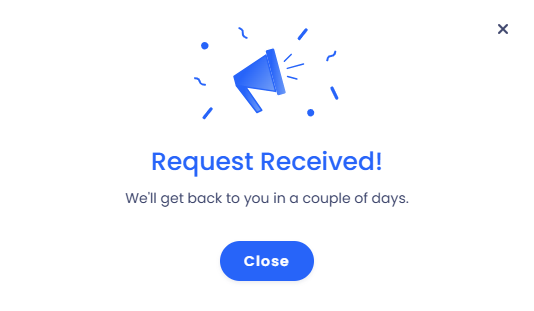
Request Received! notification
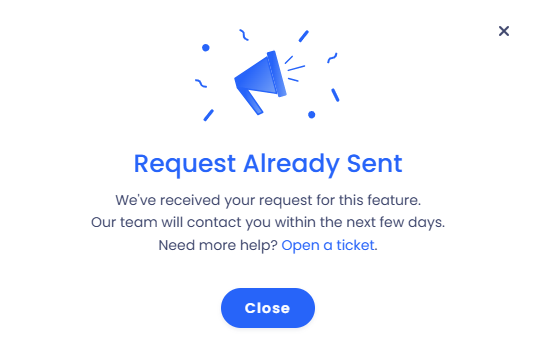
Start creating campaigns
Once you are authorized to access the feature, you can start creating and managing SMS Transactional / WhatsApp campaigns.
Getting started with campaigns
When the Create New Campaign window with several wizard sections opens, expand each section and fill in campaign details, recipients, sender IDs, message body, sending schedule, and other settings.
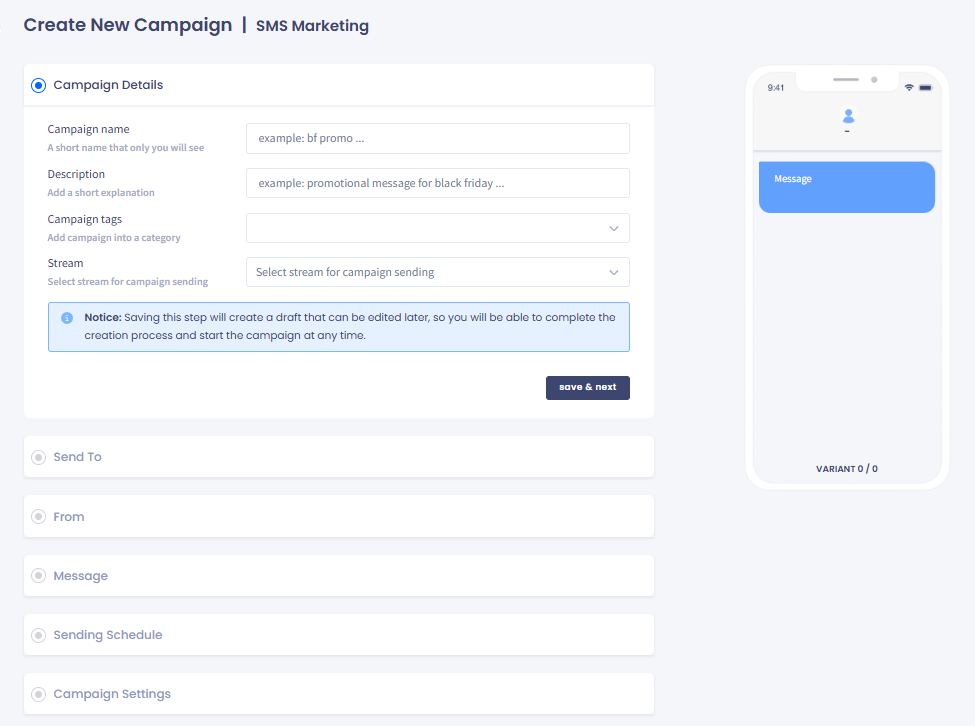
Create New Campaign wizard: SMS Marketing
Alternatively, you can duplicate an existing SMS campaign right from the Campaigns table. To duplicate it, navigate to Campaigns in the main menu, locate a campaign in the table, and click Duplicate from the three-dot menu on the right side of the row. This will create a draft clone of the selected campaign.
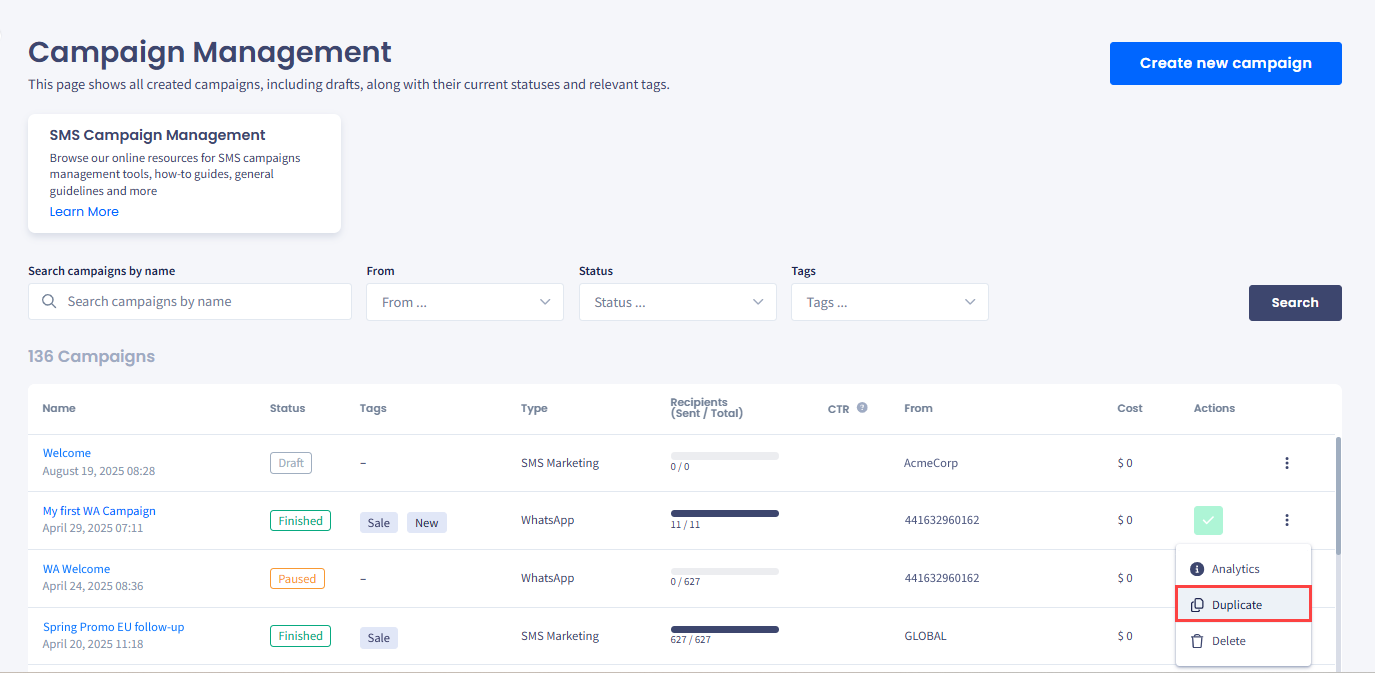
Duplicate menu option
Campaign details
The wizard starts by entering campaign details.
- Campaign name - enter a meaningful name to locate the campaign quickly.
- Description - provide more information that will be visible when you open the campaign.
- Campaign tags - select the tags from the drop-down list to apply them to the SMS campaign immediately to categorize your campaigns and quickly find the ones you need (optional). To create a new tag, enter the new tag name in the field and click enter.
- Stream - select the stream for campaign sending from the drop-down list and proceed to the next step. Ensure you select the correct stream, allowing you to apply more filters to your message.
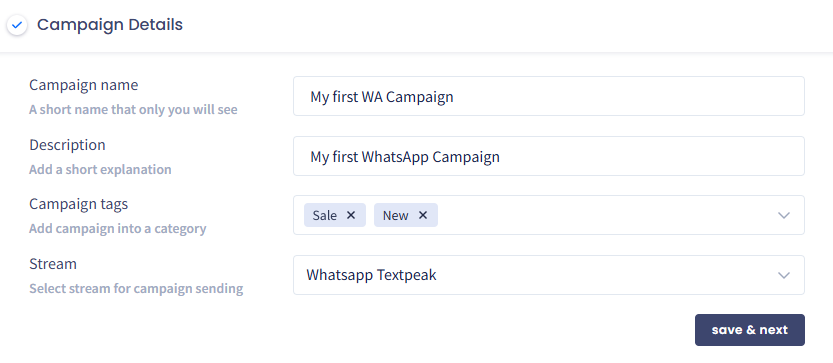
Campaign Details section
NOTEThe campaign will be saved as a draft on each step and added to the campaign list with the Draft status. Then you can click Edit to return to the campaign and complete its creation.
After you click save & next, the step will be completed and the next tab will expand.
Send to
In this section, define SMS recipients. Choose one or several existing contact lists or segments from the drop-down list or create a new list or segment right away.
The number of recipients equals the total number of contacts in selected lists or segments.
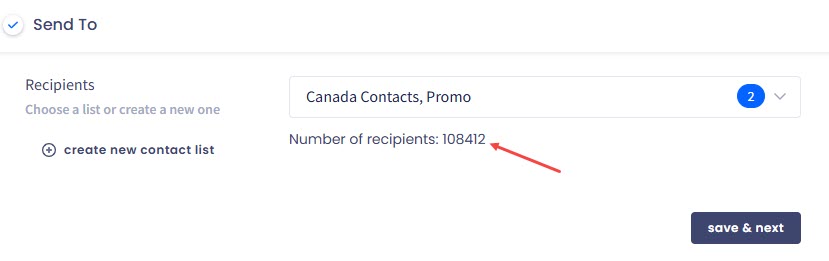
Send To section
From
Here, select one or more existing sender IDs or add a new sender ID.
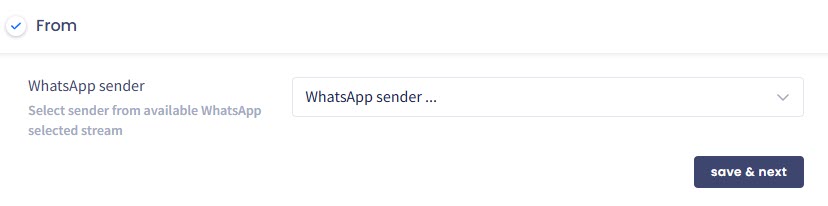
WhatsApp sender selection
In case of multiple sender IDs, set a custom or equal sender ratio. By setting the distribution ratio, you can control how frequently each sender ID is used in your SMS campaign.
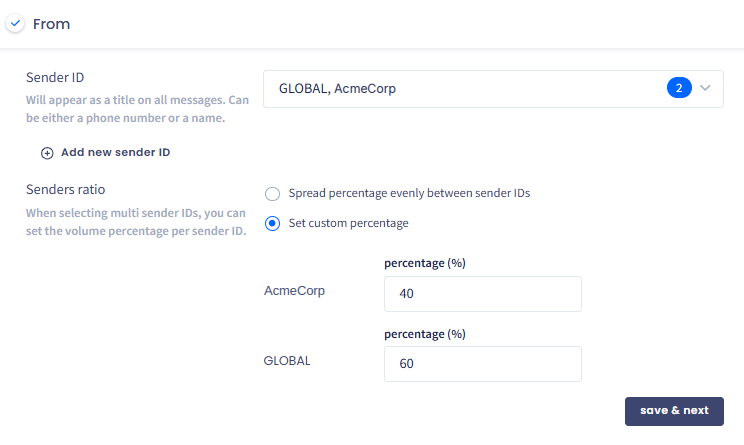
From section
Message
In the Message section, make various settings related to the message you will be sending:
Select a message template
Select and use a previously created message template, or modify and save it as a new one. You can also add a new template right away.
Edit the message
Modify the message body as needed.
Check the tags
If your message template contains tags, fix any missing data.
Add word groups
Add word groups.
Add short or opt-out URLs
If your message template contains short or opt-out URLs, add them.
Set the variants ratio
For templates with several text variants for SMS AB Testing, define the variants ratio.
Preview and test the message
Preview your message and send a test SMS.
NOTEFor WhatsApp campaigns, you can choose the message templates created earlier.
You can find more information in the following sections.
Tags
If you use tags pulled from contact fields in your message template, check if all the recipients have data for all the used variables.
If any data is missing, the number of recipients with the missing data will be shown in red next to the tag.
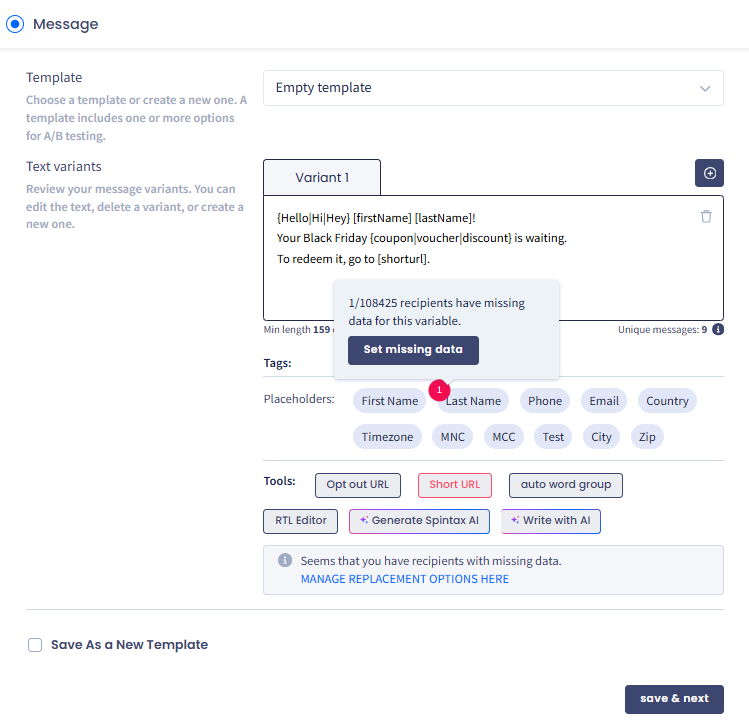
Message section
To fix the recipients with missing data:
Open the replacement options
Hover over the number of recipients who have missing data and click on the link to manage replacement options.
Review the pop-up window
A window pops up.
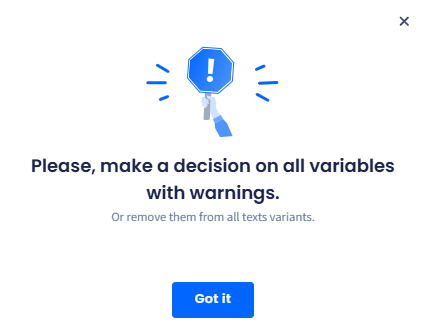
Warning pop-up window
Replace or skip the missing data
You have two options to enter missing text or exclude recipients with the issue from the SMS campaign:
- Enter the text to replace the variable
- Toggle the switch to the left, and the recipients who have missing data will be excluded from the campaign.
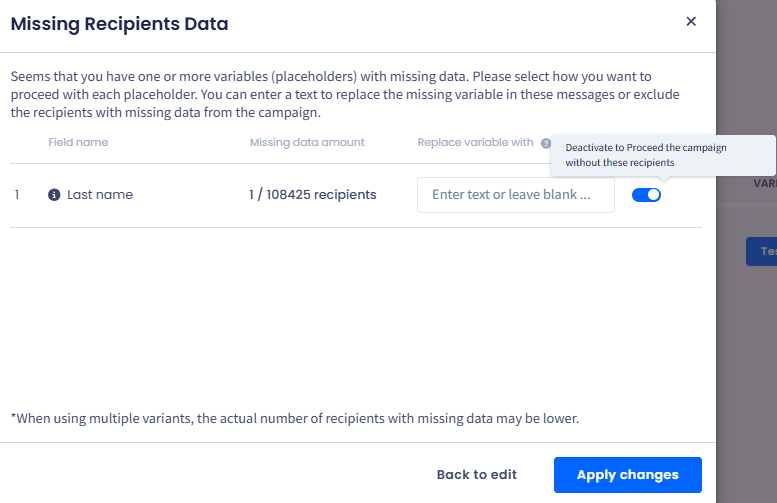
Missing Recipients Data pop-up window
Apply the changes
Click Apply Changes. The number of recipients with missing data will turn green.
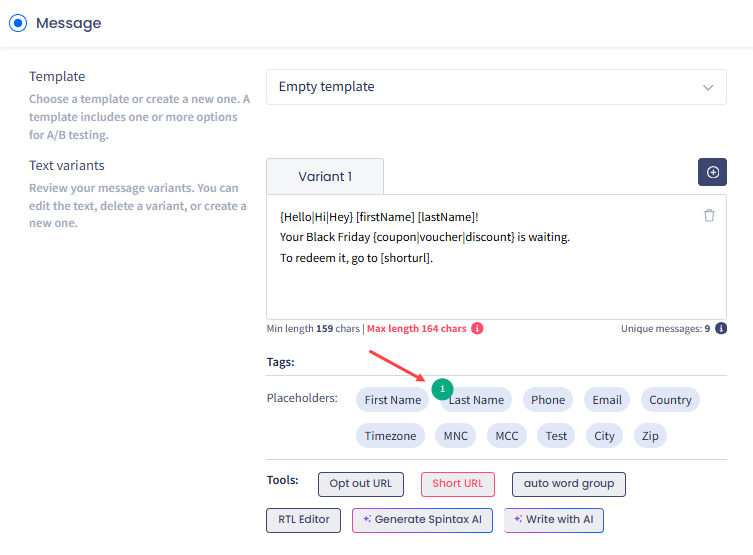
Missing data set
Opt-Out and short URLs
In Tools, you can set the Short URL and Opt-out URL to be used in the message. At this point, the buttons for the tools used will be red.
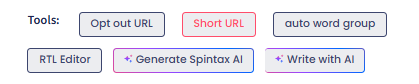
Tools options
To add short or opt-out URLs to the SMS message body:
Check your custom domains
Make sure you have configured custom domains for your URLs.
Open the URL tool
Click on the button for the tool used. You will see a pop-up window for adding an opt-out or short URL.
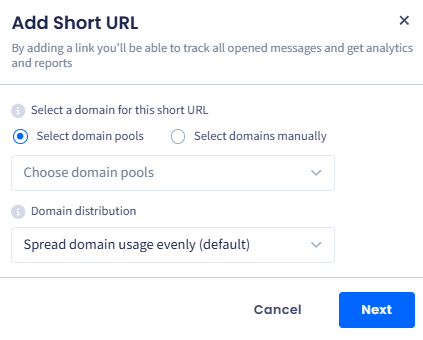
Add Short URL dialog box
Select the domains
Select previously configured custom domains manually or choose a pool with domains.
The system will create a unique URL for each message by adding a code with six symbols after the slash to the domain.
Choose a distribution strategy
Choose a domain distribution strategy while sending the messages:
- spread the domains evenly (default)
- use each domain until its limit is reached, then proceed to the next one.
Select a URL offer
Select a previously created URL offer.
Add the URL
After filling in all the data, click Add URL.
NOTE
You will be able to select a domain with the Configured status only.
You should add multiple domains because they get burnt quickly. Usually, providers block domains as spam if they appear in ten thousand messages.
The system will display a warning if insufficient domains are selected. Add more or modify the global limit.
As soon as you have completed the URL settings, the button in Tools will turn green.
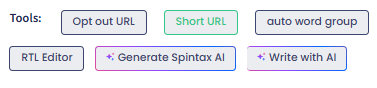
Short URL option defined
Auto word groups
You can add manual or automatic word groups to your message. Words belonging to a word group are randomly selected for each sent message. Your recipients will get unique messages, which will help avoid detecting them as spam.
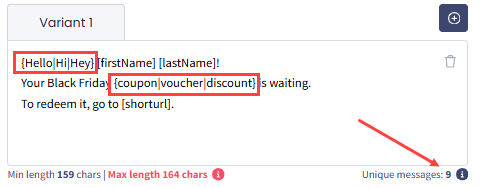
Message variant editor
You can learn more about word groups and how to add them in a dedicated article.
Variants ratio
It is possible to add up to four variants to conduct an SMS AB Testing. To add a variant, click the plus button above the message box.
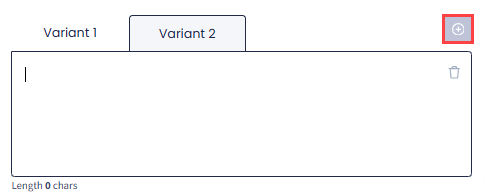
Creating new message variant
If you use several text variants in your template, set equal or custom ratios for them. For custom percentages, choose colors for displaying statistics per variant in Analytics and Insights.
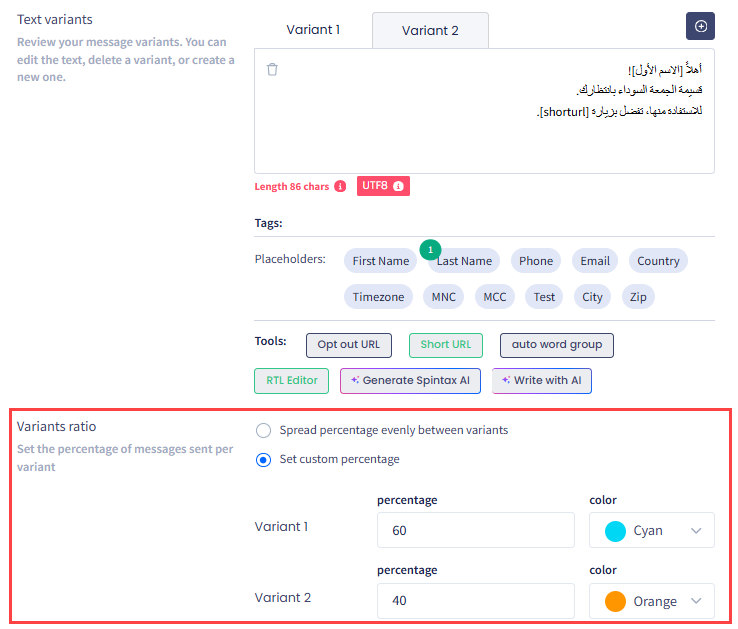
Variants ratio section
RTL editor
A Right-To-Left (RTL) editor tool (added to campaigns message templates and Transactional and SMS OTP Streams API event templates) allows users to create and preview content designed for languages that read from right to left (e.g., Arabic or Hebrew).
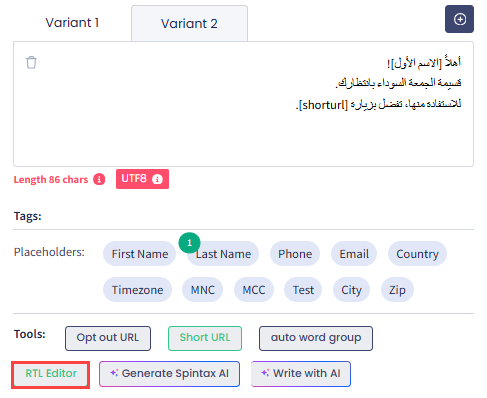
Right-To-Left (RTL) editor
Saving as a new template
If you have changed your template, you can save it as a new one for future use.
Select the corresponding checkbox and specify the new template's name and description.
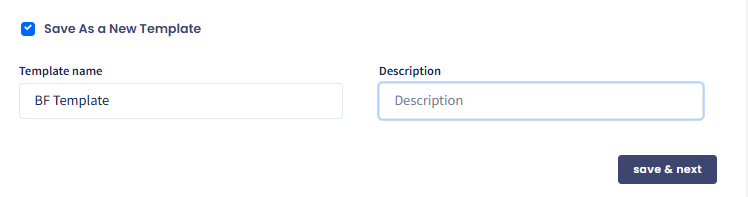
Save As a New Template pop-up window
Generating spintax AI
Using the Spintax AI option, you can generate quality message variations for your template.
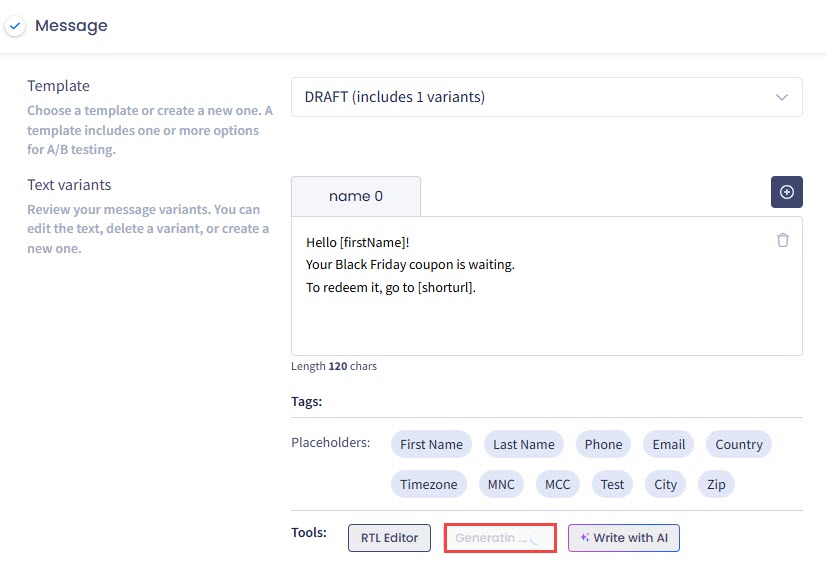
Generating with Spintax AI
Writing with AI
AI assistants can help you with generating effective templates for your campaigns.
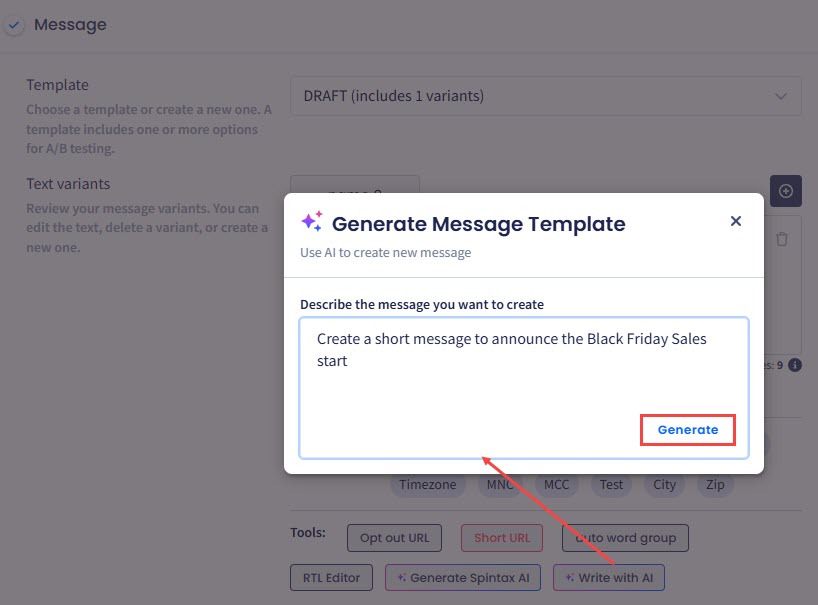
Write with AI tool
NOTECheck the following articles to learn how you can integrate the following AI assistants with TextPeak:
Preview
You can preview how the message text will look like on a mobile phone on the right.
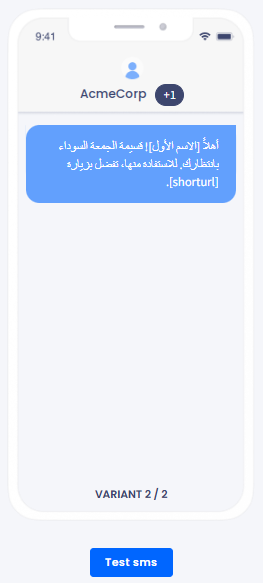
Preview box
To test if the message has been received:
Start a test SMS
Click Test SMS.
Fill in the test details
Fill in the fields in the window that pops up.
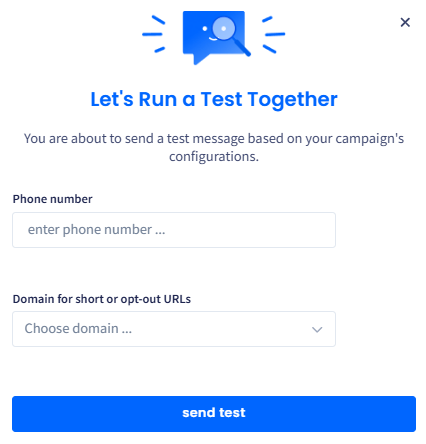
Test running confirmation pop-up
Send the test
Then click send test and wait for the message to be received.
Sending schedule
In the Sending Schedule section, you can set the time and date when your SMS messages will be sent.
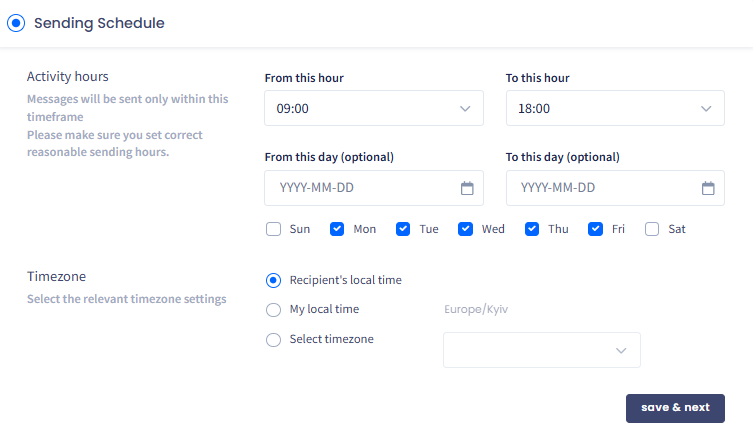
Sending Schedule section
To set SMS campaign sending time:
Set the activity hours
Go to Activity hours and set the hours and days when the system will send messages. Optionally, you can choose the starting and ending dates of your campaign.
Choose the timezone
Configure the Timezone for the campaign from several available options:
-
Recipient's local time: the local timezone of each recipient depending on their country (the system will determine it based on their phone number)
-
My local time: the timezone you chose in Settings
-
Select timezone: a specific timezone that you can select from the drop-down list.
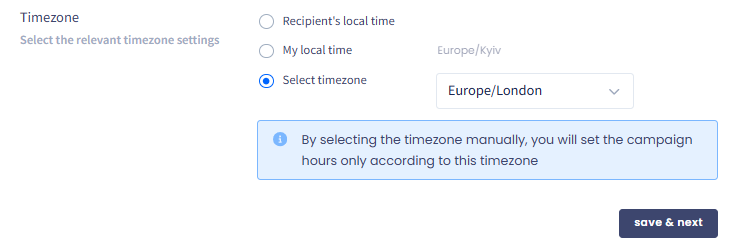
Timezone section
NOTE
- We recommend using the recipient’s local time.
- Some countries have regulations as to the allowed time for sending SMS messages.
- If you set the sending time for your own time zone, a recipient in a different time zone can miss your message if the sending time doesn't fit into the allowed limits.
- If some contacts won’t be able to receive your message, you will be notified about it later when you check the campaign details.
Campaign settings
In the Campaign Settings section, you can define the following settings for your campaign:
Choose the start date
Choose if you want to start the campaign immediately or pick a date in the future.
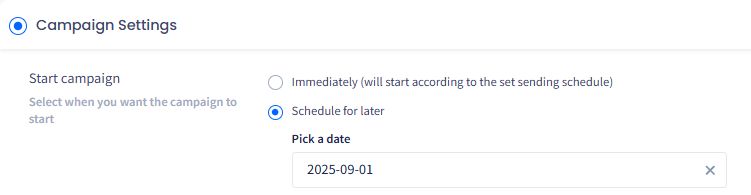
Start Campaign section
Set pause rules
Select the checkbox next to Pause campaign if you wish to pause your campaign once or each time after a certain number of messages has been sent. This allows you to review your campaign's performance and make adjustments to improve its results while the campaign is running.

Pause Campaign section
Set the CTR
Optionally, you can define the click-through rate percentage (CTR) for the campaign.
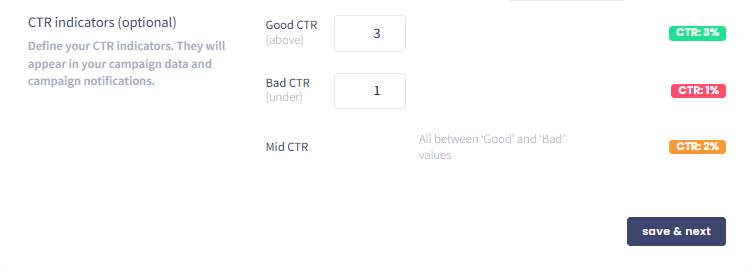
Setting STR indicators
Route messages through the inbox
Also, for WhatsApp and SMS 2-way campaigns, you can arrange for all campaign messages to automatically become available inside your inbox. To do it, enable the Send messages through inbox checkbox and assign it to a space and team. You can also add tags.
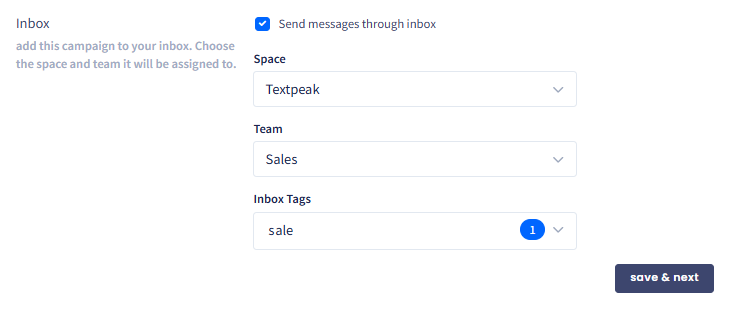
Inbox section
Reviewing your campaign
After you have saved all the steps, you will be asked to review your campaign details:
Edit a tab if needed
Click the edit icon to make changes in any tab you need.
Check the estimated price
At the bottom of the page, you can find the estimated price of your future SMS campaign.
Start or schedule the campaign
When you finish reviewing the campaign, click Start campaign (or Schedule campaign if you selected to schedule message sending for a later date).
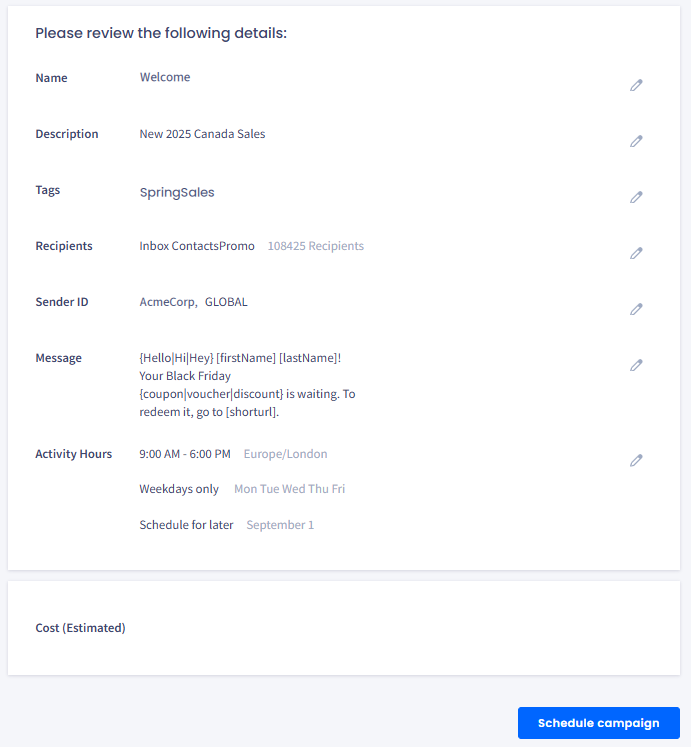
Reviewing campaign details
Close the confirmation
Click Done in the window that pops up.
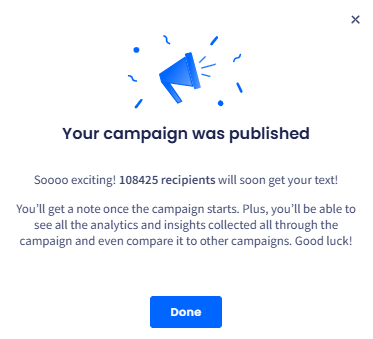
Confirmation of campaign publishing pop-up window
The new campaign will appear at the top of the Campaigns table. Click it to open the sidebar to view your campaign details, statistics, and domains.
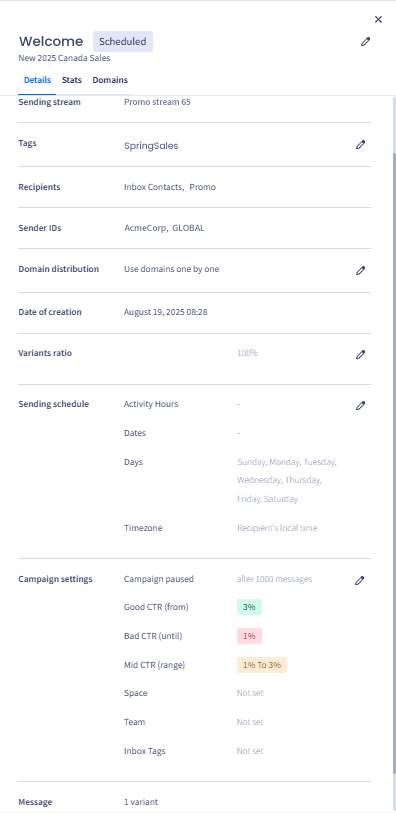
Campaign sidebar data
Updated 1 day ago