

Alerts on Password Reset Requests
Discover how password reset actions are performed by users or administrators and the email notifications generated for these events.
Password reset by user
-
When users click the Forgot Password link on the login screen, they are prompted to enter their username or email address.
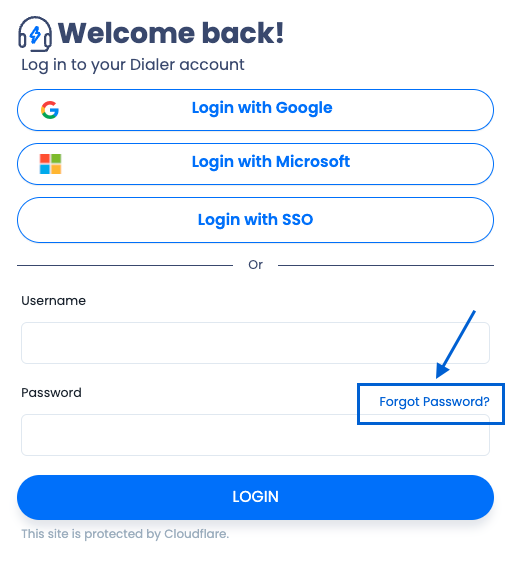
Forgot Password link
-
The users enter their email address or username and then click Reset Password.
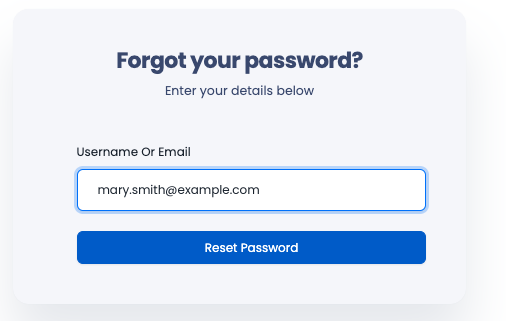
Reset Password button
-
An email with a one-time link is sent to the user’s registered email address. The link is valid for 30 minutes.
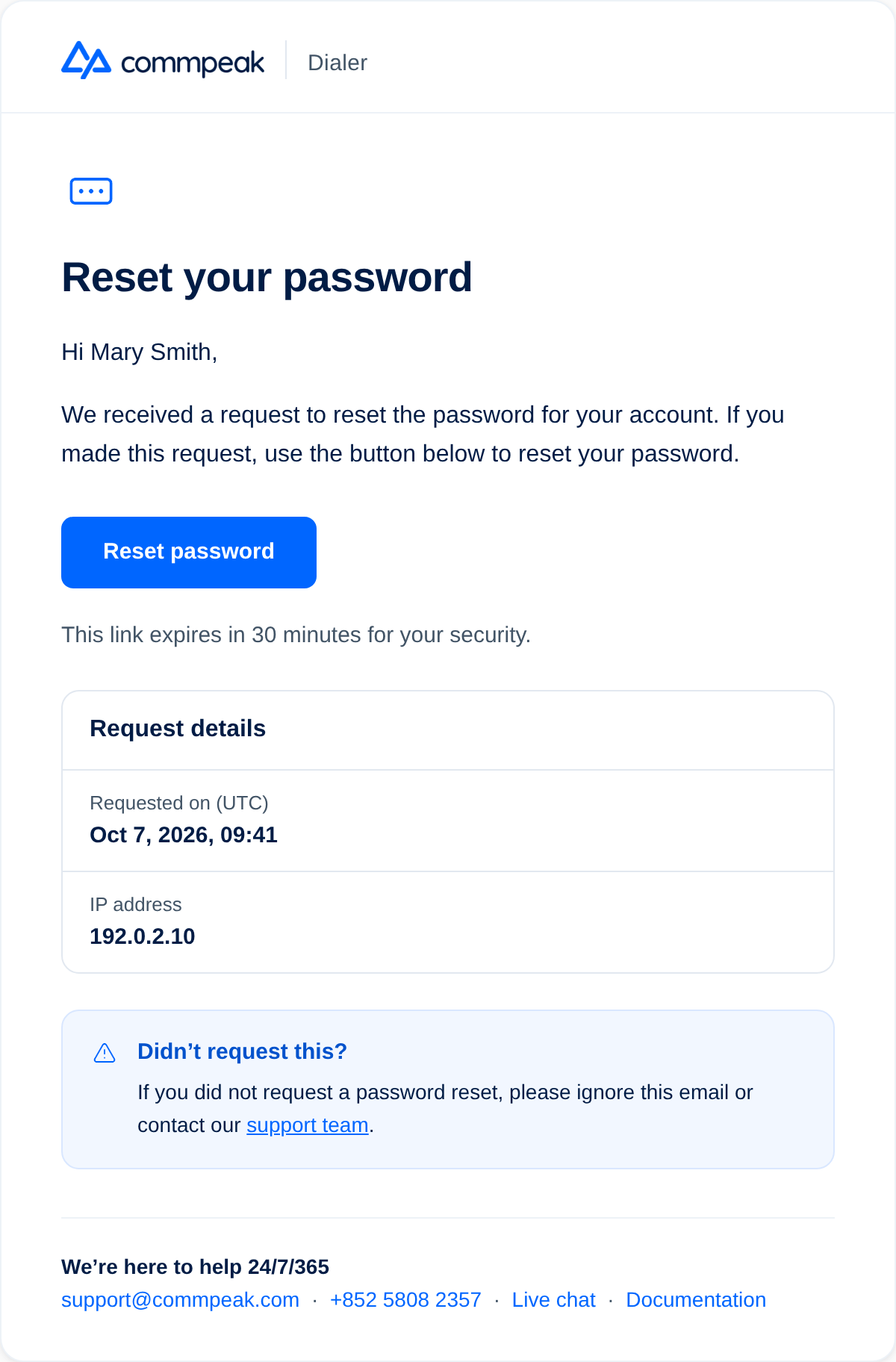
Reset Password email
-
After clicking the one-time link, the user can set a new password securely.
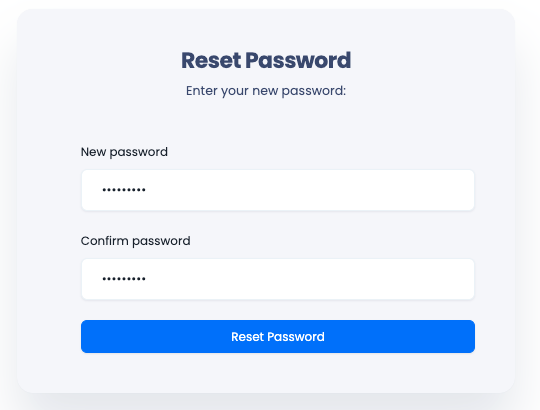
Reset Password window
WARNINGContact support if the agent doesn't see the reset password option.
Password reset by account administrators
Account administrators can reset a user’s password by navigating to the User Management page in the Dialer or Cloud PBX as follows:
-
Go to the Actions > Select action menu for the desired user.
-
Click Reset Password.
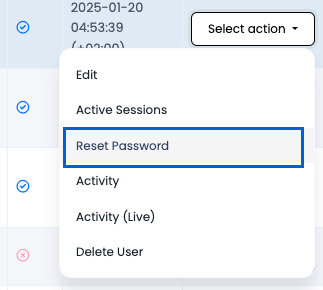
Reset Password option
-
A confirmation message will appear. Click Reset again to confirm.
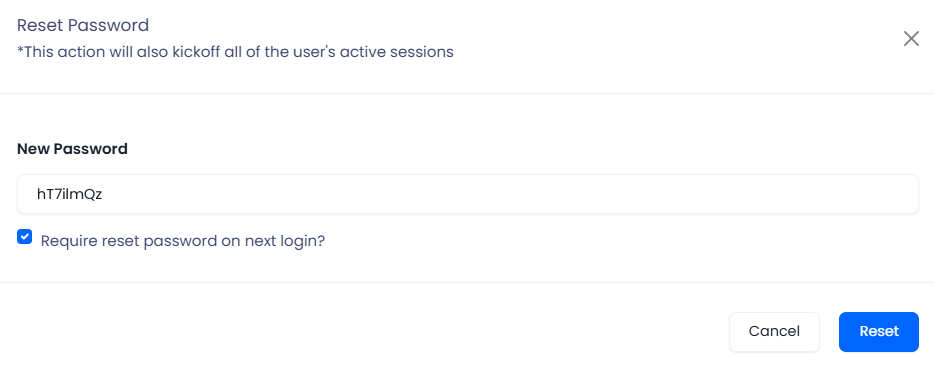
Reset Password dialog
-
If confirmed, a temporary password is assigned to the user and shown for several seconds to the administrator at the top of the screen. Copy the password and provide it to the user.

Reset Password banner
-
On their next login, the user must change the temporary password to a new secure one.
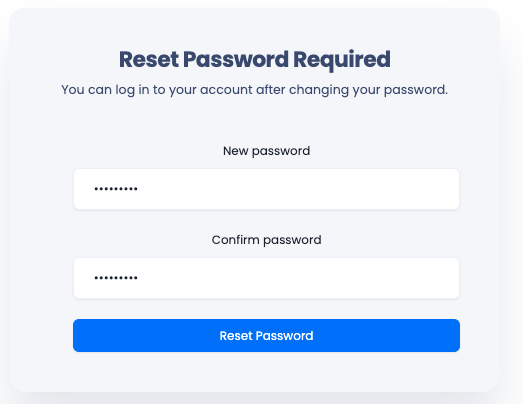
Reset Password Required
Email notifications for password changes
Both password reset actions by users or administrators will trigger an email notification to the user. The email will include:
- confirmation that the password was changed
- details about the request, including the location of the user or administrator who initiated the password change.
This ensures transparency and provides an additional layer of security, allowing users to detect any unauthorized password changes.
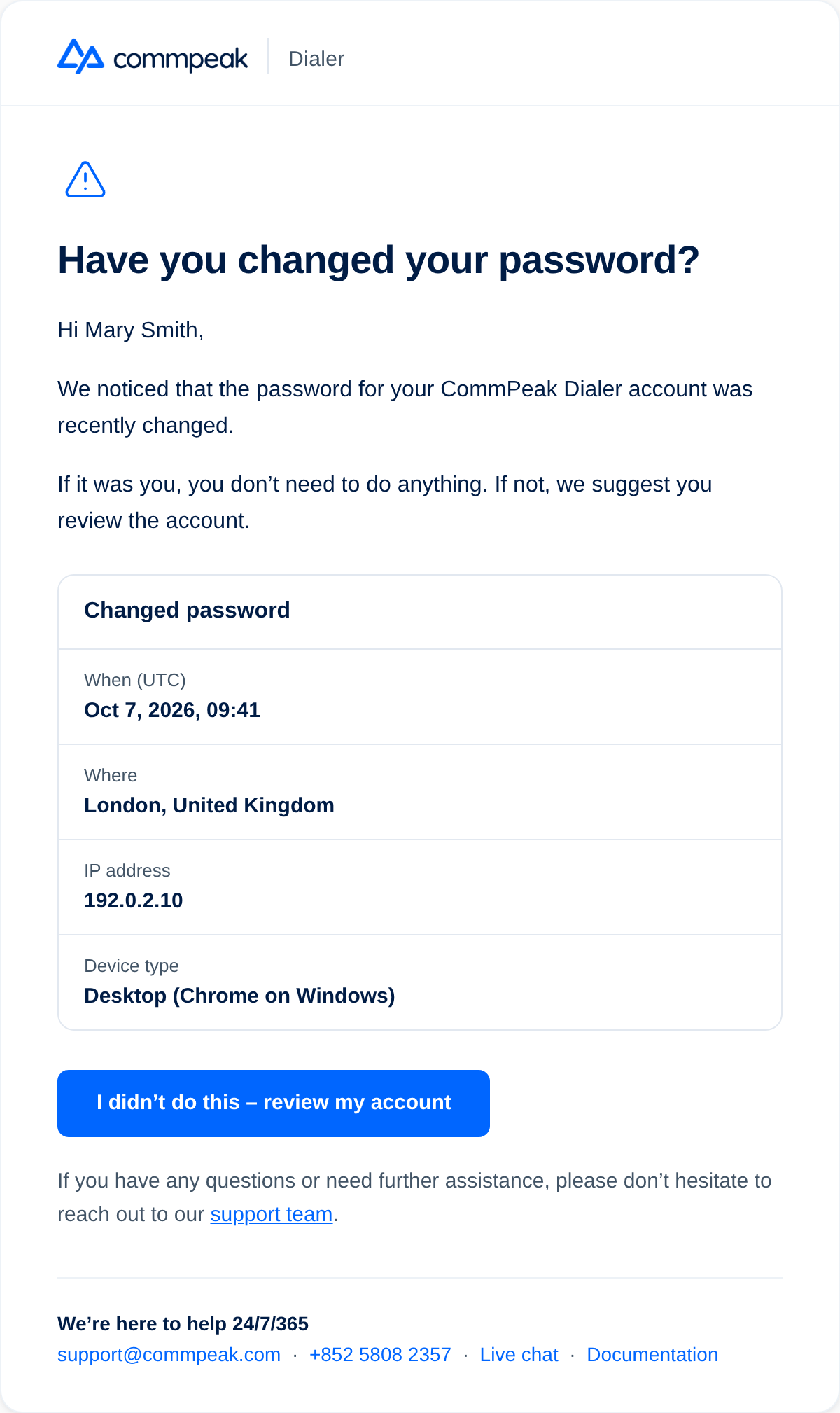
Have you reset your password email
Updated 22 days ago