

Users
A comprehensive guide for managers on how to manage Inbox agents.
In the Users view, Inbox admins or managers (provided they hold the corresponding Inbox role permissions) can manage inbox agents assigned to their accounts.
To access the Users tab options:
Log in to TextPeak
In your browser, log in to TextPeak with manager access privileges.
Open Inbox
In the main TextPeak menu, select the Inbox tab.
Open Settings
Click Settings at the bottom of the Inbox sidebar.
Open Users
In the Workspace group, click Users.
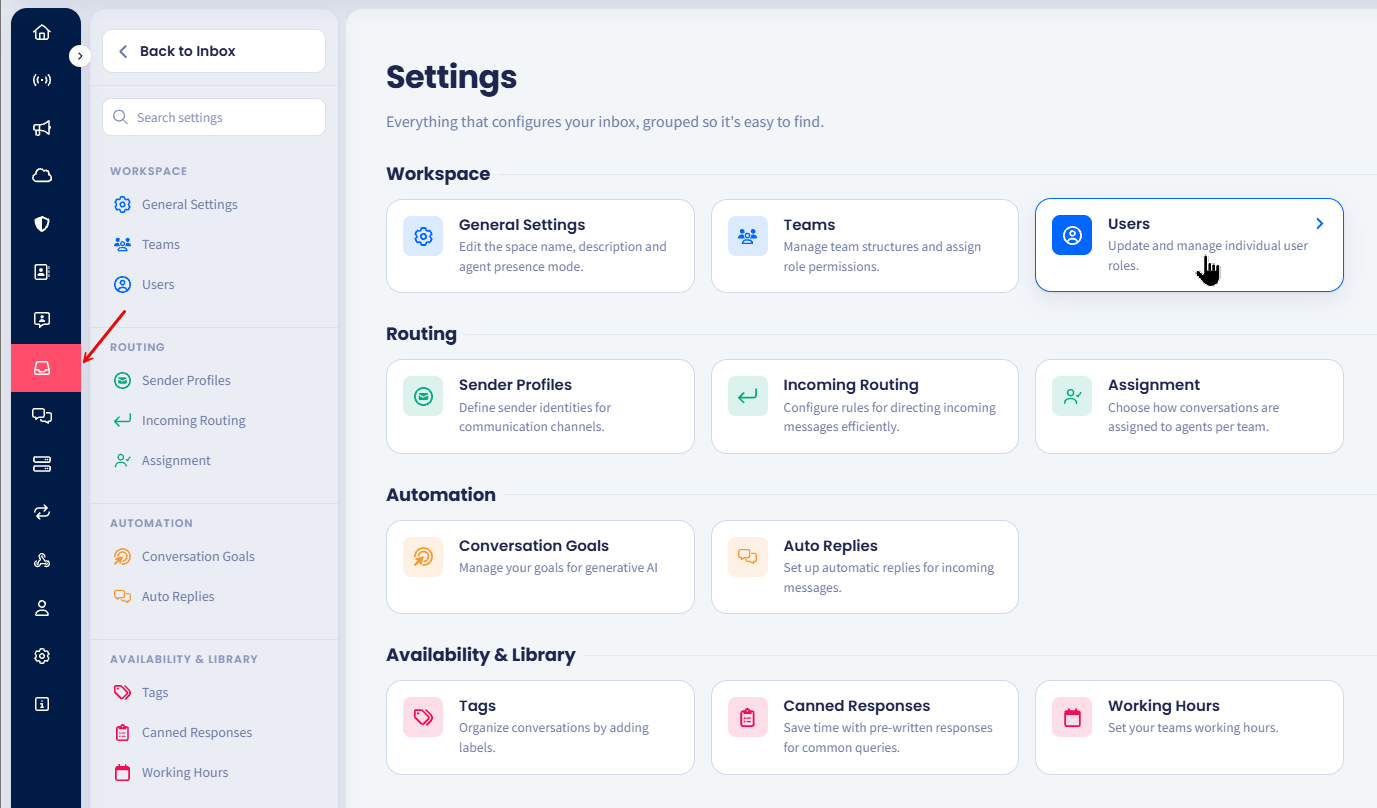
Inbox Users tab
Here, you can view a table with all the users assigned to your account.
IMPORTANT
- Only Inbox admins can change the roles.
- Inbox managers can view only the users that assigned to their teams.
- Inbox agents have no access to the Settings > Users page and can manage conversations only.
The table organizes all information about users in the following columns: Name, Email, Inbox Permissions, Teams, Status, and Actions.
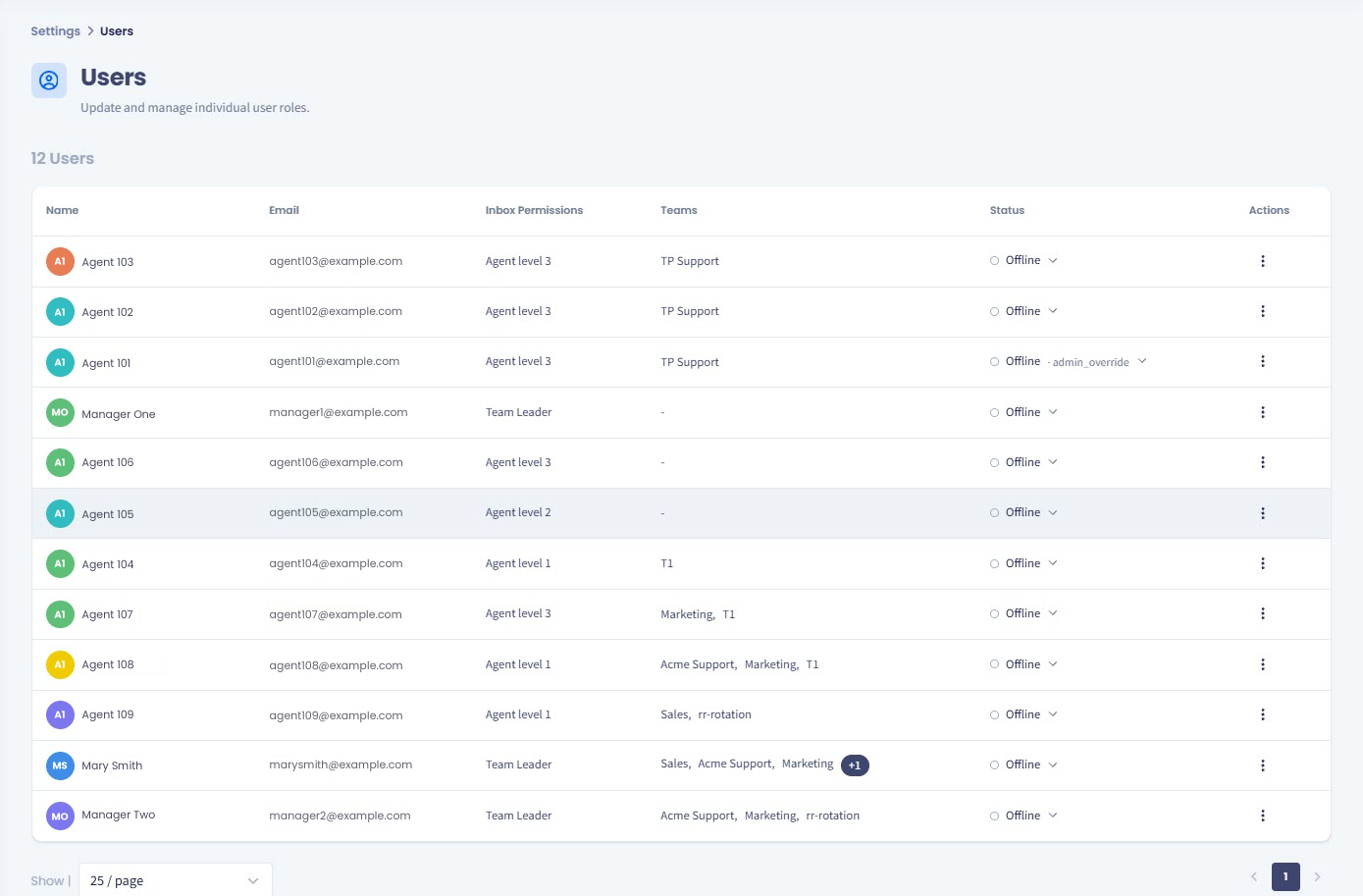
Inbox Users page
NOTEUsers can view only the inbox users that are assigned to their teams.
Click the three-dot icon to open the menu with the following inbox user management options:
- Change role
- Remove all permissions.
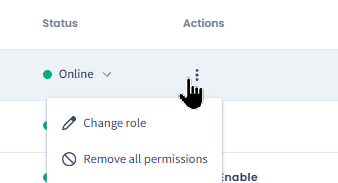
User management options
NoteTo manage inbox agents within your teams (assign to your teams or unassign from them), proceed as described in Assigning Agents.
Changing an agent's status
If agent presence is turned on for your space, the Status column shows whether each agent is Online, Away, or Offline. You can change it yourself - useful when an agent forgets to go offline at the end of a shift.
Find the agent
Find the agent in the table.
Change the status
Click their status and select Online or Offline.
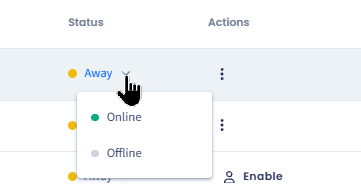
Changing agent's status
Changing another agent's status does not ask you for a reason. TextPeak asks for a reason only when an agent sets their own status to Offline.
NOTEYou can set an agent to Online or Offline from this page, but not to Away. Only automatic away mode sets that status.
TextPeak does not assign new conversations to an agent who is Offline.
For more details and on what else changes, see the Agent Presence page.
Managing inbox user roles and permissions
Change the role
To change the role for the specific user, click the three dots and select Change role.
Select a new role
Select a new role from the drop-down list in the pop-up window.
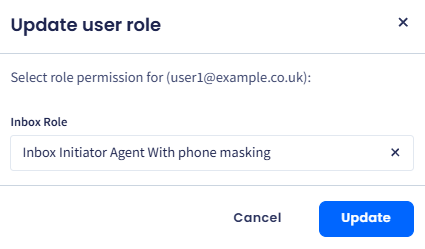
Update user role confirmation dialog
Update the role
Click Update.
Remove permissions
Alternatively, to remove all permissions from the user, click the three dots, select Remove all permissions and confirm the operation.
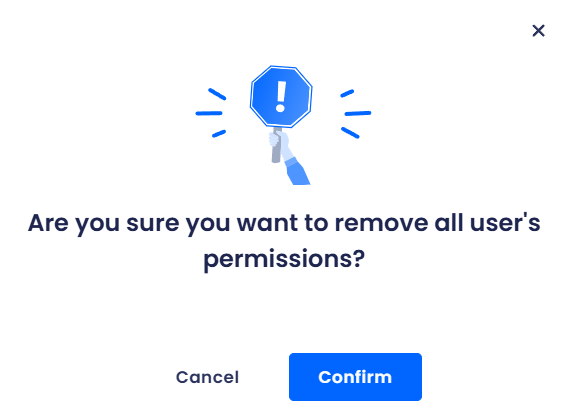
Removing all user's permissions confirmation dialog
Go back
Click Cancel to navigate back to the Inbox Settings menu.
Need to restrict file sharing?Inbox managers can disable the sending of docs and media in WhatsApp Business conversations. Check General Settings for setting this up.
Updated 7 days ago