
Help & Support
Get help from CommPeak's support team and access various support options such as opening tickets, chatting with Speaky, calling support, and requesting remote assistance.
Video Tutorial
Help and Support options
To get prompt help from our support team:
- Log in to your CommPeak account.
- Expand Help and Support in the main menu on the right.
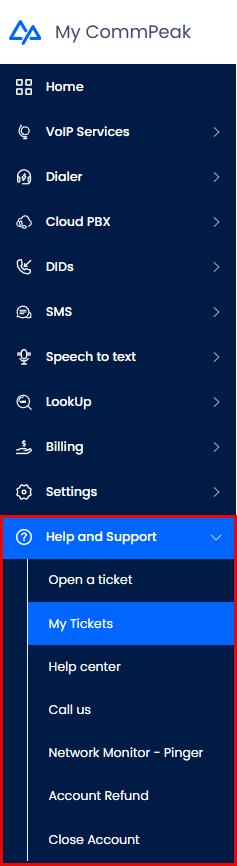
Help and Support menu tabs
- Ask for assistance using the Help and Support tab options:
- Open a ticket to ask a question, create a task, and report an incident or problem
- My tickets to view the support requests you have opened
- Help Center to open the Documentation and Developer Hub where you can browse articles and find answers to your questions
- Call us to access the Support page
- Network Monitor - Pinger to monitor your office network
- Account Refund to request a refund for the funds that were debited to your account.
- Close Account to create your account closure request.
- Alternatively, click the Speaky button at the bottom right corner of any page in your CommPeak Portal account. This opens Speaky, the CommPeak AI assistant, in the Help and Support widget.
- contact our support by clicking the CommPeak Help and Support Widget button at the bottom right corner of any page in your CommPeak Portal account.
Speaky, your AI assistant
Speaky is the fastest way to get answers about your account: balance, invoices, SIP accounts, reports, voice and SMS rates, Caller ID configuration, and DID setup. Speaky's answers are based on your account data and the Documentation and Developer Hub, and you can switch to a support agent from any response.
For details, see the [doc: speaky-ai-assistant] page.
Help and Support widget
Use the built-in CommPeak Help and Support widget to:
- ask Speaky about your account and get instant answers
- send messages to the support team
- view existing conversations with support professionals
- review open tickets
- browse the Documentation and Developer Hub
- view our Realtime System Status
To use the built-in CommPeak Help and Support widget:
- Click the Speaky button at the bottom right corner of any page in your CommPeak Portal account.
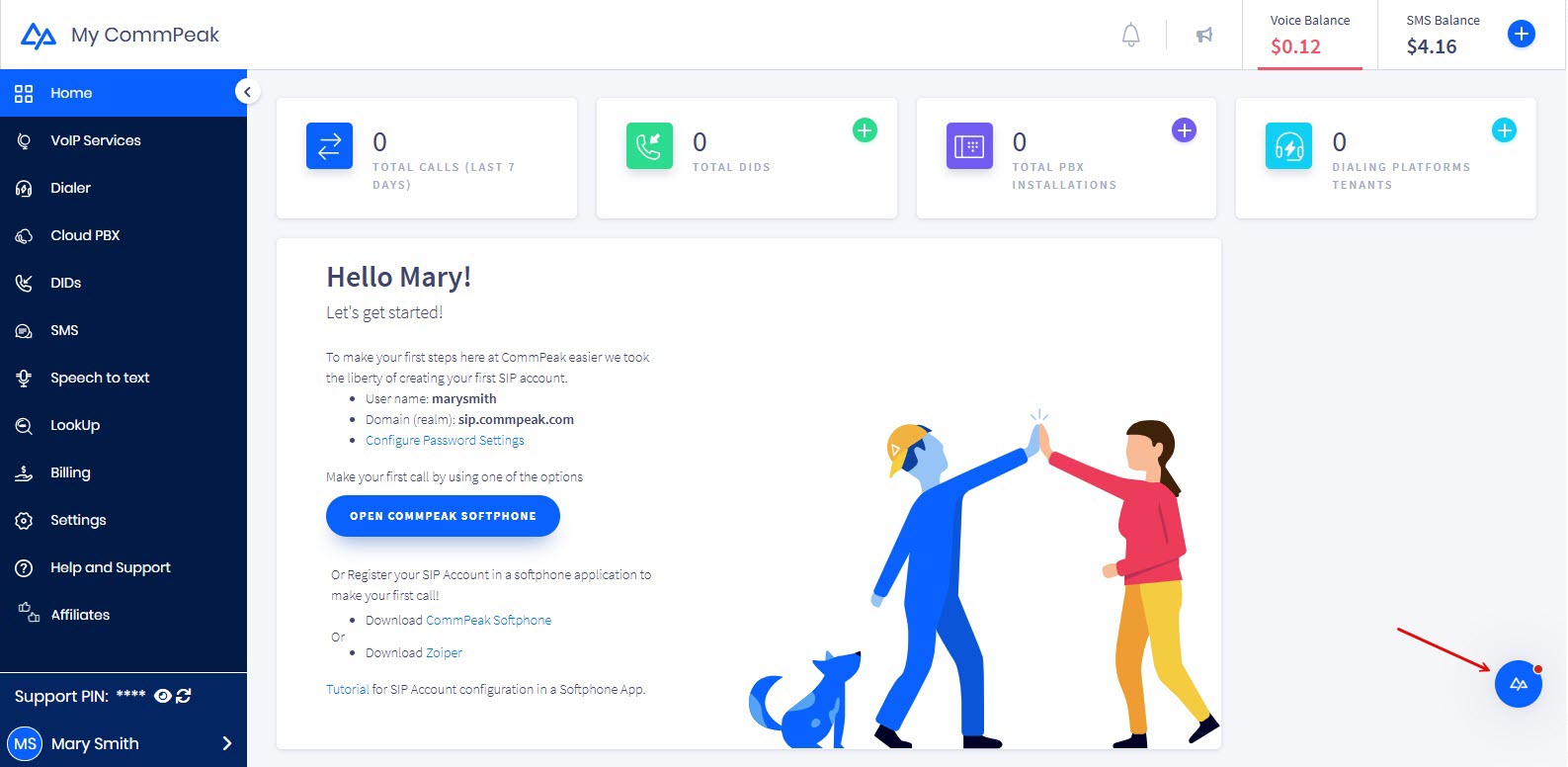
CommPeak Smart Assistant button
NOTEThe Help and Support widget is available on all https://www.commpeak.com/ and Documentation and Developer Hub pages.
- The dialog box will open, and you will see the system Status message and the link to our Documentation and Developer Hub.
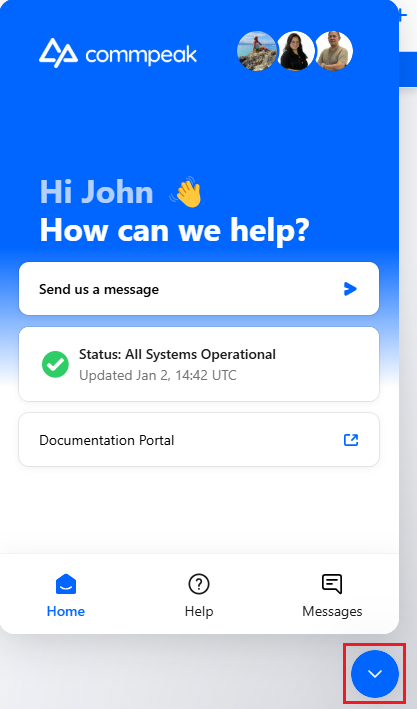
CommPeak Smart Assistant chat button
- To start a new conversation, click the Send us a message button. Enter your message, choose the option that best suits your issue type, and describe your question/issue.
NOTEYou will need to provide your PIN to identify yourself when you contact the support team.
Your support PIN is located at the bottom-left corner of any page. Learn more about the support PIN in the dedicated Using CommPeak Support PIN article.
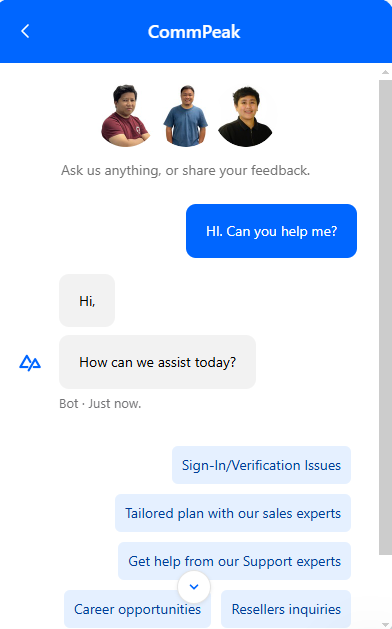
Messaging in the CommPeak Help and Support Dialog Box
- Once your message is sent to a CommPeak support representative, a corresponding ticket will be opened and processed as soon as possible.
NOTEIf a CommPeak support representative is unavailable, or if you leave the CommPeak Portal before we reply, we'll send a copy of your conversation to the indicated email address used to log into your account.
-
You can review the tickets you opened by:
- selecting it right in the widget
- clicking the Tickets icon in the widget footer (it becomes available as soon as the first ticket is submitted)
- going to the My Tickets tab.
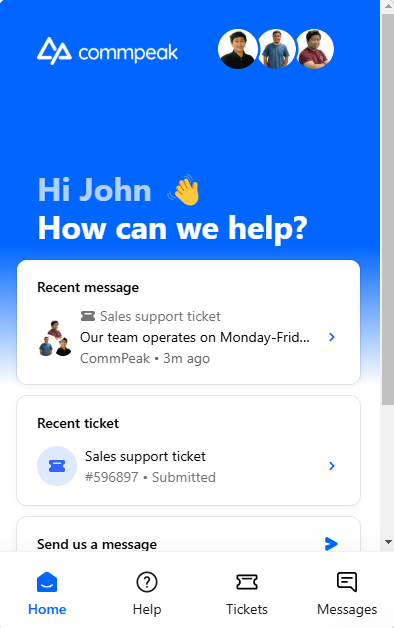
Reviewing tickets in the CommPeak Help and Support Widget
Support page
Selecting the Help and Support > Call Us tab will open the Support page.
Keep the following support login information ready. Our support team will ask for:
- Customer ID to confirm your identity
- support PIN number.
Remote Control Assistance
CommPeak provides remote assistance via screen sharing.

Remote control session section
Click the Remote access button, then download and run the CPRemoteSupport application. Allow a CommPeak support specialist to enter your PC using the application.
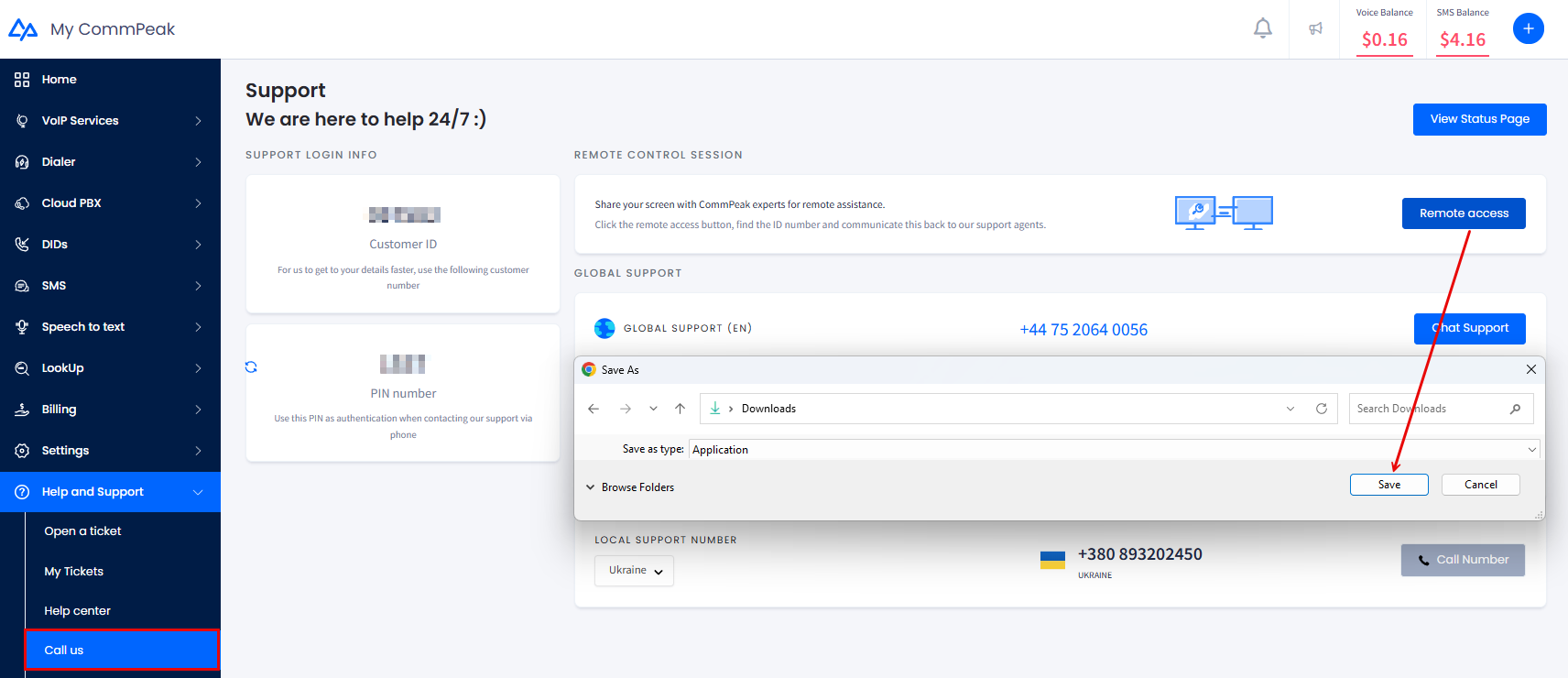
Downloading CPRemoteSupport app
IMPORTANTWe guarantee that it is completely safe to download and run the CPRemoteSupport application. Only authorized CommPeak members can log in to your PC.
Global / Local support options
You can reach the CommPeak support team 24/7 using the following:
-
a global phone number for phone support or WhatsApp messaging
-
specific local numbers for phone support
-
Facebook and Telegram chats.
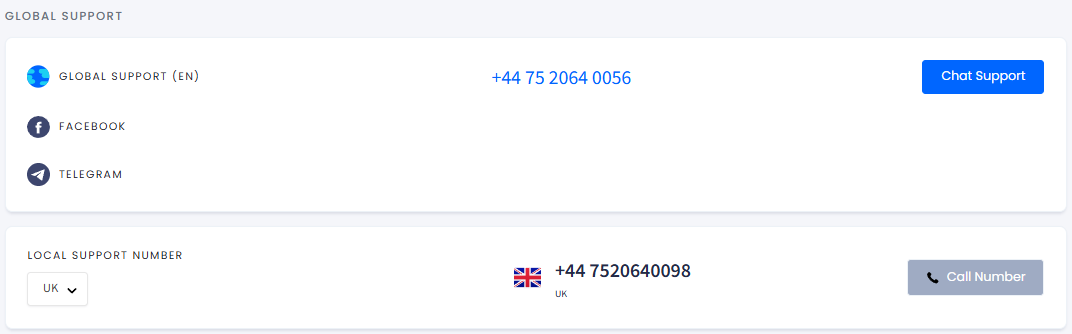
Global/Local Support sections
Updated about 2 months ago